Hello lynnmarie31,
Thank you for reaching out to Apple Support Communities, and we'll be happy to help in any way we can. We understand you're having issues with an unknown hub in your Home app. First, check out this information about using the Home app: Intro to Home on iPhone - Apple Support
If you are seeing a hub that isn't yours, you can check to see where you're signed in as described here: Check your Apple ID device list to see where you're signed in - Apple Support
"See where you're signed in
Use the steps below to see the devices that you're currently signed in to with your Apple ID.
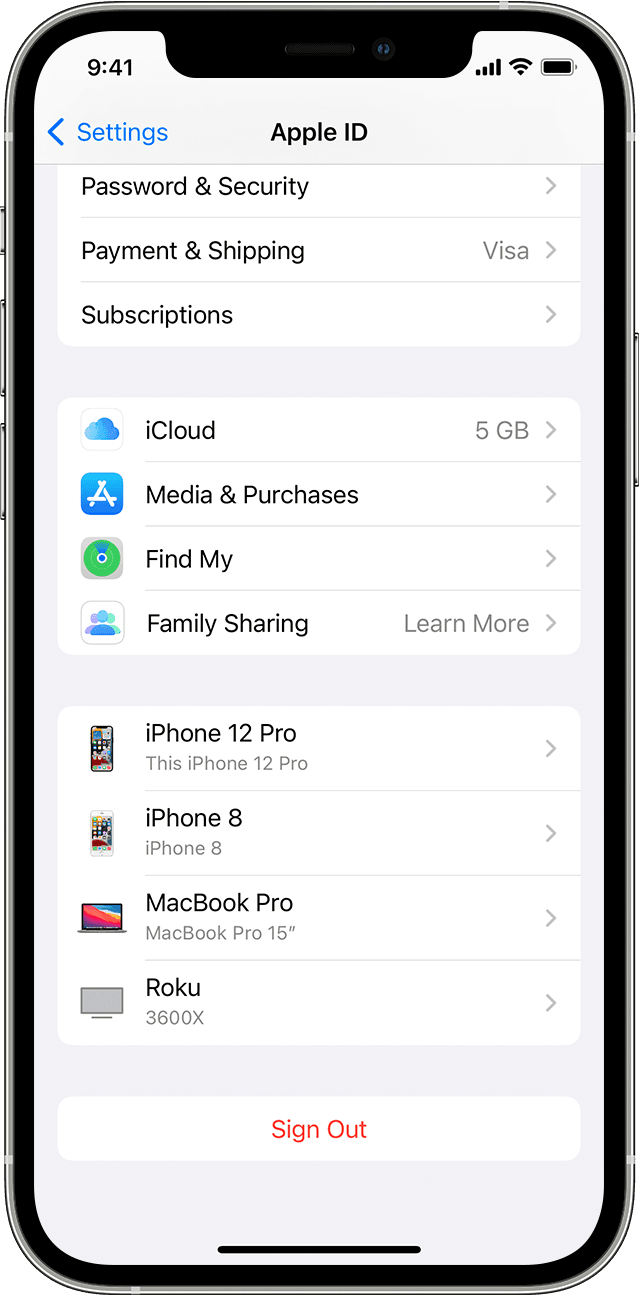
Use your iPhone, iPad, iPod touch, or Apple Watch to see where you're signed in
- Tap Settings > [your name], then scroll down.
- Tap any device name to view that device's information, such as the device model, serial number, OS version, and whether the device is trusted and can be used to receive Apple ID verification codes. The information might vary depending on the device type. You might need to answer your security questions to see device details.

Use your Mac to see where you're signed in
- Choose Apple menu > System Preferences.
- Click Apple ID.
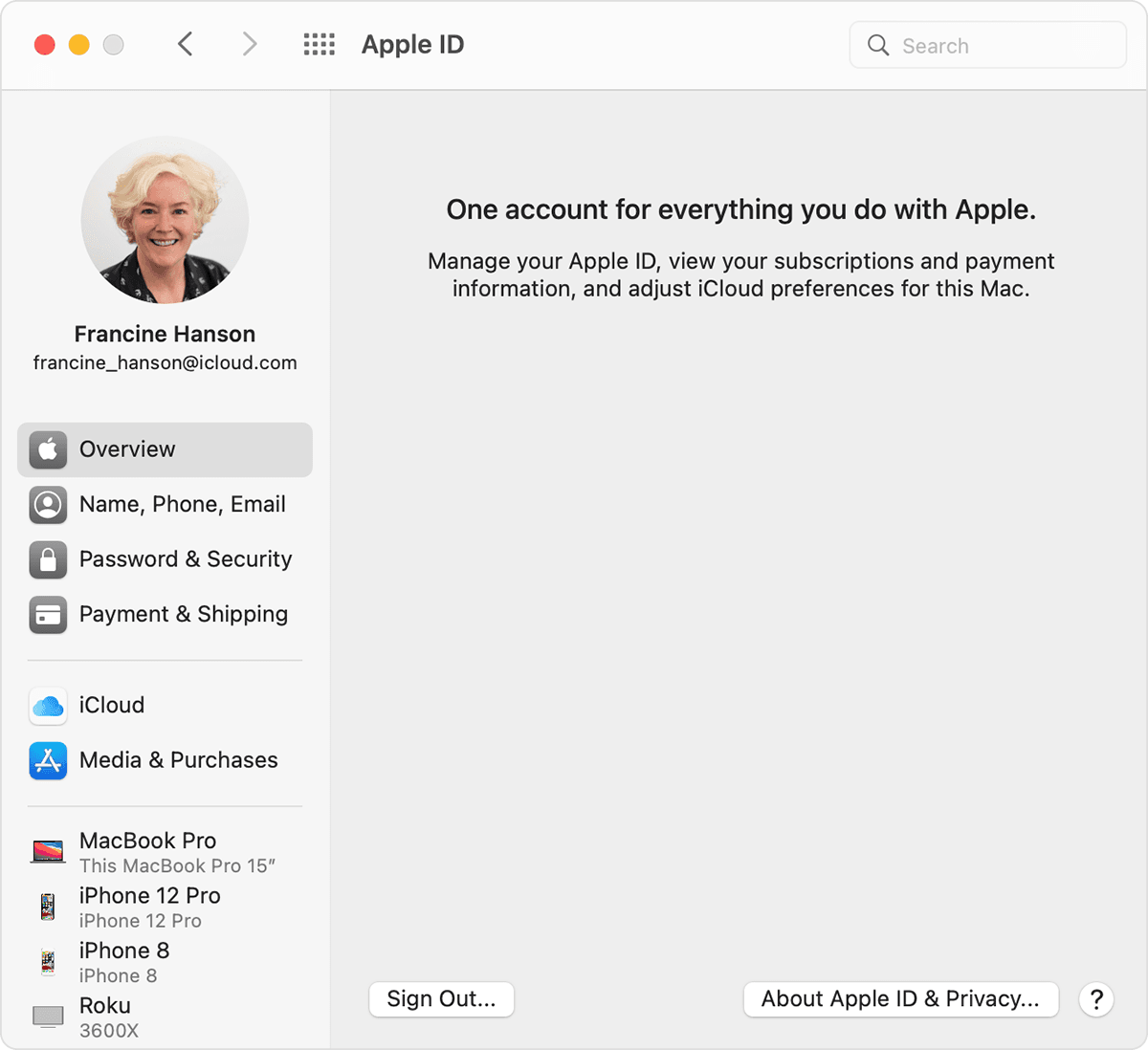
- Click any device name to view that device's information, such as the device model, serial number, and OS version. The information might vary depending on the device type. You might need to answer your security questions to see device details.
Use your PC to see where you're signed in
- Open iCloud for Windows.
- Click Account Details, then click Manage Apple ID.
- Click any device name to view that device's information, such as the device model, serial number, and OS version. The information might vary depending on the device type.
Use the web to see where you're signed in
From the Devices section of your Apple ID account page, you can see all of the devices that you're currently signed in to with your Apple ID, including Android devices, consoles, and smart TVs:
- Sign in to appleid.apple.com,* then select Devices.
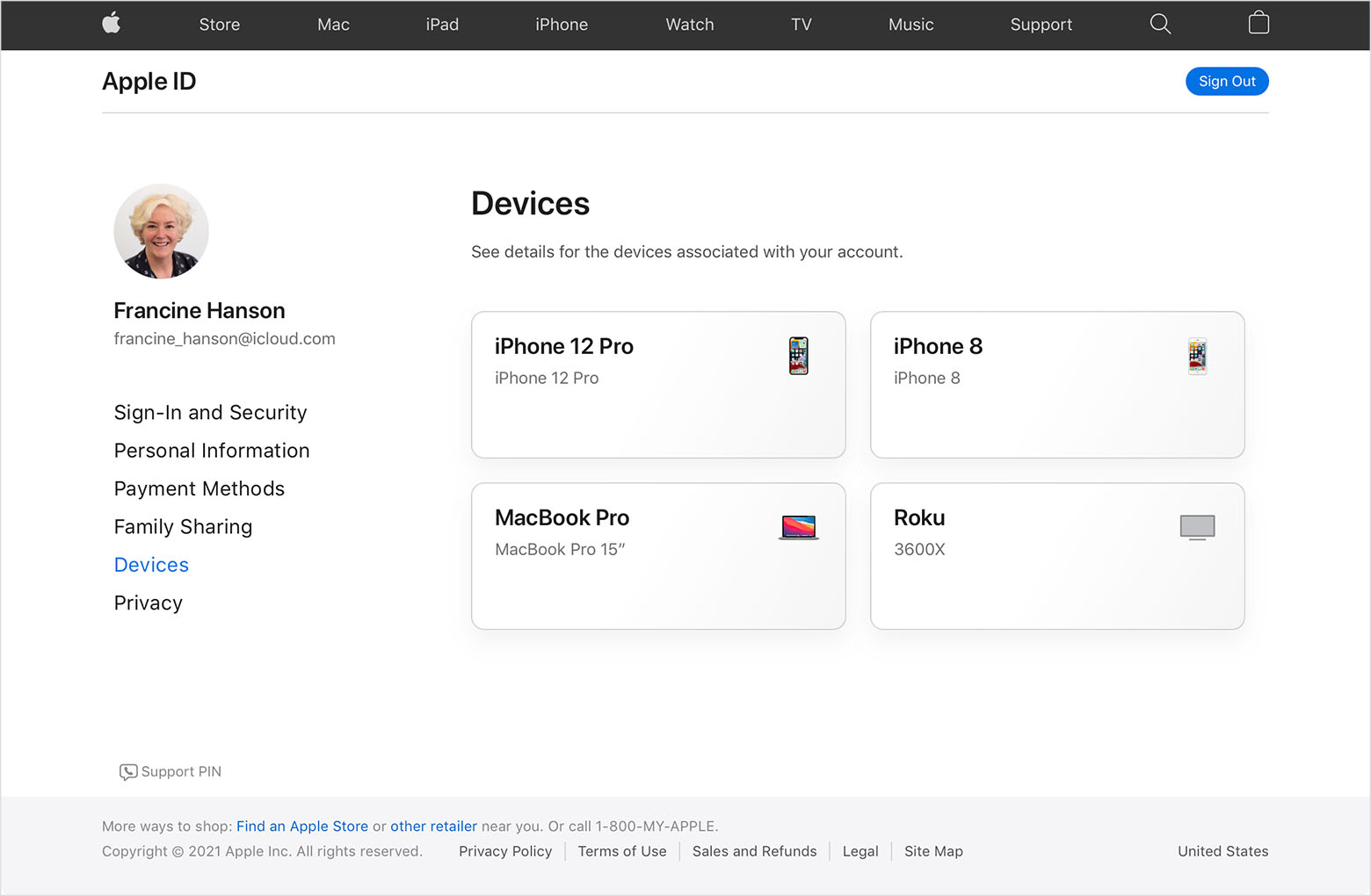
- If you don’t see your devices right away, click View Details and answer your security questions.
- Click any device name to view that device's information, such as the device model, serial number, and OS version. The information might vary depending on the device type.
* Depending on how you created your Apple ID, you might be required to provide additional information.
Add a device to the list
To add a device to the list, you need to sign in with your Apple ID. After you sign in on a device with your Apple ID, that device appears in the list. Here's where you need to sign in:
- For iOS or iPadOS, sign in to iCloud, iMessage, FaceTime, iTunes & App Stores, or Game Center on the device. You can also see your paired Apple Watch.
- For macOS or Windows 10 and later, sign in to iCloud on the device.
- For Apple TV HD and later, sign in to the iTunes and App Store on the device.
- For Apple TV (3rd generation) and earlier, sign in to the iTunes Store on the device.
Your AirPods will appear in the Find My app, but they won't appear in your Apple ID device list. You can remove your AirPods from your account using Find My. Devices running iOS 7 or earlier or OS X Mavericks or earlier won't appear in your device list.
Remove a device from the list
If your device is missing, you can use Find My to find your device and take additional actions that can help you recover it and keep your data safe. If you aren't using your device anymore, or if you don't recognize it, you might want to remove it from the list.
If you set up two-factor authentication for your Apple ID, removing a device will ensure that it can no longer display verification codes. It also won't have access to iCloud and other Apple services, including Find My, until you sign in again with two-factor authentication. The device won't reappear in the list unless you sign in again.
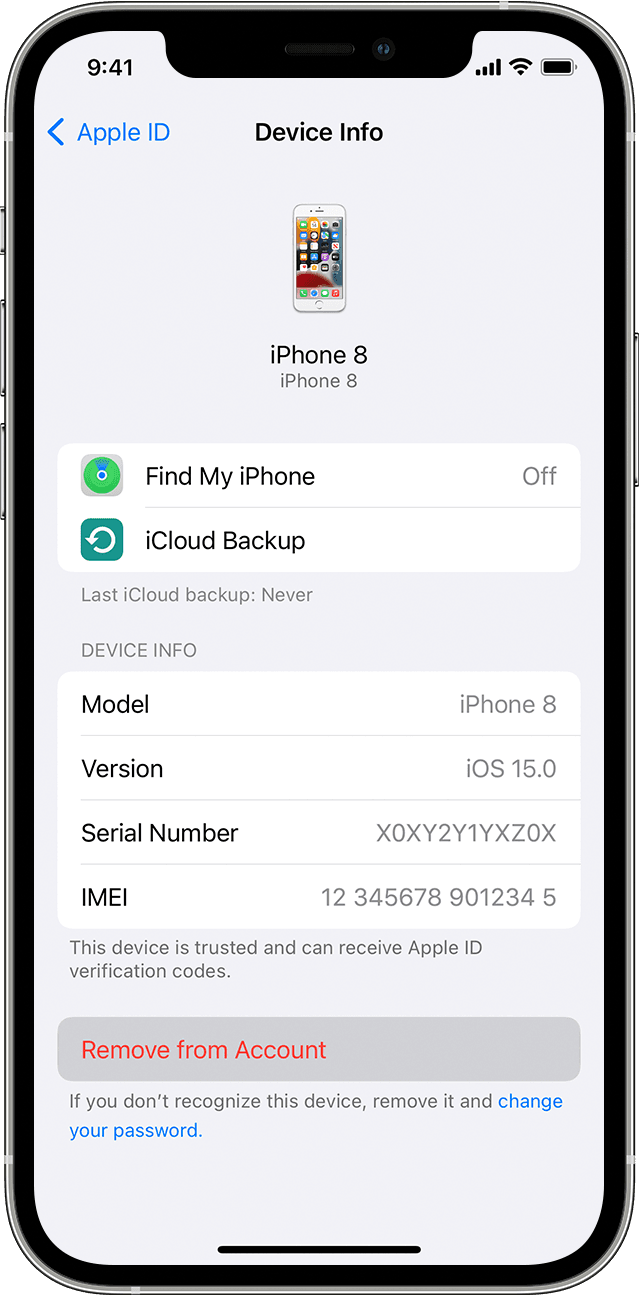
Use your iPhone, iPad, or iPod touch to remove a device
- Tap the device to see its details, then tap Remove from Account.
- Review the message that appears, then tap again to confirm that you want to remove the device.
- Want to permanently remove the device from your account page?
Use your Mac to remove a device
- Choose Apple menu > System Preferences.
- Click Apple ID.
- Click the device to see its details, then click Remove from Account.
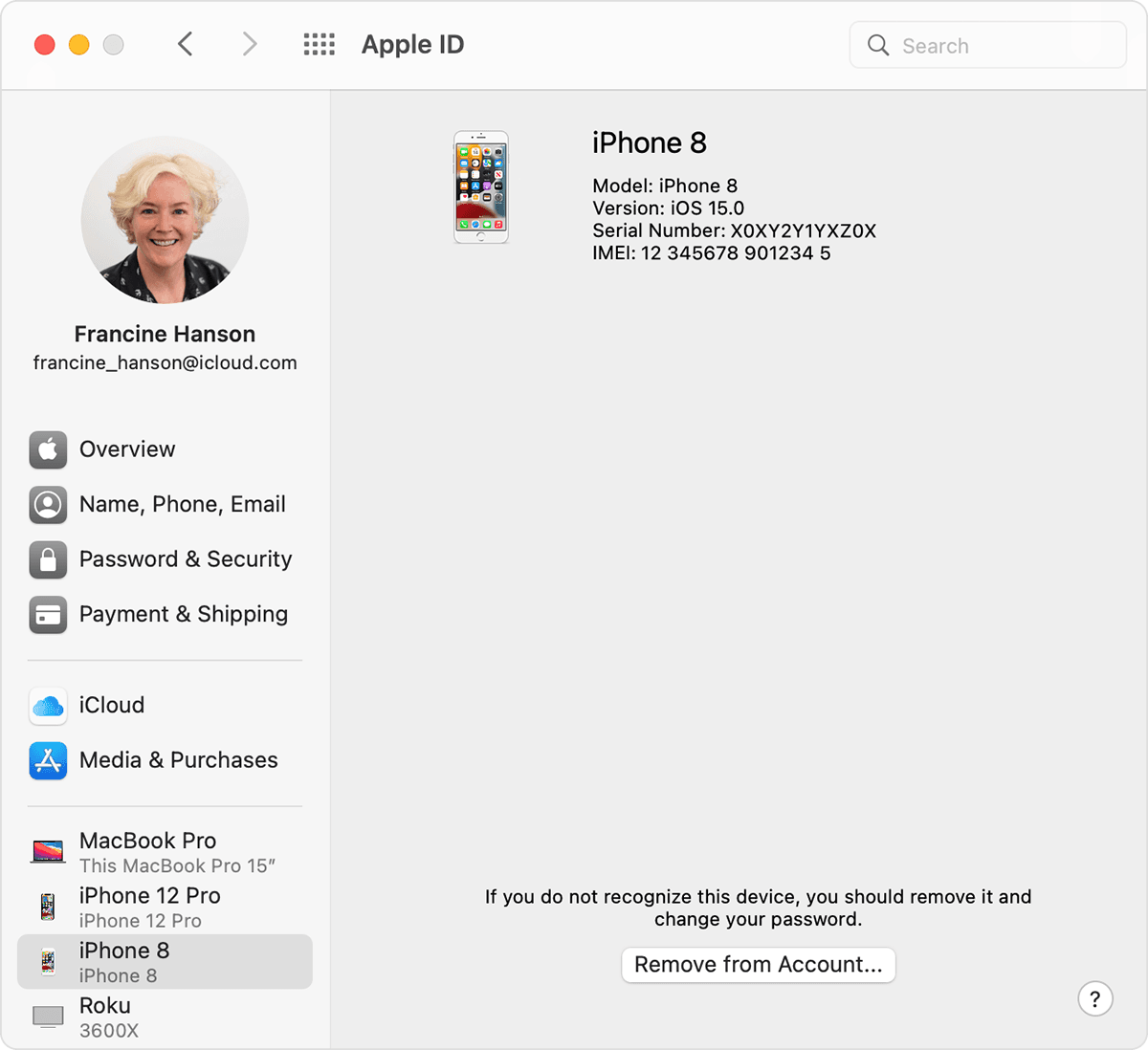
- Review the message that appears, then click again to confirm that you want to remove the device.
- Want to permanently remove the device from your account page?
Use your PC to remove a device
- Open iCloud for Windows.
- Click Account Details, then click Manage Apple ID.
- Click the device to see its details, then click Remove from Account.
- Review the message that appears, then click again to confirm that you want to remove the device.
- Want to permanently remove the device from your account page?
Use the web to remove a device
- Sign in to appleid.apple.com, then select Devices.
- Click the device to see its details, then click "Remove from account."
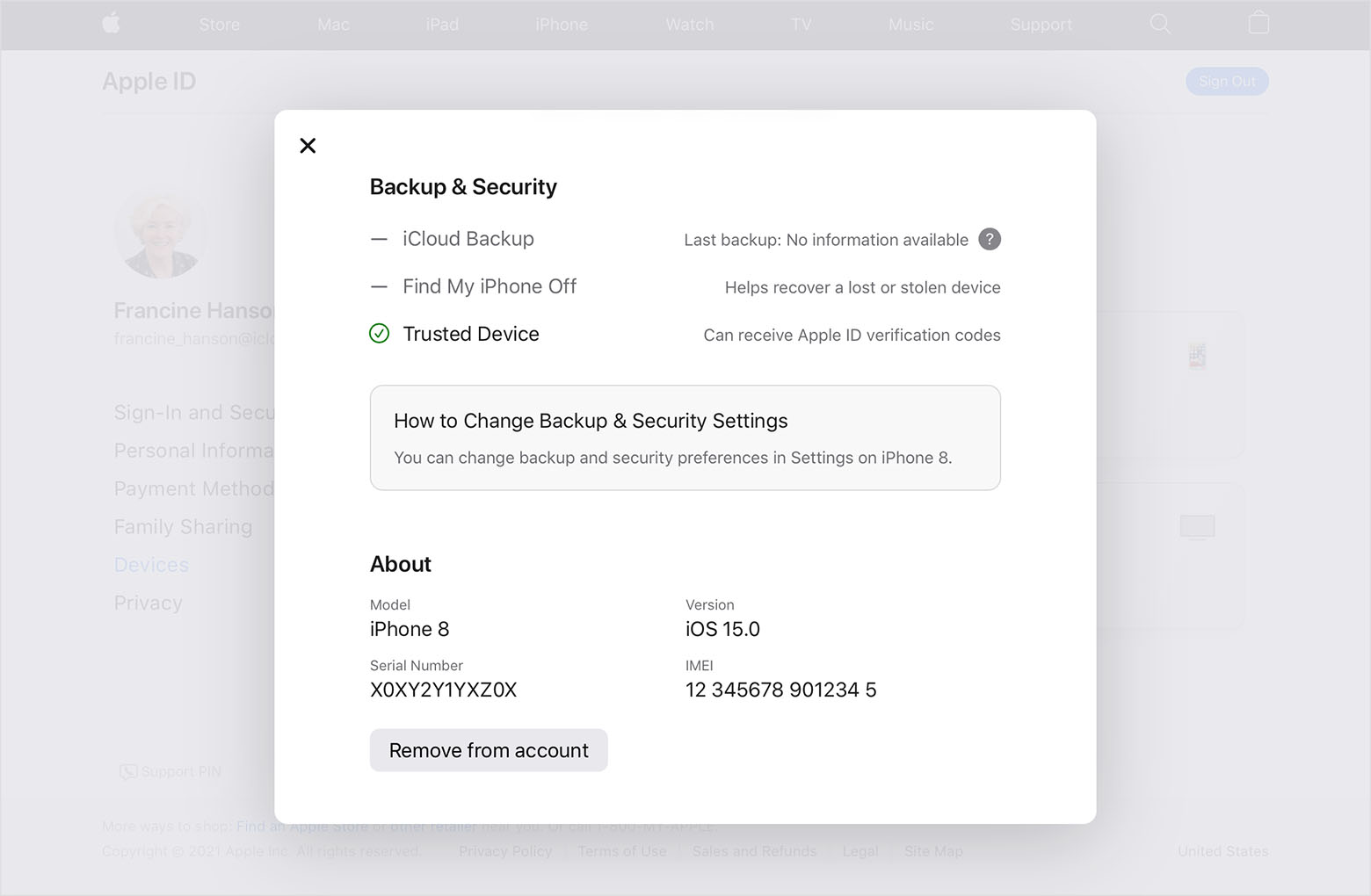
- Review the message that appears.
- Click again to confirm that you want to remove the device.
- Want to permanently remove the device from your account page?
Permanently remove a device from your account page
If you're still signed in with your Apple ID on the device, it might reappear on your account page the next time your device connects to the Internet. To permanently remove the device from your account page, sign out of iCloud, iTunes & App Stores, iMessage, FaceTime, and Game Center on that device, or erase that device."
We hope this helps.
Cheers!


