
how to adjust zoom level on XR?

Hey guys, I found this article on the net here but not seeing the Magnifier in Accessiblity on my XR. I would like to adjust the zoom level as my eyesight is not what it used to be, how can I do so please or is there any recommended App I can purchase for this please?


Just for clarity I don't always need the zoom which is why setting the text size is not ideal for me, sometimes I can see the default text size clearly and other times not which is when I will need a zoom feature which I can adjust to my liking. Thanks.

Posted on Nov 7, 2022 3:20 AM

Reply
Question marked as Top-ranking reply

Posted on Nov 8, 2022 6:06 PM

Hey there mikehende,


Thanks for reaching out to the Apple Support Communities. Based on the information you've provided, it sounds like you may be wanting to use the Zoom feature in the Accessibility settings. For steps on how to set up and use the Zoom feature, check out this link here: Zoom in on the iPhone screen - Apple Support


Set up Zoom
1. Go to Settings  > Accessibility > Zoom, then turn on Zoom.
2. Adjust any of the following:
- Follow Focus: Track your selections, the text insertion point, and your typing.
- Smart Typing: Switch to Window Zoom when a keyboard appears.
- Keyboard Shortcuts: Control Zoom using shortcuts on an external keyboard.
- Zoom Controller: Turn the controller on, set controller actions, and adjust the color and opacity.
- Zoom Region: Choose Full Screen Zoom or Window Zoom.
- Zoom Filter: Choose None, Inverted, Grayscale, Grayscale Inverted, or Low Light.
- Maximum Zoom Level: Drag the slider to adjust the level.
3. If you use iPhone with a pointer device, you can also set the following below Pointer Control:
- Zoom Pan: Choose Continuous, Centered, or Edges to set how the screen image moves with the pointer.
- Adjust Size with Zoom: Allow the pointer to scale with zoom.
4. To add Zoom to Accessibility Shortcut, go to Settings > Accessibility > Accessibility Shortcut, then tap Zoom.

Use Zoom
1. Double-tap the screen with three fingers or use accessibility shortcuts to turn on Zoom.
2. To see more of the screen, do any of the following:
- Adjust the magnification: Double-tap the screen with three fingers (without lifting your fingers after the second tap), then drag up or down. Or triple-tap with three fingers, then drag the Zoom Level slider.
- Move the Zoom lens: (Window Zoom) Drag the handle at the bottom of the Zoom lens.
- Pan to another area: (Full Screen Zoom) Drag the screen with three fingers.
3. To adjust the settings with the Zoom menu, triple-tap with three fingers, then adjust any of the following:
- Choose Region: Choose Full Screen Zoom or Window Zoom.
- Resize Lens: (Window Zoom) Tap Resize Lens, then drag any of the round handles that appear.
- Choose Filter: Choose Inverted, Grayscale, Grayscale Inverted, or Low Light.
- Show Controller: Show the Zoom Controller.
4. To use the Zoom Controller, do any of the following:
- Show the Zoom menu: Tap the controller.
- Zoom in or out: Double-tap the controller.
- Pan: When zoomed in, drag the controller.

While using Zoom with Magic Keyboard, the Zoom region follows the insertion point, keeping it in the center of the display. See Pair Magic Keyboard with iPhone.

To turn off Zoom, double-tap the screen with three fingers or use accessibility shortcuts.


Let us know if that's able to help.


Have a great day!

3 replies
Question marked as Top-ranking reply

Nov 8, 2022 6:06 PM in response to mikehende

Hey there mikehende,


Thanks for reaching out to the Apple Support Communities. Based on the information you've provided, it sounds like you may be wanting to use the Zoom feature in the Accessibility settings. For steps on how to set up and use the Zoom feature, check out this link here: Zoom in on the iPhone screen - Apple Support


Set up Zoom
1. Go to Settings  > Accessibility > Zoom, then turn on Zoom.
2. Adjust any of the following:
- Follow Focus: Track your selections, the text insertion point, and your typing.
- Smart Typing: Switch to Window Zoom when a keyboard appears.
- Keyboard Shortcuts: Control Zoom using shortcuts on an external keyboard.
- Zoom Controller: Turn the controller on, set controller actions, and adjust the color and opacity.
- Zoom Region: Choose Full Screen Zoom or Window Zoom.
- Zoom Filter: Choose None, Inverted, Grayscale, Grayscale Inverted, or Low Light.
- Maximum Zoom Level: Drag the slider to adjust the level.
3. If you use iPhone with a pointer device, you can also set the following below Pointer Control:
- Zoom Pan: Choose Continuous, Centered, or Edges to set how the screen image moves with the pointer.
- Adjust Size with Zoom: Allow the pointer to scale with zoom.
4. To add Zoom to Accessibility Shortcut, go to Settings > Accessibility > Accessibility Shortcut, then tap Zoom.

Use Zoom
1. Double-tap the screen with three fingers or use accessibility shortcuts to turn on Zoom.
2. To see more of the screen, do any of the following:
- Adjust the magnification: Double-tap the screen with three fingers (without lifting your fingers after the second tap), then drag up or down. Or triple-tap with three fingers, then drag the Zoom Level slider.
- Move the Zoom lens: (Window Zoom) Drag the handle at the bottom of the Zoom lens.
- Pan to another area: (Full Screen Zoom) Drag the screen with three fingers.
3. To adjust the settings with the Zoom menu, triple-tap with three fingers, then adjust any of the following:
- Choose Region: Choose Full Screen Zoom or Window Zoom.
- Resize Lens: (Window Zoom) Tap Resize Lens, then drag any of the round handles that appear.
- Choose Filter: Choose Inverted, Grayscale, Grayscale Inverted, or Low Light.
- Show Controller: Show the Zoom Controller.
4. To use the Zoom Controller, do any of the following:
- Show the Zoom menu: Tap the controller.
- Zoom in or out: Double-tap the controller.
- Pan: When zoomed in, drag the controller.

While using Zoom with Magic Keyboard, the Zoom region follows the insertion point, keeping it in the center of the display. See Pair Magic Keyboard with iPhone.

To turn off Zoom, double-tap the screen with three fingers or use accessibility shortcuts.


Let us know if that's able to help.


Have a great day!

Nov 9, 2022 8:09 AM in response to mikehende

Hey there mikehende, 


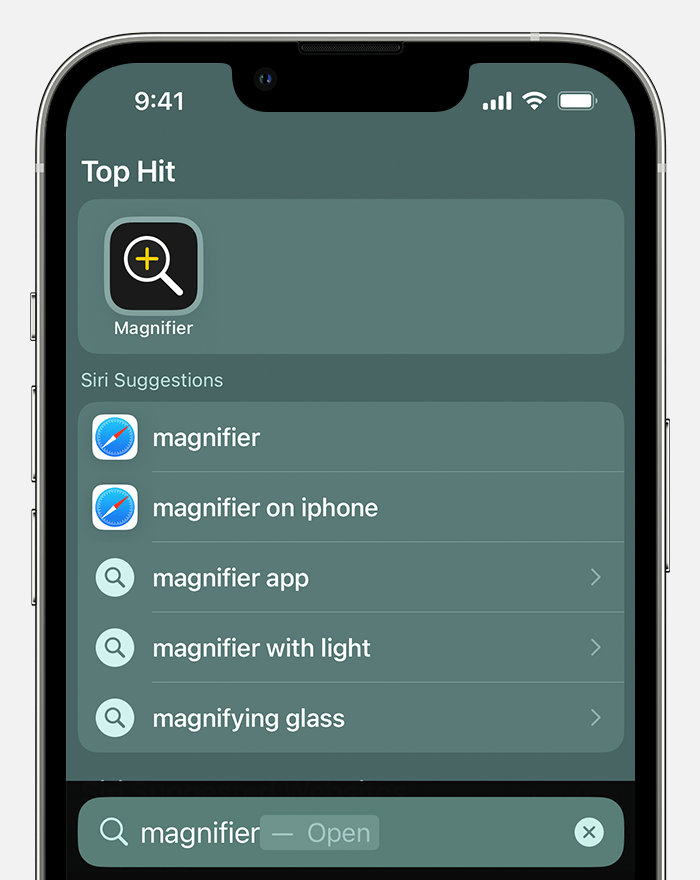
You previously mentioned the Magnifier app, but were unable to locate it. Let's see if Magnifier is able to suit your needs.


Use Magnifier on your iPhone or iPad   


"Find and open the Magnifier app


On your iPhone or iPad, open the Magnifier app. If you don't see the Magnifier app, on the Home Screen, swipe down and search for Magnifier.

iPhone showing a search for the Magnifier app The Magnifier app icon appears as the top hit"


"Quickly access Magnifier


If you use Magnifier frequently, you can create an Accessibility Shortcut to open it with the triple-click of a button. You can also add Magnifier to Control Center for easier access.

Create an Accessibility Shortcut or add Magnifier to Control Center"


Have a good one!

This thread has been closed by the system or the community team. You may vote for any posts you find helpful, or search the Community for additional answers.

how to adjust zoom level on XR?

Welcome to Apple Support Community
A forum where Apple customers help each other with their products. Get started with your Apple Account.