
My old Mac screen is unusable and I want to transfer info
Hai do I transfer my information from a damaged Mac air to a new one when the screen is unreadable
MacBook Air 13″, macOS 12.6
Hai do I transfer my information from a damaged Mac air to a new one when the screen is unreadable
MacBook Air 13″, macOS 12.6
Hey CAM814,
If you don't have a Time Machine backup and looking to transfer the content directly from the old Mac to a new one, you could connect an external display to your old Mac and complete the following steps best equipped to assist:
"Use Migration Assistant
You're now ready to use Migration Assistant to move your files from the old Mac to the new one.
On your new Mac
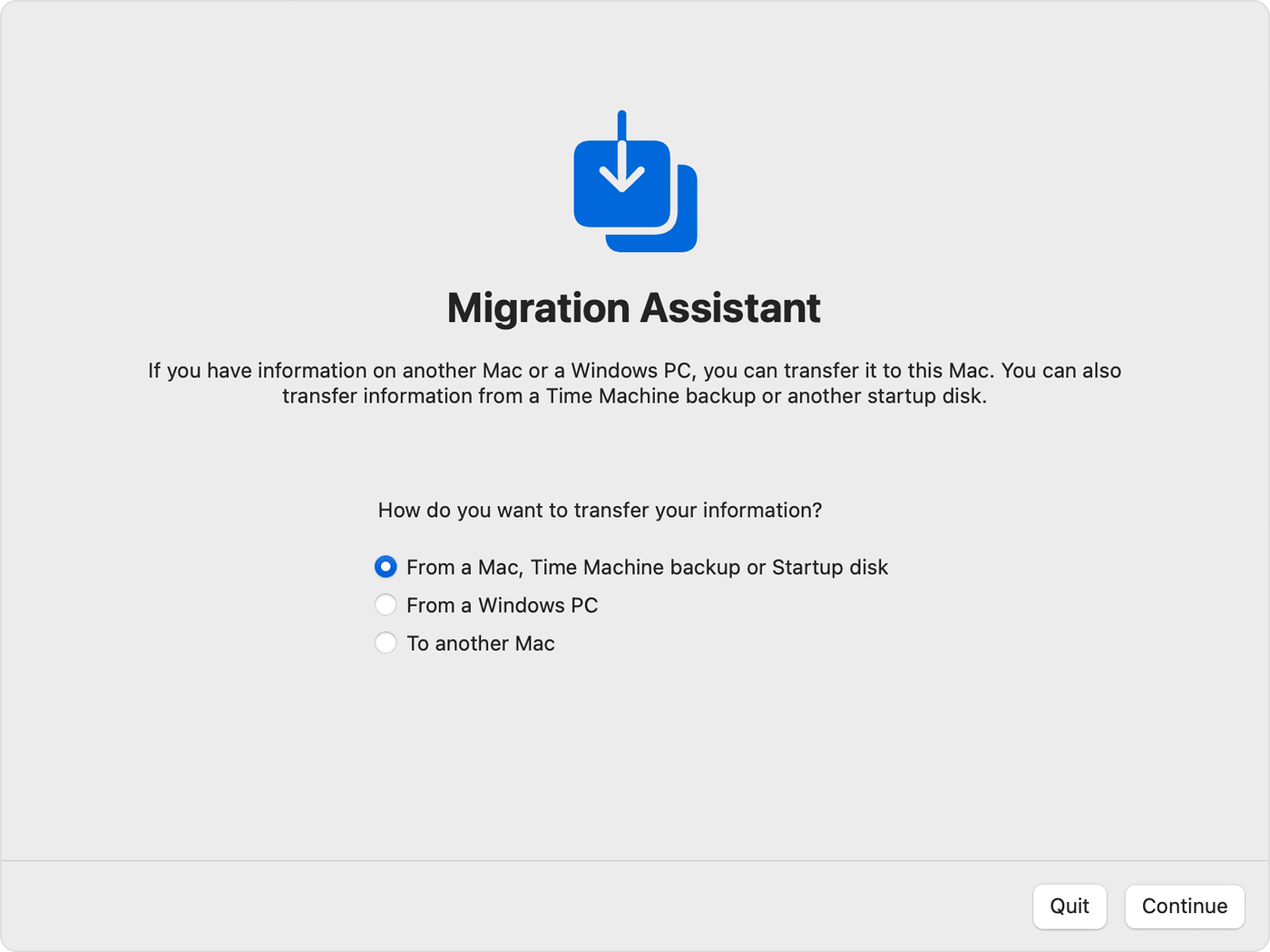
On your old Mac
On your new Mac
When asked to select a Mac, Time Machine backup, or other startup disk, select the other Mac. Then click Continue.
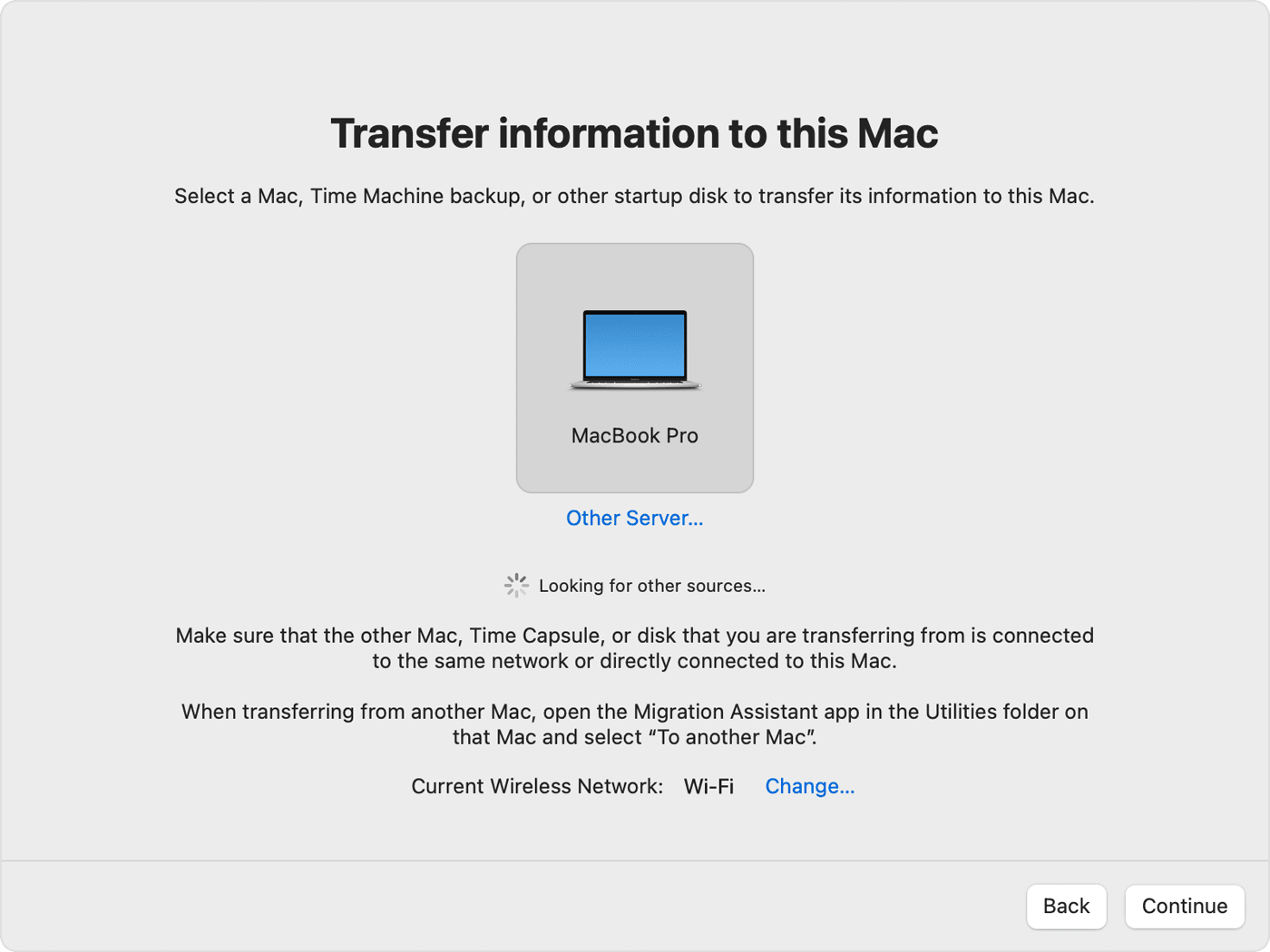
On your old Mac
If you see a security code, make sure that it's the same code shown on your new Mac. Then click Continue.
On your new Mac
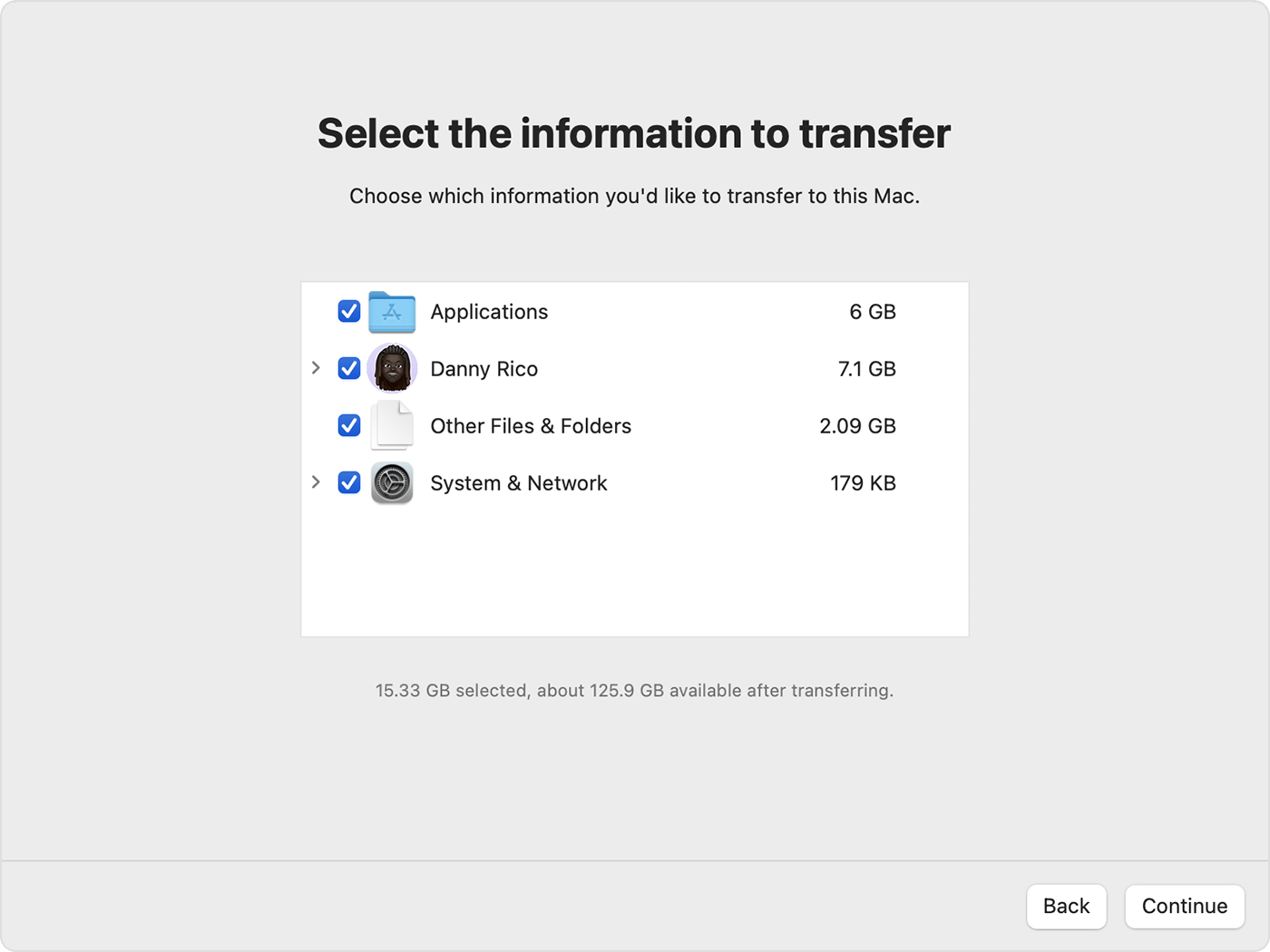
2. Before clicking Continue, learn what it means to transfer a user account. In the example pictured here, Danny Rico is a user account. If an account on the new Mac has the same name, Migration Assistant asks whether to rename or replace:
3. Large transfers might need hours to complete, and might seem to pause occasionally. You might want to start in the evening and allow migration to complete overnight. Click Continue to start the transfer.
4. After Migration Assistant is done, quit Migration Assistant on both computers, then log in to the migrated account on your new Mac to see its files."
All this and more is available here: Move content to a new Mac
We hope this helps out.
Take care!
Hey CAM814,
If you don't have a Time Machine backup and looking to transfer the content directly from the old Mac to a new one, you could connect an external display to your old Mac and complete the following steps best equipped to assist:
"Use Migration Assistant
You're now ready to use Migration Assistant to move your files from the old Mac to the new one.
On your new Mac
On your old Mac
On your new Mac
When asked to select a Mac, Time Machine backup, or other startup disk, select the other Mac. Then click Continue.
On your old Mac
If you see a security code, make sure that it's the same code shown on your new Mac. Then click Continue.
On your new Mac
2. Before clicking Continue, learn what it means to transfer a user account. In the example pictured here, Danny Rico is a user account. If an account on the new Mac has the same name, Migration Assistant asks whether to rename or replace:
3. Large transfers might need hours to complete, and might seem to pause occasionally. You might want to start in the evening and allow migration to complete overnight. Click Continue to start the transfer.
4. After Migration Assistant is done, quit Migration Assistant on both computers, then log in to the migrated account on your new Mac to see its files."
All this and more is available here: Move content to a new Mac
We hope this helps out.
Take care!
My old Mac screen is unusable and I want to transfer info
