iPhone 12 wont delete music library

I plugged my iPhone 12 into my PC for the first time in quite some time. When I did auto sync kicked in and the phone synced iTunes which caused all kinds of issue. Needless to day not impressed, but those issues are many to include ALL of the album art is now messed up, multiple copies of the same song downloading from iTunes onto my PC. Quite a mess.


So to resolve the issues I am attempting to delete the Apple music app and ALL my music off my phone. Once this is done I planned to reinstall Apple Music app and then sync all my music back onto my phone. However when following the instruction to remove my music by going to "general">"iphone storage">"music"> and then at the top of the list of music selecting "delete all" there was not music or "delete all" listed only "Delete app". So this is what I did. Once complete I reinstalled the app from the app store and as soon as it was done and i opened it, all my music was still there.


Any help? Need to remove all my music from this phone so i can start fresh. It seems there are several people having this issue with the album artwork, maybe Apple should work on fixing the functionality of their products instead of rushing to push out new hardware?


Stuff is broke like a football bat.

iPhone 12 Pro

Posted on Nov 13, 2022 6:24 PM

Reply
Question marked as Top-ranking reply

Posted on Nov 15, 2022 1:05 PM

Hi KenF71,


Thanks for contacting Apple Support Communities!


We understand that you'd like to delete the music that has been downloaded to your iPhone. You can delete the downloaded music via the Music app as outlined here: Delete music in the Apple Music app - Apple Support


Delete music on your iPhone, iPad, iPod touch, or Android device
1. Open the Apple Music app.
2. Go to Library and tap Downloaded to see your downloads. On your iPad, tap Downloaded in the sidebar.
3. Find the song, album, or music video that you want to remove.
4. Touch and hold the item, then tap Remove.
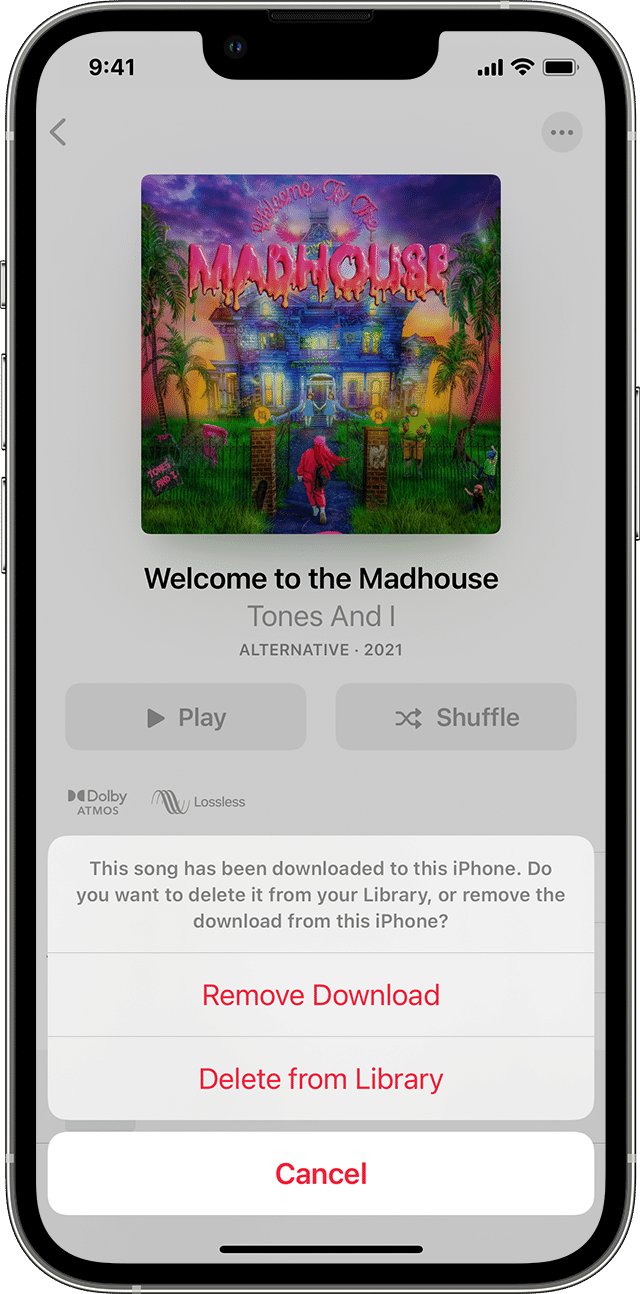
5. Tap Remove Download to remove the item from only this device. Or tap Delete from Library to delete the item across all of your devices.
Delete from Library or Remove Download options in the Apple Music app on iPhone, iPad, iPod touch, or Android device
If you use Family Sharing and don't want other family members to see your purchases, you can hide them. Learn how to hide an item.
You can also delete music in the Settings app. Go to Settings > General > iPhone Storage or iPad Storage. Scroll to Music and tap it. Swipe left on All Songs or on the item that you want to delete, then tap Delete.
If you can't delete your music
Turn off computer syncing: If you used a USB cable to manually sync music from your Mac or PC to your iPhone, iPad, or iPod touch, you can turn off syncing to remove content.
Check if the item is downloaded: If you see the Download icon next to a song, it's downloaded on your device. If you don't see the Download icon, the song isn't downloaded.


We hope this helps.


Cheers!


Similar questions

5 replies
Question marked as Top-ranking reply

Nov 15, 2022 1:05 PM in response to KenF71

Hi KenF71,


Thanks for contacting Apple Support Communities!


We understand that you'd like to delete the music that has been downloaded to your iPhone. You can delete the downloaded music via the Music app as outlined here: Delete music in the Apple Music app - Apple Support


Delete music on your iPhone, iPad, iPod touch, or Android device
1. Open the Apple Music app.
2. Go to Library and tap Downloaded to see your downloads. On your iPad, tap Downloaded in the sidebar.
3. Find the song, album, or music video that you want to remove.
4. Touch and hold the item, then tap Remove.
5. Tap Remove Download to remove the item from only this device. Or tap Delete from Library to delete the item across all of your devices.
Delete from Library or Remove Download options in the Apple Music app on iPhone, iPad, iPod touch, or Android device
If you use Family Sharing and don't want other family members to see your purchases, you can hide them. Learn how to hide an item.
You can also delete music in the Settings app. Go to Settings > General > iPhone Storage or iPad Storage. Scroll to Music and tap it. Swipe left on All Songs or on the item that you want to delete, then tap Delete.
If you can't delete your music
Turn off computer syncing: If you used a USB cable to manually sync music from your Mac or PC to your iPhone, iPad, or iPod touch, you can turn off syncing to remove content.
Check if the item is downloaded: If you see the Download icon next to a song, it's downloaded on your device. If you don't see the Download icon, the song isn't downloaded.


We hope this helps.


Cheers!


Nov 15, 2022 5:01 PM in response to Miche11e_P

Thank you for the reply however if you read my post the issue is not how to delete individual songs from the Music app library. I want to delete the ENTIRE library so I can start fresh. There is an issue with the library, all of the album art is now incorrect after I did a sync to iTunes on my PC.


"You can also delete music in the Settings app. Go to Settings > General > iPhone Storage or iPad Storage. Scroll to Music and tap it. Swipe left on All Songs or on the item that you want to delete, then tap Delete.
If you can't delete your music

This does not work, as explained above. Please see the attached photos.

Nov 15, 2022 5:22 PM in response to KenF71


Hello KenF71,


If you have other libraries, you can do what you are asking: Use multiple iTunes libraries on PC - Apple Support


If not, the current library has to be fixed. Delete the songs that are wrong. If it's only wrong on the iPhone, delete there, and try syncing again.


If there are duplicates in iTunes, delete those in iTunes. Basically, if you only have the one library and it's not correct now, there is no other library to restore from.


The only exception is if you backed up that library before. Then the steps here can help: Back up and restore your iTunes library on your PC - Apple Support


Thanks.

Nov 15, 2022 6:51 PM in response to Eric--F

I appreciate people trying to help however maybe I'm not being clear or people are not reading my post.


I don't have multiple libraries, I have 1. But that's not relevant to my issue.

I don't want to delete my songs off my iPhone 1 by 1, that would take forever as I have 1200+ songs

I don't want to backup my library from another source.


I want to do 1 thing........delete my entire library off my iPhone.


Look at the screen shots, from my phone, that I provided. I "should" see a list of all my songs listed under the red "Delete App". And also an option to "delete library" . Its not there. It should look just like this screen shot below when I follow those instructions.....but mine does not show ANY music. But the phone has 1200+ songs on it.


This thread has been closed by the system or the community team. You may vote for any posts you find helpful, or search the Community for additional answers.

iPhone 12 wont delete music library

Welcome to Apple Support Community
A forum where Apple customers help each other with their products. Get started with your Apple Account.