
Ipad 10th generation
How to remove the “x” from the microphone on a new IPad. I cannot voice dictate
iPad (10th gen) WiFi
How to remove the “x” from the microphone on a new IPad. I cannot voice dictate
iPad (10th gen) WiFi
Hey Usound,
To clarify is the microphone on your keyboard for your iPad greyed out, or you're unable to tap it?
To use dictation on your iPad, you'd generally follow the tips below:
"Dictate text on iPad
With Dictation on iPad, you can dictate text anywhere you can type it. You can use typing or handwriting with Dictation. Either the keyboard or tools palette can stay open during Dictation so you can easily switch between speaking and typing or handwriting to enter and edit text. For example, you can select text with touch or Pencil and replace it with your voice.
On supported models, Dictation requests are processed on your device in many languages—no internet connection is required. When you dictate in a search field, your dictated text may be sent to the search provider to process the search.
When you use on-device Dictation, you can dictate text of any length without a timeout. You can stop Dictation manually, or it stops automatically when you stop speaking for 30 seconds.
Note: Dictation may not be available in all languages or in all countries or regions, and features may vary. To see whether dictation is supported in your region and language, go to the iOS and iPadOS Feature Availability website.
When using Dictation, cellular data charges may apply. (See View or change cellular data settings on iPad (Wi-Fi + Cellular models).)
Turn on Dictation
 > General > Keyboard.
If you’re using an external keyboard, see Dictate text while using an Apple external keyboard.
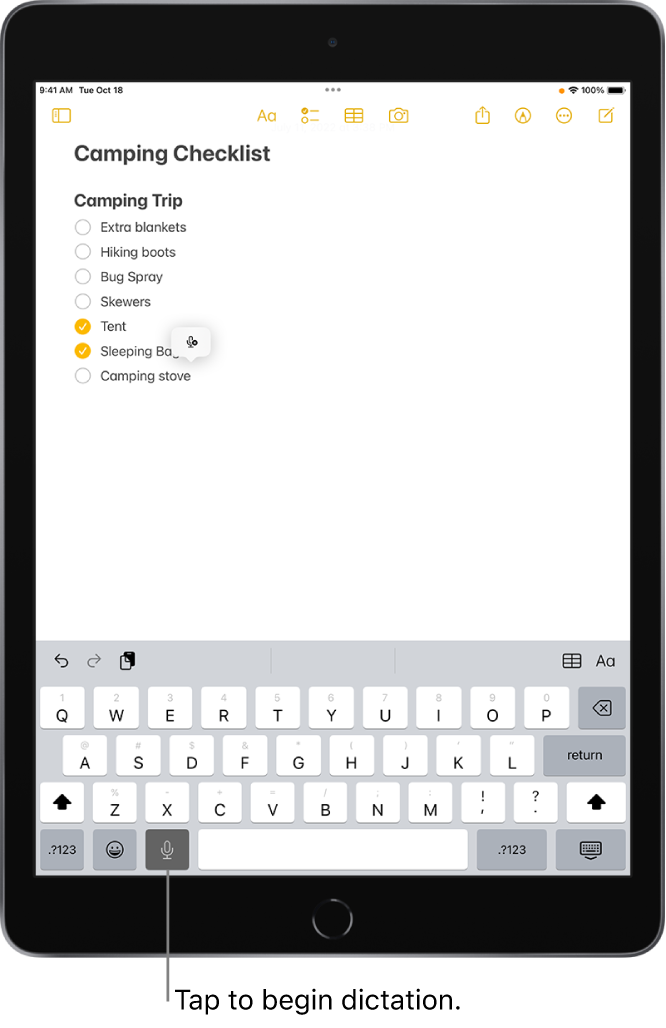
Dictate text
 on the onscreen keyboard or in any text field where it appears (as in Messages, for example). Then speak., make sure Dictation is turned on. Go to Settings > General > Keyboard, then turn on Enable Dictation. > General > Keyboard, then turning off Auto-Punctuation.
 .
. "
"If that is not the case, let us know what happens when trying to use dictation. We'll continue from there .
Cheers!
Hey Usound,
To clarify is the microphone on your keyboard for your iPad greyed out, or you're unable to tap it?
To use dictation on your iPad, you'd generally follow the tips below:
"Dictate text on iPad
With Dictation on iPad, you can dictate text anywhere you can type it. You can use typing or handwriting with Dictation. Either the keyboard or tools palette can stay open during Dictation so you can easily switch between speaking and typing or handwriting to enter and edit text. For example, you can select text with touch or Pencil and replace it with your voice.
On supported models, Dictation requests are processed on your device in many languages—no internet connection is required. When you dictate in a search field, your dictated text may be sent to the search provider to process the search.
When you use on-device Dictation, you can dictate text of any length without a timeout. You can stop Dictation manually, or it stops automatically when you stop speaking for 30 seconds.
Note: Dictation may not be available in all languages or in all countries or regions, and features may vary. To see whether dictation is supported in your region and language, go to the iOS and iPadOS Feature Availability website.
When using Dictation, cellular data charges may apply. (See View or change cellular data settings on iPad (Wi-Fi + Cellular models).)
Turn on Dictation
> General > Keyboard.If you’re using an external keyboard, see Dictate text while using an Apple external keyboard.
Dictate text
on the onscreen keyboard or in any text field where it appears (as in Messages, for example). Then speak., make sure Dictation is turned on. Go to Settings > General > Keyboard, then turn on Enable Dictation. > General > Keyboard, then turning off Auto-Punctuation.."If that is not the case, let us know what happens when trying to use dictation. We'll continue from there .
Cheers!
Ipad 10th generation

