Ricoh printer settings not working since Ventura update

Hi


Since the new update my printer settings are not working.

Normally I have a personal printcode that is saved under Jobtask but at every new print the code is erased and not saved ( i save the profile). Also I mark two sided printing off and still it prints as two sided. I didn't have any problems before. I also tried to reinstall the printer several times.


Sorry for my bad english and thanks in advance.

MacBook Air 13″, macOS 13.0

Posted on Nov 17, 2022 1:13 AM

Reply
Question marked as Top-ranking reply

Posted on Nov 19, 2022 2:12 PM

Hello Axnyx,


You mentioned reinstalling the printer, which was a great step. Have you also tried the steps from this page to update your printer software?

Update your printer software if your printer has a printing problem on Mac - Apple Support

Most printers are compatible with macOS. When you add a printer, macOS automatically uses AirPrint to connect to the printer or downloads the printer’s software (also called a printer driver).
If you can’t use a printer you already added, or you don’t see the options you want in the Print dialog, you can add the printer again with different settings or different printer software.

1. On your Mac, choose Apple menu  > System Settings, then click Printers & Scanners  in the sidebar. (You may have to scroll down.)
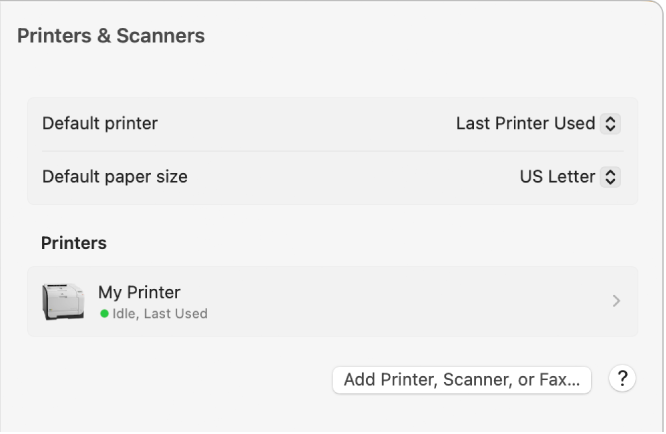

The Printers & Scanners dialog showing the Add Printer, Scanner, or Fax button.
2. Control-click the printer in the list on the right, choose Remove Printer, then click Remove Printer.
3. Click the Add Printer, Scanner, or Fax button.
A dialog appears listing any IP, shared, and Open Directory printers on your local network. It may take a minute or two for your printer to appear.
4. Select your printer when it appears in the list, then do one of the following:
• Use AirPrint: If you connected an AirPrint-enabled printer using a USB cable, click the Use pop-up menu, then choose AirPrint.
If AirPrint isn’t in the pop-up menu, your printer doesn’t support it. 
• Use printer software installed on your Mac or downloaded from Apple: Click the Use pop-up menu, then choose Select Software.
• Use printer software from a file on your Mac: Click the Use pop-up menu, then choose Other. Select the file, then click Add.


Next step is to contact the printer manufacturer, to verify that they have approved the macOS Ventura compatibility.

Contact a third-party vendor - Apple Support


Take care!

2 replies
Question marked as Top-ranking reply

Nov 19, 2022 2:12 PM in response to Axnyx

Hello Axnyx,


You mentioned reinstalling the printer, which was a great step. Have you also tried the steps from this page to update your printer software?

Update your printer software if your printer has a printing problem on Mac - Apple Support

Most printers are compatible with macOS. When you add a printer, macOS automatically uses AirPrint to connect to the printer or downloads the printer’s software (also called a printer driver).
If you can’t use a printer you already added, or you don’t see the options you want in the Print dialog, you can add the printer again with different settings or different printer software.

1. On your Mac, choose Apple menu  > System Settings, then click Printers & Scanners  in the sidebar. (You may have to scroll down.)
The Printers & Scanners dialog showing the Add Printer, Scanner, or Fax button.
2. Control-click the printer in the list on the right, choose Remove Printer, then click Remove Printer.
3. Click the Add Printer, Scanner, or Fax button.
A dialog appears listing any IP, shared, and Open Directory printers on your local network. It may take a minute or two for your printer to appear.
4. Select your printer when it appears in the list, then do one of the following:
• Use AirPrint: If you connected an AirPrint-enabled printer using a USB cable, click the Use pop-up menu, then choose AirPrint.
If AirPrint isn’t in the pop-up menu, your printer doesn’t support it. 
• Use printer software installed on your Mac or downloaded from Apple: Click the Use pop-up menu, then choose Select Software.
• Use printer software from a file on your Mac: Click the Use pop-up menu, then choose Other. Select the file, then click Add.


Next step is to contact the printer manufacturer, to verify that they have approved the macOS Ventura compatibility.

Contact a third-party vendor - Apple Support


Take care!

Nov 27, 2022 11:51 AM in response to Axnyx

Good evening, I also have the same problem with a Ricoh printer, I have already tried everything, new installation, uninstallation, AirPrint installation etc. Nothing works, when we try to put a profile, (duplex, paper size, etc) it does not stay in memory. It is even impossible to select A3. Everything was working properly before the update of VENTURA and Word. With the 10.2 printer manager it works, with the 10.4 manager nothing works anymore. Thank you for your help or to report to Ricoh. Indeed, the manufacturer has not updated its drivers for several months.

Thank you very much for your help.


Translated with www.DeepL.com/Translator (free version)

This thread has been closed by the system or the community team. You may vote for any posts you find helpful, or search the Community for additional answers.

Ricoh printer settings not working since Ventura update

Welcome to Apple Support Community
A forum where Apple customers help each other with their products. Get started with your Apple Account.