Siri won't play music it doesn't find in my library.

Queries that I used to successfully make to Siri on my Home Pod regarding Apple Music are things the it can no longer do. I ask it to play WRTI Jazz Station and it responds that it can't be found in my library. Siri on my Mac responds in the same way and then automatically begins transmitting WRTI Classical Station. Siri on my iPhone is the only device that responds appropriately. What gives?

Posted on Nov 19, 2022 4:06 PM

Reply
3 replies

Nov 26, 2022 2:40 PM in response to Eduardo Collazo

Eduardo Collazo,


We also suggest making sure that your devices are running the latest software version. Completing this step further isolates the

issue and can help determine if the software may be the root cause of this behavior:


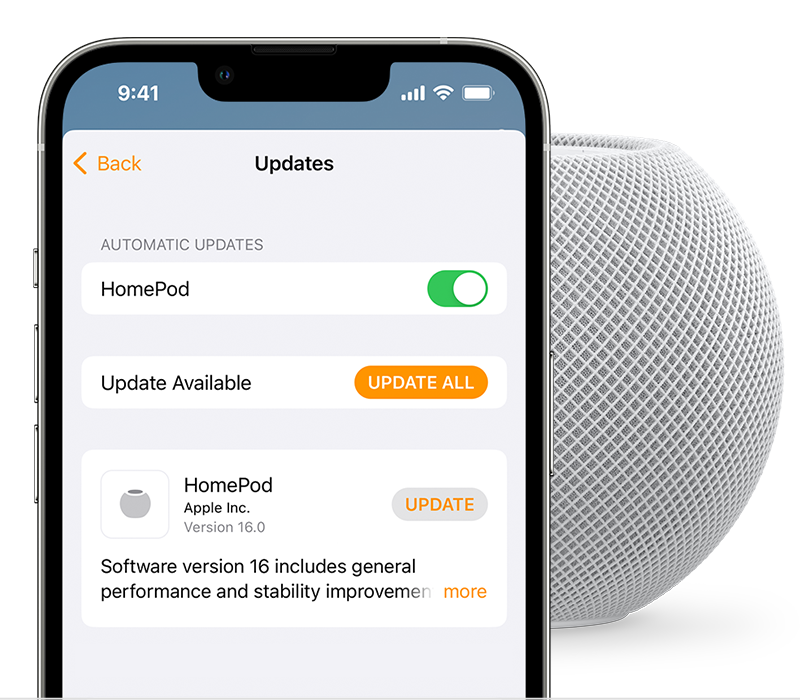
Update HomePod

By default, HomePod and HomePod mini automatically install new software updates, but you can manually check for updates in the Home app on your iPhone, iPad, or Mac.
 
The Home app on iOS with Software Update highlighted.  
1. Make sure that your device is updated to the latest version of iOS, iPadOS, or macOS
2. Open the Home app. 
3. Tap or click the More button , then Home Settings  > Software Update.
4. If there's a new update, select Update. If there isn't a new update, you can select HomePod to turn on automatic updates and get the latest software automatically when it's available. Software Update also tellsyou if your HomePod is already up to date, and shows you the installed HomePod software.

A white spinning light appears on the top of HomePod while it's updating. The update might take some time. Make sure that your HomePod stays plugged in while it's updating. 


Update macOS on Mac

Before installing new software, it's a good idea to back up your Mac.
1. From the Apple menu  in the corner of your screen:
• Choose System Settings. Then click General in the sidebar, and Software Update on the right.
• Or choose System Preferences. Then click Software Update.
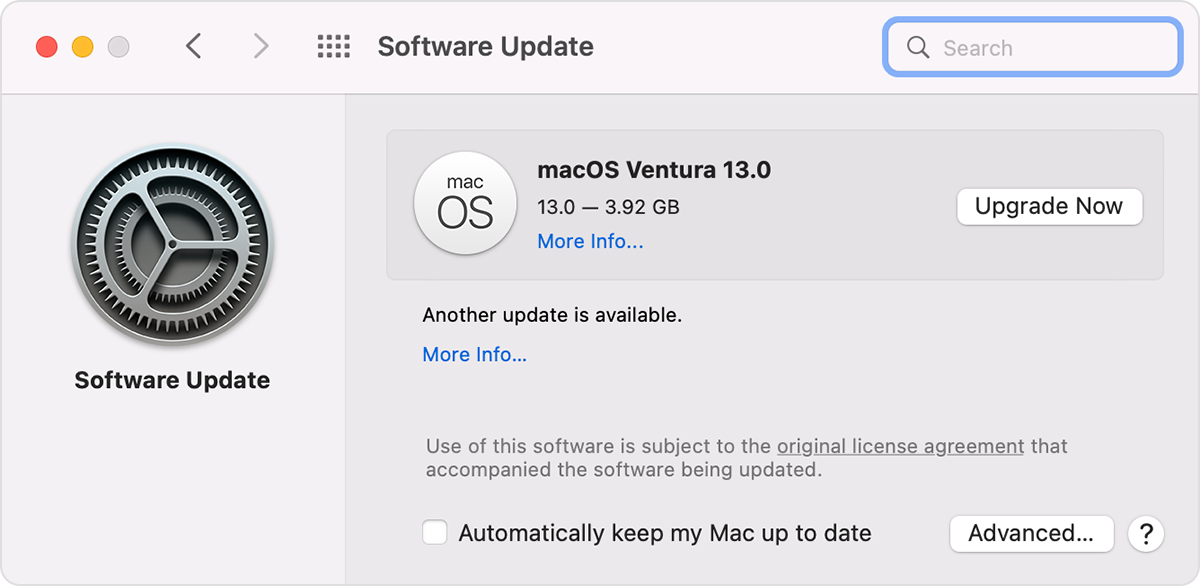
2. If Software Update finds new software, click the Update Now or Upgrade Now button to install it.
Software Update windowe

3. Enter your administrator password, if asked. During installation, your Mac might restart, and you might see a progress bar or blank screen several times.

If Software Update says that your Mac is up to date, then no new software is currently available for your Mac model. Software Update shows only updates and upgrades that are compatible with your Mac.


If your devices are already running the latest software version or if you continue to experience the same behavior after completing the update, we suggest that you reach out to Apple directly. Depending on your region, you may be able to connect with them here: Get Support


All the best!

Nov 22, 2022 7:48 AM in response to Eduardo Collazo

Greetings Eduardo Collazo,


Ensuring you're able to enjoy all Apple Music features with your HomePod and Mac is important. If you haven't already, restart your HomePod and Mac using the steps listed below. While simple, restarting your devices is a great step that can resolve many issues. You can also find these steps outlined in the following articles.


  1. "Open the Home app on your iPhone, iPad, or Mac that's signed in with the Apple ID that you used to set up HomePod.
  2. Tap or click HomePod.
  3. Tap or click the Settings icon , scroll down, then tap or click Restart HomePod."


If HomePod mini or HomePod isn't responding


  1. Click the Apple logo towards the top-left.
  2. Followed by Restart in the menu.


Shut down or restart your Mac - Apple Support


Let us know how that goes!

This thread has been closed by the system or the community team. You may vote for any posts you find helpful, or search the Community for additional answers.

Siri won't play music it doesn't find in my library.

Welcome to Apple Support Community
A forum where Apple customers help each other with their products. Get started with your Apple Account.