New Font with last update
I’m not the only one who doesn’t like the new Font on the Home Screen. Why did you change it? I’ve tried changing it back but I can’t change it and keep my screen pic. WTF!!!
iPhone SE, iOS 16
I’m not the only one who doesn’t like the new Font on the Home Screen. Why did you change it? I’ve tried changing it back but I can’t change it and keep my screen pic. WTF!!!
iPhone SE, iOS 16
Hello Nhighlen,
These steps to change your Lock Screen and wallpaper can be found at Personalize your iPhone Lock Screen - Apple Support:
Create a custom Lock Screen
1. Touch and hold the Lock Screen until the Customize button appears at the bottom of the screen.
If the Customize button doesn’t appear, touch and hold the Lock Screen again, then enter your passcode.
2. Tapat the bottom of the screen.
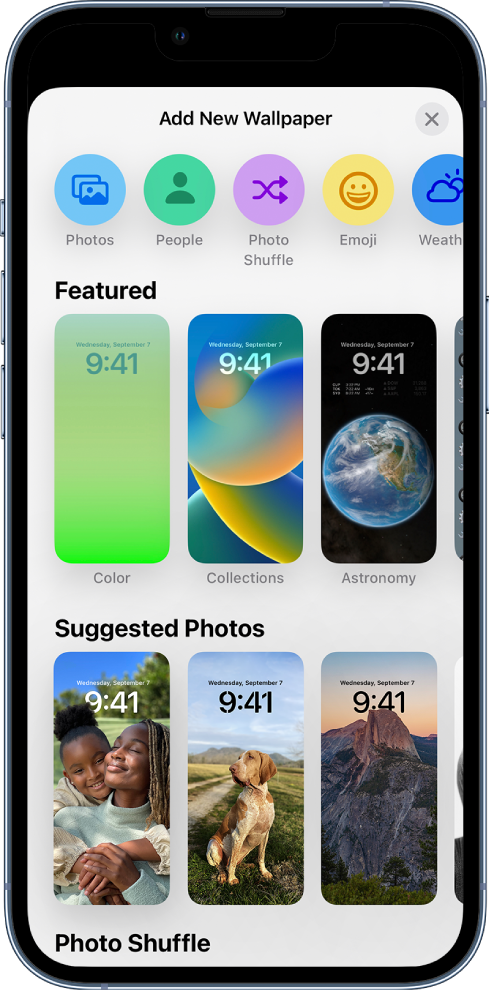
The Lock Screen wallpaper gallery appears.
3. Tap one of the wallpaper options to select it as your Lock Screen.
For some wallpaper choices, you can swipe left or right to try different color filters, patterns, and fonts that complement each other.
4. Tap Add, then do one of the following:
• Choose whether to use the wallpaper on both the Lock Screen and Home Screen: Tap Set as Wallpaper Pair.
• Make further changes to the Home Screen: Tap Customize Home Screen. Tap a color to change the wallpaper color, tapto use a custom photo, or select Blur to blur the wallpaper so the apps stand out.
Those steps will allow you to set the Lock Screen and wallpaper to whatever images you prefer.
It appears you are also have a suggestion for Apple as to how this feature works.
Since these forums are users helping other users, the best way to do that is to provide feedback to them here: Product Feedback - Apple
Take care.
Hello Nhighlen,
These steps to change your Lock Screen and wallpaper can be found at Personalize your iPhone Lock Screen - Apple Support:
Create a custom Lock Screen
1. Touch and hold the Lock Screen until the Customize button appears at the bottom of the screen.
If the Customize button doesn’t appear, touch and hold the Lock Screen again, then enter your passcode.
2. Tap
The Lock Screen wallpaper gallery appears.
3. Tap one of the wallpaper options to select it as your Lock Screen.
For some wallpaper choices, you can swipe left or right to try different color filters, patterns, and fonts that complement each other.
4. Tap Add, then do one of the following:
• Choose whether to use the wallpaper on both the Lock Screen and Home Screen: Tap Set as Wallpaper Pair.
• Make further changes to the Home Screen: Tap Customize Home Screen. Tap a color to change the wallpaper color, tap
Those steps will allow you to set the Lock Screen and wallpaper to whatever images you prefer.
It appears you are also have a suggestion for Apple as to how this feature works.
Since these forums are users helping other users, the best way to do that is to provide feedback to them here: Product Feedback - Apple
Take care.
New Font with last update