Home geofencing automations are completely broken in iOS16, 'Home' area is blank blue space on map


My home automations have all worked fine for years. However, like many others iOS16 has broken them. When i set up a new "first person to arrive" or "First person to leave" automation you are given the option of determining the location. As you can see from the image my "Home" location is just totally blank.


I can select any other location and the map will load fine, but the Home location is just that blank blue space.


I can setup an automation on my girlfriends iPhone 13 Pro Max, and the map appears fine, but as you can imagine, my phone (iPhone 12 Pro Max) will not trigger anything when I come or go.


I have reset the network settings & signed out of iCloud, nothing seems to fix this issue.


Does anyone have any idea what I can do? I don't even know what to search for in Google to try and find other people who might have the issue.


Any ideas are appreciate, no matter how crazy.


P.s: I do have a home address in my contact card, but Apple maps won't "activate" that as Home (e.g Home never shows up in Apple maps like it isn't set). This is an on-going issue with Apple maps that I have a separate ticket for. However, i don't believe this is causing the issue since my girlfriend is in the same boat and her automations will setup with Home correctly showing on the map.


Many thanks

iPhone 12 Pro Max

Posted on Dec 2, 2022 5:53 AM

Reply
Question marked as Top-ranking reply

Posted on Dec 8, 2022 6:29 AM

Ok, so after many hours of calls with Apple Support we tried the following that did NOT work...


  • Check that all Settings > Privacy & Security > Location Services are all ON (includng "Share My Location")
  • Check that all Settings > Privacy & Security > Location Services > System Services are all ON
  • Ensure that Settings > Privacy & Security > Home is set to ON
  • Sign out of iCloud
  • Reset Privacy & Location Settings
  • Open "Find My" app to ensure maps are loading properly
  • Checking other mapping apps to ensure GPS is working
  • Completely wiping and restoring the iPhone (which took ages to do and set everything back up)


Despite none of that working, I didn't want to give up and whilst I waited for the next schedule call from Apple I loaded up the Home app on my Macbook and noticed that the same issue was there too. Meaning this must be more than just a bug with the iPhone and something going on with iCloud.


Here is what I did to fix it all!

On my Macbook

  • System Settings/Preferences > Privacy * Security > Location Services > Home = Toggle On
  • System Settings/Preferences > Privacy * Security > Location Services > System Services (Click Details) & Ensure that Significant Locations AND HomeKit are toggled on.
  • For me HomeKit was toggled off for some reason


  • Settings > Privacy & Security > Location Services > System Services > Significant Locations = "Clear History" & then Toggle Off the Significant Locations toggle
  • Check that all Settings > Privacy & Security > Location Services = Toggle Off the toggle
  • Restart the iPhone and then toggle back on both those toggles


After doing both those things, the blue blank map showed my Home correctly as expected.


Here is what I think happened.


During the iOS 16 upgrade the significant locations got corrupted somehow (it was showing 0 significant locations despite that toggle being on for years). iOS uses this to determine your home. I think that for whatever reason (maybe a mismatch in iCloud) this also toggled off HomeKit location services on the Macbook pro. With these two things combined it was kind of a feedback loop. The phone couldn't determine where home was since significant locations weren't saving locally and the Macbook couldn't upload to the cloud where home was since HomeKit didn't have access.


So yeah, after doing all that the bug was fixed, and what an odd one it was!

6 replies
Question marked as Top-ranking reply

Dec 8, 2022 6:29 AM in response to Pottypotsworth

Ok, so after many hours of calls with Apple Support we tried the following that did NOT work...


  • Check that all Settings > Privacy & Security > Location Services are all ON (includng "Share My Location")
  • Check that all Settings > Privacy & Security > Location Services > System Services are all ON
  • Ensure that Settings > Privacy & Security > Home is set to ON
  • Sign out of iCloud
  • Reset Privacy & Location Settings
  • Open "Find My" app to ensure maps are loading properly
  • Checking other mapping apps to ensure GPS is working
  • Completely wiping and restoring the iPhone (which took ages to do and set everything back up)


Despite none of that working, I didn't want to give up and whilst I waited for the next schedule call from Apple I loaded up the Home app on my Macbook and noticed that the same issue was there too. Meaning this must be more than just a bug with the iPhone and something going on with iCloud.


Here is what I did to fix it all!

On my Macbook

  • System Settings/Preferences > Privacy * Security > Location Services > Home = Toggle On
  • System Settings/Preferences > Privacy * Security > Location Services > System Services (Click Details) & Ensure that Significant Locations AND HomeKit are toggled on.
  • For me HomeKit was toggled off for some reason


  • Settings > Privacy & Security > Location Services > System Services > Significant Locations = "Clear History" & then Toggle Off the Significant Locations toggle
  • Check that all Settings > Privacy & Security > Location Services = Toggle Off the toggle
  • Restart the iPhone and then toggle back on both those toggles


After doing both those things, the blue blank map showed my Home correctly as expected.


Here is what I think happened.


During the iOS 16 upgrade the significant locations got corrupted somehow (it was showing 0 significant locations despite that toggle being on for years). iOS uses this to determine your home. I think that for whatever reason (maybe a mismatch in iCloud) this also toggled off HomeKit location services on the Macbook pro. With these two things combined it was kind of a feedback loop. The phone couldn't determine where home was since significant locations weren't saving locally and the Macbook couldn't upload to the cloud where home was since HomeKit didn't have access.


So yeah, after doing all that the bug was fixed, and what an odd one it was!

Dec 6, 2022 10:48 AM in response to Pottypotsworth

Pottypotsworth,


In this case we'd recommend making sure that you're running the latest version of iOS 16. You can see how to check for updates wirelessly here:


1. Back up your device using iCloud or your computer.
2. Plug your device into power and connect to the internet with Wi-Fi.
3. Go to Settings > General, then tap Software Update.
4. If you see more than one software update option available, choose the one that you want to install.


For additional context you can check out the full resource here: Update your iPhone or iPad - Apple Support


If this continues we suggest reaching out to Apple Support directly here: Get Support


Take care.


Dec 5, 2022 1:17 PM in response to Pottypotsworth

Hello Pottypotsworth,


Let's resolve the issue by completing the steps listed here: Create scenes and automations with the Home app - Apple Support that are also listed below.


" Automate your accessories and scenes to turn on or off when you or a shared user arrives or leaves your home.

To create an automation triggered by location, you and the people you invite to control your home need to turn on Share My Location for the primary iPhone or iPad2 used to control your home. Go to Settings > [your name] > Find My and turn on Share My Location. Make sure that "This Device" is selected next to My Location.


  1. In the Home app, tap or click the Add button , then select Add Automation .
  2. Choose if you want the automation to occur when People Arrive or when People Leave your home. 
  3. To choose a specific person to start the automation, tap or click Information . You can also choose a location3 and time for the automation. Then tap or click Next.
  4. Select scenes and accessories to automate, then tap or click Next.
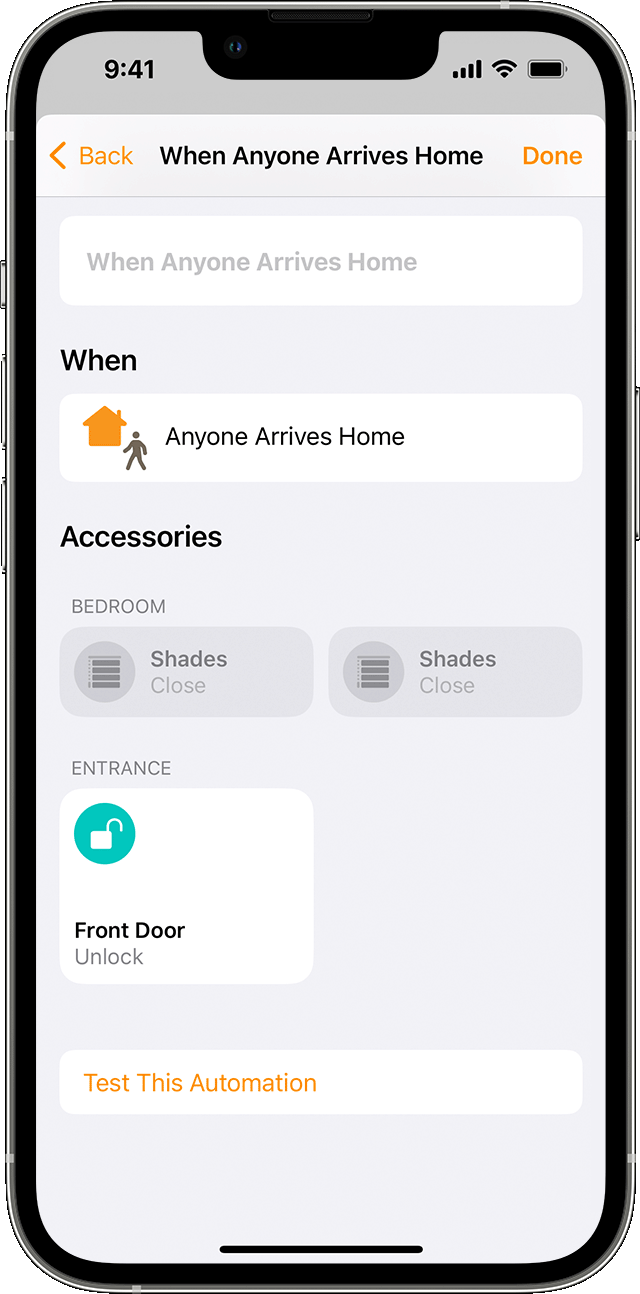
  5. To adjust an accessory on iPhone or iPad, touch and hold it. On Mac, click the accessory. To preview the automation, tap or click Test This Automation.
  6. Tap or click Done. "


Best regards.

This thread has been closed by the system or the community team. You may vote for any posts you find helpful, or search the Community for additional answers.

Home geofencing automations are completely broken in iOS16, 'Home' area is blank blue space on map

Welcome to Apple Support Community
A forum where Apple customers help each other with their products. Get started with your Apple Account.