I recently bought a new iPad mini. I must have started to set it up with a passcode; however, I had not assigned my Apple ID and password yet. Apparently, I cannot remember the 6 digit number I used! What can I do?

If an iPad’s passcode is forgotten, and it is new and has not been tied to my Apple ID yet, how can I unlock it? I tried connecting it to a computer to reset, but that didn’t work. I have watched YouTube videos, read articles, etc. but none of the recommendations worked. Thanks so much!

iPad mini 6 Wi-Fi

Posted on Dec 4, 2022 6:06 PM

Reply
Question marked as Top-ranking reply

Posted on Dec 6, 2022 5:18 PM

Hello Grace-22,


Thank you for reaching out to Apple Support Communities.


These steps should help:


"Step 1: Make sure that you have a computer (Mac or PC)

This process requires a Mac or PC. If you're using a PC, make sure that it has Windows 8 or later, and that iTunes is installed. You also need the cable that came with your iPad, or another compatible cable, to connect your iPad to the computer.

If you don't have a computer and you can't borrow one, you need to go to an Apple Store or Apple Authorized Service Provider for help.


Step 2: Turn off your iPad

  1. Unplug your iPad from the computer if it’s connected.
  2. Turn off your iPad using the method for your iPad model:
  • If your iPad doesn't have a Home button: Press and hold one of the volume buttons and the top button at the same time until the power off slider appears.Diagrams of iPad models showing top button and volume buttons


  • If your iPad has a Home button: Press and hold the top button until the power off slider appears.Diagram of iPad showing top button

3.Drag the slider to turn off your iPad, then wait a minute to make sure that it turns off completely.


Step 3: Put your iPad in recovery mode

  1. Get ready by finding the button on your iPad that you'll need to hold in the next step:
  • iPad models that don't have a Home button use the top button.Diagram of iPad models showing top button


  • iPad models that have a Home button use the Home button.

Diagram of iPad showing Home button

2.Press and hold the correct button for your iPad while immediately connecting your iPad to the computer. Don't let go of the button.

3.Keep holding the button until you see the recovery mode screen on your iPad, then let go.Diagram of iPad showing recovery mode screenIf you see the passcode screen, you need to turn off your iPad and start again.

If you can’t get your iPad to show the recovery mode screen and you need help, contact Apple Support.


Step 4: Restore your iPad

  1. Locate your iPad in the Finder or in iTunes on the computer that it’s connected to. (Learn how to find your connected iPad.)
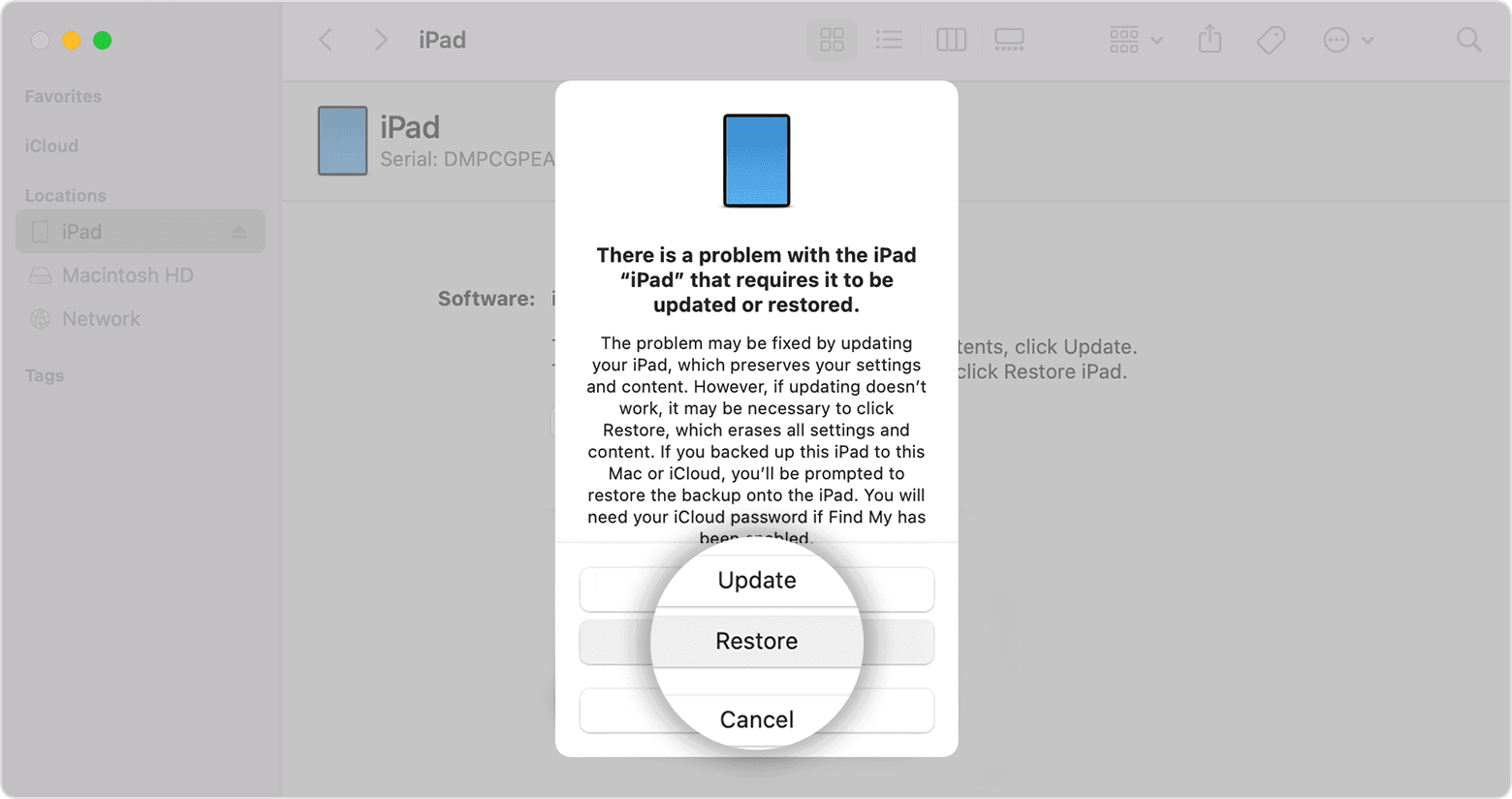
  2. Choose Restore when you see the option to Restore or Update. Your computer downloads software for your iPad and begins the restore process. If the download takes more than 15 minutes and your device exits the recovery mode screen, let the download finish, then turn off your iPad and start again.iPad screen showing Restore button
  3. Wait for the process to finish. 
  4. Disconnect your iPad from the computer, then set up and use your iPad."


More details can be found here: If you forgot your iPad passcode


If the issue persists, can you provide a few more details? What exactly happens when you attempt to restore your iPad?


Cheers!

3 replies
Question marked as Top-ranking reply

Dec 6, 2022 5:18 PM in response to Grace-22

Hello Grace-22,


Thank you for reaching out to Apple Support Communities.


These steps should help:


"Step 1: Make sure that you have a computer (Mac or PC)

This process requires a Mac or PC. If you're using a PC, make sure that it has Windows 8 or later, and that iTunes is installed. You also need the cable that came with your iPad, or another compatible cable, to connect your iPad to the computer.

If you don't have a computer and you can't borrow one, you need to go to an Apple Store or Apple Authorized Service Provider for help.


Step 2: Turn off your iPad

  1. Unplug your iPad from the computer if it’s connected.
  2. Turn off your iPad using the method for your iPad model:
  • If your iPad doesn't have a Home button: Press and hold one of the volume buttons and the top button at the same time until the power off slider appears.Diagrams of iPad models showing top button and volume buttons


  • If your iPad has a Home button: Press and hold the top button until the power off slider appears.Diagram of iPad showing top button

3.Drag the slider to turn off your iPad, then wait a minute to make sure that it turns off completely.


Step 3: Put your iPad in recovery mode

  1. Get ready by finding the button on your iPad that you'll need to hold in the next step:
  • iPad models that don't have a Home button use the top button.Diagram of iPad models showing top button


  • iPad models that have a Home button use the Home button.

Diagram of iPad showing Home button

2.Press and hold the correct button for your iPad while immediately connecting your iPad to the computer. Don't let go of the button.

3.Keep holding the button until you see the recovery mode screen on your iPad, then let go.Diagram of iPad showing recovery mode screenIf you see the passcode screen, you need to turn off your iPad and start again.

If you can’t get your iPad to show the recovery mode screen and you need help, contact Apple Support.


Step 4: Restore your iPad

  1. Locate your iPad in the Finder or in iTunes on the computer that it’s connected to. (Learn how to find your connected iPad.)
  2. Choose Restore when you see the option to Restore or Update. Your computer downloads software for your iPad and begins the restore process. If the download takes more than 15 minutes and your device exits the recovery mode screen, let the download finish, then turn off your iPad and start again.iPad screen showing Restore button
  3. Wait for the process to finish. 
  4. Disconnect your iPad from the computer, then set up and use your iPad."


More details can be found here: If you forgot your iPad passcode


If the issue persists, can you provide a few more details? What exactly happens when you attempt to restore your iPad?


Cheers!

This thread has been closed by the system or the community team. You may vote for any posts you find helpful, or search the Community for additional answers.

I recently bought a new iPad mini. I must have started to set it up with a passcode; however, I had not assigned my Apple ID and password yet. Apparently, I cannot remember the 6 digit number I used! What can I do?

Welcome to Apple Support Community
A forum where Apple customers help each other with their products. Get started with your Apple Account.