How to erase system data
How to erase system data
How to erase system data
Hello Gordi0045,
Be sure to check that your device is using the latest iPadOS update (currently 16.1.2): Update your iPhone or iPad - Apple Support
Update your iPhone or iPad wirelessly
1. Back up your device using iCloud or your computer.
2. Plug your device into power and connect to the internet with Wi-Fi.
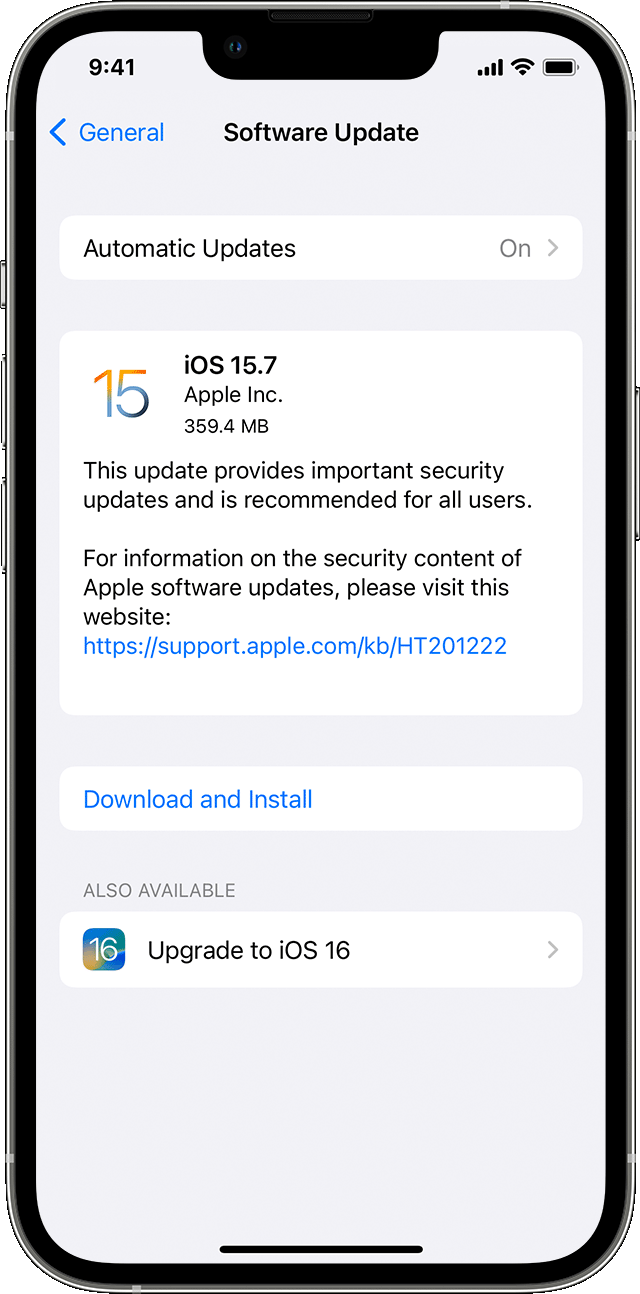
3. Go to Settings > General, then tap Software Update.
4. If you see more than one software update option available, choose the one that you want to install.
5. Tap Install Now. If you see Download and Install instead, tap it to download the update, enter your passcode, then tap Install Now. If you don't know your passcode, learn what to do.
This will ensure the device has the latest fixes/improvements applied.
Restarting the device can also help in some situations: Restart your iPad - Apple Support
If you've recently signed in to iCloud or set up the device (for the first time or after erasing/restoring it) then it may settle after a couple of days.
System Data contains files and system settings that are unable to be deleted. If System Data continues to take an unexpectedly large amount of storage, then reach out to Apple Support directly to help investigate the behavior. You can use the following link to reach out Contact - Official Apple Support
Cheers.
Hello Gordi0045,
Be sure to check that your device is using the latest iPadOS update (currently 16.1.2): Update your iPhone or iPad - Apple Support
Update your iPhone or iPad wirelessly
1. Back up your device using iCloud or your computer.
2. Plug your device into power and connect to the internet with Wi-Fi.
3. Go to Settings > General, then tap Software Update.
4. If you see more than one software update option available, choose the one that you want to install.
5. Tap Install Now. If you see Download and Install instead, tap it to download the update, enter your passcode, then tap Install Now. If you don't know your passcode, learn what to do.
This will ensure the device has the latest fixes/improvements applied.
Restarting the device can also help in some situations: Restart your iPad - Apple Support
If you've recently signed in to iCloud or set up the device (for the first time or after erasing/restoring it) then it may settle after a couple of days.
System Data contains files and system settings that are unable to be deleted. If System Data continues to take an unexpectedly large amount of storage, then reach out to Apple Support directly to help investigate the behavior. You can use the following link to reach out Contact - Official Apple Support
Cheers.
System Data includes various system caches, logs and system resources. The only element that you can directly influence is perhaps your browser caches - which you can manually clear if you wish to do so.
For Safari:
Settings > Safari > Clear History & Website Data
For other browsers, you’ll need to find the relevant section of the App settings - which may be within the App itself.
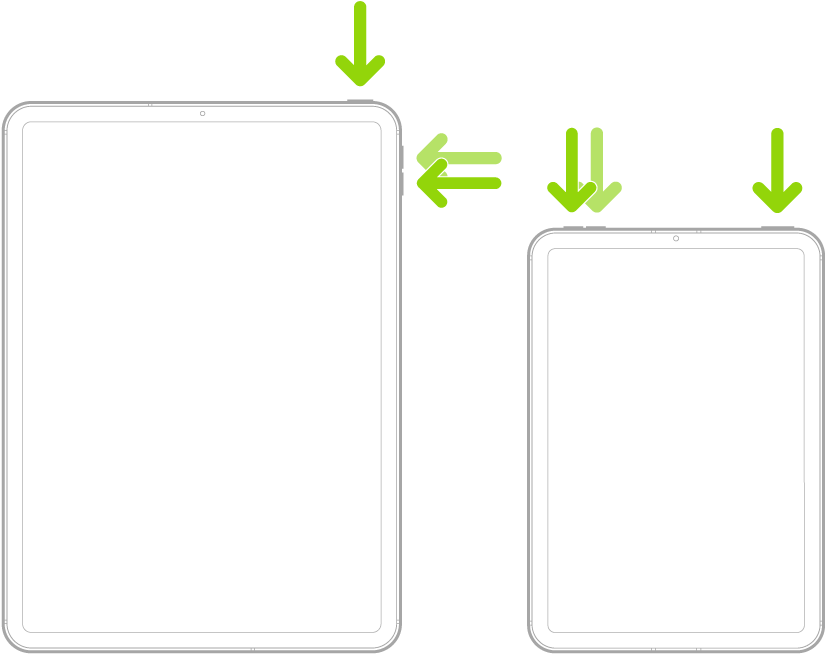
Otherwise, transient system caches can be significantly reduced by performing a forced-restart of your iPad - although caches, by their nature, will again accumulate and be automatically managed by the operating system.
Force restart iPad (models with Face ID or with Touch ID in the top button)
If your iPad doesn’t have the Home button, do the following:
Force restart iPad (models with the Home button)
Press and hold the top button and the Home button at the same time. When the Apple logo appears, release both buttons.

Cached system data can also be cleared with a restore. More information about clearing system/other data is outlined here:
How to erase system data