Siri keeps announcing “Hello” from B randomly

Hello I’m trying to figure out when I’m listening to a podcast I always get a random Siri notification that says “Hello” from B ? It happens only when listening to podcasts on Spotify or from the Apple Podcasts. And it is only when i am using my AirPods, it happened with my original AirPods and then again with my new AirPods Pro. Anyone know why this is randomly happening and how to fix it? It happens almost everyday and starting to get really annoying. Thanks !

iPhone 12 Pro Max

Posted on Dec 4, 2022 8:13 PM

Reply
Question marked as Top-ranking reply

Posted on Dec 6, 2022 6:17 PM

Hello blaze133,


Thank you for reaching out to Apple Support Communities, and we'll be happy to help in any way we can. We understand you're having issues with your AirPods announcing messages. Follow the steps listed here to turn this feature off: Announce notifications with Siri on AirPods or Beats - Apple Support


"When you're wearing your AirPods or compatible Beats headphones, Siri can announce incoming notifications from apps such as Messages and Reminders, and from supported third-party apps. Then you can reply instantly, hands-free.


What you need

You can have Siri announce your incoming notifications with these headphones:

  • AirPods Max
  • AirPods (2nd generation) or later
  • AirPods Pro (1st generation) or later
  • Beats Fit Pro
  • Powerbeats
  • Powerbeats Pro
  • Beats Solo Pro

Your compatible headphones need to be paired with one of these devices:

  • iPhone with iOS 15 or later
  • iPad with iPadOS 15 or later


Turn on Announce Notifications

  1. Open the Settings app.
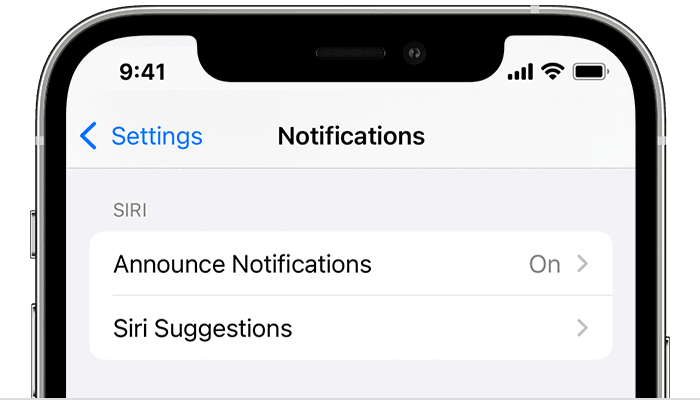
  2. Tap Notifications.
  3. Tap Announce Notifications.
  4. Announce Messages with Siri

  5. Turn on Announce Notifications.


Use Announce Notifications

With this feature turned on, Siri announces incoming notifications from apps such as Messages and Reminders, and from supported third-party apps. Siri reads your incoming notifications out loud when your headphones are connected to your iPhone or iPad, you're wearing them, and your device is locked.

If the app that you're using classifies a notification as time sensitive or as a direct message, Siri plays a tone, then announces the notification automatically. You can also choose which notifications Siri reads:

  1. On your iPhone or iPad, go to Settings > Notifications > Announce Notifications.
  2. Tap Messages. 
  3. Select either Time Sensitive and Direct Messages or All Notifications.

If you customize Control Center on your iPhone or iPad to include Announce Notifications, you can use Control Center to turn the feature on or off quickly.

If you're receiving multiple notifications at once, you can stop Siri from announcing them all by taking out one of your earbuds or removing your headphones.

Reply to notifications

For apps in which you can send a reply, such as Messages, you can reply to the notifications that Siri announces on compatible headphones or in a vehicle that supports CarPlay:

  1. Wait for Siri to read the notification. Siri then listens for your reply.
  2. Tell Siri that you'd like to reply, then speak your message. Say something like "Reply 'I'm on my way'" or "Tell her 'I'll meet you there.'" When you stop talking, Siri reads your reply back to you and asks if you want to send it.


If you don’t hear Siri announcements

If you don’t hear Siri announce your notifications, try these steps:

  1. Make sure that you're using a compatible device.
  2. Make sure that your AirPods or your compatible Beats headphones are paired to your device in Settings > Bluetooth.
  3. Go to Settings > Notifications > Announce Notifications and make sure that Announce Notifications is turned on.
  4. Make sure that your iPhone or iPad is locked and its screen is dark. Siri doesn't announce messages if you're using your device."


We hope this helps.


Cheers!


1 reply
Question marked as Top-ranking reply

Dec 6, 2022 6:17 PM in response to blaze133

Hello blaze133,


Thank you for reaching out to Apple Support Communities, and we'll be happy to help in any way we can. We understand you're having issues with your AirPods announcing messages. Follow the steps listed here to turn this feature off: Announce notifications with Siri on AirPods or Beats - Apple Support


"When you're wearing your AirPods or compatible Beats headphones, Siri can announce incoming notifications from apps such as Messages and Reminders, and from supported third-party apps. Then you can reply instantly, hands-free.


What you need

You can have Siri announce your incoming notifications with these headphones:

  • AirPods Max
  • AirPods (2nd generation) or later
  • AirPods Pro (1st generation) or later
  • Beats Fit Pro
  • Powerbeats
  • Powerbeats Pro
  • Beats Solo Pro

Your compatible headphones need to be paired with one of these devices:

  • iPhone with iOS 15 or later
  • iPad with iPadOS 15 or later


Turn on Announce Notifications

  1. Open the Settings app.
  2. Tap Notifications.
  3. Tap Announce Notifications.
  4. Announce Messages with Siri

  5. Turn on Announce Notifications.


Use Announce Notifications

With this feature turned on, Siri announces incoming notifications from apps such as Messages and Reminders, and from supported third-party apps. Siri reads your incoming notifications out loud when your headphones are connected to your iPhone or iPad, you're wearing them, and your device is locked.

If the app that you're using classifies a notification as time sensitive or as a direct message, Siri plays a tone, then announces the notification automatically. You can also choose which notifications Siri reads:

  1. On your iPhone or iPad, go to Settings > Notifications > Announce Notifications.
  2. Tap Messages. 
  3. Select either Time Sensitive and Direct Messages or All Notifications.

If you customize Control Center on your iPhone or iPad to include Announce Notifications, you can use Control Center to turn the feature on or off quickly.

If you're receiving multiple notifications at once, you can stop Siri from announcing them all by taking out one of your earbuds or removing your headphones.

Reply to notifications

For apps in which you can send a reply, such as Messages, you can reply to the notifications that Siri announces on compatible headphones or in a vehicle that supports CarPlay:

  1. Wait for Siri to read the notification. Siri then listens for your reply.
  2. Tell Siri that you'd like to reply, then speak your message. Say something like "Reply 'I'm on my way'" or "Tell her 'I'll meet you there.'" When you stop talking, Siri reads your reply back to you and asks if you want to send it.


If you don’t hear Siri announcements

If you don’t hear Siri announce your notifications, try these steps:

  1. Make sure that you're using a compatible device.
  2. Make sure that your AirPods or your compatible Beats headphones are paired to your device in Settings > Bluetooth.
  3. Go to Settings > Notifications > Announce Notifications and make sure that Announce Notifications is turned on.
  4. Make sure that your iPhone or iPad is locked and its screen is dark. Siri doesn't announce messages if you're using your device."


We hope this helps.


Cheers!


This thread has been closed by the system or the community team. You may vote for any posts you find helpful, or search the Community for additional answers.

Siri keeps announcing “Hello” from B randomly

Welcome to Apple Support Community
A forum where Apple customers help each other with their products. Get started with your Apple Account.