
Config settings missing
I have no configuration settings available for 3rd gen air pod on Iphone 14 pro Max
I have no configuration settings available for 3rd gen air pod on Iphone 14 pro Max
Hey there, and welcome to Apple Support Communities tysnweiss,
We can certainly understand your concern and are here to help.
We recommend checking out these steps for more information on how to access the settings for your AirPods 3rd generation and see if it matches up with your procedures.
" Change settings for AirPods (3rd generation)
On iPhone, iPad, iPod touch, or Mac, you can change the settings for AirPods (3rd generation). For example, you can set the microphone location and turn off automatic ear detection.
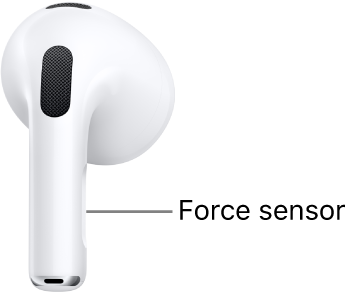
Set the microphone location for your AirPods
 , then tap the name of your AirPods near the top of the screen.
 > System Settings, then click the name of your AirPods in the sidebar (you may need to scroll down).
3. Select Microphone, then choose one of the following:
Change how you end a call with your AirPods
By default, you can press the stem on your AirPods once to end a call, but you can choose whether you want to use one or two presses.
, then tap the name of your AirPods near the top of the screen. Tap End Call, then choose Press Once or Press Twice. > System Settings, then click the name of your AirPods in the sidebar (you may need to scroll down). On the right, select an option next to “End call.”Turn off automatic ear detection
Your AirPods automatically stop playing audio when you take them off, and resume playback when you put them back on. You can change this setting.
, tap the name of your AirPods near the top of the screen, then turn Automatic Ear Detection on or off. > System Settings, click the name of your AirPods in the sidebar (you may need to scroll down), then turn “Automatic ear detection” on or off. "For additional information, check out this link: Change settings for AirPods (3rd generation) - Apple Support
These steps will help ensure your device is working with ease and can fix common issues like the ones you’re experiencing.
Kindest regards!
Hey there, and welcome to Apple Support Communities tysnweiss,
We can certainly understand your concern and are here to help.
We recommend checking out these steps for more information on how to access the settings for your AirPods 3rd generation and see if it matches up with your procedures.
" Change settings for AirPods (3rd generation)
On iPhone, iPad, iPod touch, or Mac, you can change the settings for AirPods (3rd generation). For example, you can set the microphone location and turn off automatic ear detection.
Set the microphone location for your AirPods
, then tap the name of your AirPods near the top of the screen. > System Settings, then click the name of your AirPods in the sidebar (you may need to scroll down).3. Select Microphone, then choose one of the following:
Change how you end a call with your AirPods
By default, you can press the stem on your AirPods once to end a call, but you can choose whether you want to use one or two presses.
, then tap the name of your AirPods near the top of the screen. Tap End Call, then choose Press Once or Press Twice. > System Settings, then click the name of your AirPods in the sidebar (you may need to scroll down). On the right, select an option next to “End call.”Turn off automatic ear detection
Your AirPods automatically stop playing audio when you take them off, and resume playback when you put them back on. You can change this setting.
, tap the name of your AirPods near the top of the screen, then turn Automatic Ear Detection on or off. > System Settings, click the name of your AirPods in the sidebar (you may need to scroll down), then turn “Automatic ear detection” on or off. "For additional information, check out this link: Change settings for AirPods (3rd generation) - Apple Support
These steps will help ensure your device is working with ease and can fix common issues like the ones you’re experiencing.
Kindest regards!
Config settings missing

