Hello Lilia2,
Based on the information found at Move your data from a Windows PC to a Mac - Apple Support:
Large transfers might need several hours to complete.
Depending on how much data is being moved, you may want to let it continue.
If it is still not making progress after an extended period, restarting the process may be necessary. Here are those steps:
On your PC
1. Open Migration Assistant. If any other programs are open, you're asked to quit them before continuing.
2. Click Continue.
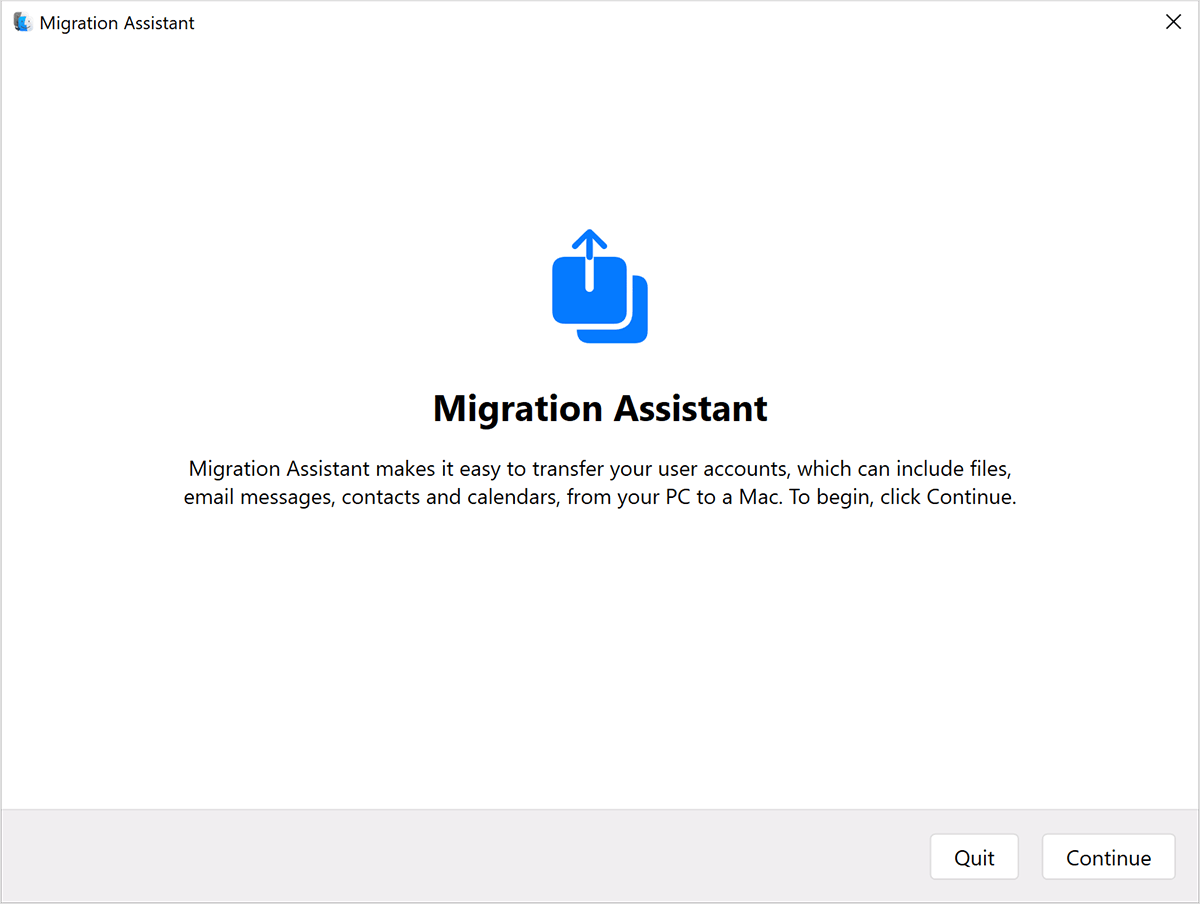
3. If Migration Assistant detects any of these conditions, it warns you about them before you can continue:
• Your PC is configured to install Windows updates automatically.
• Your PC is using a network firewall that might prevent your Mac from connecting to your PC.
• Your PC is running on battery power.
4. When asked for permission to send app usage data to Apple, click Automatically Send or Don't Send.
5. When Migration Assistant begins searching for your Mac and waiting for it to connect, complete the next steps on your Mac.
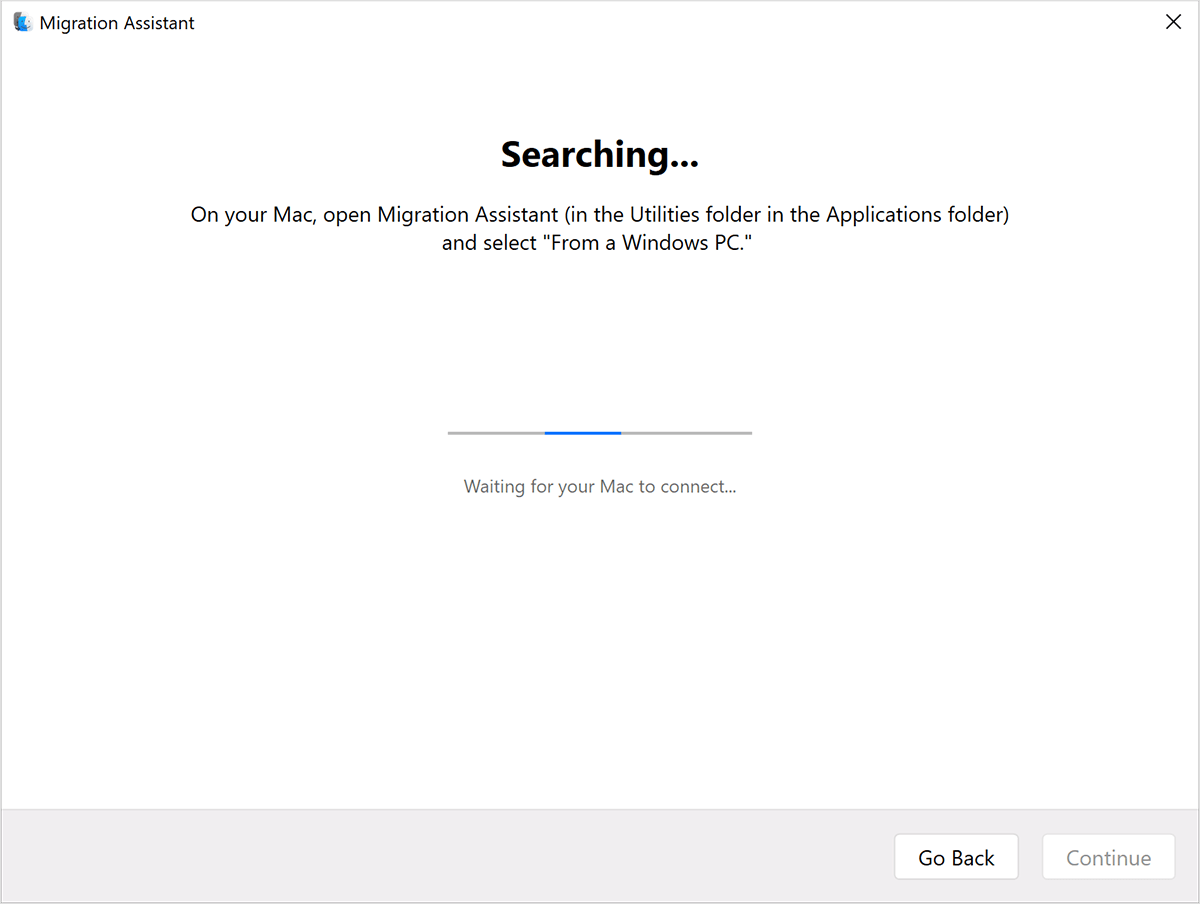
On your Mac
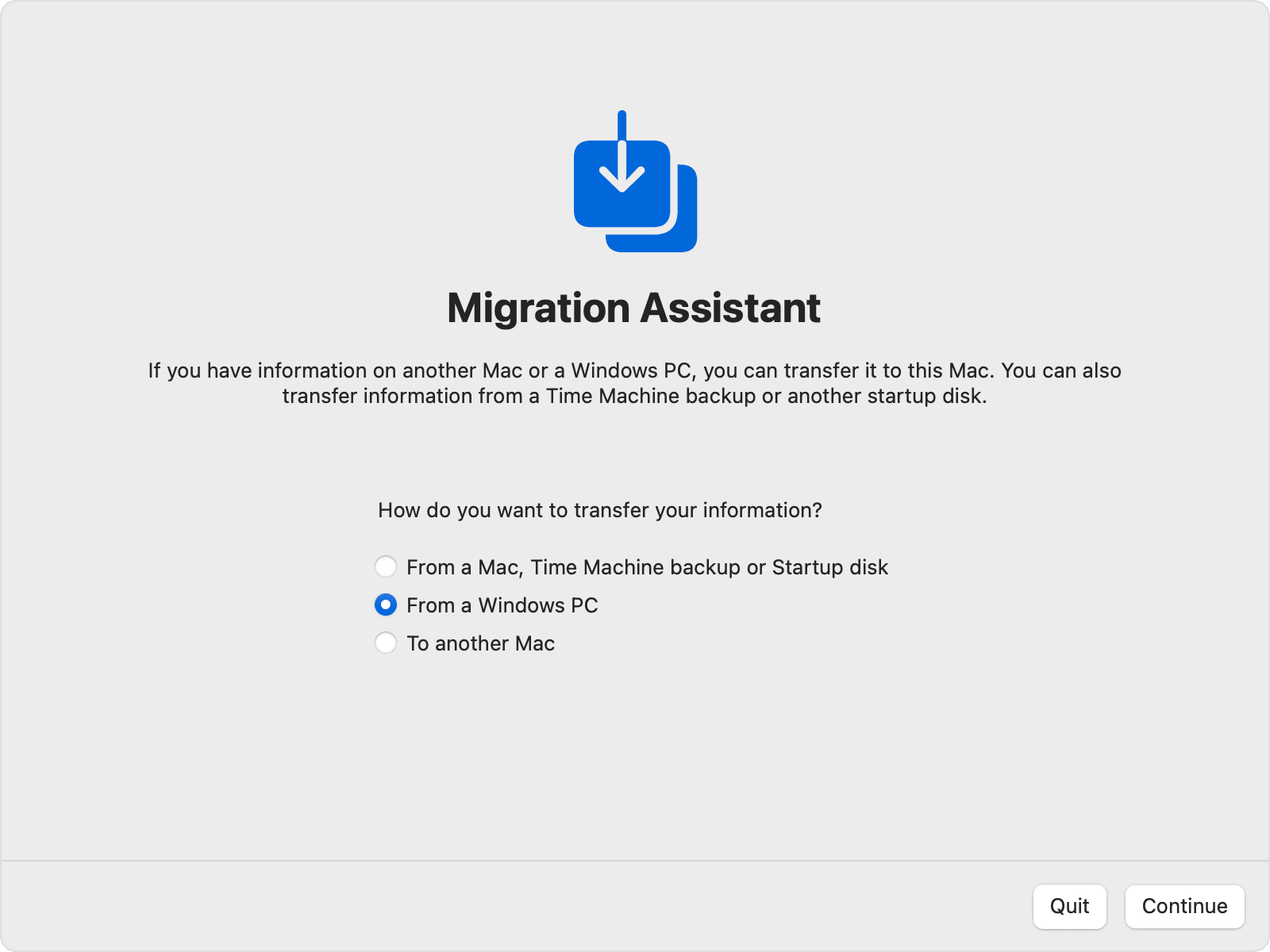
1. Open Migration Assistant, which is in the Utilities folder of your Applications folder.
2. Follow the onscreen instructions until you're asked how you want to transfer your information. Select the option to transfer from a Windows PC, then click Continue.
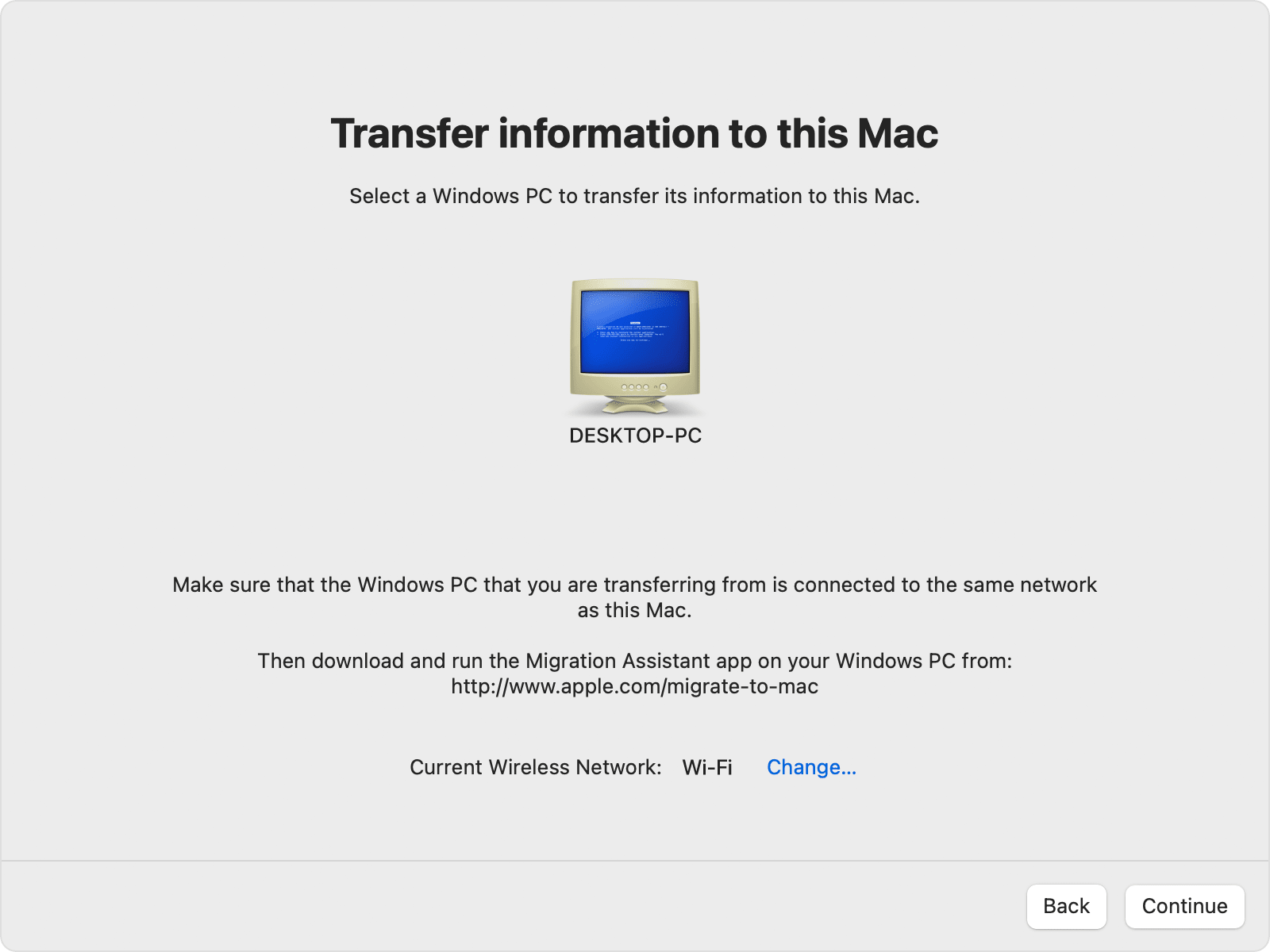
3. Select the icon representing your PC, then click Continue.
On your PC
Make sure that your PC and Mac show the same passcode, then click Continue.
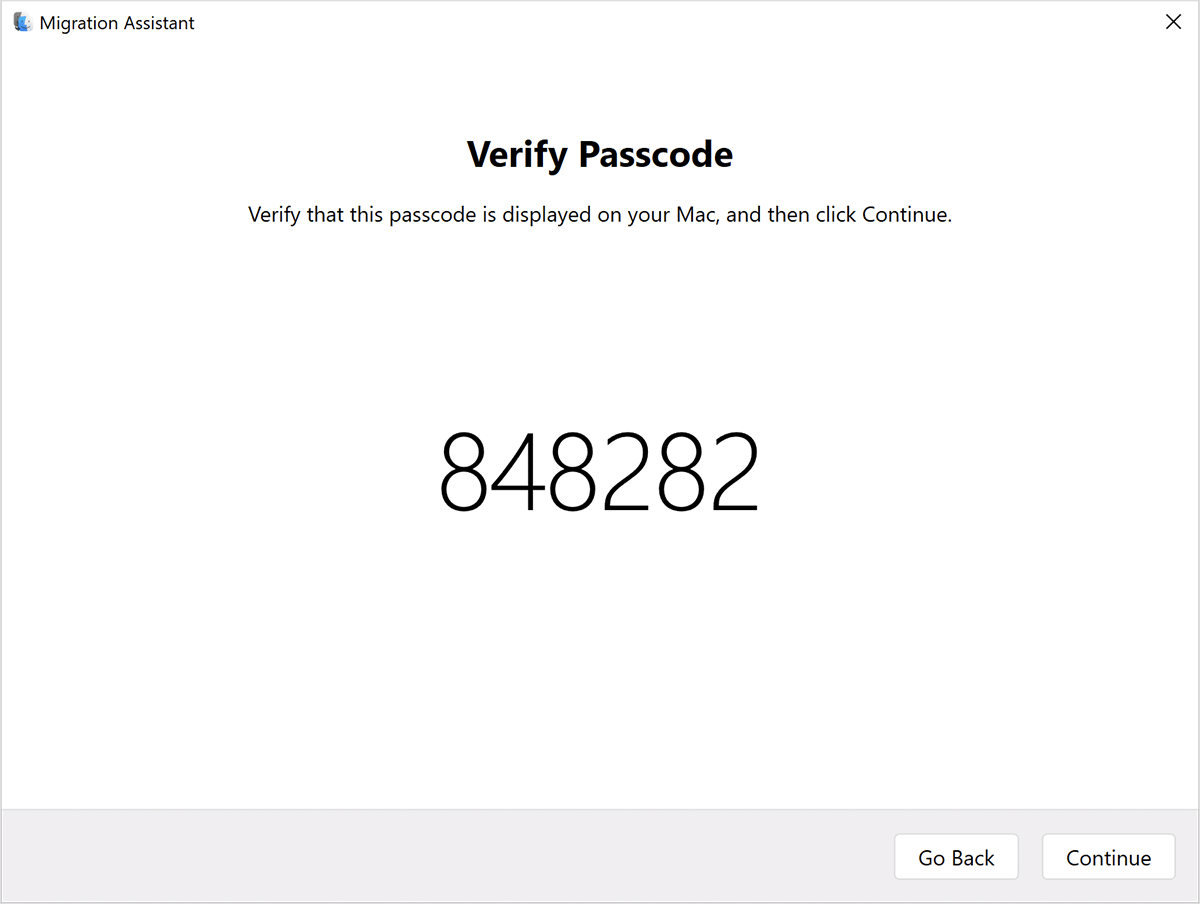
On your Mac
1. When your Mac is done scanning the files on your PC, select the information that you want to transfer to your Mac. You might need to scroll down to see the complete list. Learn more about the data that you can transfer.
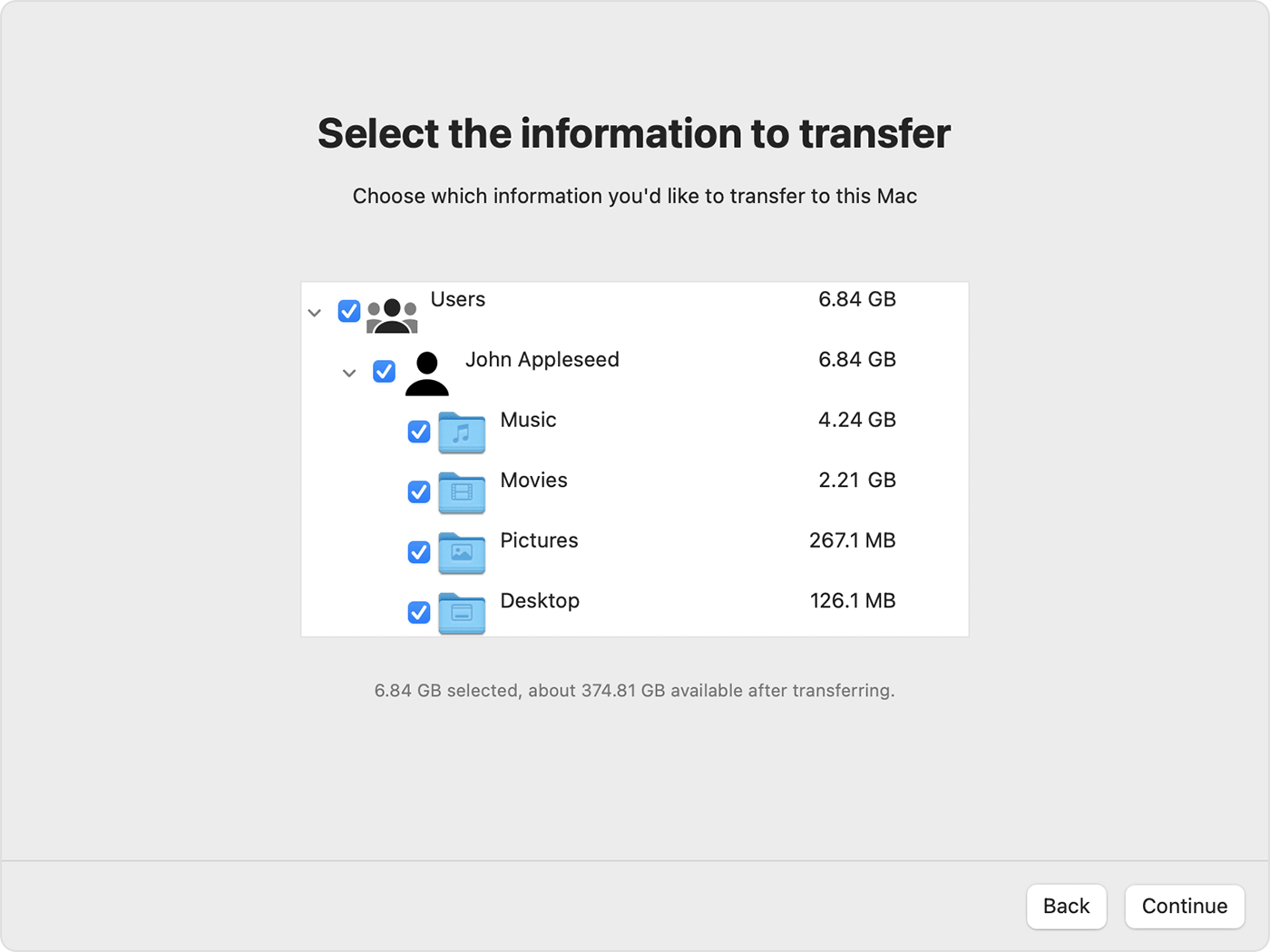
2. Click Continue to start the transfer. Large transfers might need several hours to complete.
3. When done, log in to the new user account on your Mac. The account uses the same name and password as the account on your PC.
4. Authorize your Mac for iTunes Store purchases. It’s important to do this before you sync or play content downloaded from the iTunes Store.
If you need to transfer data from another Windows user account, log in to that account on your PC, then repeat these steps.
These steps should help transfer all the data to your Mac.
Have a good day.