
battery drain with Magic Keyboard
My new iPad Air seems to lose a ton of battery power when it's connected to the Magic Keyboard. Any suggestions of how to fix?
My new iPad Air seems to lose a ton of battery power when it's connected to the Magic Keyboard. Any suggestions of how to fix?
The Magic Keyboard for iPad is powered by the iPad - and will obviously have some impact upon battery life between charges. Using the backlit keys will obviously use more power. That said, use of the keyboard should not dramatically impact battery life.
As a first step, try a forced restart of your iPad - as this will often resolve an isolated software issue:
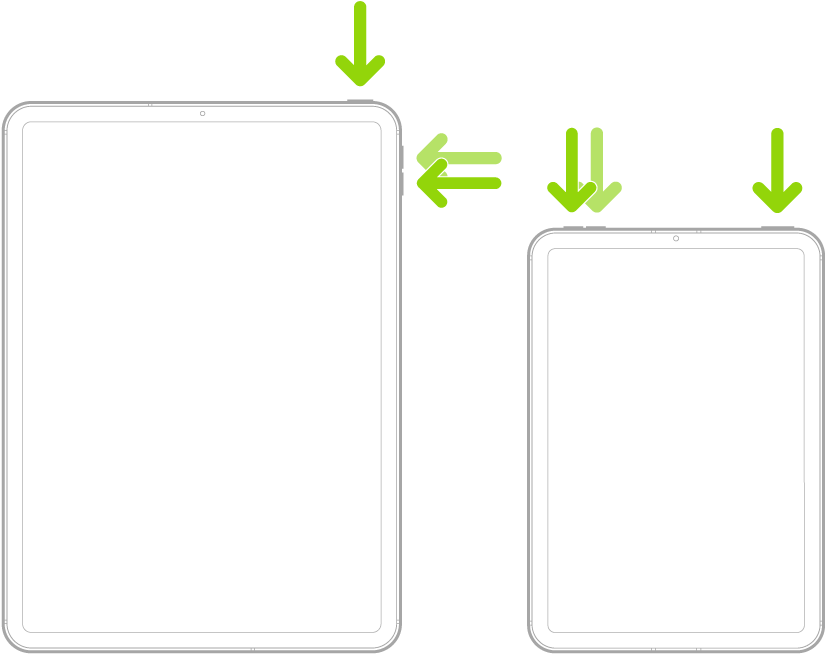
Force restart iPad (models with Face ID or with Touch ID in the top button)
If your iPad doesn’t have the Home button, do the following:
Force restart iPad (models with the Home button)
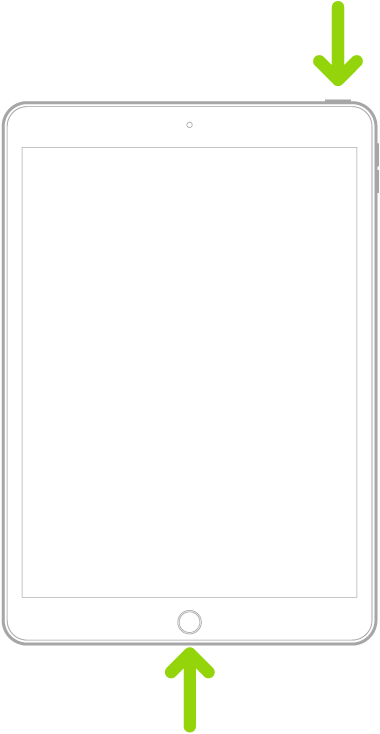
Press and hold the top button and the Home button at the same time. When the Apple logo appears, release both buttons.
If the issue remains unresolved, you might be best advised to seek assistance directly from from Apple Support. You can contact the Support Team using the Support link at top-right or bottom-left of this page. Alternatively and perhaps easier, you can initiate and manage your support cases using the excellent Apple Support App. If not already installed on your iPad, the App can be downloaded from the App Store:
https://apps.apple.com/gb/app/apple-support/id1130498044
You might also visit the Genius Bar at your local Apple Store or Apple Authorised Service Provider (AASP) - where the technicians will be able to test and assess your iPad and Magic Keyboard:
The Magic Keyboard for iPad is powered by the iPad - and will obviously have some impact upon battery life between charges. Using the backlit keys will obviously use more power. That said, use of the keyboard should not dramatically impact battery life.
As a first step, try a forced restart of your iPad - as this will often resolve an isolated software issue:
Force restart iPad (models with Face ID or with Touch ID in the top button)
If your iPad doesn’t have the Home button, do the following:
Force restart iPad (models with the Home button)
Press and hold the top button and the Home button at the same time. When the Apple logo appears, release both buttons.
If the issue remains unresolved, you might be best advised to seek assistance directly from from Apple Support. You can contact the Support Team using the Support link at top-right or bottom-left of this page. Alternatively and perhaps easier, you can initiate and manage your support cases using the excellent Apple Support App. If not already installed on your iPad, the App can be downloaded from the App Store:
https://apps.apple.com/gb/app/apple-support/id1130498044
You might also visit the Genius Bar at your local Apple Store or Apple Authorised Service Provider (AASP) - where the technicians will be able to test and assess your iPad and Magic Keyboard:
battery drain with Magic Keyboard
