Can I add child Iwatch to my phone account as a unique number with no access to my texts or phone contacts?

Can I add another iwatch as a child Iwatch to my phone account as a unique phone number from iPhone but with no access to my phone texts or phone contacts? Child already is part of apple family setup.

iPhone 12 Pro Max, iOS 16

Posted on Dec 23, 2022 3:30 PM

Reply
Question marked as Top-ranking reply

Posted on Dec 26, 2022 12:53 PM

Hi there guphere,


As long as you meet the requirements outlined in the 'What you need' section, follow these steps from Set up Apple Watch for a family member to set up your child's Apple Watch in the way you described:

1. Put on the watch and turn it on
If the Apple Watch isn't new, erase it first.
Then put on the watch, or have your family member put it on. Press and hold the side button until you see the Apple logo.
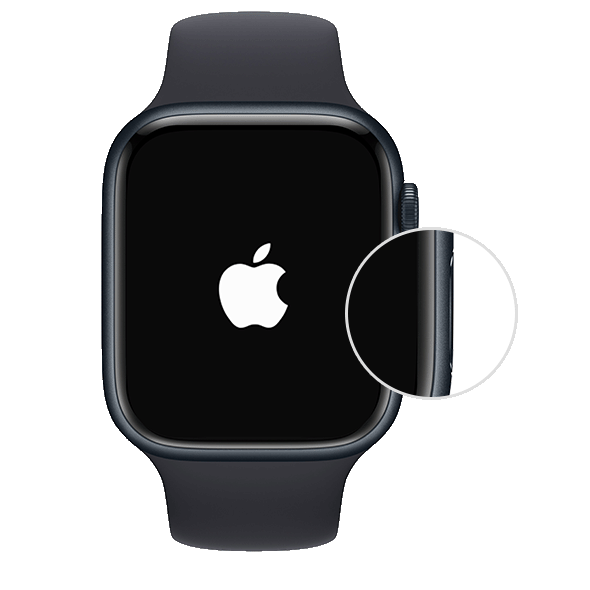
 
An Apple Watch with the side button enhanced.
2. Hold the watch near your iPhone
Hold the Apple Watch close to your iPhone. Wait until "Use your iPhone to set up this Apple Watch" appears on your iPhone, then tap Continue. If you don't see this message, open the Apple Watch app on your iPhone, tap All Watches, then tap Add Watch.
Tap Set Up for a Family Member, then tap Continue on the next screen.
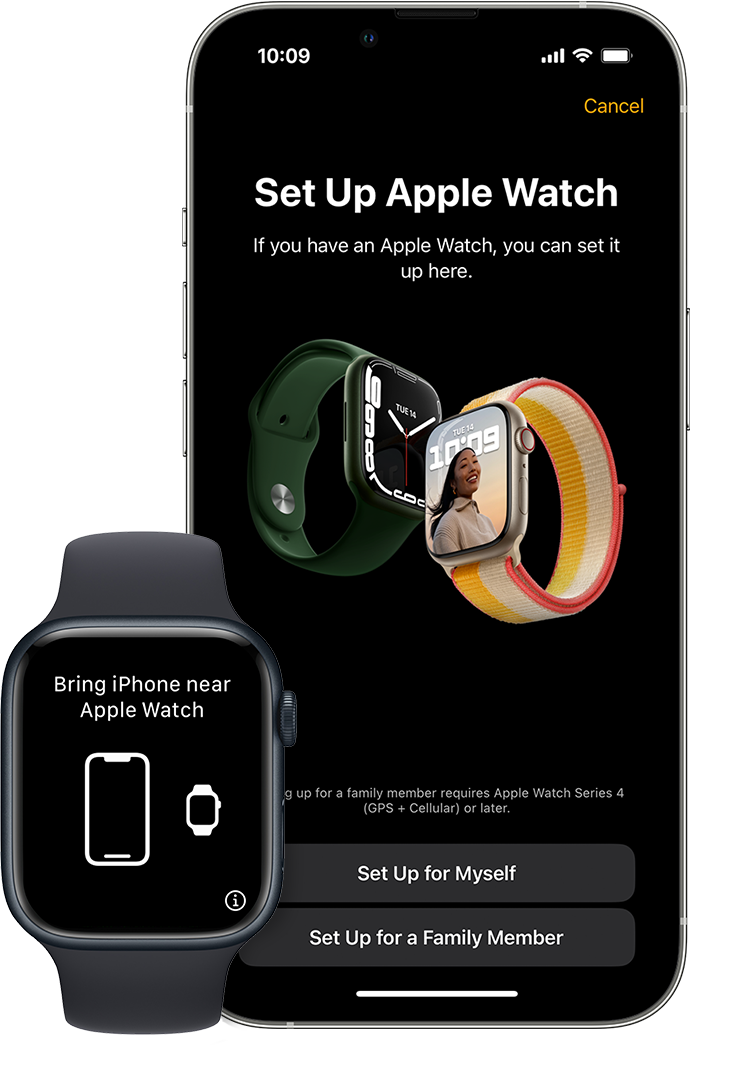
The initial setup screen for pairing a new watch on an iPhone and Apple Watch.
3. Pair the watch with your iPhone
Hold your iPhone over the animation that appears on the watch. Center the watch face in the viewfinder on your iPhone, then wait for a message to say that your Apple Watch is paired. If you can't use the camera, tap Pair Apple Watch Manually, then follow the steps that appear.
Then tap Set Up Apple Watch.
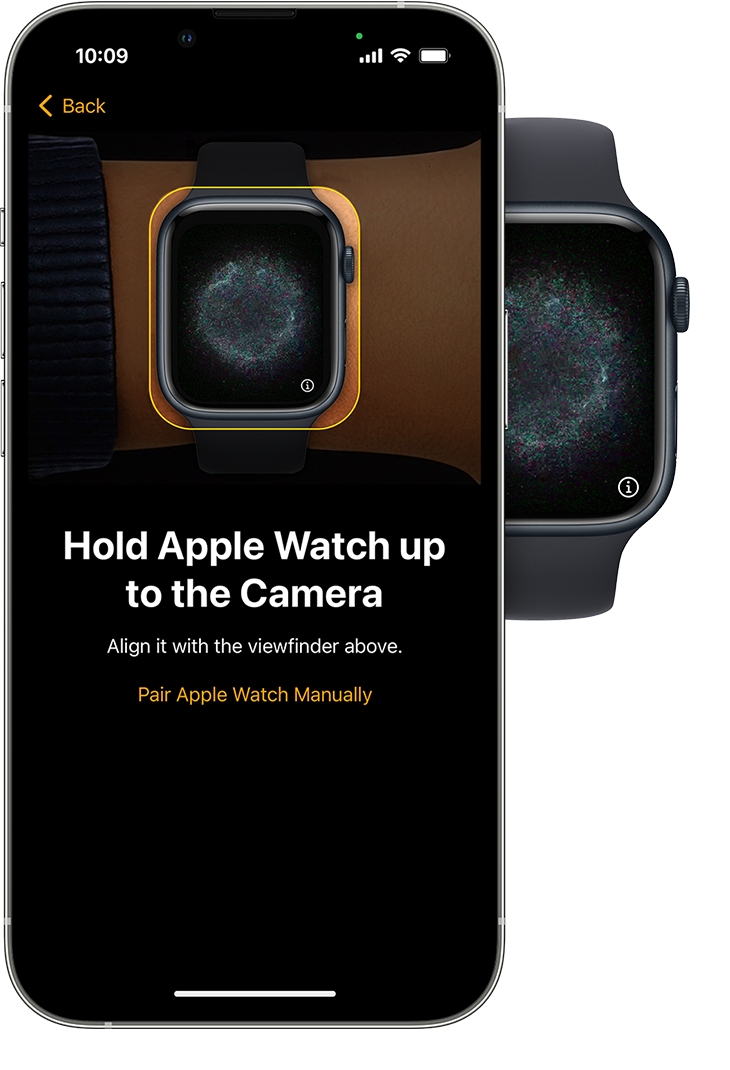
 
An iPhone screen that shows how to position your Apple Watch in the center of the viewfinder on your iPhone.
4. Set up a passcode
Tap Agree on the Terms and Conditions screen, then choose a text size for the Apple Watch.
Next, set a passcode to keep the watch secure.
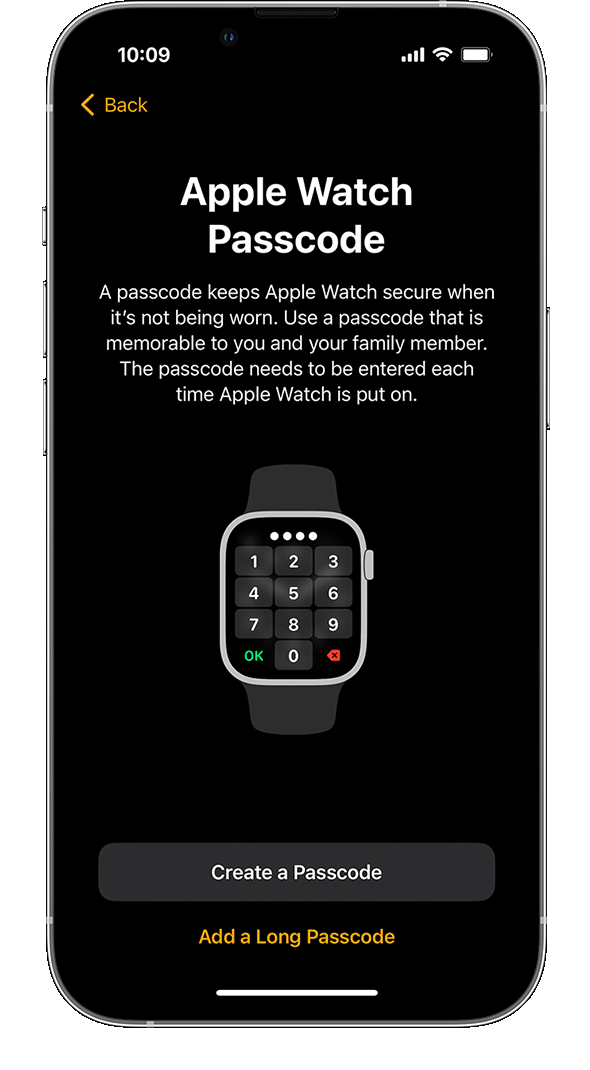
 
The Apple Watch passcode setup screen on an iPhone.
5. Pick a family member
Choose the family member who will use the Apple Watch. If they don't appear, tap Add Family Member.
Enter the family member's Apple ID password, then tap Next.
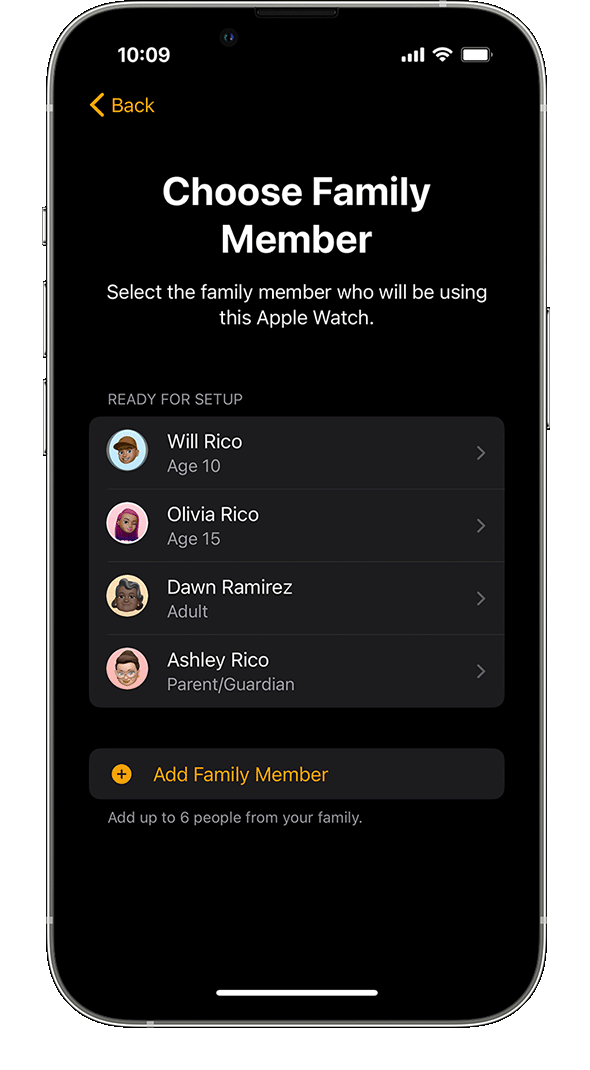
The family member select screen when setting up an Apple Watch on an iPhone.
6. Turn on Ask to Buy
Turn on Ask to Buy if you want to give approval for any downloads or purchases made on the Apple Watch.
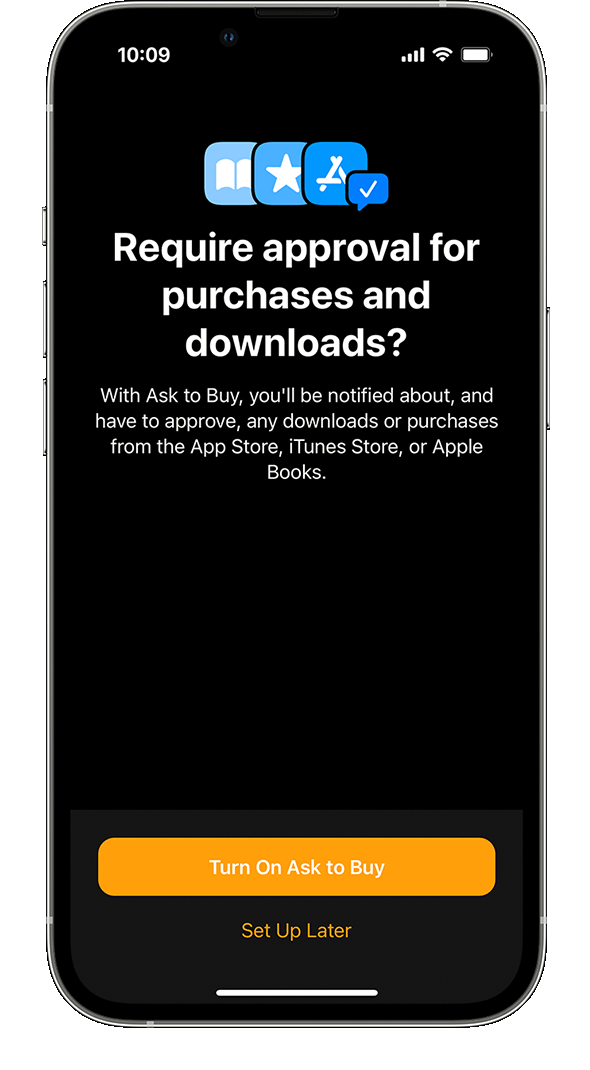
 
The Ask to Buy option during Apple Watch setup on an iPhone.
7. Set up cellular and Wi-Fi
If your iPhone cellular provider supports Family Setup, you can add the watch to your plan during this step.
If your carrier doesn't support Family Setup, or you'd like to use a different carrier, select Not Now.* You can choose an alternative carrier from this list of supported carriers and contact them directly to set up your cellular plan. 
Next, choose whether to share your current Wi-Fi network with the Apple Watch.
* Some corporate cellular plans don't support Family Setup.
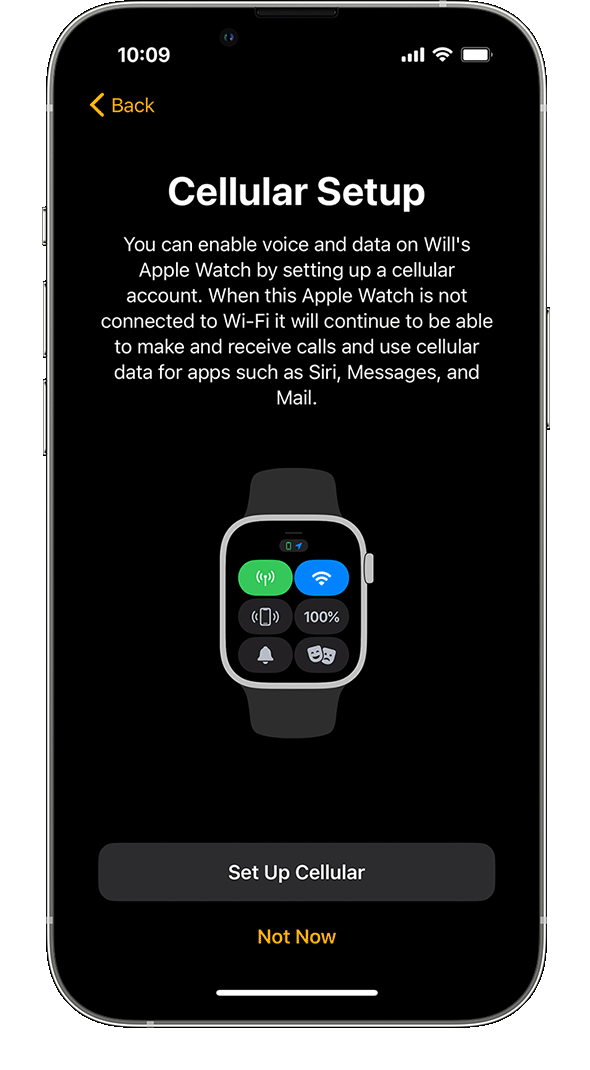
The Cellular Setup screen during Apple Watch setup on an iPhone.
8. Turn on other features
In the screens that follow, choose whether to turn on and set up additional Apple Watch features. These include Location Services for the Find My app, Siri, Apple Cash Family, Messages in iCloud, Health Data, Emergency Contacts, Medical ID, Activity, Workout Route Tracking, and Photos.
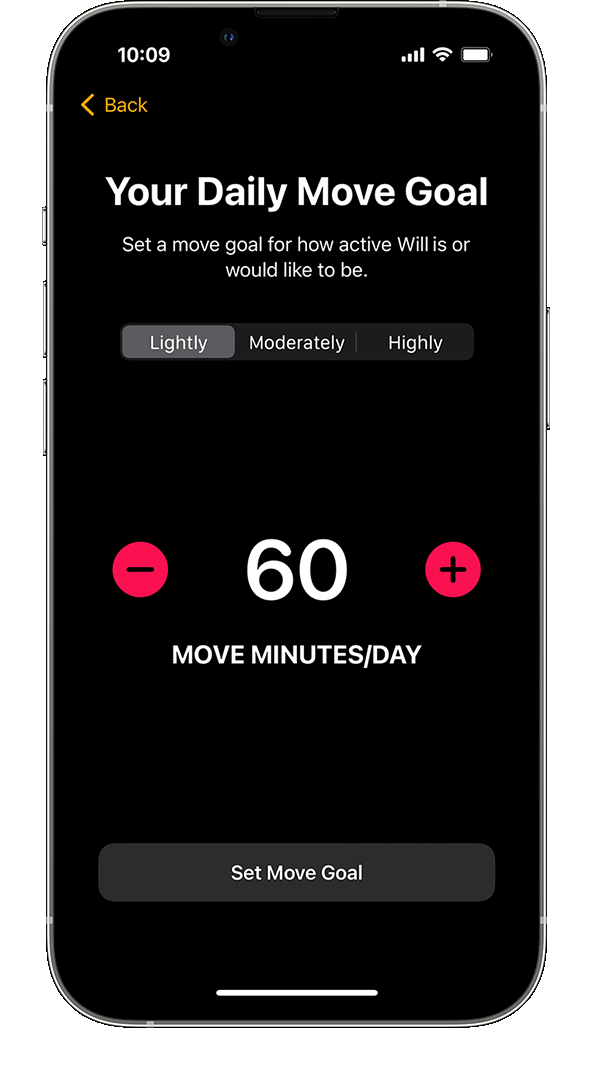
The option to set a daily move goal for an Apple Watch during setup on an iPhone.
9. Set up shared contacts and Schooltime
Now you're asked to set up the contacts that will be available on the Apple Watch. To allow this, you need to have Contacts in iCloud enabled. Go to Settings > [your name] > iCloud on your iPhone and make sure that Contacts is turned on.*
Then you can choose trusted people from your own Contacts app to share on the Apple Watch. You can manage these shared contacts later, and set up restrictions, in Screen Time on your iPhone.
Finally, set a Screen Time passcode for the watch, and turn on Schooltime. When you're finished, tap OK to begin using the Apple Watch.


Once the Apple Watch is set up using those steps, it will be separate from your phone number and data.


We hope that helps!

Similar questions

1 reply
Question marked as Top-ranking reply

Dec 26, 2022 12:53 PM in response to guphere

Hi there guphere,


As long as you meet the requirements outlined in the 'What you need' section, follow these steps from Set up Apple Watch for a family member to set up your child's Apple Watch in the way you described:

1. Put on the watch and turn it on
If the Apple Watch isn't new, erase it first.
Then put on the watch, or have your family member put it on. Press and hold the side button until you see the Apple logo.
 
An Apple Watch with the side button enhanced.
2. Hold the watch near your iPhone
Hold the Apple Watch close to your iPhone. Wait until "Use your iPhone to set up this Apple Watch" appears on your iPhone, then tap Continue. If you don't see this message, open the Apple Watch app on your iPhone, tap All Watches, then tap Add Watch.
Tap Set Up for a Family Member, then tap Continue on the next screen.
The initial setup screen for pairing a new watch on an iPhone and Apple Watch.
3. Pair the watch with your iPhone
Hold your iPhone over the animation that appears on the watch. Center the watch face in the viewfinder on your iPhone, then wait for a message to say that your Apple Watch is paired. If you can't use the camera, tap Pair Apple Watch Manually, then follow the steps that appear.
Then tap Set Up Apple Watch.
 
An iPhone screen that shows how to position your Apple Watch in the center of the viewfinder on your iPhone.
4. Set up a passcode
Tap Agree on the Terms and Conditions screen, then choose a text size for the Apple Watch.
Next, set a passcode to keep the watch secure.
 
The Apple Watch passcode setup screen on an iPhone.
5. Pick a family member
Choose the family member who will use the Apple Watch. If they don't appear, tap Add Family Member.
Enter the family member's Apple ID password, then tap Next.
The family member select screen when setting up an Apple Watch on an iPhone.
6. Turn on Ask to Buy
Turn on Ask to Buy if you want to give approval for any downloads or purchases made on the Apple Watch.
 
The Ask to Buy option during Apple Watch setup on an iPhone.
7. Set up cellular and Wi-Fi
If your iPhone cellular provider supports Family Setup, you can add the watch to your plan during this step.
If your carrier doesn't support Family Setup, or you'd like to use a different carrier, select Not Now.* You can choose an alternative carrier from this list of supported carriers and contact them directly to set up your cellular plan. 
Next, choose whether to share your current Wi-Fi network with the Apple Watch.
* Some corporate cellular plans don't support Family Setup.
The Cellular Setup screen during Apple Watch setup on an iPhone.
8. Turn on other features
In the screens that follow, choose whether to turn on and set up additional Apple Watch features. These include Location Services for the Find My app, Siri, Apple Cash Family, Messages in iCloud, Health Data, Emergency Contacts, Medical ID, Activity, Workout Route Tracking, and Photos.
The option to set a daily move goal for an Apple Watch during setup on an iPhone.
9. Set up shared contacts and Schooltime
Now you're asked to set up the contacts that will be available on the Apple Watch. To allow this, you need to have Contacts in iCloud enabled. Go to Settings > [your name] > iCloud on your iPhone and make sure that Contacts is turned on.*
Then you can choose trusted people from your own Contacts app to share on the Apple Watch. You can manage these shared contacts later, and set up restrictions, in Screen Time on your iPhone.
Finally, set a Screen Time passcode for the watch, and turn on Schooltime. When you're finished, tap OK to begin using the Apple Watch.


Once the Apple Watch is set up using those steps, it will be separate from your phone number and data.


We hope that helps!

This thread has been closed by the system or the community team. You may vote for any posts you find helpful, or search the Community for additional answers.

Can I add child Iwatch to my phone account as a unique number with no access to my texts or phone contacts?

Welcome to Apple Support Community
A forum where Apple customers help each other with their products. Get started with your Apple Account.