
How can I get back my music back
Hi I lost all my music how do I get it back
iPhone 11, iOS 16
Hi I lost all my music how do I get it back
iPhone 11, iOS 16
Hey there, and welcome to Apple Support Communities Taphmous,
We can certainly understand your concern and can help provide some insight.
We recommend checking out these steps for more information on what to do if you are missing music from your library.
" If songs are missing from your music library after you turn on Sync Library
Make sure that all of your devices have Sync Library turned on and signed in with the same Apple ID that you use with Apple Music. If your music library is stored on your computer, check the cloud status of songs to find missing music and resolve issues.
Apple Music isn't a backup service. Make sure to back up your music library before you make any changes.
First, check these things
Check the cloud status of songs on your Mac or PC
Look for the following statuses next to your songs to learn what to do.
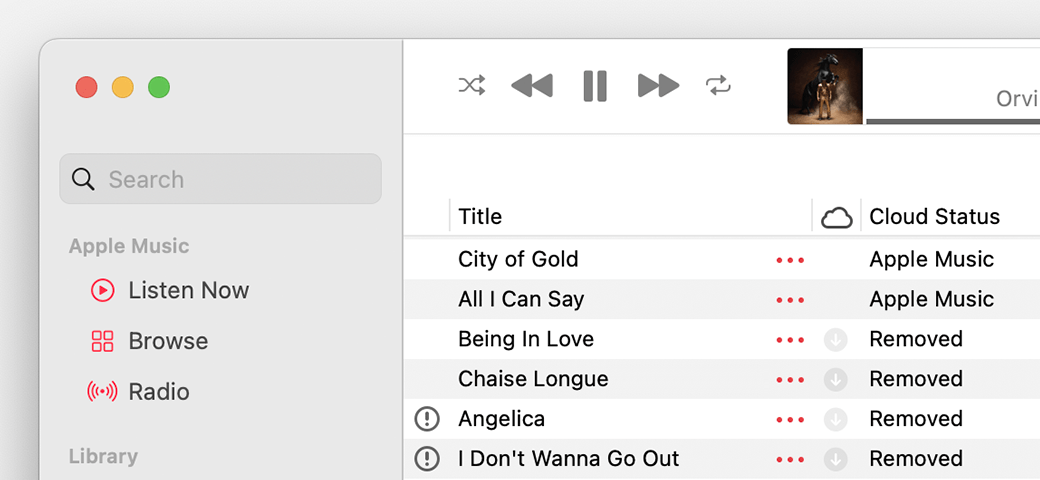
Waiting
The song won’t appear on your other devices because it’s waiting to upload. Choose File > Library > Update Cloud Library. Then check if the song appears on your other devices.
Removed
The song was deleted from another device that has Sync Library turned on. If you want the song to appear on your other devices, click the arrow  next to the song, then click Add to Cloud Music Library.
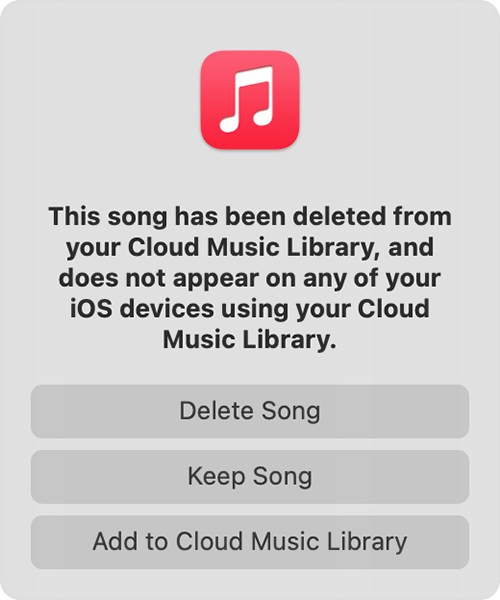
An exclamation point
The song can't be played or synced across your devices until the original file is located. Click the exclamation point  , then click Locate.
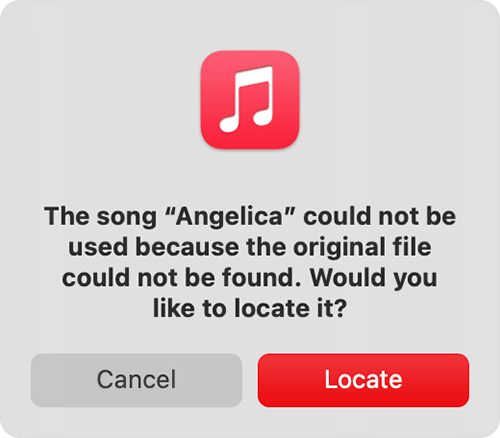
If the song is located, you'll be asked to use the location to find other missing songs in your library. If you see this message, click Find Files.
If a song is grayed out
If you see No Longer Available next to a song that's grayed out, the song was added from Apple Music and was removed from the Apple Music catalog.
Learn what the different cloud icons and symbols next to your songs mean in the Apple Music app
Learn what the different cloud icons and symbols next to your songs mean in iTunes "
For additional information check out this link: Use Sync Library to access your music library across your devices - Apple Support
These steps will help ensure your device is working with ease and can fix common issues like the ones you’re experiencing.
If this does not help, then you might have to recover from a previous backup before the songs were lost. Please keep in mind that any new data created after the save point will be lost. Check out this link for more details.
Restore all content to iPhone from a backup - Apple Support
Kindest regards!
Hey there, and welcome to Apple Support Communities Taphmous,
We can certainly understand your concern and can help provide some insight.
We recommend checking out these steps for more information on what to do if you are missing music from your library.
" If songs are missing from your music library after you turn on Sync Library
Make sure that all of your devices have Sync Library turned on and signed in with the same Apple ID that you use with Apple Music. If your music library is stored on your computer, check the cloud status of songs to find missing music and resolve issues.
Apple Music isn't a backup service. Make sure to back up your music library before you make any changes.
First, check these things
Check the cloud status of songs on your Mac or PC
Look for the following statuses next to your songs to learn what to do.
Waiting
The song won’t appear on your other devices because it’s waiting to upload. Choose File > Library > Update Cloud Library. Then check if the song appears on your other devices.
Removed
The song was deleted from another device that has Sync Library turned on. If you want the song to appear on your other devices, click the arrow next to the song, then click Add to Cloud Music Library.
An exclamation point
The song can't be played or synced across your devices until the original file is located. Click the exclamation point , then click Locate.
If the song is located, you'll be asked to use the location to find other missing songs in your library. If you see this message, click Find Files.
If a song is grayed out
If you see No Longer Available next to a song that's grayed out, the song was added from Apple Music and was removed from the Apple Music catalog.
Learn what the different cloud icons and symbols next to your songs mean in the Apple Music app
Learn what the different cloud icons and symbols next to your songs mean in iTunes "
For additional information check out this link: Use Sync Library to access your music library across your devices - Apple Support
These steps will help ensure your device is working with ease and can fix common issues like the ones you’re experiencing.
If this does not help, then you might have to recover from a previous backup before the songs were lost. Please keep in mind that any new data created after the save point will be lost. Check out this link for more details.
Restore all content to iPhone from a backup - Apple Support
Kindest regards!
How can I get back my music back

