How do I change my payment option for my iCloud account
How do I change the method I use to pay for my iCloud account
How do I change the method I use to pay for my iCloud account
Hi jmeln38,
This resource will help you with changing your payment method: Add a payment method to your Apple ID.
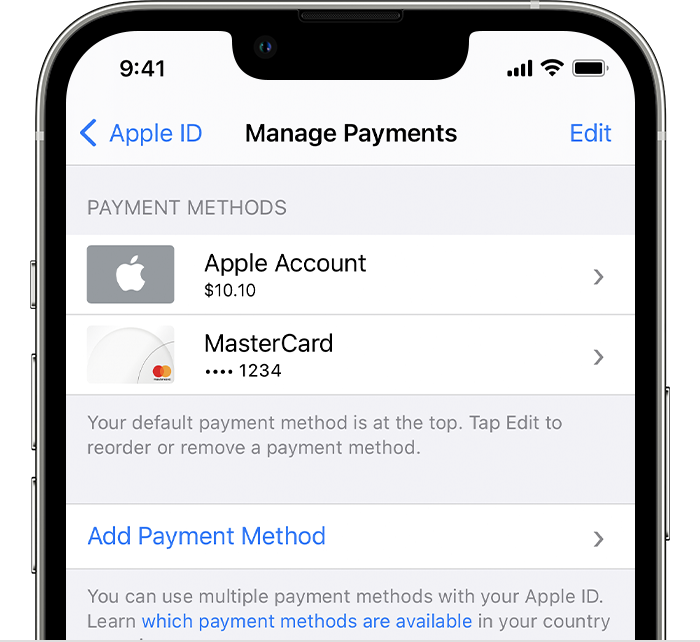
Add a payment method on your iPhone or iPad
1. Open the Settings app.
2. Tap your name.
3. Tap Media & Purchases, then tap View Account. You might be asked to sign in with your Apple ID.
4. Tap Manage Payments.
5. Tap Add Payment Method.
6. Enter the payment method details, then tap Done.
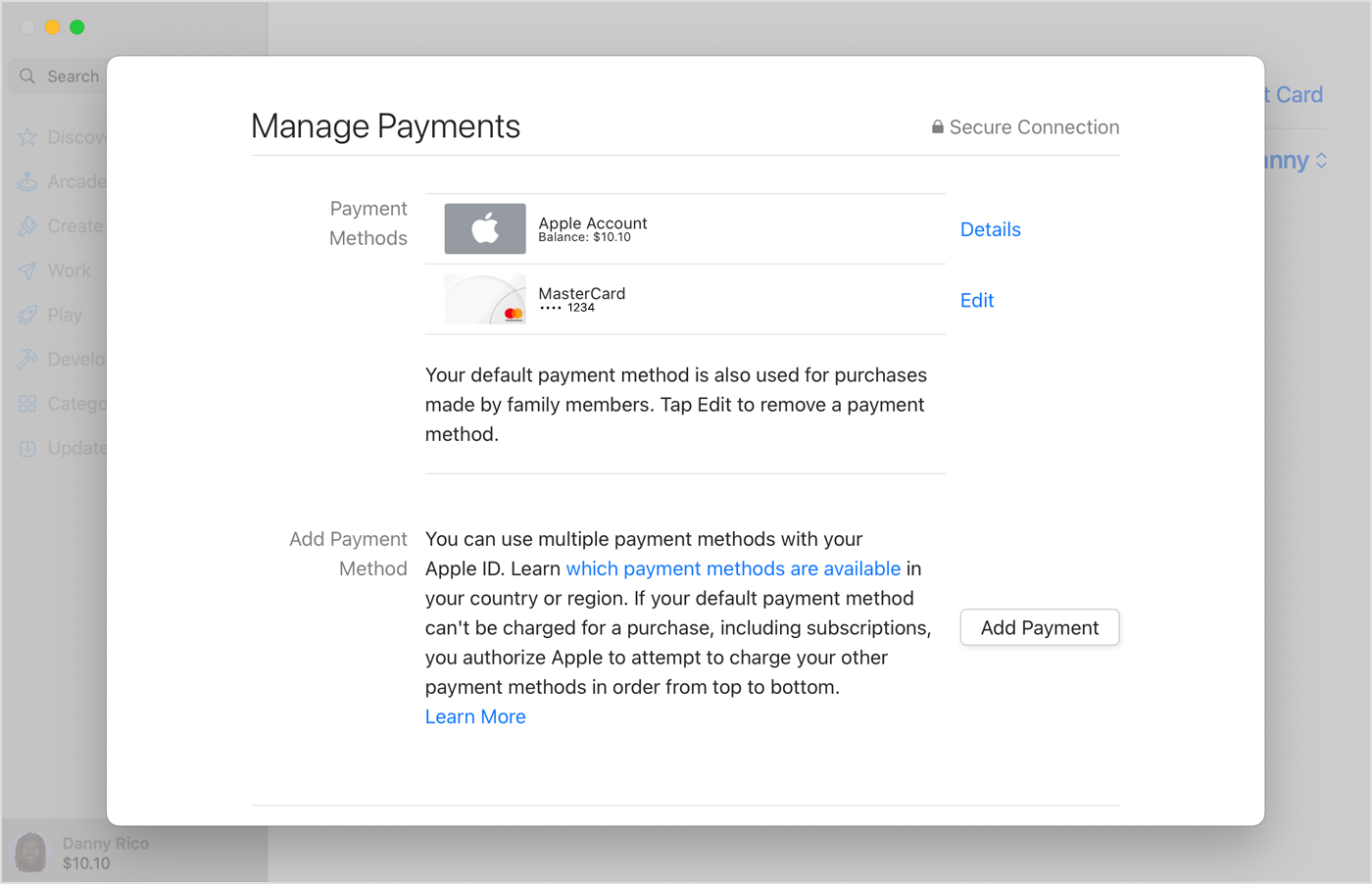
Add a payment method on your Mac
1. Open the App Store.
2. Click your name. If your name doesn't appear, click the Sign In button, sign in with your Apple ID, then click your name.
3. Click Account Settings.
4. Next to Payment Information, click Manage Payments. (If you're using an older version of macOS, click Edit next to Payment Type.)
5. Click Add Payment.
6. Enter the payment method details, then click Done.
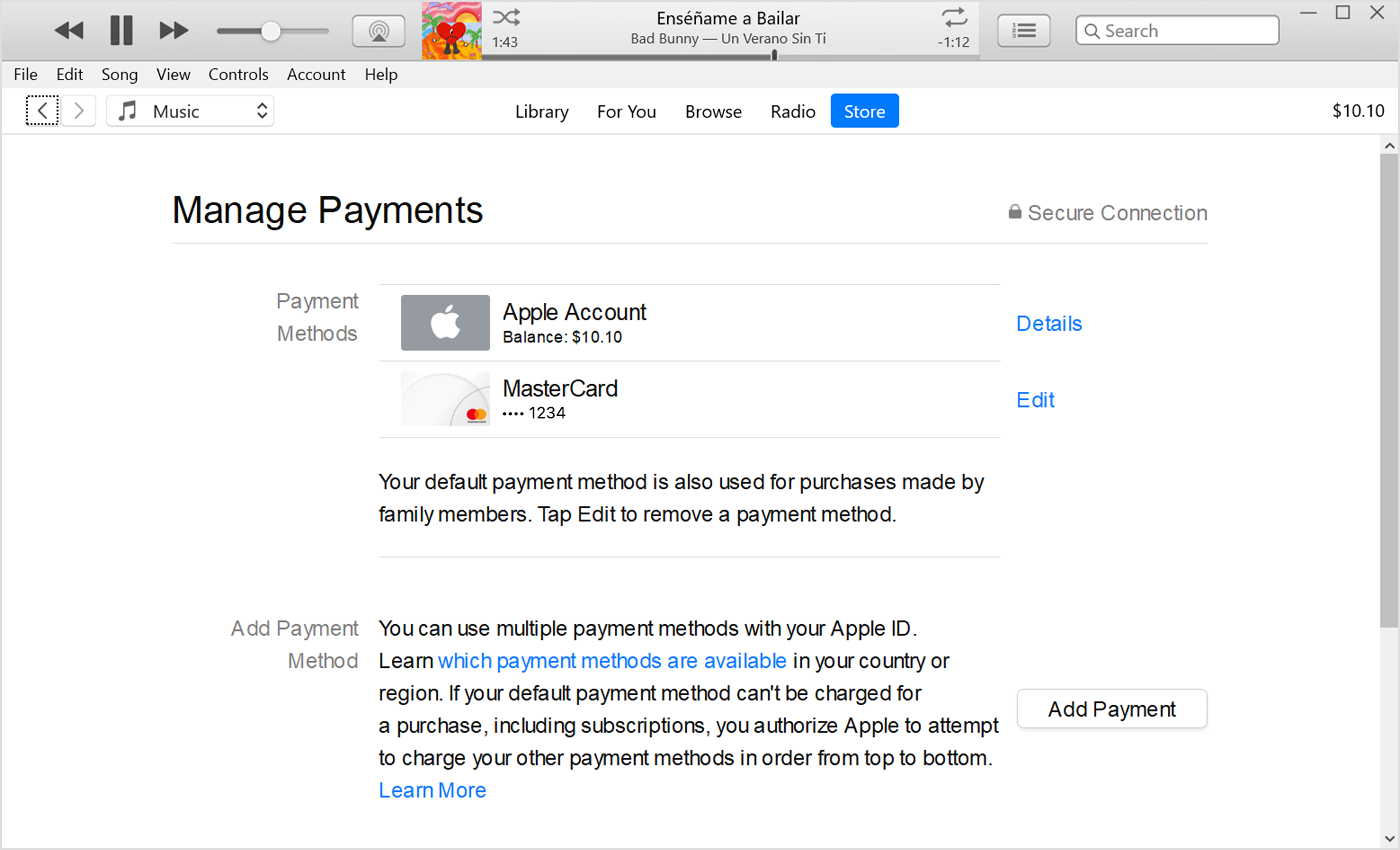
Add a payment method on your Windows PC or Microsoft Surface
1. Open iTunes.
2. In the menu bar at the top of the iTunes window, tap or click Account, then tap or click View My Account.
3. Sign in with your Apple ID.
4. Tap or click the Manage Payments button next to Payment Information. (If you're using an older version of iTunes, tap or click the Edit button next to Payment Type.)
5. Tap or click Add Payment.
Add a payment method online
If you want to keep more than one payment method on file, add the payment method in Settings on iPhone or iPad, in the App Store on Mac, or in iTunes on your PC. When you edit payment information online at appleid.apple.com, additional payment methods might be removed from your account automatically.
1. Go to appleid.apple.com.
2. Tap or click Sign In, then sign in with your Apple ID.
3. Tap or click Payment Methods.
4. Tap or click Manage payment method.
5. Enter your payment information, then tap or click Update.
Cheers.
Hi jmeln38,
This resource will help you with changing your payment method: Add a payment method to your Apple ID.
Add a payment method on your iPhone or iPad
1. Open the Settings app.
2. Tap your name.
3. Tap Media & Purchases, then tap View Account. You might be asked to sign in with your Apple ID.
4. Tap Manage Payments.
5. Tap Add Payment Method.
6. Enter the payment method details, then tap Done.
Add a payment method on your Mac
1. Open the App Store.
2. Click your name. If your name doesn't appear, click the Sign In button, sign in with your Apple ID, then click your name.
3. Click Account Settings.
4. Next to Payment Information, click Manage Payments. (If you're using an older version of macOS, click Edit next to Payment Type.)
5. Click Add Payment.
6. Enter the payment method details, then click Done.
Add a payment method on your Windows PC or Microsoft Surface
1. Open iTunes.
2. In the menu bar at the top of the iTunes window, tap or click Account, then tap or click View My Account.
3. Sign in with your Apple ID.
4. Tap or click the Manage Payments button next to Payment Information. (If you're using an older version of iTunes, tap or click the Edit button next to Payment Type.)
5. Tap or click Add Payment.
Add a payment method online
If you want to keep more than one payment method on file, add the payment method in Settings on iPhone or iPad, in the App Store on Mac, or in iTunes on your PC. When you edit payment information online at appleid.apple.com, additional payment methods might be removed from your account automatically.
1. Go to appleid.apple.com.
2. Tap or click Sign In, then sign in with your Apple ID.
3. Tap or click Payment Methods.
4. Tap or click Manage payment method.
5. Enter your payment information, then tap or click Update.
Cheers.
How do I change my payment option for my iCloud account