how to transfer files folder from iphone 10 to laptop
How to transfer Files folder content to laptop
iPhone X, iOS 16
How to transfer Files folder content to laptop
iPhone X, iOS 16
Hello nargiz13,
You can use iCloud for Windows and iCloud Drive to sync your files with your Windows PC.
This resource includes the link to download iCloud for Windows from the Microsoft Store: Download iCloud for Windows
You can then use the steps below to access and manage your iCloud Drive files using your PC:
Download and view files
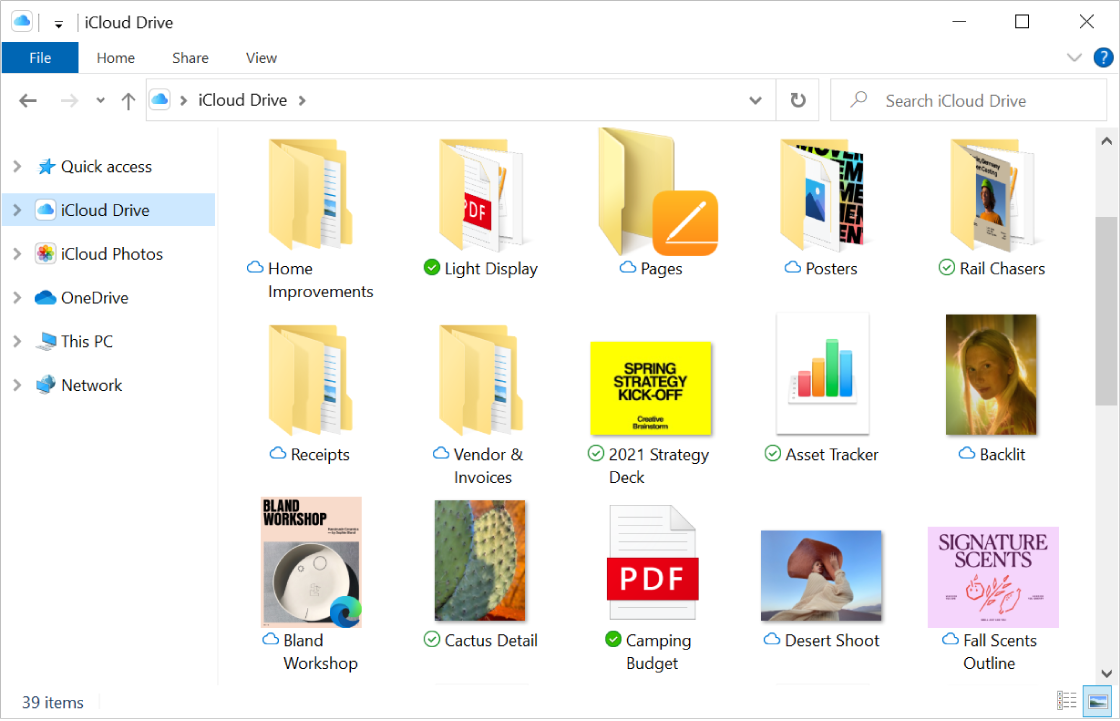
1. On your Windows computer, open File Explorer or Windows Explorer, then click iCloud Drive in the Navigation pane.
2. Locate and double-click any file you want to open. You can only open a file that is downloaded on your computer.
The icon next to an item’s filename indicates the download status. See a list of icons and what they mean. You can also pin a file or folder to keep it downloaded to your device.
If you can’t open a file, it might have been created using an app you don’t have on your computer.
Note: In iCloud for Windows version 7, all files in iCloud Drive are automatically downloaded to your computer.
Add files to iCloud Drive
1. On your Windows computer, open File Explorer or Windows Explorer, then click iCloud Drive in the Navigation pane.
2. Drag files to iCloud Drive.
You can access these files on all your devices that have iCloud Drive turned on. See Set up iCloud Drive on all your devices in the iCloud User Guide.
Note: Some apps, like Pages, Numbers, and Keynote, have their own folders in iCloud Drive. You can only upload a file into an app’s folder if the app can open the file.
Move items to your Windows computer and remove them from iCloud Drive
1. On your Windows computer, open File Explorer or Windows Explorer, then click iCloud Drive in the Navigation pane.
2. Locate the items you want to remove.
3. Drag the items from iCloud Drive to the desktop or another folder on your hard disk.
The items are moved to your Windows computer and removed from iCloud Drive on all your devices that have iCloud Drive turned on. If you change your mind, you can drag the items back to iCloud Drive.
You can also find those steps in this resource: View, add, or remove iCloud Drive files in iCloud for Windows
Hopefully that addresses your inquiry.
Take care.
Hello nargiz13,
You can use iCloud for Windows and iCloud Drive to sync your files with your Windows PC.
This resource includes the link to download iCloud for Windows from the Microsoft Store: Download iCloud for Windows
You can then use the steps below to access and manage your iCloud Drive files using your PC:
Download and view files
1. On your Windows computer, open File Explorer or Windows Explorer, then click iCloud Drive in the Navigation pane.
2. Locate and double-click any file you want to open. You can only open a file that is downloaded on your computer.
The icon next to an item’s filename indicates the download status. See a list of icons and what they mean. You can also pin a file or folder to keep it downloaded to your device.
If you can’t open a file, it might have been created using an app you don’t have on your computer.
Note: In iCloud for Windows version 7, all files in iCloud Drive are automatically downloaded to your computer.
Add files to iCloud Drive
1. On your Windows computer, open File Explorer or Windows Explorer, then click iCloud Drive in the Navigation pane.
2. Drag files to iCloud Drive.
You can access these files on all your devices that have iCloud Drive turned on. See Set up iCloud Drive on all your devices in the iCloud User Guide.
Note: Some apps, like Pages, Numbers, and Keynote, have their own folders in iCloud Drive. You can only upload a file into an app’s folder if the app can open the file.
Move items to your Windows computer and remove them from iCloud Drive
1. On your Windows computer, open File Explorer or Windows Explorer, then click iCloud Drive in the Navigation pane.
2. Locate the items you want to remove.
3. Drag the items from iCloud Drive to the desktop or another folder on your hard disk.
The items are moved to your Windows computer and removed from iCloud Drive on all your devices that have iCloud Drive turned on. If you change your mind, you can drag the items back to iCloud Drive.
You can also find those steps in this resource: View, add, or remove iCloud Drive files in iCloud for Windows
Hopefully that addresses your inquiry.
Take care.
how to transfer files folder from iphone 10 to laptop