Downloading Music on Apple Music

I just upgraded to an iPhone 14 and I was trying to download the songs in my apple music library, but received a notification saying "Too many devices, to play offline content, you'll need to remove some devices from your account." I am confused because I only have four devices on my account, my new iPhone, my watch, my iPad, and my macbook and the limit of devices on an apple account is 10 devices which I am nowhere close to. How do I fix this problem?

iPhone 14 Pro, iOS 16

Posted on Jan 4, 2023 11:54 AM

Reply
Question marked as Top-ranking reply

Posted on Jan 5, 2023 5:59 PM

Hey noelle_minne,


We'd recommend reviewing the information in this article as it can help identify any devices that may be associated with your account and provides the steps to remove them: View and remove your devices that are associated with Apple ID purchases


"Use a Mac or PC to find or remove your associated devices

  1. On your Mac, open the Apple Music app. Or on your PC, open iTunes for Windows.
  2. From the menu bar on your Mac, choose Account > Account Settings. Or from the menu bar in iTunes on your PC, choose Account > View My Account. You might need to sign in with your Apple ID.
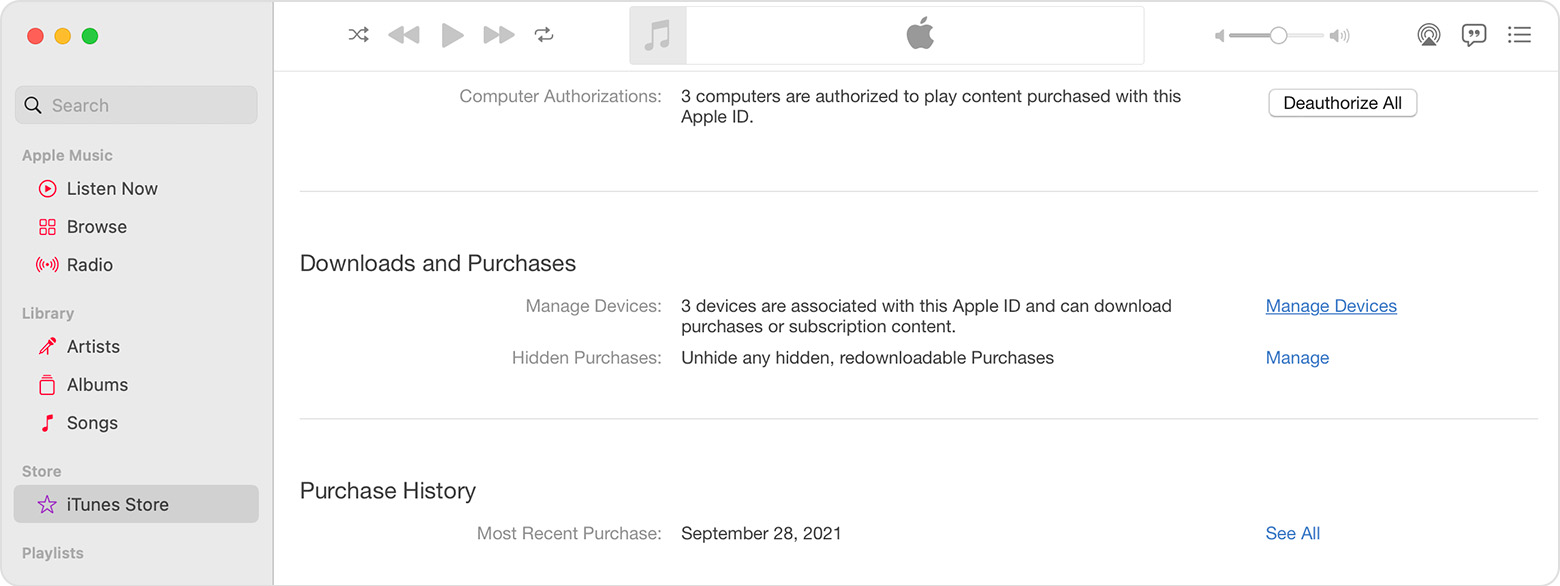
  3. Click Manage Devices. If no devices are associated with your Apple ID, this section won't appear.
  4. Mac showing the Manage Devices option under Downloads and Purchases.

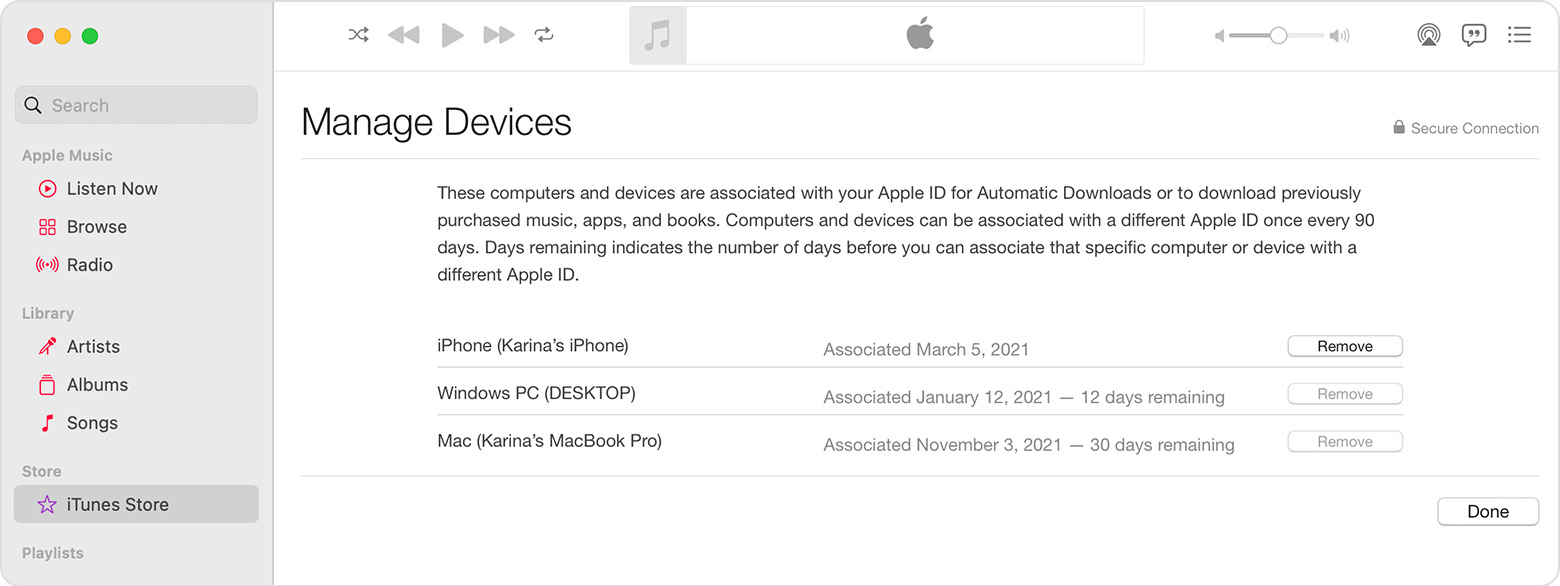
  5. If you want to remove a device, click Remove. If you can’t remove a device, sign out of your Apple ID on that device and try again. If you still can't remove it, you might need to wait up to 90 days to associate the device with a different Apple ID.
  6. Mac showing a list of three devices. The remove button is not available for some of the devices in the list.

"


Thanks!

1 reply
Question marked as Top-ranking reply

Jan 5, 2023 5:59 PM in response to noelle_minne

Hey noelle_minne,


We'd recommend reviewing the information in this article as it can help identify any devices that may be associated with your account and provides the steps to remove them: View and remove your devices that are associated with Apple ID purchases


"Use a Mac or PC to find or remove your associated devices

  1. On your Mac, open the Apple Music app. Or on your PC, open iTunes for Windows.
  2. From the menu bar on your Mac, choose Account > Account Settings. Or from the menu bar in iTunes on your PC, choose Account > View My Account. You might need to sign in with your Apple ID.
  3. Click Manage Devices. If no devices are associated with your Apple ID, this section won't appear.
  4. Mac showing the Manage Devices option under Downloads and Purchases.

  5. If you want to remove a device, click Remove. If you can’t remove a device, sign out of your Apple ID on that device and try again. If you still can't remove it, you might need to wait up to 90 days to associate the device with a different Apple ID.
  6. Mac showing a list of three devices. The remove button is not available for some of the devices in the list.

"


Thanks!

This thread has been closed by the system or the community team. You may vote for any posts you find helpful, or search the Community for additional answers.

Downloading Music on Apple Music

Welcome to Apple Support Community
A forum where Apple customers help each other with their products. Get started with your Apple Account.