
Activation email/password not accepted
Hi I am having trouble accessing my iPad mini due to the email/password not being accepted.
iPad mini, iOS 8
Hi I am having trouble accessing my iPad mini due to the email/password not being accepted.
iPad mini, iOS 8
Hello jezcuh88,
Thank you for reaching out in Apple Support Communities. From the information you provided, it sounds like you'll need to regain access to your Apple ID and reset the password. From there, you can attempt to sign in on your iPad and see if that helps. Here's how:
"If you forgot your Apple ID email address or phone number
If you forgot the email address or phone number that you use with your Apple ID or aren't sure if you have one, you can look it up or check if you're already signed in to an app or service.
See if you're already signed in with your Apple ID
Check to see if you're signed in on your device. Or check if you're signed in to Apple apps or services
On your iPhone, iPad, or Apple Watch
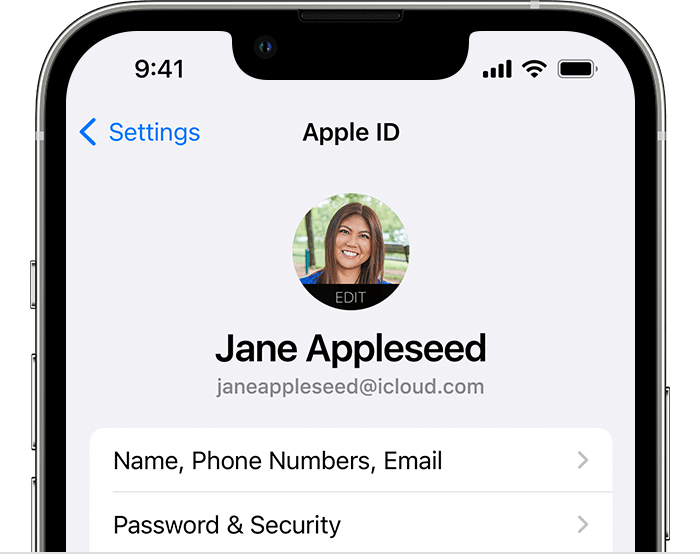
Tap Settings, then tap your name.
On your Mac
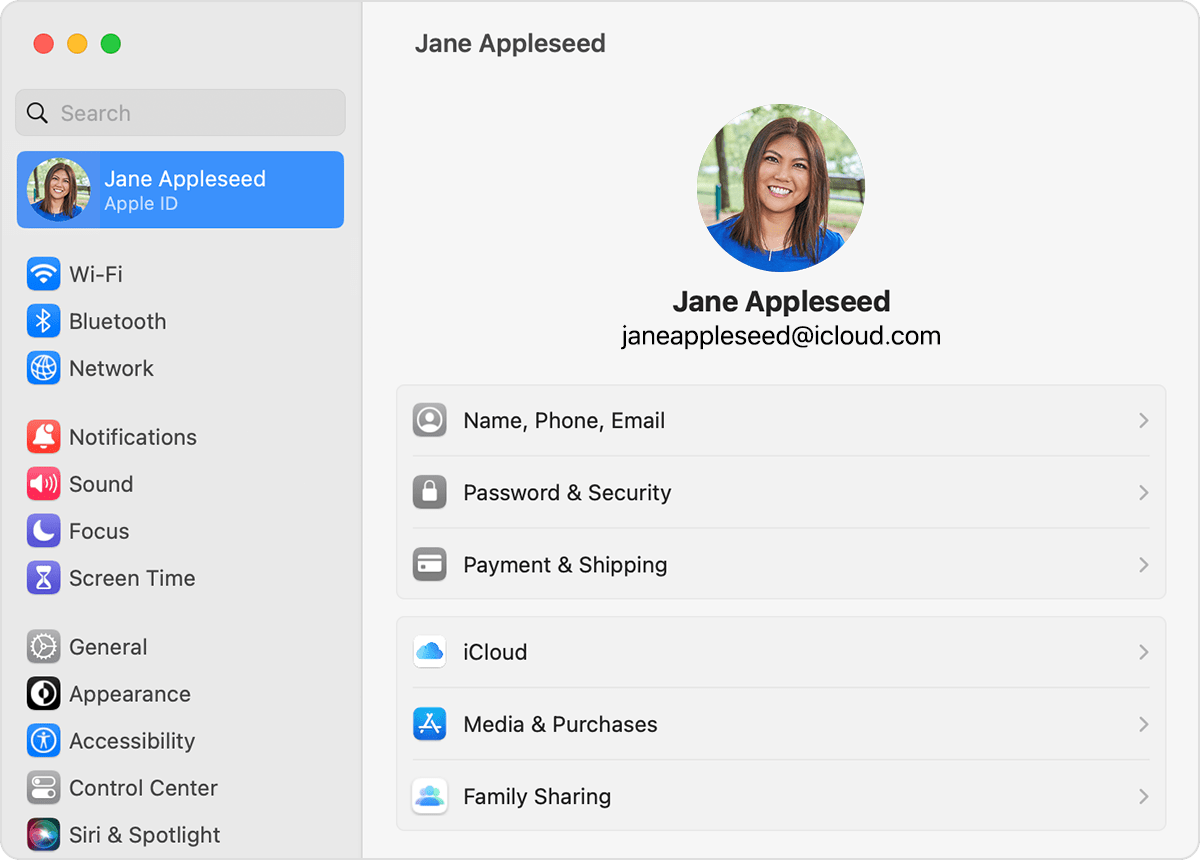
On your PC
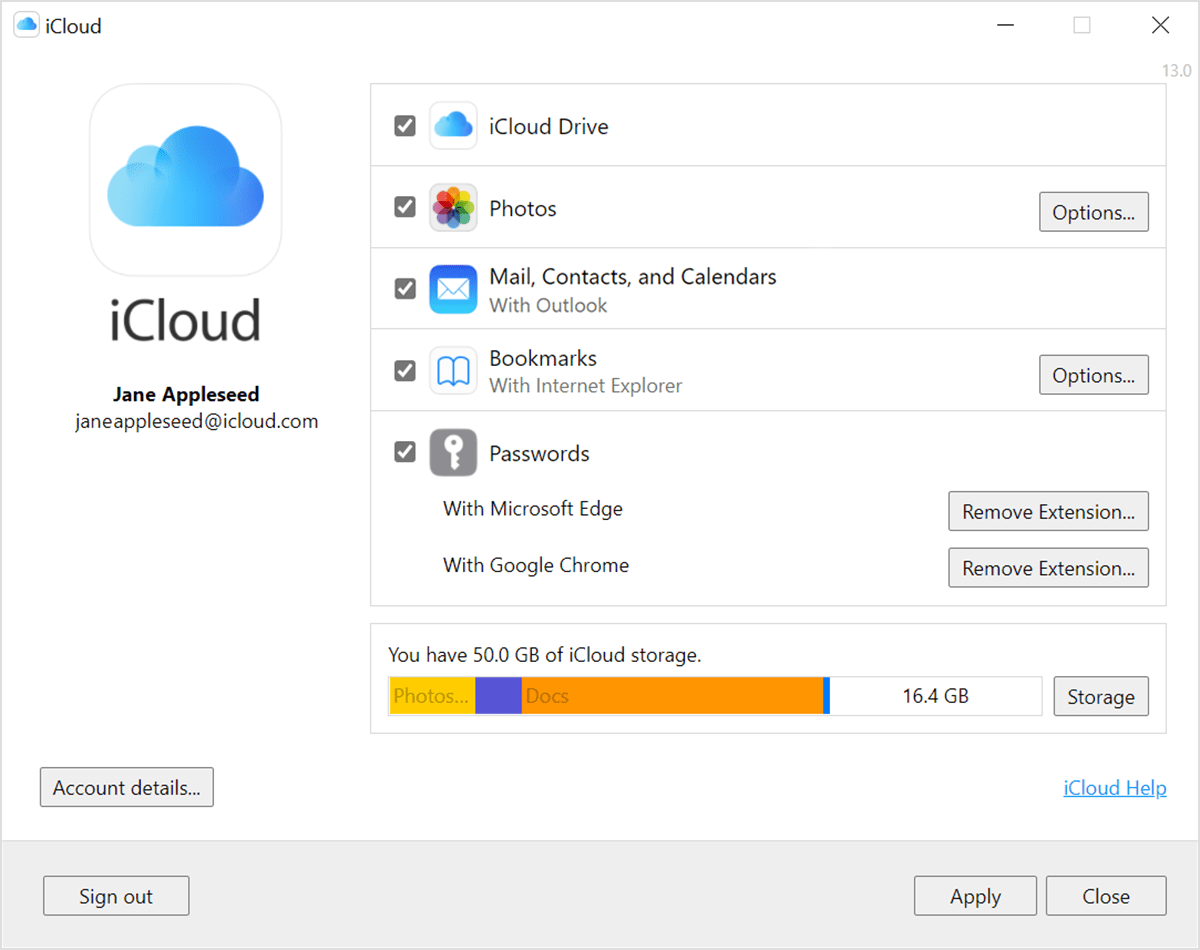
Open iCloud for Windows, then look for your Apple ID under your name.
Other ways to find your Apple ID
You can check if you're signed in to the App Store, FaceTime, or Messages on your iPhone, iPad, or Mac, or check if you're signed in to iTunes for Windows on a PC. You can also go to iCloud.com or appleid.apple.com and see if your Apple ID prefills on the sign-in screen.
FaceTime isn't available in all countries or regions.
Check your inbox for emails from Apple
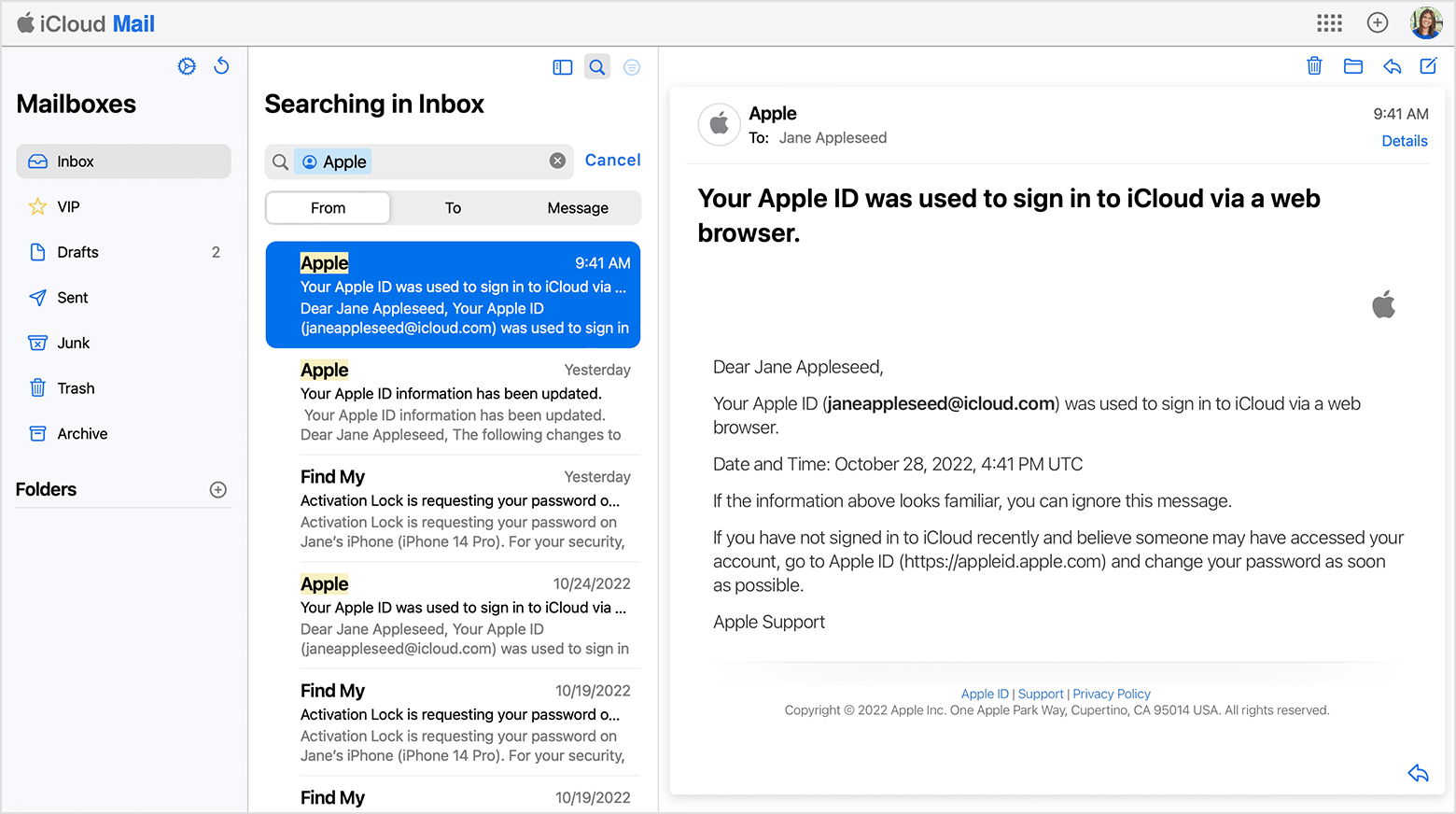
Your Apple ID might be included in some emails from Apple. Search your inbox for receipts as well as repair, support, or billing emails from Apple.
If your email address is masked (j*****@icloud.com), the number of asterisks might not match the number of characters in your email address."
These steps are outlined in this helpful article: If you forgot your Apple ID email address or phone number
Then, you'll want to reset the Apple ID password by following these steps:
"If you forgot your Apple ID password
Here's how to reset your Apple ID password and regain access to your account.
The fastest and easiest way to reset your password is with your iPhone or other trusted Apple device — one that you're already signed in to with your Apple ID, so that we know that it's yours.
You need a passcode (or password on Mac) set up on your device.
Reset your Apple ID password on your iPhone or other trusted Apple device
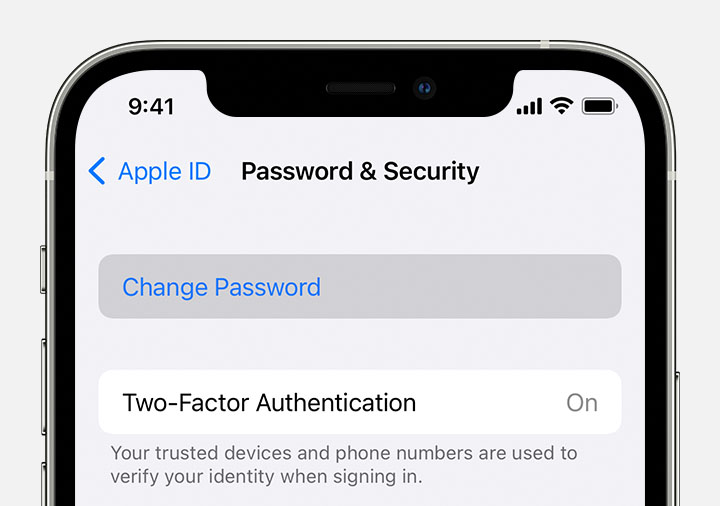
You can also follow this process on a trusted iPad, iPod touch, or Apple Watch.
To reset your password on your trusted Mac, choose Apple menu > System Settings (or System Preferences) > Sign in with your Apple ID (or Apple ID). Then click Password & Security, Change Password, and follow the onscreen instructions.
If you have a new Apple device
If you have a new Apple device or an Apple device that you aren't signed in to with your Apple ID, you can select "Forgot Apple ID or password?" wherever the option appears.
During device setup, you can find the "Forgot Apple ID or password?" option on the Apple ID sign-in screen. After setup, you can select an app or other option that prompts you to sign in:
Reset your Apple ID password with the Apple Support app on a borrowed device
If you don't have an Apple device but have access to your trusted phone number, you can borrow an Apple device from a friend or family member, or use one at an Apple Store.
Any information that you enter will not be stored on the device.
Reset your Apple ID password on the web
If you don't have a trusted device, you can reset your password on the web — but the process might take a little longer.
When possible, the web process redirects you to a trusted device. If you'll have access to one of your trusted devices soon, it might be faster and easier to reset your password then.
Reset your password at iforgot.apple.com"
This information is outlined here: If you forgot your Apple ID password
We look forward to hearing back from you with an update.
Kind regards.
Hello jezcuh88,
Thank you for reaching out in Apple Support Communities. From the information you provided, it sounds like you'll need to regain access to your Apple ID and reset the password. From there, you can attempt to sign in on your iPad and see if that helps. Here's how:
"If you forgot your Apple ID email address or phone number
If you forgot the email address or phone number that you use with your Apple ID or aren't sure if you have one, you can look it up or check if you're already signed in to an app or service.
See if you're already signed in with your Apple ID
Check to see if you're signed in on your device. Or check if you're signed in to Apple apps or services
On your iPhone, iPad, or Apple Watch
Tap Settings, then tap your name.
On your Mac
On your PC
Open iCloud for Windows, then look for your Apple ID under your name.
Other ways to find your Apple ID
You can check if you're signed in to the App Store, FaceTime, or Messages on your iPhone, iPad, or Mac, or check if you're signed in to iTunes for Windows on a PC. You can also go to iCloud.com or appleid.apple.com and see if your Apple ID prefills on the sign-in screen.
FaceTime isn't available in all countries or regions.
Check your inbox for emails from Apple
Your Apple ID might be included in some emails from Apple. Search your inbox for receipts as well as repair, support, or billing emails from Apple.
If your email address is masked (j*****@icloud.com), the number of asterisks might not match the number of characters in your email address."
These steps are outlined in this helpful article: If you forgot your Apple ID email address or phone number
Then, you'll want to reset the Apple ID password by following these steps:
"If you forgot your Apple ID password
Here's how to reset your Apple ID password and regain access to your account.
The fastest and easiest way to reset your password is with your iPhone or other trusted Apple device — one that you're already signed in to with your Apple ID, so that we know that it's yours.
You need a passcode (or password on Mac) set up on your device.
Reset your Apple ID password on your iPhone or other trusted Apple device
You can also follow this process on a trusted iPad, iPod touch, or Apple Watch.
To reset your password on your trusted Mac, choose Apple menu > System Settings (or System Preferences) > Sign in with your Apple ID (or Apple ID). Then click Password & Security, Change Password, and follow the onscreen instructions.
If you have a new Apple device
If you have a new Apple device or an Apple device that you aren't signed in to with your Apple ID, you can select "Forgot Apple ID or password?" wherever the option appears.
During device setup, you can find the "Forgot Apple ID or password?" option on the Apple ID sign-in screen. After setup, you can select an app or other option that prompts you to sign in:
Reset your Apple ID password with the Apple Support app on a borrowed device
If you don't have an Apple device but have access to your trusted phone number, you can borrow an Apple device from a friend or family member, or use one at an Apple Store.
Any information that you enter will not be stored on the device.
Reset your Apple ID password on the web
If you don't have a trusted device, you can reset your password on the web — but the process might take a little longer.
When possible, the web process redirects you to a trusted device. If you'll have access to one of your trusted devices soon, it might be faster and easier to reset your password then.
Reset your password at iforgot.apple.com"
This information is outlined here: If you forgot your Apple ID password
We look forward to hearing back from you with an update.
Kind regards.
Activation email/password not accepted

