Search “near me” and Pakistan shows up
When I search my iPhone 12 for a business like plumber or electrician near me I get results from India or Pakistan…but I am in Tennessee.
iPhone 12
When I search my iPhone 12 for a business like plumber or electrician near me I get results from India or Pakistan…but I am in Tennessee.
iPhone 12
Hello FGHIJ,
The first thing we always recommend is that you power cycle the iPhone using these instructions: Restart your iPhone - Apple Support While simple, this can refresh the iOS, apps and connections.
If the problem continues, if you are using any type of VPN, remove it. VPN's can change the perceived location of the device.
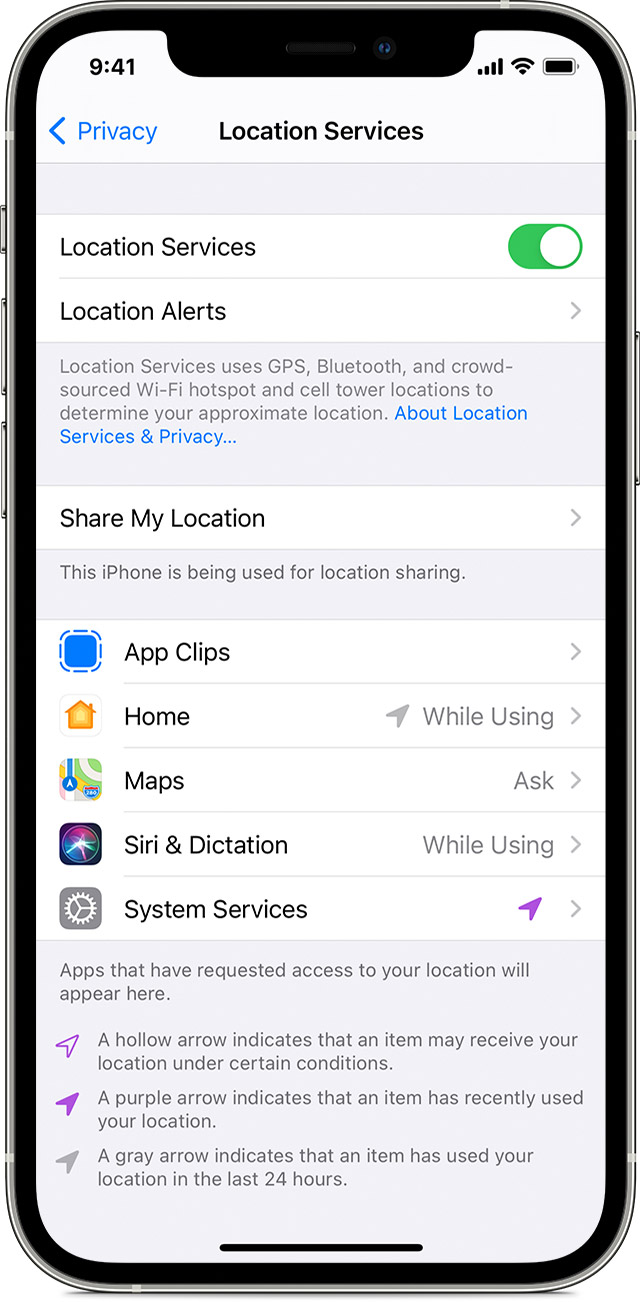
Next, you will want to check the location Services settings to make sure that any app you are using to search with is able to detect your current location. This information is found at Turn Location Services and GPS on or off on your iPhone, iPad, or iPod touch - Apple Support:
How to give apps permission to use your location
Some apps might not work unless you turn on Location Services.1 The first time an app needs to access your Location Services information, you'll get a notification asking for permission. Choose one of these options:
• Tap Allow to let the app use Location Services information as needed.
• Tap Don't Allow to prevent access.2
• Tap Ask Next Time to choose Always While Using App, Allow Once, or Don't Allow.
iOS and iPadOS devices might use Wi-Fi and Bluetooth to determine your location. GPS and cellular location are available on iPhone and iPad (Wi-Fi + Cellular) models.
How to turn Location Services on or off for specific apps
1. Go to Settings > Privacy > Location Services.
2. Make sure that Location Services is on.
3. Scroll down to find the app.
4. Tap the app and select an option:
• Never: Prevents access to Location Services information.
• Ask Next Time: This allows you to choose Always While Using App, Allow Once, or Don't Allow.
• While Using the App: Allows access to Location Services only when the app or one of its features is visible on screen. If an app is set to While Using the App, you might see your status bar turn blue with a message that an app is actively using your location.
• Always: Allows access to your location even when the app is in the background.
From here, apps should provide an explanation of how the app will use your location information. Some apps might offer only two options.
Make sure that any app you are using to search with has Location Services enabled, or it may not be able to detect where you are at.
Have a good day.
Hello FGHIJ,
The first thing we always recommend is that you power cycle the iPhone using these instructions: Restart your iPhone - Apple Support While simple, this can refresh the iOS, apps and connections.
If the problem continues, if you are using any type of VPN, remove it. VPN's can change the perceived location of the device.
Next, you will want to check the location Services settings to make sure that any app you are using to search with is able to detect your current location. This information is found at Turn Location Services and GPS on or off on your iPhone, iPad, or iPod touch - Apple Support:
How to give apps permission to use your location
Some apps might not work unless you turn on Location Services.1 The first time an app needs to access your Location Services information, you'll get a notification asking for permission. Choose one of these options:
• Tap Allow to let the app use Location Services information as needed.
• Tap Don't Allow to prevent access.2
• Tap Ask Next Time to choose Always While Using App, Allow Once, or Don't Allow.
iOS and iPadOS devices might use Wi-Fi and Bluetooth to determine your location. GPS and cellular location are available on iPhone and iPad (Wi-Fi + Cellular) models.
How to turn Location Services on or off for specific apps
1. Go to Settings > Privacy > Location Services.
2. Make sure that Location Services is on.
3. Scroll down to find the app.
4. Tap the app and select an option:
• Never: Prevents access to Location Services information.
• Ask Next Time: This allows you to choose Always While Using App, Allow Once, or Don't Allow.
• While Using the App: Allows access to Location Services only when the app or one of its features is visible on screen. If an app is set to While Using the App, you might see your status bar turn blue with a message that an app is actively using your location.
• Always: Allows access to your location even when the app is in the background.
From here, apps should provide an explanation of how the app will use your location information. Some apps might offer only two options.
Make sure that any app you are using to search with has Location Services enabled, or it may not be able to detect where you are at.
Have a good day.
Search “near me” and Pakistan shows up