JPG vs JPEG in Photos Import

I'm having a problem with the same photos being imported to Mac as "new" every time.


Here is what I'm noticing

  1. Plug in iPhone, it shows a photo as "new" with .jpeg extension.
  2. Import that photo, it shows on Mac as .JPG
  3. That photo no longer shows as "new" on Mac
  4. Unplug iPhone
  5. Plug iPhone back in, same photo shows as "new" with .jpeg extension


There are about 30 photos that are having this problem, which is really annoying because every time I want to sync photos to my Mac I have to remember to ignore those ones or I end up with tons of duplicates.


This clearly has something to do with .JPG vs .jpeg and it automatically converting from one to the other when moving between devices. I already have the "Keep Originals" setting on for "Transfer to Mac or PC" in settings, I also have "iCloud Photos" and "My Photo Stream" turned off on my phone. I'm guessing it that .JPG and .jpeg are the "same" format when importing, but when Photos tries to check for new photos it makes a distinction between the two. Any help?


Posted on Jan 15, 2023 4:35 PM

Reply

Similar questions

4 replies

Jan 19, 2023 1:40 AM in response to draqe

Is your iPhone taking the photos in the HEIC format, but you have set the iPhone to transfer the photos as 2more Compatible" in the Settings > Photos > Transfer to Mac or PC? See: Using HEIF or HEVC media on Apple devices - Apple Support


If HEIC photos will be converted and transferred as JPEGs, they will always be new items, because the iPhone will create new JPEGs whenever you connect your iPhone to the Mac you import them. The HEIC files on the iPhone are no duplicates of the jpegs you imported. Either do not use a format conversion on import, or select manually the photos that you know are new. The format conversion disables the duplicate detection on Import.


Jan 17, 2023 11:19 AM in response to draqe

Hi draqe,


Let's resolve the issue by making sure we are importing the photos correctly by completing the steps listed here: Transfer photos and videos from your iPhone or iPad to your Mac or PC - Apple Support that are also below.


"Import to your Mac

You can import photos and videos to your Mac by connecting your device to your Mac. However, if you use iCloud Photos, then you don't need to import. 

To import to your Mac: 

  1. Connect your iPhone or iPad to your Mac with a USB cable.
  2. Open the Photos app on your computer.
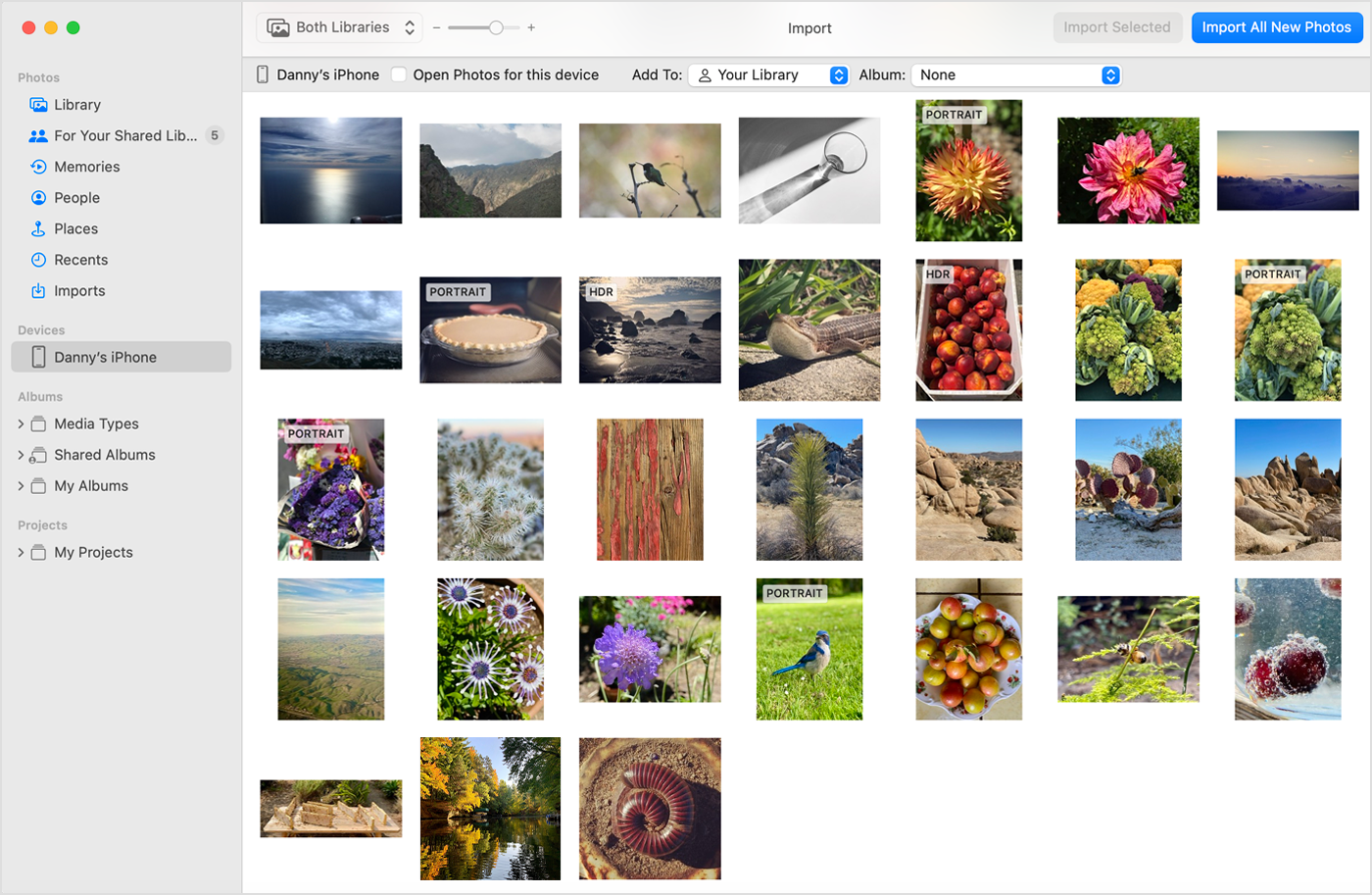
  3. The Photos app shows an Import screen with all the photos and videos that are on your connected device. If the Import screen doesn't automatically appear, click the device's name in the Photos sidebar.
  4. If asked, unlock your iOS or iPadOS device using your passcode. If you see a prompt on your iOS or iPadOS device asking you to Trust This Computer, tap Trust to continue.
  5. Choose where you want to import your photos. Next to "Import to," you can choose an existing album or create a new one.
  6. Select the photos you want to import and click Import Selected, or click Import All New Photos.

Mac screen showing the photos available for import


7. Wait for the process to finish, then disconnect your device from your Mac."


Best regards.


Jan 18, 2023 5:55 PM in response to K_Wall44

Thanks for the response, those instructions match what I am doing. In Step 6, if I were to click "Import All New Photos" it will import a bunch of photos that I already have on my Mac. The only difference between them is that when I "Get Info" on the import screen they have a .jpeg extension and the ones in my photo library have a .JPG extension. After importing however, the duplicate photos are .JPG and no different than the ones that are already there. If I unplug and plug back in the same photos show as "new" again.

This thread has been closed by the system or the community team. You may vote for any posts you find helpful, or search the Community for additional answers.

JPG vs JPEG in Photos Import

Welcome to Apple Support Community
A forum where Apple customers help each other with their products. Get started with your Apple Account.