Automated tools on Apple Devices

This post relates to Safari on an iPad. It appears I have some type of automated tool installed on device, people say cannot get virus then what is it? Appears to be a push point on top right of computer having same issue with phone with push point and scrolling. Restarted, updated new software, reset. It’s crazy opens tons of new windows and randomly clicks on links everywhere on page. Forget about shopping or anything, randomly opens links, if you have a card saved could hypothetically purchase things on own. It has mind of own! Has anyone seen something like this? Also, for Safari it appears like there are customized buttons, for example see below there is a surfer on top right of ESPN and other buttons. Sounds crazy but appears someone has access to change anything in browser or on computer, I have screen shots and documentation. Hate to say it but appears to be targeting. Been noticeable on all Apple devices from 2012 even new devices. Unfortunately this is not just with apple devices happened every place I have worked on a computer since 2011, got to point had to print everything out or take screen shots, would drive someone crazy, one reason why I don’t work behind computer anymore, have to run business on paper, no one is perfect but this is ridiculous. Looks like targeting to me, anyone see this?

iPad mini 2 Wi-Fi

Posted on Jan 17, 2023 7:46 AM

Reply
Question marked as Top-ranking reply

Posted on Jan 17, 2023 9:09 AM

You appear to be using some kind of Ad-blocker or Safari extension:


While many such products have useful utility, some can introduce unexpected behaviour. Of these, a small minority add a network proxy that can both monitor network activity, modify web pages - and inject unwanted content.


As a diagnostic exercise, identify and disable the installed App extension:

Settings > Safari > Extensions


Here you will find all the extensions that have been installed for Safari. Begin by disabling every extension that you see listed as “Content Blockers” or “Allow as Extensions”. Make a note of the associated name(s).


Here is an example. In this example, all are entirely safe/benign:


What blockers/extensions do you see listed on your iPad?


When all blockers and extensions have been disabled, you’ll need to remove the responsible App from your iPad:


  • Remove an app from the Home Screen: Touch and hold the app on the Home Screen, tap Remove App, then tap Remove from Home Screen to keep it in App Library, or tap Delete App to delete it from iPad.
  • Delete an app from App Library and Home Screen: Touch and hold the app in App Library, tap Delete App, then tap Delete. (See Find your apps in App Library on iPad.)


After the associated App(s) are removed from your iPad, perform a forced-restart:


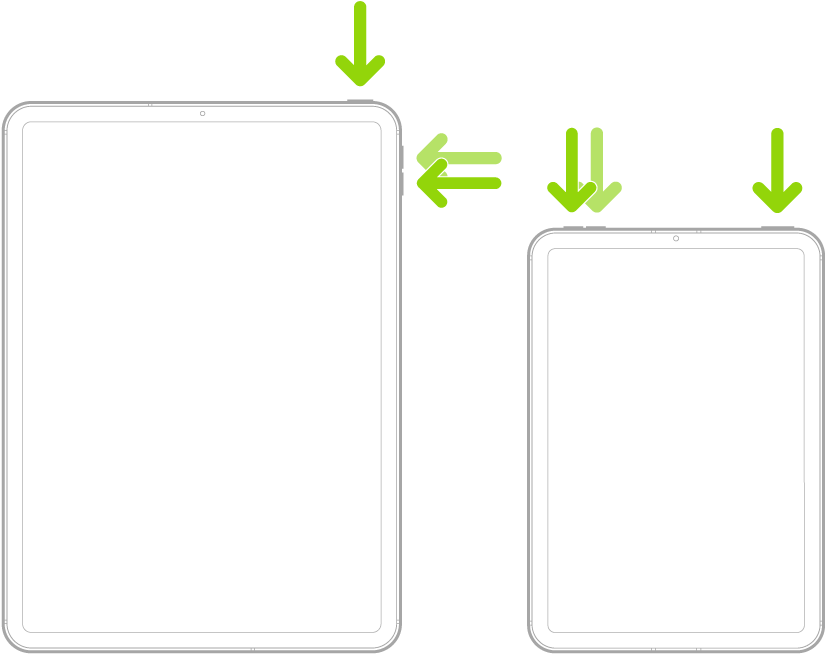
Force restart iPad (models with Face ID or with Touch ID in the top button)

If your iPad doesn’t have the Home button, do the following:

  1. Press and quickly release the volume button nearest to the top button.
  2. Press and quickly release the volume button farthest from the top button.
  3. Press and hold the top button.
  4. When the Apple logo appears, release the top button.


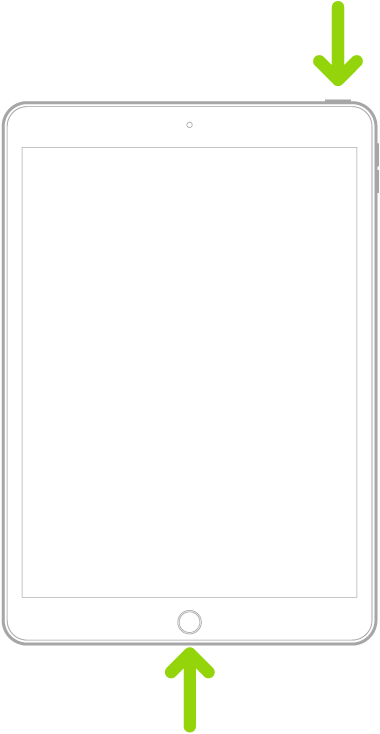
Force restart iPad (models with the Home button)

Press and hold the top button and the Home button at the same time. When the Apple logo appears, release both buttons.


After the restart, test and see if the offending icons/buttons have been cleared from the affected web pages.


Similar questions

4 replies
Question marked as Top-ranking reply

Jan 17, 2023 9:09 AM in response to Lawnboy42

You appear to be using some kind of Ad-blocker or Safari extension:


While many such products have useful utility, some can introduce unexpected behaviour. Of these, a small minority add a network proxy that can both monitor network activity, modify web pages - and inject unwanted content.


As a diagnostic exercise, identify and disable the installed App extension:

Settings > Safari > Extensions


Here you will find all the extensions that have been installed for Safari. Begin by disabling every extension that you see listed as “Content Blockers” or “Allow as Extensions”. Make a note of the associated name(s).


Here is an example. In this example, all are entirely safe/benign:


What blockers/extensions do you see listed on your iPad?


When all blockers and extensions have been disabled, you’ll need to remove the responsible App from your iPad:


  • Remove an app from the Home Screen: Touch and hold the app on the Home Screen, tap Remove App, then tap Remove from Home Screen to keep it in App Library, or tap Delete App to delete it from iPad.
  • Delete an app from App Library and Home Screen: Touch and hold the app in App Library, tap Delete App, then tap Delete. (See Find your apps in App Library on iPad.)


After the associated App(s) are removed from your iPad, perform a forced-restart:


Force restart iPad (models with Face ID or with Touch ID in the top button)

If your iPad doesn’t have the Home button, do the following:

  1. Press and quickly release the volume button nearest to the top button.
  2. Press and quickly release the volume button farthest from the top button.
  3. Press and hold the top button.
  4. When the Apple logo appears, release the top button.


Force restart iPad (models with the Home button)

Press and hold the top button and the Home button at the same time. When the Apple logo appears, release both buttons.


After the restart, test and see if the offending icons/buttons have been cleared from the affected web pages.


Jan 17, 2023 1:27 PM in response to LotusPilot

Thank you will try! Good explanation! Here’s the renegade in me: feel bad for the people I worked with who had to make things work on a program by acting in a certain way (moving a mouse in a certain motion), almost like classic conditioning (for psychology buffs), terrorizing people at a Defense company- very sick, got out of there and every other place I worked, complete circuses! No one is perfect, but it’s sick. Random P’s all over place and spelling errors. Must be a program, good software won’t let you submit Federal Forms if on a remote computer. Sick people like messing with people’s ability to survive, it’s definitely not lack of confidence. Thanks again!

This thread has been closed by the system or the community team. You may vote for any posts you find helpful, or search the Community for additional answers.

Automated tools on Apple Devices

Welcome to Apple Support Community
A forum where Apple customers help each other with their products. Get started with your Apple Account.