Hello rkever,
Thank you for reaching out to Apple Support Communities, and we'll be happy to help in any way we can. We understand you're having issues with a snowy display when your Mac wakes from sleep. Try the steps here to see if they resolve the issue: If your external display isn't detected or appears blurry when connected to your Mac - Apple Support
"Try these steps if the image on an external display connected to your Mac is blank or doesn't look the way you expect.
Before you begin
Make sure that your Mac is running the latest version of macOS.
If your display is blank or not detected
Try these steps if you don't see an image on your display.
Check your cable or adapter
Disconnect the cable from your external display from your Mac, then reconnect it. If the cable from your external display doesn't connect to the ports on your Mac, you can use a USB-C or Thunderbolt adapter. If you're using a USB-C or Thunderbolt adapter to connect a display, the adapter must be compliant with DisplayPort Alt Mode or Thunderbolt / USB 4.
Check how many displays you can connect
If you're connecting multiple displays to your Mac, use the Tech Specs page to find out how many external displays your Mac supports.
- Choose Apple menu > About This Mac, double-click your serial number, then press Command-C to copy it.
- Go to the Tech Specs page, click the Search Tech Specs bar, press Command-V to enter your computer's serial number, then click Search.
- Click the specs page for your Mac. The number of displays your Mac supports appears under Video Support or Graphics.
If your display appears blurry
If images or text on your display appear blurry or pixelated, check the resolution and brightness of your display.
Adjust the resolution
- From the Apple menu, choose System Preferences, then click Displays.
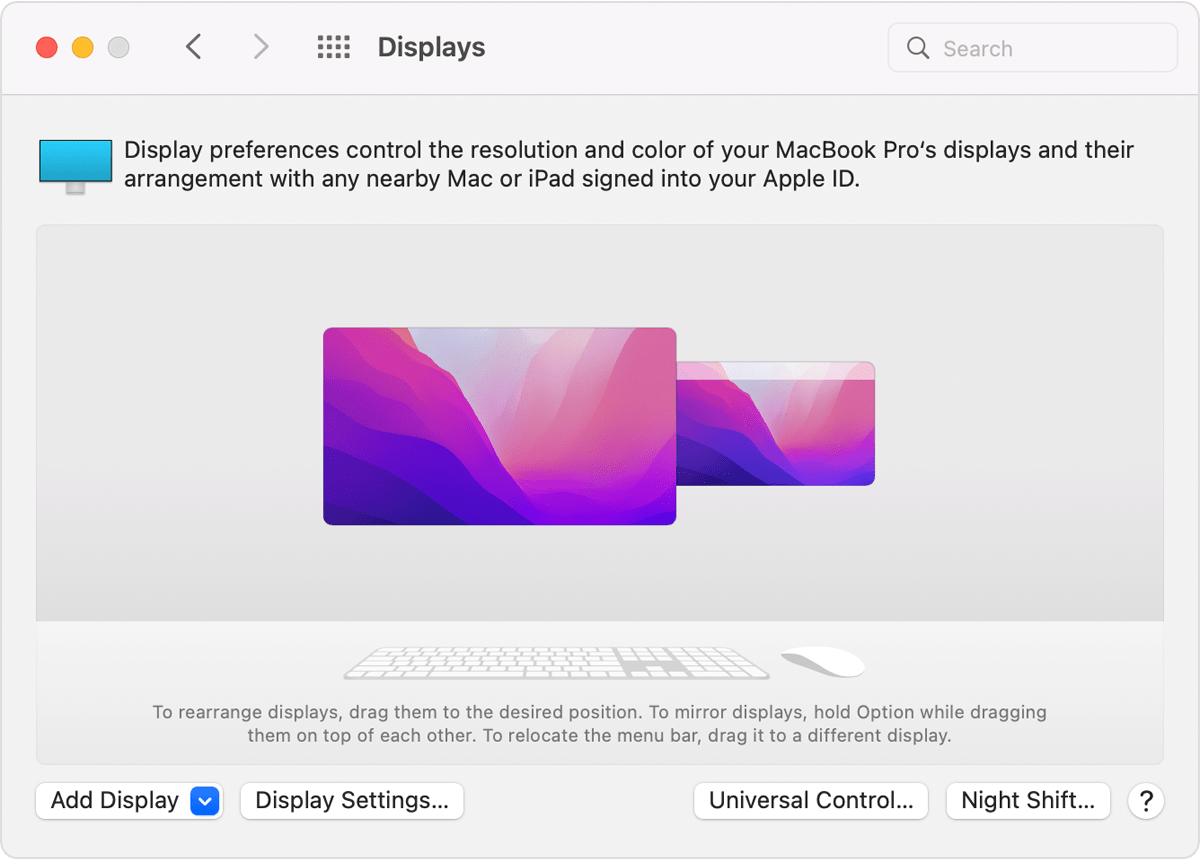
- In Display Settings, select the external display in the sidebar, then press and hold the Option key while you click Scaled to see additional resolutions.
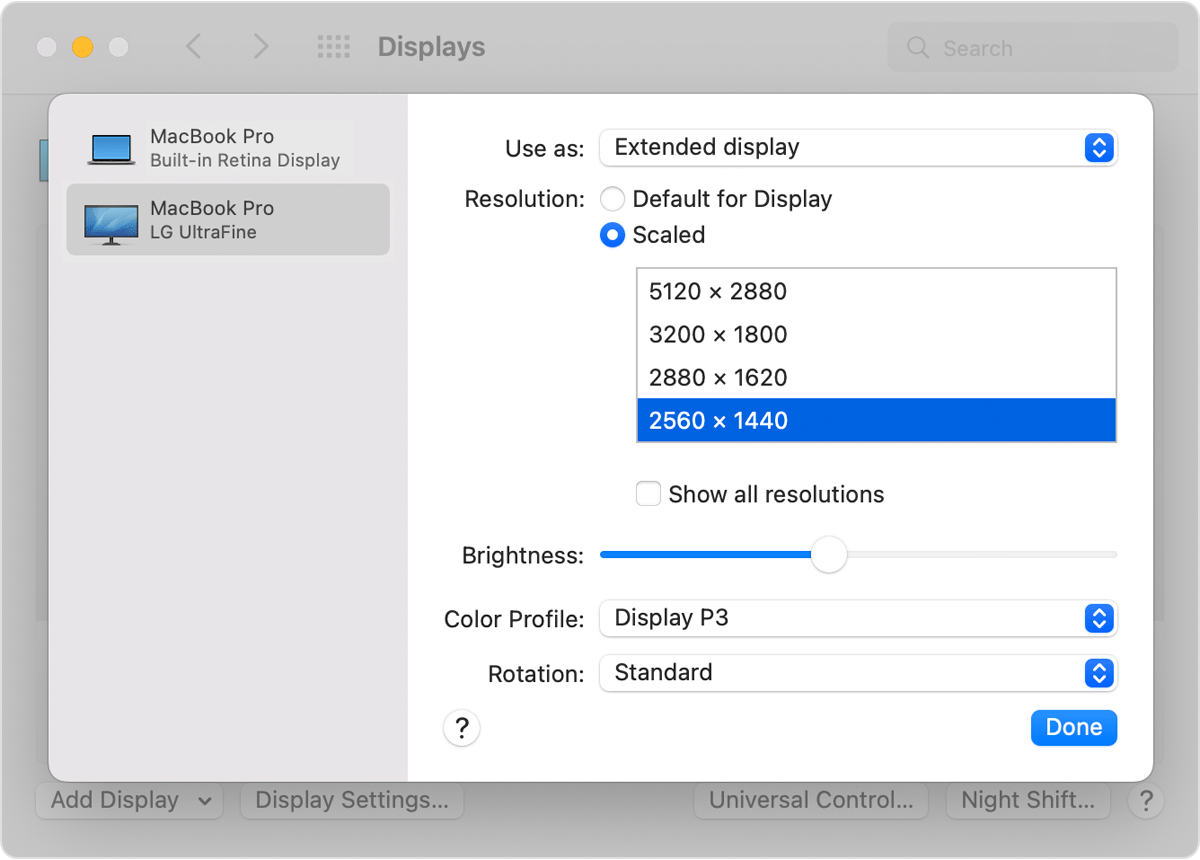
- Select a resolution, then click Done.
If the expected resolution doesn't appear for your display, check the specifications page to see what display resolutions your Mac supports.
Adjust the brightness
To adjust the brightness of your Apple display, press the increase brightness key  or the decrease brightness key
  on your keyboard.


You can also use the brightness adjustment for each connected display in System Preferences > Displays.
Displays not made by Apple sometimes have brightness and color adjustments built into the display. Check the documentation for your display to see if it includes built-in controls."
We hope this helps.
Cheers!


