Switching Apple ID from email to phone number on iPhone

Hi, when I follow this advice for text and calls it doesn’t allow me to switch to my mobile number. It just buffers and then eventually defaults to my email again. Does anyone have a work around?

iPhone 12 mini, iOS 16

Posted on Jan 22, 2023 2:48 AM

Reply
Question marked as Top-ranking reply

Posted on Jan 24, 2023 11:15 AM

Hi Dpaget22,


From what you described in your original post, we recommend you follow the steps below to select and use your number with Messages or FaceTime.


Add or remove your phone number in Messages or FaceTime


Next, we'd like to show you how to perform the recommended troubleshooting steps via the link above. Please click to open the link, then read through the steps in the section titled "If you can't see or select your number in Messages or FaceTime."


1) Make sure that you're using the latest software for your Mac or iOS device
2) Make sure that you correctly followed the iPhone steps to set up your phone number. You should be using the same Apple ID on all of your devices.
3) In the “You can be reached” section of Messages and FaceTime settings, make sure that there are checkmarks beside your phone number and Apple ID:
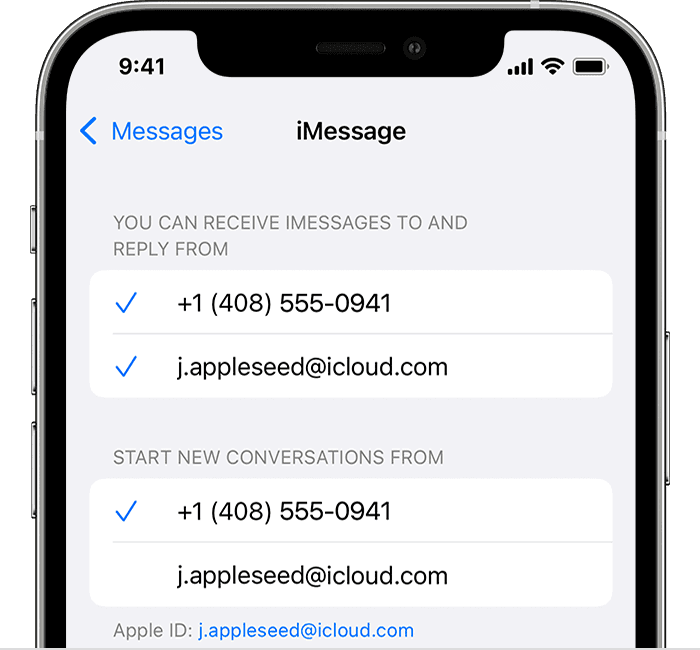
iPhone showing how to choose where you can be reached

If your phone number is unchecked and you can't select it, or you have some other issue, follow these steps:

1) On your Mac:
*In Messages, choose Messages > Settings, then click iMessage. Click Sign Out.
*In FaceTime, choose FaceTime > Settings, then click General. Click Sign Out.
2) On your iPhone, iPad, and iPod touch:
*Go to Settings > Messages > Send & Receive. Tap your Apple ID, then tap Sign Out.
*Go to Settings > FaceTime. Tap your Apple ID, then tap Sign Out.
3) On your iPhone:
*Go back to Settings > Messages and make sure that iMessage is turned on.
*Tap Send & Receive, then choose “Use your Apple ID for iMessage” and sign in with your Apple ID.
4) Using the same Apple ID, sign back in to Messages and FaceTime on your other devices. 


We recommend the steps above because they will show you how to use the phone number of your iPhone with Messages and FaceTime on your Mac, iPad, or iPod touch.


If you’re still experiencing the same issue, then try the steps in the section below.


On your iPhone:
1) Go to Settings > Messages and make sure that iMessage is on. You might need to wait a moment for it to activate.
2) Tap Send & Receive. If you see “Use your Apple ID for iMessage,” tap it and sign in with the same Apple ID that you use on your Mac, iPad, and iPod touch.
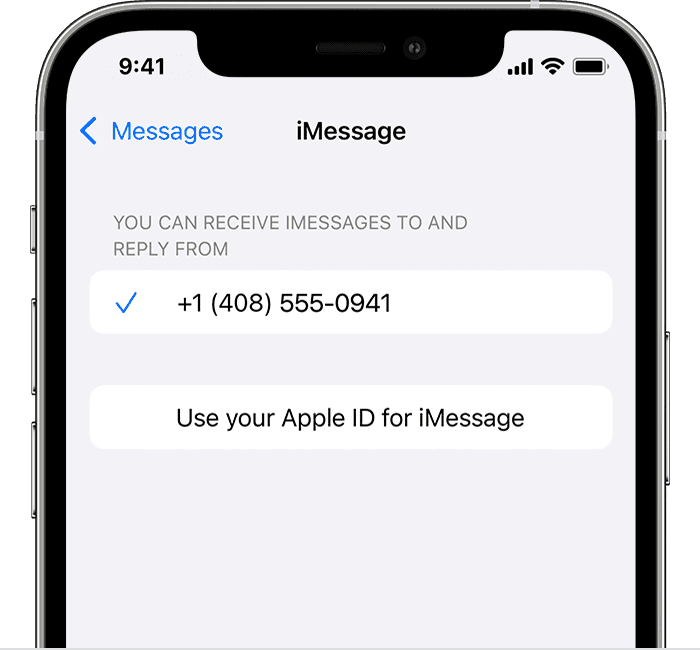
iPhone showing how to select iMessage settings

3) In the "You can receive iMessages to and Reply From" section, make sure that your phone number and Apple ID are selected.
4) Go to Settings > FaceTime and make sure that your phone number and Apple ID are selected in the "You can be reached by FaceTime at" section.

On your other devices, you can now turn on the phone number that you just set up:

*Turn on your phone number for your Mac
*Turn on your phone number for your iPad or iPod touch

If you use this feature and share your Apple ID with someone, you can't prevent them from seeing your conversations. Instead of using the same Apple ID as someone else, set up Family Sharing.


Please let us know the outcome after giving the above steps a try. 


Thanks for using the Apple Support Communities.


Cheers!

1 reply
Question marked as Top-ranking reply

Jan 24, 2023 11:15 AM in response to Dpaget22

Hi Dpaget22,


From what you described in your original post, we recommend you follow the steps below to select and use your number with Messages or FaceTime.


Add or remove your phone number in Messages or FaceTime


Next, we'd like to show you how to perform the recommended troubleshooting steps via the link above. Please click to open the link, then read through the steps in the section titled "If you can't see or select your number in Messages or FaceTime."


1) Make sure that you're using the latest software for your Mac or iOS device
2) Make sure that you correctly followed the iPhone steps to set up your phone number. You should be using the same Apple ID on all of your devices.
3) In the “You can be reached” section of Messages and FaceTime settings, make sure that there are checkmarks beside your phone number and Apple ID:
iPhone showing how to choose where you can be reached

If your phone number is unchecked and you can't select it, or you have some other issue, follow these steps:

1) On your Mac:
*In Messages, choose Messages > Settings, then click iMessage. Click Sign Out.
*In FaceTime, choose FaceTime > Settings, then click General. Click Sign Out.
2) On your iPhone, iPad, and iPod touch:
*Go to Settings > Messages > Send & Receive. Tap your Apple ID, then tap Sign Out.
*Go to Settings > FaceTime. Tap your Apple ID, then tap Sign Out.
3) On your iPhone:
*Go back to Settings > Messages and make sure that iMessage is turned on.
*Tap Send & Receive, then choose “Use your Apple ID for iMessage” and sign in with your Apple ID.
4) Using the same Apple ID, sign back in to Messages and FaceTime on your other devices. 


We recommend the steps above because they will show you how to use the phone number of your iPhone with Messages and FaceTime on your Mac, iPad, or iPod touch.


If you’re still experiencing the same issue, then try the steps in the section below.


On your iPhone:
1) Go to Settings > Messages and make sure that iMessage is on. You might need to wait a moment for it to activate.
2) Tap Send & Receive. If you see “Use your Apple ID for iMessage,” tap it and sign in with the same Apple ID that you use on your Mac, iPad, and iPod touch.
iPhone showing how to select iMessage settings

3) In the "You can receive iMessages to and Reply From" section, make sure that your phone number and Apple ID are selected.
4) Go to Settings > FaceTime and make sure that your phone number and Apple ID are selected in the "You can be reached by FaceTime at" section.

On your other devices, you can now turn on the phone number that you just set up:

*Turn on your phone number for your Mac
*Turn on your phone number for your iPad or iPod touch

If you use this feature and share your Apple ID with someone, you can't prevent them from seeing your conversations. Instead of using the same Apple ID as someone else, set up Family Sharing.


Please let us know the outcome after giving the above steps a try. 


Thanks for using the Apple Support Communities.


Cheers!

This thread has been closed by the system or the community team. You may vote for any posts you find helpful, or search the Community for additional answers.

Switching Apple ID from email to phone number on iPhone

Welcome to Apple Support Community
A forum where Apple customers help each other with their products. Get started with your Apple Account.