
I am struggling to change the Split View. I want to go back to it but can’t find information on how to change it back
iPad Pro, iPadOS 16
iPad Pro, iPadOS 16
Hey there, and welcome to Apple Support Communities shailanna,
We can certainly understand your concern and see you came to us from the article Use multitasking on your iPad.
We recommend checking out these steps for more information on how to use Split View and see if that matches up with your procedures.
" Open a second app in Split View
 (the three dots at the top of the app), tap
  , then tap
  to have the current app appear on the left side of the screen, or
  to place the current app on the right.
The app you’re using moves to the side to reveal your Home Screen and Dock.
2. Find the second app you want to open on your Home Screen or in the Dock, then tap it.
The two apps appear in Split View.
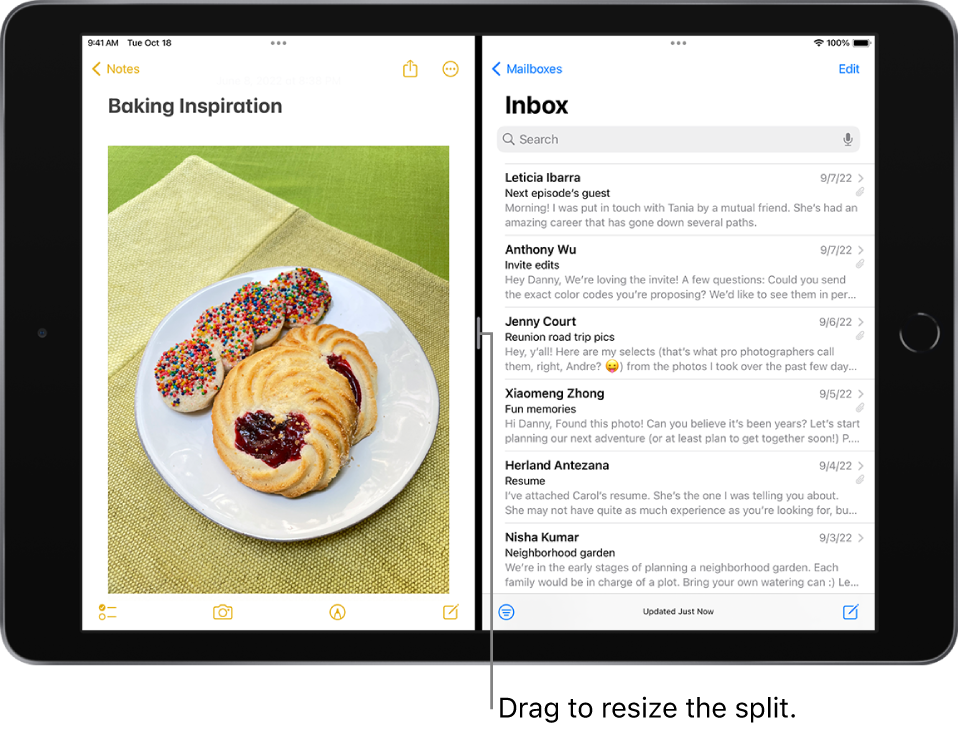
Replace an app in Split View
When you have two apps open in Split View, you can replace one of them with a different app.
(the three dots at the top of the app).The app you want to replace drops down, and the other app moves to the side to reveal your Home Screen and Dock.
2. Find the replacement app on your Home Screen or in the Dock, then tap it.
The two apps appear side by side in Split View.
Tip: To get more screen space to work in (on supported models), go to Settings  > Display & Brightness, tap Display Zoom, then select More Space. This option increases the pixel density so you can view more content in your apps, which is useful when working in multiple windows in Split View or Stage Manager.
Turn Split View into Slide Over
When you have two apps or windows open in Split View, you can turn one of them into a Slide Over window—a smaller window that slides in front of the first.
Tap at the top of the window you want to turn into a Slide Over window, then tap  (the rightmost of the three buttons).
See Open an app in Slide Over. On supported models, you can use Split View and Slide Over simultaneously.
Return to full screen
When you have two apps or windows open in Split View, you can remove one of them and show the other in full screen. Do one of the following:
at the top of the app you want to appear in full screen, then tap  . at the top of the app you want to appear in full screen. Keeping its top edge at the top of the screen, drag it to the center of the screen until its name and icon appears, then lift your finger. "
For additional information, check out this link: Open two items in Split View on iPad - Apple Support
These steps will help ensure your device is working with ease and can fix common issues like the ones you’re experiencing.
Kindest regards!
Hey there, and welcome to Apple Support Communities shailanna,
We can certainly understand your concern and see you came to us from the article Use multitasking on your iPad.
We recommend checking out these steps for more information on how to use Split View and see if that matches up with your procedures.
" Open a second app in Split View
(the three dots at the top of the app), tap , then tap to have the current app appear on the left side of the screen, or to place the current app on the right.The app you’re using moves to the side to reveal your Home Screen and Dock.
2. Find the second app you want to open on your Home Screen or in the Dock, then tap it.
The two apps appear in Split View.
Replace an app in Split View
When you have two apps open in Split View, you can replace one of them with a different app.
(the three dots at the top of the app).The app you want to replace drops down, and the other app moves to the side to reveal your Home Screen and Dock.
2. Find the replacement app on your Home Screen or in the Dock, then tap it.
The two apps appear side by side in Split View.
Tip: To get more screen space to work in (on supported models), go to Settings > Display & Brightness, tap Display Zoom, then select More Space. This option increases the pixel density so you can view more content in your apps, which is useful when working in multiple windows in Split View or Stage Manager.
Turn Split View into Slide Over
When you have two apps or windows open in Split View, you can turn one of them into a Slide Over window—a smaller window that slides in front of the first.
Tap at the top of the window you want to turn into a Slide Over window, then tap (the rightmost of the three buttons).
See Open an app in Slide Over. On supported models, you can use Split View and Slide Over simultaneously.
Return to full screen
When you have two apps or windows open in Split View, you can remove one of them and show the other in full screen. Do one of the following:
at the top of the app you want to appear in full screen, then tap . at the top of the app you want to appear in full screen. Keeping its top edge at the top of the screen, drag it to the center of the screen until its name and icon appears, then lift your finger. "For additional information, check out this link: Open two items in Split View on iPad - Apple Support
These steps will help ensure your device is working with ease and can fix common issues like the ones you’re experiencing.
Kindest regards!
Your photo illustrates your iPad has Stage Manager enabled. With Stage Manager enabled, Split Screen and Slide-over multitasking views are not available - instead you have the “windowed” multitasking environment that you illustrate.
You can de-activate Stage Manager from the Control Centre (or directly from iPad Settings):
Turn Stage Manager on or off on your iPad - Apple Support
Control Centre
iPad Settings
Settings > Home Screen & Multitasking > Stage Manager > Use Stage Manager on iPad - set to OFF
You are very welcome.
Stage manager and standard iPadOS multitasking views provide a useful complement to each other. Stage Manager is arguably most relevant (and useful) when connecting your iPad to and external monitor.
When using a monitor, Stage Manager provides and extended desktop - with different App windows on iPad and monitor. With Stage Manager disabled, the iPad can only mirror its own display to the connected monitor.
Hi Gabriel, I’ve already contacted support and they tried giving me the same advice. This specific article did not help my situation. We had to reset my iPad because they couldn’t figure out what to do.
This would’ve been great to know!! I couldn’t switch it from the windowed multitasking to the split screen. I will have to attempt this(:
thank you!!
It’s just like not think
I am struggling to change the Split View. I want to go back to it but can’t find information on how to change it back


