My iPad Does not show all my apps

My iPad only shows home page, App Library, and widget page. How do I get the other pages back?

I tried that repair where I press on an empty space on the homepage, and then the dots at the bottom of the screen. Supposedly, all the pages are supposed to show, and I can put a check mark next below the page that I want. That didn’t work, I will only was able to see my homepage.

Please help all of you knowledgeable people! Thank you

Jeri

Posted on Jan 25, 2023 5:00 PM

Reply
Question marked as Top-ranking reply

Posted on Jan 28, 2023 7:45 AM

Hello westietherapist,


This page can provide some help with organizing the Home Screen, which should assist with showing the available pages: Organize the Home Screen and App Library on your iPhone - Apple Support


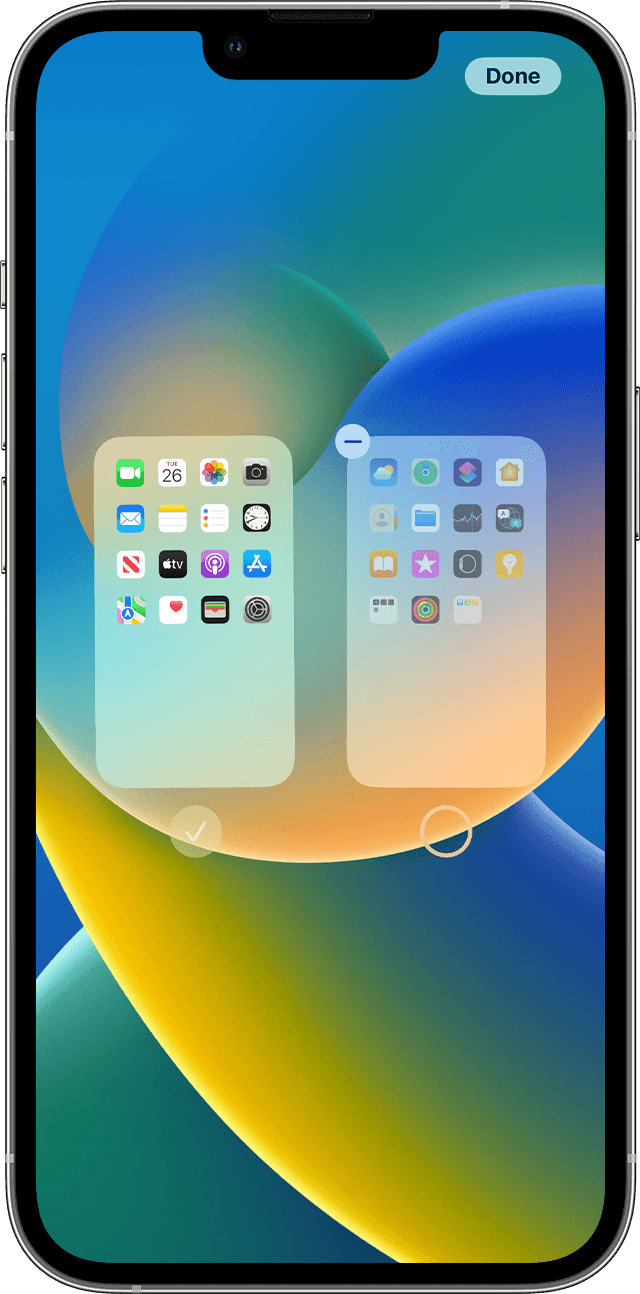
With iOS 14 and later, you can hide pages to streamline how your Home Screen looks and add them back whenever you want. Here's how to hide a page:
iPhone showing how to hide a page on Home Screen. 
1. Touch and hold an empty area on your Home Screen.
2. Tap the dots near the bottom of your screen.
3. Tap the circle under the page that you want to hide.
4. Tap Done. 
To unhide a page, repeat the steps above. Then use the App Library to quickly find apps hidden on different pages.

To remove pages from your Home Screen:
1. Touch and hold an empty area on your Home Screen.
2. Tap the dots near the bottom of your screen.
3. Tap the circle under the page that you want to hide.
4. Tap the Remove button , then tap Remove. 
When you remove a page from your Home Screen, the apps will still appear in the App Library.


It sounds like you may have tried those steps, so if they were unable to help then you may try resetting the Home Screen layout. This won't remove any apps from the device, but their position will be restored to the default, and things like folders and widgets made on the Home Screen will be removed. It may be done in Settings > General > Transfer or Reset iPad > Reset > Reset Home Screen Layout.


You may alternatively try dragging the apps out from the App Library to the Home Screen.


Cheers.


1 reply
Question marked as Top-ranking reply

Jan 28, 2023 7:45 AM in response to westietherapist

Hello westietherapist,


This page can provide some help with organizing the Home Screen, which should assist with showing the available pages: Organize the Home Screen and App Library on your iPhone - Apple Support


With iOS 14 and later, you can hide pages to streamline how your Home Screen looks and add them back whenever you want. Here's how to hide a page:
iPhone showing how to hide a page on Home Screen. 
1. Touch and hold an empty area on your Home Screen.
2. Tap the dots near the bottom of your screen.
3. Tap the circle under the page that you want to hide.
4. Tap Done. 
To unhide a page, repeat the steps above. Then use the App Library to quickly find apps hidden on different pages.

To remove pages from your Home Screen:
1. Touch and hold an empty area on your Home Screen.
2. Tap the dots near the bottom of your screen.
3. Tap the circle under the page that you want to hide.
4. Tap the Remove button , then tap Remove. 
When you remove a page from your Home Screen, the apps will still appear in the App Library.


It sounds like you may have tried those steps, so if they were unable to help then you may try resetting the Home Screen layout. This won't remove any apps from the device, but their position will be restored to the default, and things like folders and widgets made on the Home Screen will be removed. It may be done in Settings > General > Transfer or Reset iPad > Reset > Reset Home Screen Layout.


You may alternatively try dragging the apps out from the App Library to the Home Screen.


Cheers.


This thread has been closed by the system or the community team. You may vote for any posts you find helpful, or search the Community for additional answers.

My iPad Does not show all my apps

Welcome to Apple Support Community
A forum where Apple customers help each other with their products. Get started with your Apple Account.