Limited badges

None of my limited badges are showing up on my watch. I haven’t even gotten the notification for the lunar new year one but I did what was needed to get it. It said I got the ring in the new year but it’s not even showing up on my phone

Apple Watch Series 5, watchOS 9

Posted on Jan 26, 2023 4:30 PM

Reply
Question marked as Top-ranking reply

Posted on Jan 29, 2023 2:30 PM

Hi Fashionbug04,


Let's try to resolve the issue by restarting both the Apple Watch and iPhone. You can restart the watch using the steps here: Restart your Apple Watch - Apple Support that are also below.


" How to restart your Apple Watch if you have watchOS 8 or earlier

  1. If your Apple Watch is charging, take it off the charger.
  2. Press and hold the side button until you see the Power Off slider.
  3. Drag the Power Off slider.
  4. After your watch turns off, press and hold the side button again until you see the Apple logo."


You can restart your iPhone by completing the steps listed here: Restart your iPhone - Apple Support that are also below.


" How to restart your iPhone X, 11, 12, 13, or later

  1. Press and hold either volume button and the side button until the power-off slider appears.
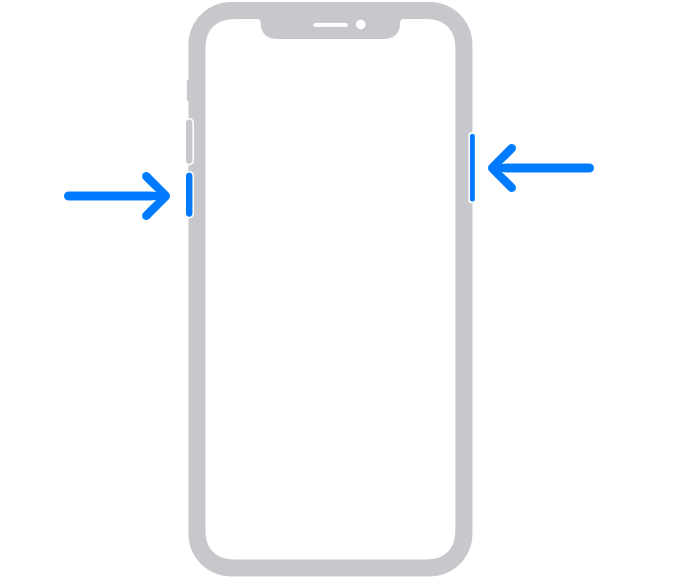
The volume button is located on the left side of the device, and the side button is located on the right


2. Drag the slider, then wait 30 seconds for your device to turn off. If your device is frozen or unresponsive, force restart your device.

3. To turn your device back on, press and hold the side button (on the right side of your iPhone) until you see the Apple logo.


How to restart your iPhone 6, 7, 8, or SE (2nd or 3rd generation)

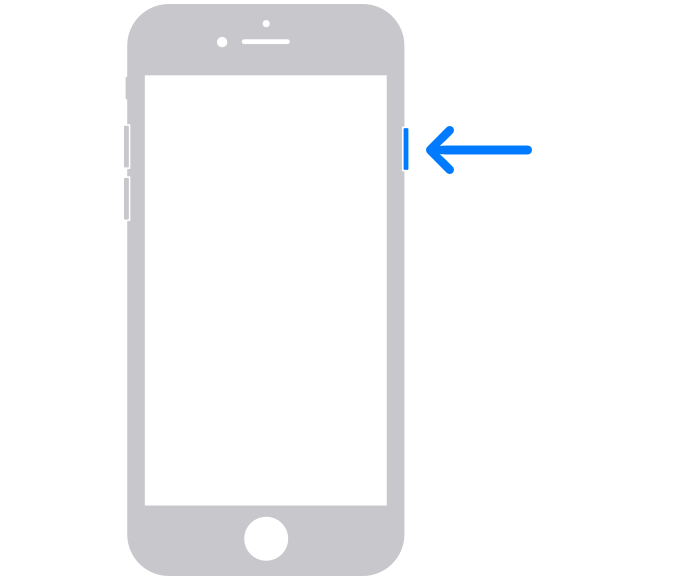
  1. Press and hold the side button until the power-off slider appears.
""


2. Drag the slider, then wait 30 seconds for your device to turn off. If your device is frozen or unresponsive, force restart your device.

3. To turn your device back on, press and hold the side button until you see the Apple logo.


How to restart your iPhone SE (1st generation), 5, or earlier

  1. Press and hold the top button until the power-off slider appears.
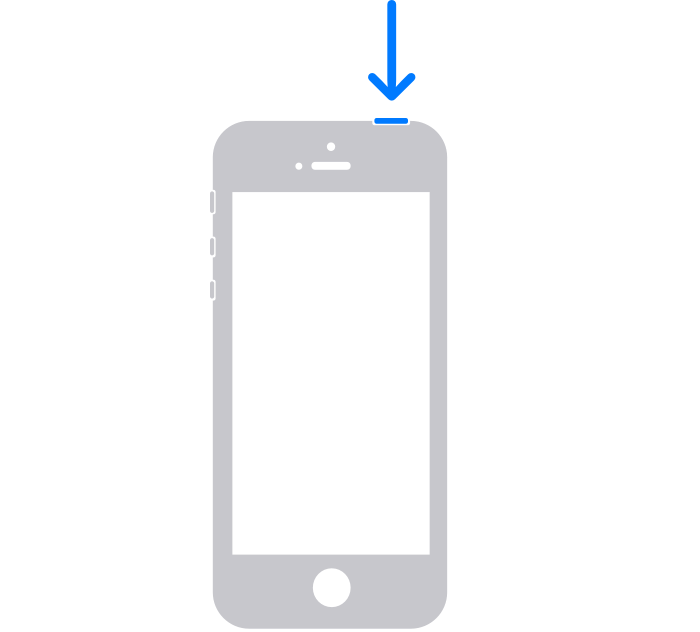
The power button is located on the top of the device


2. Drag the slider, then wait 30 seconds for your device to turn off. If your device is frozen or unresponsive, force restart your device.

3. To turn your device back on, press and hold the top button until you see the Apple logo."


Best regards.


6 replies
Question marked as Top-ranking reply

Jan 29, 2023 2:30 PM in response to Fashionbug04

Hi Fashionbug04,


Let's try to resolve the issue by restarting both the Apple Watch and iPhone. You can restart the watch using the steps here: Restart your Apple Watch - Apple Support that are also below.


" How to restart your Apple Watch if you have watchOS 8 or earlier

  1. If your Apple Watch is charging, take it off the charger.
  2. Press and hold the side button until you see the Power Off slider.
  3. Drag the Power Off slider.
  4. After your watch turns off, press and hold the side button again until you see the Apple logo."


You can restart your iPhone by completing the steps listed here: Restart your iPhone - Apple Support that are also below.


" How to restart your iPhone X, 11, 12, 13, or later

  1. Press and hold either volume button and the side button until the power-off slider appears.

The volume button is located on the left side of the device, and the side button is located on the right


2. Drag the slider, then wait 30 seconds for your device to turn off. If your device is frozen or unresponsive, force restart your device.

3. To turn your device back on, press and hold the side button (on the right side of your iPhone) until you see the Apple logo.


How to restart your iPhone 6, 7, 8, or SE (2nd or 3rd generation)

  1. Press and hold the side button until the power-off slider appears.

""


2. Drag the slider, then wait 30 seconds for your device to turn off. If your device is frozen or unresponsive, force restart your device.

3. To turn your device back on, press and hold the side button until you see the Apple logo.


How to restart your iPhone SE (1st generation), 5, or earlier

  1. Press and hold the top button until the power-off slider appears.

The power button is located on the top of the device


2. Drag the slider, then wait 30 seconds for your device to turn off. If your device is frozen or unresponsive, force restart your device.

3. To turn your device back on, press and hold the top button until you see the Apple logo."


Best regards.


Jan 29, 2023 10:45 AM in response to Fashionbug04

Thanks for posting in the Apple Support Communities Fashionbug04,


You can view your awards and the progress you've made toward awards with the following steps in the Fitness app on iPhone:


You can view all your awards, including awards you’re making progress toward.
1: Tap Summary.
2: In the Awards area, tap Show More.
3: To see an award, tap it.

See your activity history, trends, and awards in Fitness on iPhone


We hope this helps!


This thread has been closed by the system or the community team. You may vote for any posts you find helpful, or search the Community for additional answers.

Limited badges

Welcome to Apple Support Community
A forum where Apple customers help each other with their products. Get started with your Apple Account.
