How to get rid of cloud

How to get rid of cloud

Posted on Jan 28, 2023 12:15 PM

Reply
Question marked as Top-ranking reply

Posted on Jan 30, 2023 1:33 PM

Hi Corkstr2,


If you no longer want to use iCloud services see the information below from this resource: Sign out of iCloud on your iPhone, iPad, iPod touch, Apple TV, or Mac - Apple Support


"You can sign out of iCloud any time to stop using iCloud and its related services on your device. These services are listed below. Before signing out, make sure that you’re comfortable having these services turned off. If you only want to stop using some iCloud features, you can change your iCloud settings instead of signing out of iCloud. 


  • Apple Pay, Apple Cash, and Apple Card1
  • Find My
  • Game Center
  • Home app to control your HomeKit devices
  • iCloud Backup
  • iCloud Drive
  • iCloud Keychain
  • iCloud Mail
  • iCloud Photos
  • iCloud Shared Photo Library
  • Siri Shortcuts
  • Voice Memos
  • Shared Albums
  • Messages in iCloud
  • Reminders
  • Shared Notes
  • Shared Pages, Numbers, and Keynote documents
  • Updates to your contacts, calendars, reminders, bookmarks, and Safari tabs
  • Continuity features like Handoff, Universal Clipboard, and Auto Unlock with your Apple Watch
  • App data for any third-party apps that you've installed that use iCloud

When you sign out, any data stored in iCloud will be removed from your device but will remain in iCloud. Before you sign out, you’ll be asked if you want to keep a copy of any of this information on your device.

If you have iCloud+ and you sign out of iCloud on your device, you lose access to iCloud Private Relay, Hide My Email, HomeKit Secure Video support, and custom email domain2 on that device. 


1. Your Apple Cash and Apple Card accounts are linked to your Apple ID. They can't be transferred to a different Apple ID or accessed by a different Apple ID.

2. Not all features are available in all countries or regions.

How to keep using the App Store, iMessage, and FaceTime on your device

When you sign out of iCloud, you're also automatically signed out of the App Store, iMessage, and FaceTime.


Sign out on your iPhone, iPad, or iPod touch
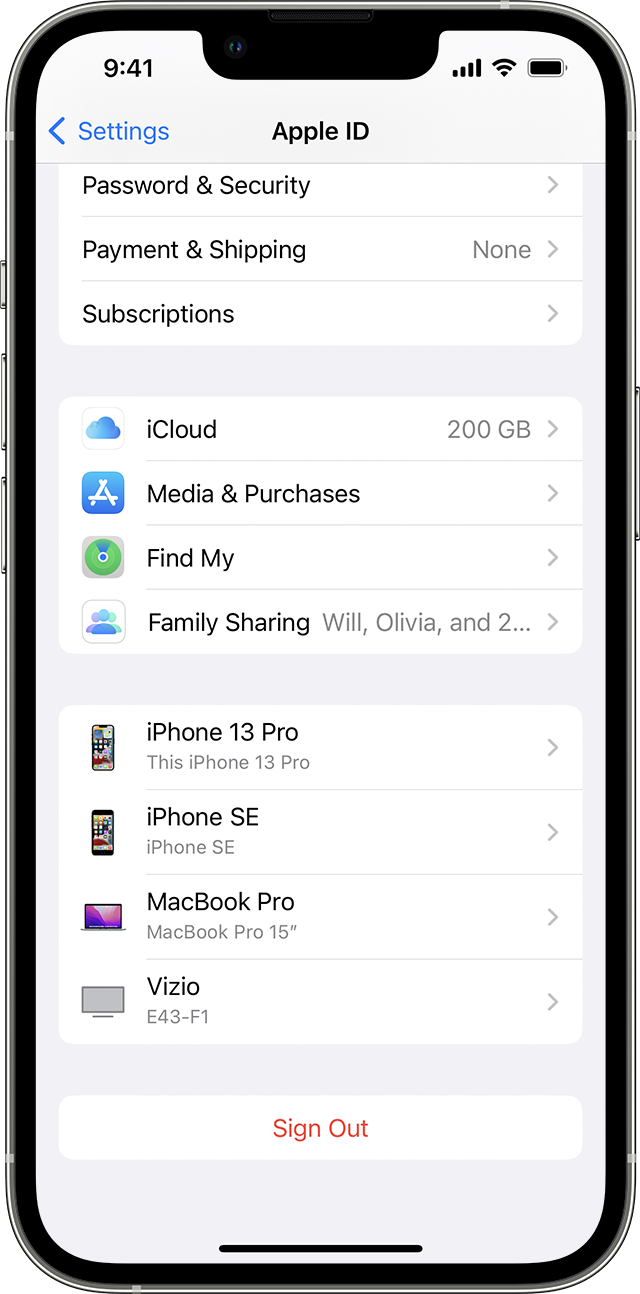
  1. Go to Settings, then tap your name. 
  2. Scroll down to the bottom.
  3. The Sign Out button is listed at the bottom of your device list.
  4. Tap Sign Out.
  5. Enter your Apple ID password and tap Turn Off. Forgot your Apple ID password
  6. Turn on the data that you want to keep a copy of on your device.
  7. Tap Sign Out.
  8. Tap Sign Out again to confirm that you want to sign out of iCloud.


Sign out on your Mac

In macOS Ventura or later:
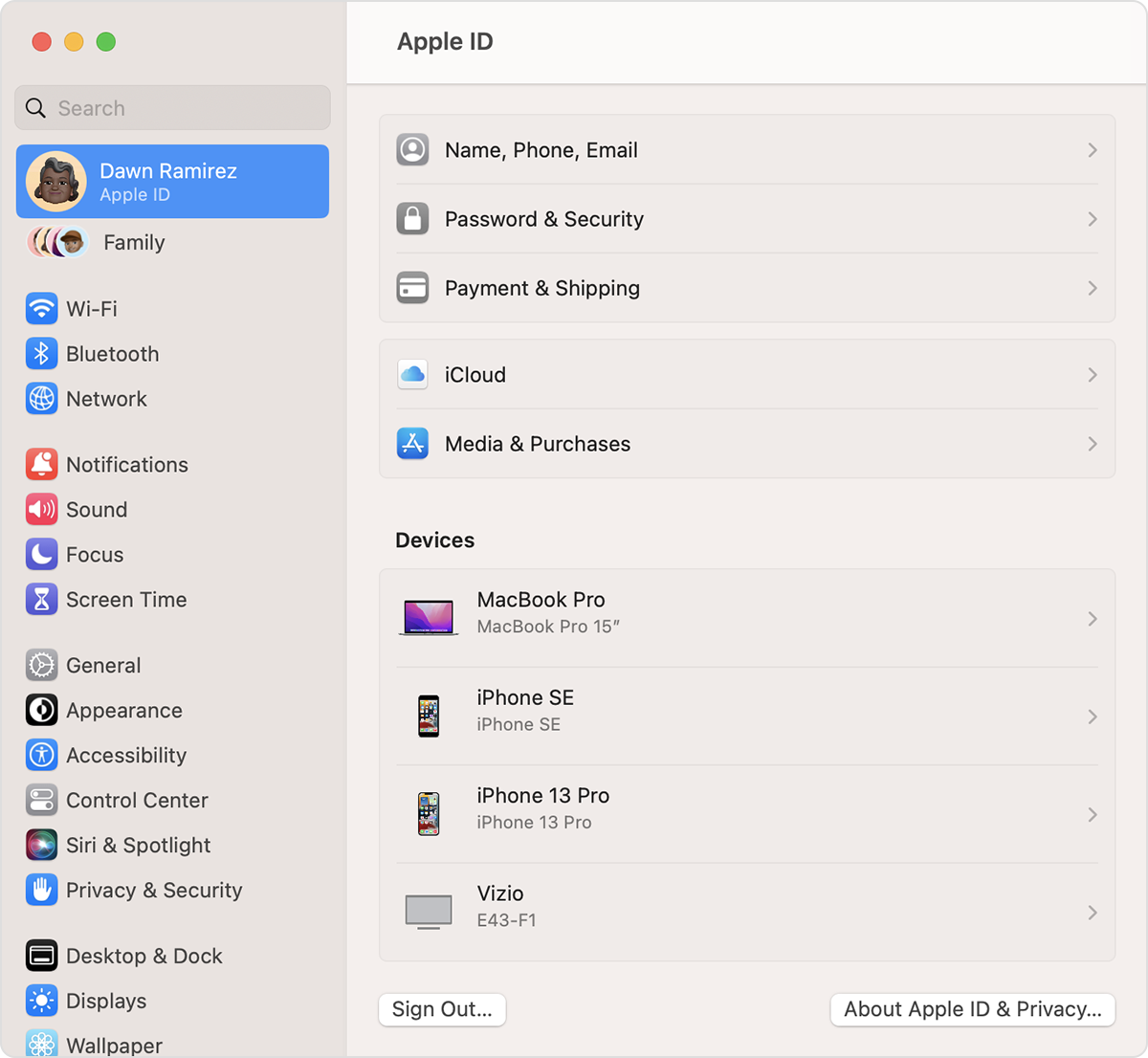
  1. Choose Apple menu  > System Settings.
  2. Click your name.
  3. The Sign Out button is listed below your device list.
  4. Click Sign Out.
  5. If you want to a keep a copy of your iCloud data on your Mac before you sign out, make sure that you select the appropriate checkboxes. Then click Keep a Copy.
  6. If you want to keep a copy of your Safari passwords on your Mac, click Keep on This Mac.

In macOS Monterey or earlier:

  1. Choose Apple menu  > System Preferences.
  2. Click Apple ID, then click Overview.
  3. Click Sign Out.
  4. If you want to a keep a copy of your iCloud data on your Mac before you sign out, make sure that you select the appropriate checkboxes. Then click Keep a Copy.
  5. If you want to keep a copy of your Safari passwords on your Mac, click Keep on This Mac.


Sign out on your Apple Watch

When you sign out of iCloud on the iPhone that's paired with your Apple Watch, you're automatically signed out of iCloud on your Apple Watch.

If you set up an Apple Watch for a family member, learn how to unpair and erase that Apple Watch


Sign out on your Apple TV

  1. Go to Settings > Accounts > iCloud.
  2. Select Sign Out.


Sign out of iCloud for Windows

  1. Open iCloud for Windows.
  2. Click Sign out.

"

Cheers.

1 reply
Question marked as Top-ranking reply

Jan 30, 2023 1:33 PM in response to Corkstr2

Hi Corkstr2,


If you no longer want to use iCloud services see the information below from this resource: Sign out of iCloud on your iPhone, iPad, iPod touch, Apple TV, or Mac - Apple Support


"You can sign out of iCloud any time to stop using iCloud and its related services on your device. These services are listed below. Before signing out, make sure that you’re comfortable having these services turned off. If you only want to stop using some iCloud features, you can change your iCloud settings instead of signing out of iCloud. 


  • Apple Pay, Apple Cash, and Apple Card1
  • Find My
  • Game Center
  • Home app to control your HomeKit devices
  • iCloud Backup
  • iCloud Drive
  • iCloud Keychain
  • iCloud Mail
  • iCloud Photos
  • iCloud Shared Photo Library
  • Siri Shortcuts
  • Voice Memos
  • Shared Albums
  • Messages in iCloud
  • Reminders
  • Shared Notes
  • Shared Pages, Numbers, and Keynote documents
  • Updates to your contacts, calendars, reminders, bookmarks, and Safari tabs
  • Continuity features like Handoff, Universal Clipboard, and Auto Unlock with your Apple Watch
  • App data for any third-party apps that you've installed that use iCloud

When you sign out, any data stored in iCloud will be removed from your device but will remain in iCloud. Before you sign out, you’ll be asked if you want to keep a copy of any of this information on your device.

If you have iCloud+ and you sign out of iCloud on your device, you lose access to iCloud Private Relay, Hide My Email, HomeKit Secure Video support, and custom email domain2 on that device. 


1. Your Apple Cash and Apple Card accounts are linked to your Apple ID. They can't be transferred to a different Apple ID or accessed by a different Apple ID.

2. Not all features are available in all countries or regions.

How to keep using the App Store, iMessage, and FaceTime on your device

When you sign out of iCloud, you're also automatically signed out of the App Store, iMessage, and FaceTime.


Sign out on your iPhone, iPad, or iPod touch

  1. Go to Settings, then tap your name. 
  2. Scroll down to the bottom.
  3. The Sign Out button is listed at the bottom of your device list.
  4. Tap Sign Out.
  5. Enter your Apple ID password and tap Turn Off. Forgot your Apple ID password
  6. Turn on the data that you want to keep a copy of on your device.
  7. Tap Sign Out.
  8. Tap Sign Out again to confirm that you want to sign out of iCloud.


Sign out on your Mac

In macOS Ventura or later:

  1. Choose Apple menu  > System Settings.
  2. Click your name.
  3. The Sign Out button is listed below your device list.
  4. Click Sign Out.
  5. If you want to a keep a copy of your iCloud data on your Mac before you sign out, make sure that you select the appropriate checkboxes. Then click Keep a Copy.
  6. If you want to keep a copy of your Safari passwords on your Mac, click Keep on This Mac.

In macOS Monterey or earlier:

  1. Choose Apple menu  > System Preferences.
  2. Click Apple ID, then click Overview.
  3. Click Sign Out.
  4. If you want to a keep a copy of your iCloud data on your Mac before you sign out, make sure that you select the appropriate checkboxes. Then click Keep a Copy.
  5. If you want to keep a copy of your Safari passwords on your Mac, click Keep on This Mac.


Sign out on your Apple Watch

When you sign out of iCloud on the iPhone that's paired with your Apple Watch, you're automatically signed out of iCloud on your Apple Watch.

If you set up an Apple Watch for a family member, learn how to unpair and erase that Apple Watch


Sign out on your Apple TV

  1. Go to Settings > Accounts > iCloud.
  2. Select Sign Out.


Sign out of iCloud for Windows

  1. Open iCloud for Windows.
  2. Click Sign out.

"

Cheers.

This thread has been closed by the system or the community team. You may vote for any posts you find helpful, or search the Community for additional answers.

How to get rid of cloud

Welcome to Apple Support Community
A forum where Apple customers help each other with their products. Get started with your Apple Account.