Unable to send code
Unable to send code in App Store I’m trying to sign in
iPhone 6s Plus, iOS 14
Unable to send code in App Store I’m trying to sign in
iPhone 6s Plus, iOS 14
Hello ariane215,
Thank you for reaching out in Apple Support Communities. If we're understanding correctly, you're unable to receive the verification code for two-factor authentication to sign into the App Store. For this scenario, you can receive the verification code through a trusted device. Here's how:
Use the code displayed on your trusted device
If you have a trusted device running iOS 9 and later, OS X El Capitan and later, iPadOS 13 and later, or watchOS 6 and later, the verification code is displayed automatically on your trusted devices.
1. Sign in with your Apple ID and password on a new device or browser.
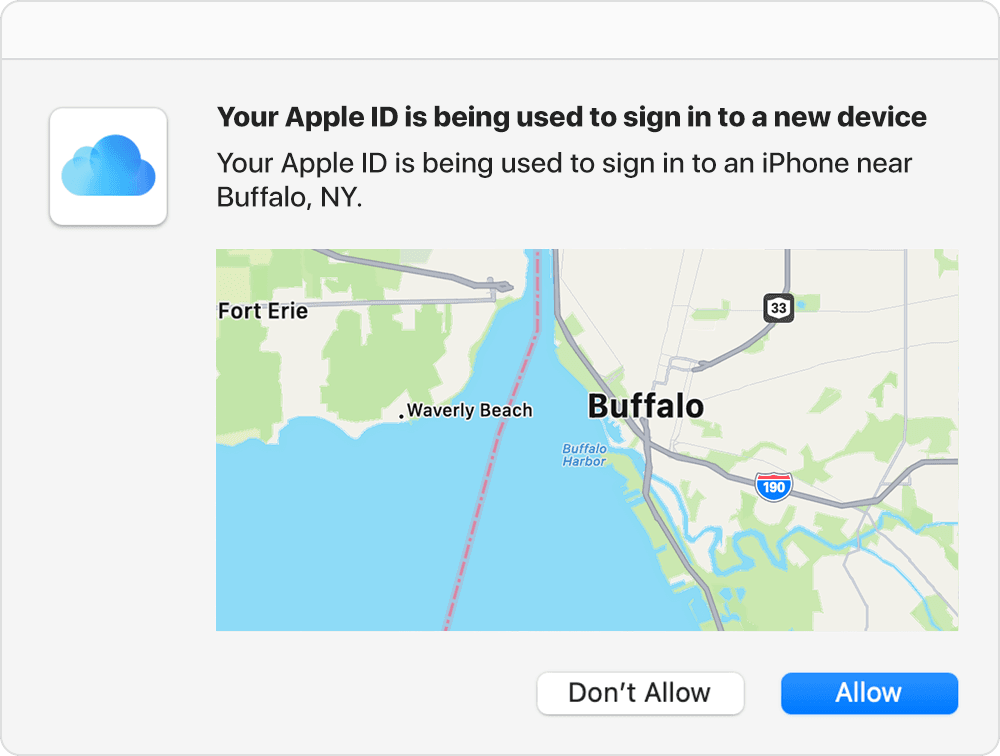
2. Look for a sign in notification on any of your trusted devices.
3. Tap Allow to receive your verification code.
4. Enter the verification code on your other device to complete sign in.
Get a text or phone call
If you don’t have a trusted device handy, you can have a verification code sent to your trusted phone number as a text message or phone call.
1. Click Didn't get a verification code on the sign in screen.
2. Choose to have the code sent to your trusted phone number.
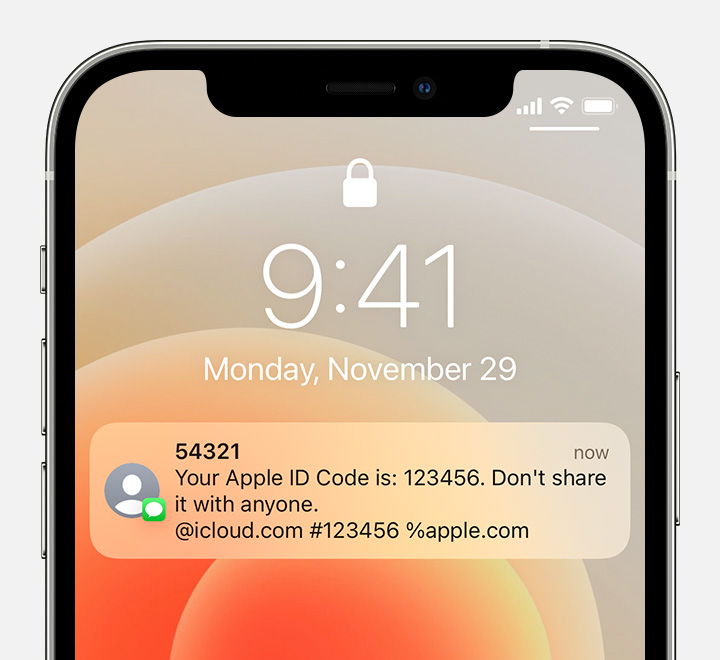
3. You'll get a text message or phone call from Apple with your verification code. This text message might include an additional domain validation line. This line includes the @ symbol, the website name, and your code (for example: @icloud.com #123456 %apple.com).
4. Enter the code on your other device to complete sign in.
Get a code from Settings on your trusted device
If you can’t receive a verification code on your trusted devices automatically, you can get one from Settings, even if your device is offline.
From your iPhone, iPad, or iPod touch
If your device is online:
1. Go to Settings > [your name].
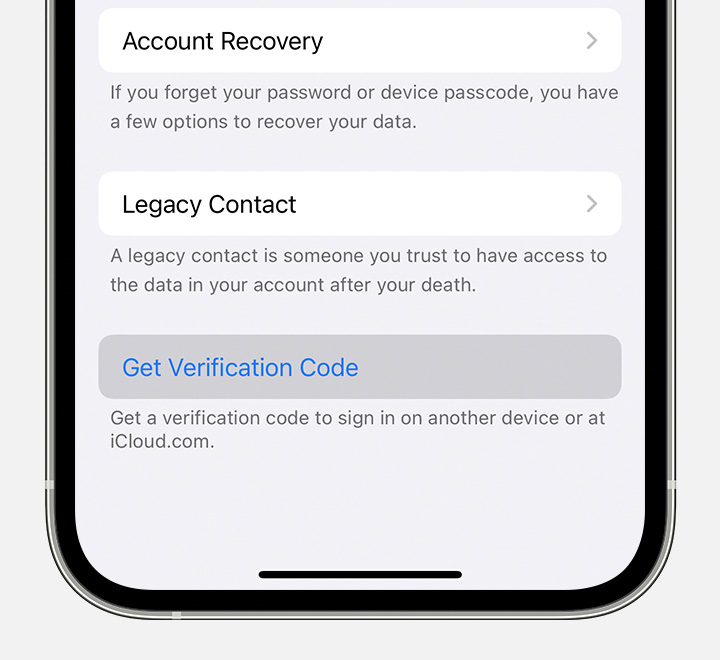
2. Tap Password & Security > Get Verification Code.
If your device is offline:
1. Go to Settings > [your name].
2. Tap Password & Security.
3. A message says "Account Details Unavailable." Tap Get Verification Code.
From your Mac
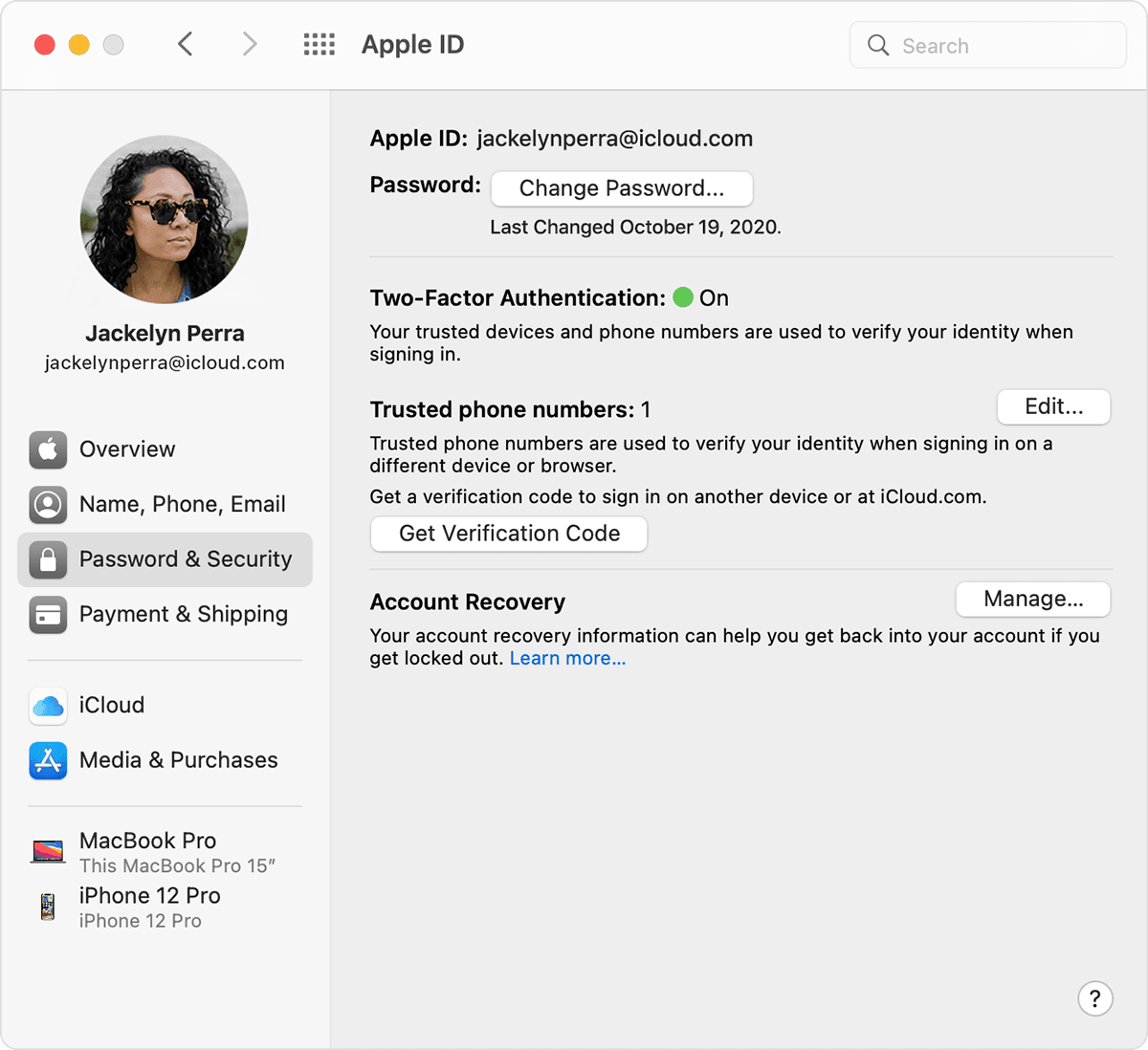
1. Go to Apple menu > System Preferences, then click Apple ID.
2. Click Password & Security > Get Verification Code.
Following these additional methods can help and is outlined here: Get a verification code and sign in with two-factor authentication - Apple Support
Kind regards.
Hello ariane215,
Thank you for reaching out in Apple Support Communities. If we're understanding correctly, you're unable to receive the verification code for two-factor authentication to sign into the App Store. For this scenario, you can receive the verification code through a trusted device. Here's how:
Use the code displayed on your trusted device
If you have a trusted device running iOS 9 and later, OS X El Capitan and later, iPadOS 13 and later, or watchOS 6 and later, the verification code is displayed automatically on your trusted devices.
1. Sign in with your Apple ID and password on a new device or browser.
2. Look for a sign in notification on any of your trusted devices.
3. Tap Allow to receive your verification code.
4. Enter the verification code on your other device to complete sign in.
Get a text or phone call
If you don’t have a trusted device handy, you can have a verification code sent to your trusted phone number as a text message or phone call.
1. Click Didn't get a verification code on the sign in screen.
2. Choose to have the code sent to your trusted phone number.
3. You'll get a text message or phone call from Apple with your verification code. This text message might include an additional domain validation line. This line includes the @ symbol, the website name, and your code (for example: @icloud.com #123456 %apple.com).
4. Enter the code on your other device to complete sign in.
Get a code from Settings on your trusted device
If you can’t receive a verification code on your trusted devices automatically, you can get one from Settings, even if your device is offline.
From your iPhone, iPad, or iPod touch
If your device is online:
1. Go to Settings > [your name].
2. Tap Password & Security > Get Verification Code.
If your device is offline:
1. Go to Settings > [your name].
2. Tap Password & Security.
3. A message says "Account Details Unavailable." Tap Get Verification Code.
From your Mac
1. Go to Apple menu > System Preferences, then click Apple ID.
2. Click Password & Security > Get Verification Code.
Following these additional methods can help and is outlined here: Get a verification code and sign in with two-factor authentication - Apple Support
Kind regards.
Unable to send code