There may be a billing issue with your mobile account

I don't make security keys ? it is issue .


[Edited by Moderator]

iPhone 11 Pro Max, 16

Posted on Feb 5, 2023 5:51 AM

Reply
Question marked as Top-ranking reply

Posted on Feb 6, 2023 7:22 PM

Hello chai81,


Thank you for reaching out to Apple Support Communities, and we'll be happy to help in any way we can. We understand you're having issues with updating your payment method. Try the steps here to resolve the issue: Add a payment method to your Apple ID - Apple Support


"Add a payment method on your iPhone or iPad
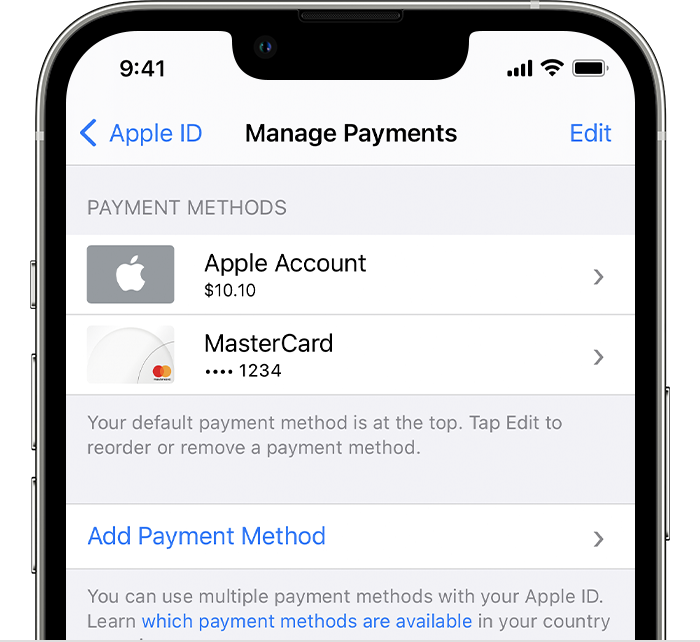
  1. Open the Settings app.
  2. Tap your name.
  3. Tap Media & Purchases, then tap View Account. You might be asked to sign in with your Apple ID.
  4. Tap Manage Payments.
  5. Tap Add Payment Method.

On iPhone, the Add Payment button appears below the list of payment methods.    

 6. Enter the payment method details, then tap Done.


Add a payment method on your Mac
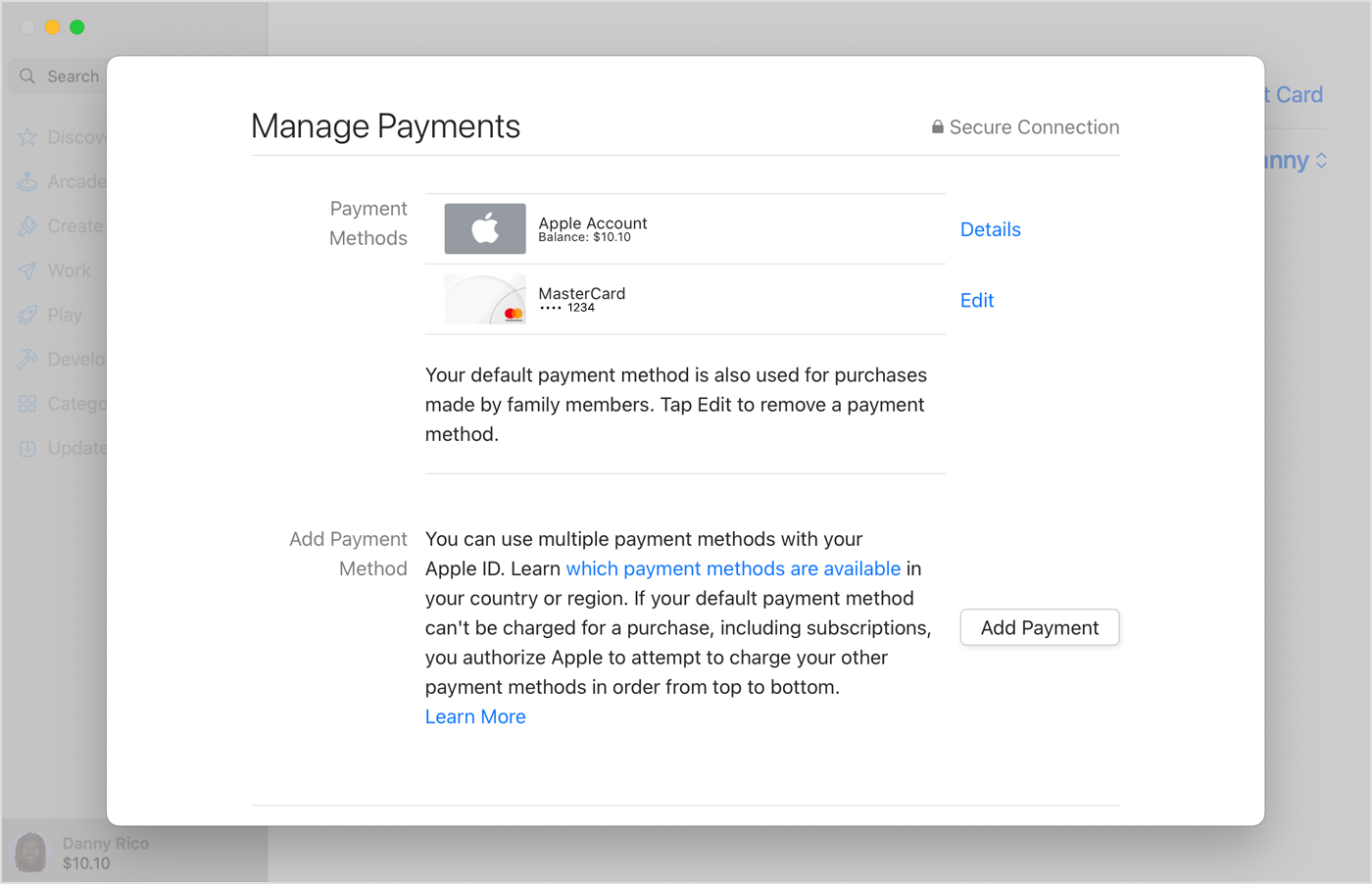
  1. Open the App Store.
  2. Click your name. If your name doesn't appear, click the Sign In button, sign in with your Apple ID, then click your name.
  3. Click Account Settings.
  4. Next to Payment Information, click Manage Payments. (If you're using an older version of macOS, click Edit next to Payment Type.)
  5. Click Add Payment.
  6. Enter the payment method details, then click Done.

On Mac, the Add Payment button appears below the list of payment methods.


Add a payment method on your Windows PC or Microsoft Surface
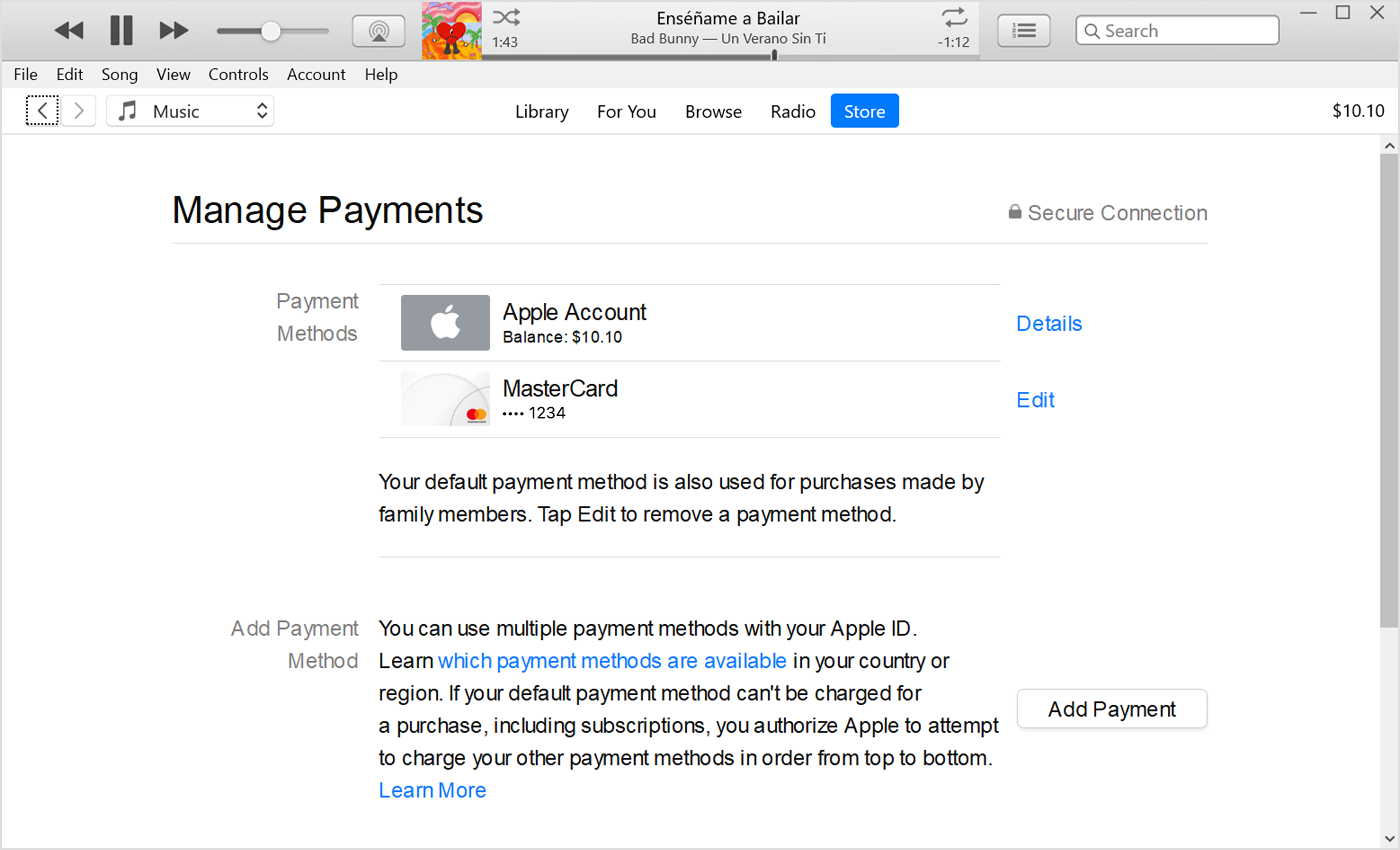
  1. Open iTunes.
  2. In the menu bar at the top of the iTunes window, tap or click Account, then tap or click View My Account.
  3. Sign in with your Apple ID.
  4. Tap or click the Manage Payments button next to Payment Information. (If you're using an older version of iTunes, tap or click the Edit button next to Payment Type.)
  5. Tap or click Add Payment.

In iTunes on a PC, the Add Payment button appears below the list of payment methods. 


Add a payment method online

If you want to keep more than one payment method on file, add the payment method in Settings on iPhone or iPadin the App Store on Mac, or in iTunes on your PC. When you edit payment information online at appleid.apple.com, additional payment methods might be removed from your account automatically.

  1. Go to appleid.apple.com.
  2. Tap or click Sign In, then sign in with your Apple ID.
  3. Tap or click Payment Methods.
  4. Tap or click Manage payment method.
  5. Enter your payment information, then tap or click Update.

Apple will attempt to charge payment methods in order from top to bottom. You can't change the order in which Apple Account balance is charged.


Learn more


We hope this helps.


Cheers!


3 replies
Question marked as Top-ranking reply

Feb 6, 2023 7:22 PM in response to chai81

Hello chai81,


Thank you for reaching out to Apple Support Communities, and we'll be happy to help in any way we can. We understand you're having issues with updating your payment method. Try the steps here to resolve the issue: Add a payment method to your Apple ID - Apple Support


"Add a payment method on your iPhone or iPad

  1. Open the Settings app.
  2. Tap your name.
  3. Tap Media & Purchases, then tap View Account. You might be asked to sign in with your Apple ID.
  4. Tap Manage Payments.
  5. Tap Add Payment Method.

On iPhone, the Add Payment button appears below the list of payment methods.    

 6. Enter the payment method details, then tap Done.


Add a payment method on your Mac

  1. Open the App Store.
  2. Click your name. If your name doesn't appear, click the Sign In button, sign in with your Apple ID, then click your name.
  3. Click Account Settings.
  4. Next to Payment Information, click Manage Payments. (If you're using an older version of macOS, click Edit next to Payment Type.)
  5. Click Add Payment.
  6. Enter the payment method details, then click Done.

On Mac, the Add Payment button appears below the list of payment methods.


Add a payment method on your Windows PC or Microsoft Surface

  1. Open iTunes.
  2. In the menu bar at the top of the iTunes window, tap or click Account, then tap or click View My Account.
  3. Sign in with your Apple ID.
  4. Tap or click the Manage Payments button next to Payment Information. (If you're using an older version of iTunes, tap or click the Edit button next to Payment Type.)
  5. Tap or click Add Payment.

In iTunes on a PC, the Add Payment button appears below the list of payment methods. 


Add a payment method online

If you want to keep more than one payment method on file, add the payment method in Settings on iPhone or iPadin the App Store on Mac, or in iTunes on your PC. When you edit payment information online at appleid.apple.com, additional payment methods might be removed from your account automatically.

  1. Go to appleid.apple.com.
  2. Tap or click Sign In, then sign in with your Apple ID.
  3. Tap or click Payment Methods.
  4. Tap or click Manage payment method.
  5. Enter your payment information, then tap or click Update.

Apple will attempt to charge payment methods in order from top to bottom. You can't change the order in which Apple Account balance is charged.


Learn more


We hope this helps.


Cheers!


Feb 6, 2023 9:11 PM in response to chai81

Good day sorry about your error issues, actually I’m an artist known as Thvgger Vibez, I took this as an opportunity to make history and grow my listeners and fan base, I’m dropping a new project with 6 tracks on the catalogue on 10th March 2023 in a month from now, I would be glad to have you join my new community on Apple Music, kindly follow my profile to be notified on all my incoming releases and also steam the ones currently available, thanks here is my Apple Music artist profile link https://music.apple.com/us/artist/thvgger-vibez/1545117321


Chow Thanks

Thvgger Vibez

This thread has been closed by the system or the community team. You may vote for any posts you find helpful, or search the Community for additional answers.

There may be a billing issue with your mobile account

Welcome to Apple Support Community
A forum where Apple customers help each other with their products. Get started with your Apple Account.