Home pod mini no response randomly until restart
Home app will lose connection to random home pods. And a restart is needed to re connect. But it’s a random home pod mini every time. Have 4 of them.
HomePod mini, 16
Home app will lose connection to random home pods. And a restart is needed to re connect. But it’s a random home pod mini every time. Have 4 of them.
HomePod mini, 16
Hello Richard Campbell1,
Thank you for reaching out in Apple Support Communities. There are steps available to help troubleshoot the HomePod mini when it's unresponsive. We recommend for you to follow these steps:
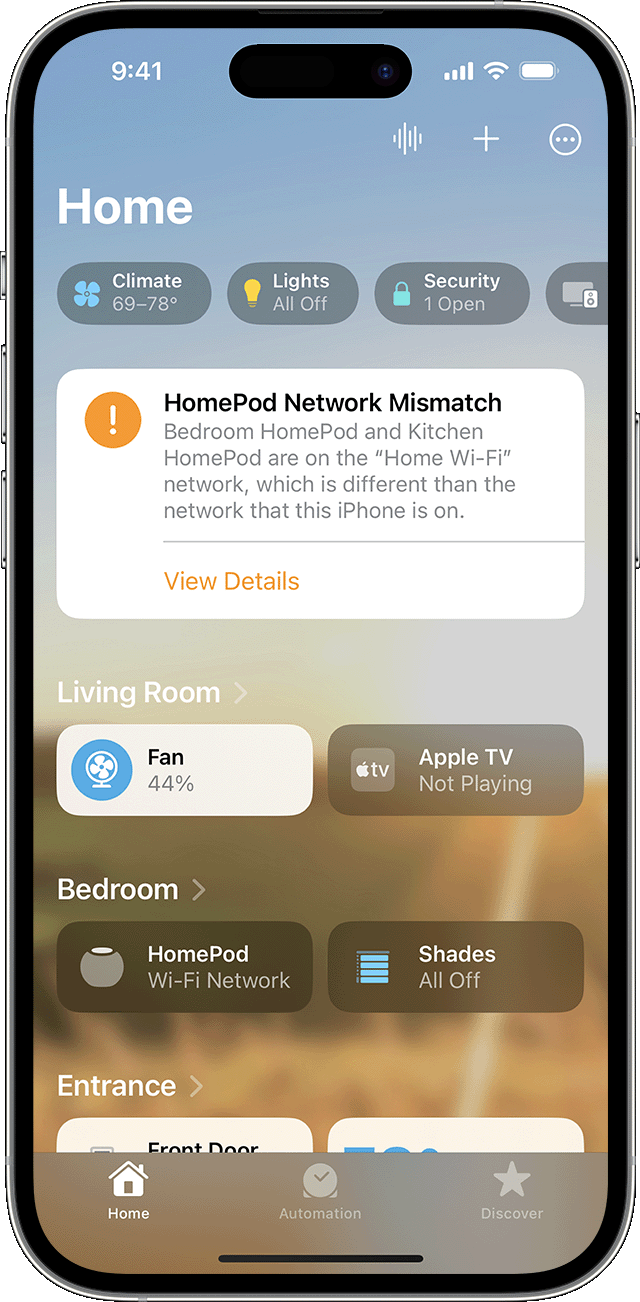
Check for alerts in the Home app
If HomePod or HomePod mini can't connect to your home Wi-Fi network, can't access your Apple ID, or has another issue, you'll see an alert with details about the issue in the Home app. To see more information about the alert, open the Home app, then tap or click HomePod.
Check your Wi-Fi connection
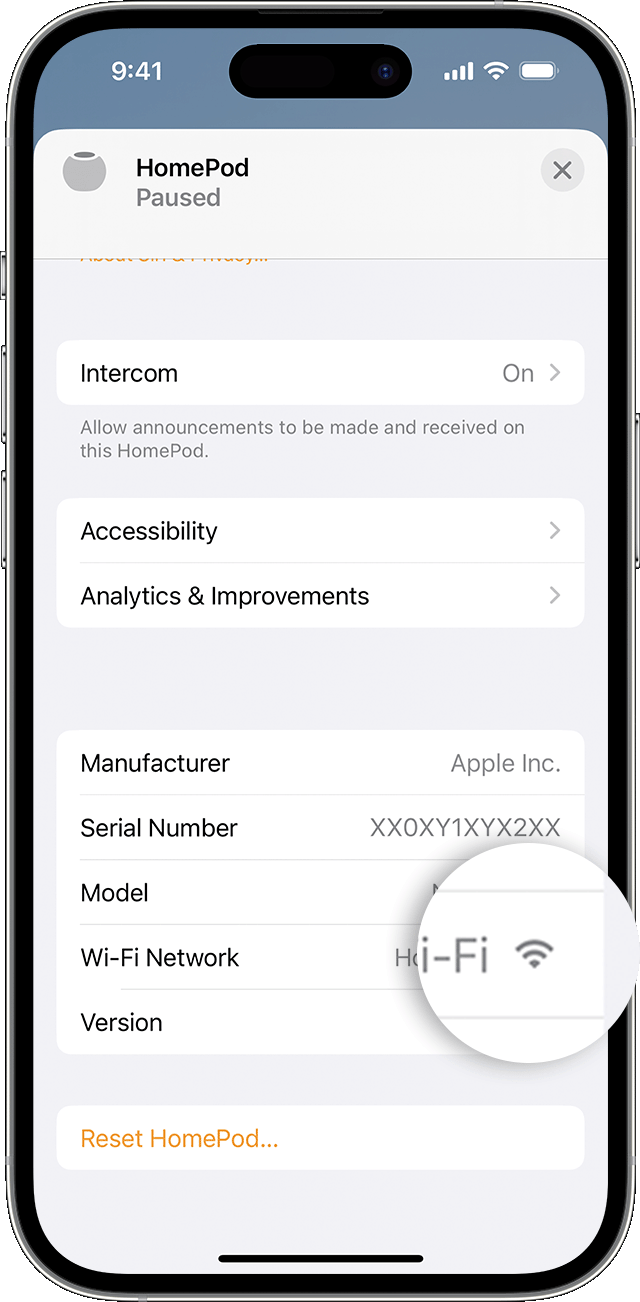
HomePod and HomePod mini automatically connect to the same Wi-Fi network as your iPhone or iPad. To check your Wi-Fi signal strength:
1. Open the Home app on your iPhone, iPad, or Mac.
2. Tap or click HomePod.
3. Scroll down, or tap or click the Settings iconand scroll down to Wi-Fi Network. The Wi-Fi signal strength indicator
appears next to your network name.
If the signal strength indicator shows two bars or fewer, your Wi-Fi signal strength is weak. Try moving your HomePod speaker closer to your router and remove potential sources of wireless interference.
If the signal strength indicator shows an exclamation point, learn what to do.
Learn what to do if Siri on your HomePod says it can't connect to the internet
HomePod and HomePod mini support captive portal Wi-Fi networks that require additional sign-in steps, for example, those provided by hotels or dorms. Use your iPhone or iPad to connect to the network, then follow the onscreen instructions for setup.
The Wi-Fi signal strength indicator isn't supported on HomePod speakers connected to networks that block peer-to-peer traffic, like some captive networks.
Restart HomePod or HomePod mini
1. Open the Home app on your iPhone, iPad, or Mac that's signed in with the Apple ID that you used to set up HomePod.
2. Tap or click HomePod.
3. Scroll down, or tap or click the Settings icon
4. If you have two HomePod speakers set up as a stereo pair, select Restart HomePod. If your HomePod speaker is not set up as a stereo pair, select Reset HomePod, then select Restart HomePod.
If you don't see an option to restart your HomePod, unplug it from power, then plug it back in and try again.
If HomePod still doesn't respond, reset it.
Following these steps can help and is outlined in this helpful article: https://support.apple.com/en-us/HT208380
Kind regards.
Hello Richard Campbell1,
Thank you for reaching out in Apple Support Communities. There are steps available to help troubleshoot the HomePod mini when it's unresponsive. We recommend for you to follow these steps:
Check for alerts in the Home app
If HomePod or HomePod mini can't connect to your home Wi-Fi network, can't access your Apple ID, or has another issue, you'll see an alert with details about the issue in the Home app. To see more information about the alert, open the Home app, then tap or click HomePod.
Check your Wi-Fi connection
HomePod and HomePod mini automatically connect to the same Wi-Fi network as your iPhone or iPad. To check your Wi-Fi signal strength:
1. Open the Home app on your iPhone, iPad, or Mac.
2. Tap or click HomePod.
3. Scroll down, or tap or click the Settings icon
If the signal strength indicator shows two bars or fewer
If the signal strength indicator shows an exclamation point
Learn what to do if Siri on your HomePod says it can't connect to the internet
HomePod and HomePod mini support captive portal Wi-Fi networks that require additional sign-in steps, for example, those provided by hotels or dorms. Use your iPhone or iPad to connect to the network, then follow the onscreen instructions for setup.
The Wi-Fi signal strength indicator isn't supported on HomePod speakers connected to networks that block peer-to-peer traffic, like some captive networks.
Restart HomePod or HomePod mini
1. Open the Home app on your iPhone, iPad, or Mac that's signed in with the Apple ID that you used to set up HomePod.
2. Tap or click HomePod.
3. Scroll down, or tap or click the Settings icon
4. If you have two HomePod speakers set up as a stereo pair, select Restart HomePod. If your HomePod speaker is not set up as a stereo pair, select Reset HomePod, then select Restart HomePod.
If you don't see an option to restart your HomePod, unplug it from power, then plug it back in and try again.
If HomePod still doesn't respond, reset it.
Following these steps can help and is outlined in this helpful article: https://support.apple.com/en-us/HT208380
Kind regards.
Home pod mini no response randomly until restart