Timer on MacBook Pro running Ventura will not stop music playback on timer ending
How do I get the timer to shut off music when the timer terminates?
How do I get the timer to shut off music when the timer terminates?
Hello mickey46,
Got it. Thanks.
Next, do you use Siri? If so, let’s try to start the music then, tell Siri to “Stop playing music in {some amount of time}”. Test to see if the music turns off this way. You can learn more about using Siri on your Mac here: Use Siri on Mac - Apple Support
This will tell us if this feature is able to work as expected when setting the timer in a different way.
Also, are you connecting the music to an external speaker of some sort? If so, are you using a HomePod? If so, you may need to tell the HomePod to stop playing in a certain amount of time instead of telling the computer to do it.
Let us know if that helps.
Kindest regards.
mickey46,
If you haven't already, restart your Mac before starting a new timer to see if goes through playing. This will also help refresh the Clock app if it's having a temporary issue: Shut down or restart your Mac - Apple Support
Try the same steps in safe mode to rule out any software interference: How to use safe mode on your Mac - Apple Support
Apple silicon
1. Shut down your Mac.
2. Turn on your Mac and continue to press and hold the power button until you see the startup options window.
3. Select your startup disk, then press and hold the Shift key while clicking “Continue in Safe Mode.”
4. Log in to your Mac. You might be asked to log in again.
Intel processor
1. Turn on or restart your Mac, then immediately press and hold the Shift key as your Mac starts up.
2. Release the key when you see the login window, then log in to your Mac.
3. You might be asked to log in again. On either the first or second login window, you should see ”Safe Boot” in the upper-right corner of the window.
Enjoy your day.
Hey mickey46,
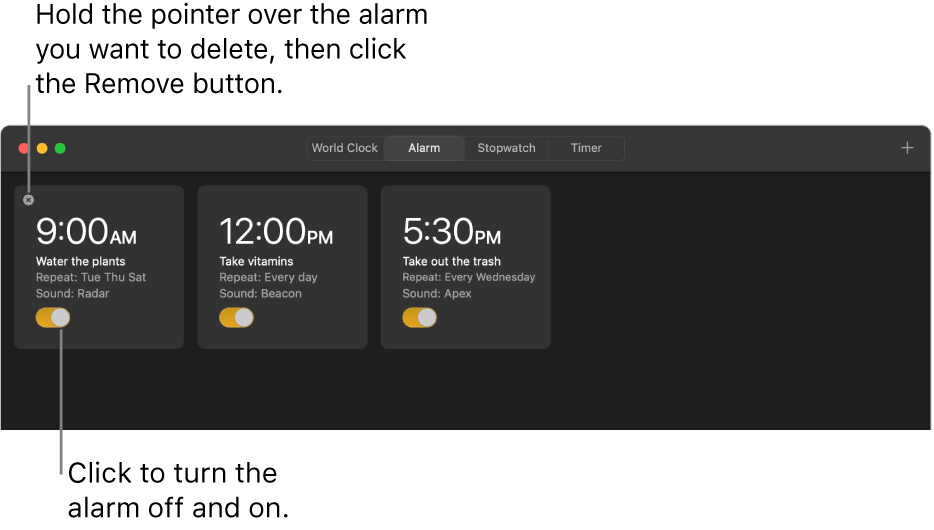
If we understand correctly, when the alarm sounds for your Mac the sound doesn't stop when you turn off the alarm. If that's right, try deleting the alarm and setting up a new one to see if fresh settings help. Just in case, here's a guide on creating alarms: Clock User Guide - Apple Support
Set an alarm
You can set alarms for any time of day and have them repeat on one or more days of the week.
Siri: Say something like: “Set an alarm for lunch at noon.” Learn how to use Siri.
1. In the Clock appon your Mac, click Alarm at the top of the window (or choose View > Alarm).
2. Click the Add button, set the time, then choose any of the following options:
• Repeat: Choose the days of the week you want the alarm to repeat.
• Label: Give the alarm a name, like “Water the plants.”
• Sound: Choose a sound.
• Snooze: Select the checkbox to give yourself additional time when your alarm sounds.
3. Click Save.
To change an alarm, select it. You can turn it off or back on. To delete an alarm, hold the pointer over the alarm, then click the Remove buttonin the top-left corner.
Let us know how it goes.
Take care!
We appreciate you letting us know this is specifically for the Music app on your Mac mickey46.
So we make sure we stay on the same page, may we ask what steps you are going through when setting up the timer? This will also help us keep from asking you to repeat steps. Here are the steps to set a Timer to refer to: Clock User Guide - Apple Support
We look forward to hearing back from you!
Click on the clock in the upper right hand corner
Bring up the Clock, is it an internal app?
Click on timer.
Bring up the timer app.
Scroll to bottom and select Stop Playing.
Start timer.
Timer runs down.
Apple Music keeps playing.
Sorry, I wasn't clear.
Trying to play music when I go to sleep. Playing Apple Music. Setting timer with "Stop Playing" when timer runs down. Timer runs down and terminates but music keeps playing merrily on. What am I doing wrong?
Thanks.
I Get:
"Sorry, I can't help you with that on your Mac."
Same in Safe Mode.
Running the M1 chip with Ventura 13.2.
Hey mickey46,
Thanks for those details. From here we'd recommend that you Contact Apple for support and service for additional assistance.
Take care.
Timer on MacBook Pro running Ventura will not stop music playback on timer ending