Hello BookX,
Thanks for choosing the Apple Support Communities. The time in which it takes your iPhone to back up relies on the speed of the cable you have connected between your iPhone and computer. It also relies on the read/write speeds of the hard drive you are backing up to.
To turn off backing up in Finder, click on your device and choose iCloud as opposed to the computer.
To sync your music, try following these steps.
"The Finder is a macOS feature for browsing and accessing content on your computer. If you update to macOS Catalina or later, you can use the Finder to sync content between your Mac and your iPhone, iPad, or iPod touch. The experience is similar to using iTunes.
Instead of the Finder, you can also use iCloud and Apple Music or similar services to keep content from your Mac or PC in the cloud. That way, you can you can access your music, photos, and more on your devices when you aren't near your Mac. If you do that, some of the Finder syncing features described below might turn off.
If you use iCloud or other services like Apple Music to keep your content up to date across all of your devices, some syncing features through the Finder might be turned off.
What you can sync with the Finder
- Albums, songs, playlists, movies, TV shows, podcasts, books, and audiobooks.
- Photos and videos.
- Contacts and calendars.
Learn how to use iCloud to sync content from Messages, Mail, and Notes.

Sync or remove content using the Finder
- Open a Finder window and connect your device to your computer using a USB cable. Learn what to do if you don't see your device listed in Finder.
- After your device appears in the sidebar of the Finder window, click the device to select it.
- If prompted, trust your device. You might be asked to update to the latest version of iOS or iPadOS.
- Select the type of content that you want to sync or remove from the horizontal list. To turn syncing on for a content type, select the checkbox next to “Sync [content] onto [user’s] iPhone.” More syncing options will now be available.
- Select the checkbox next to each item that you want to sync.
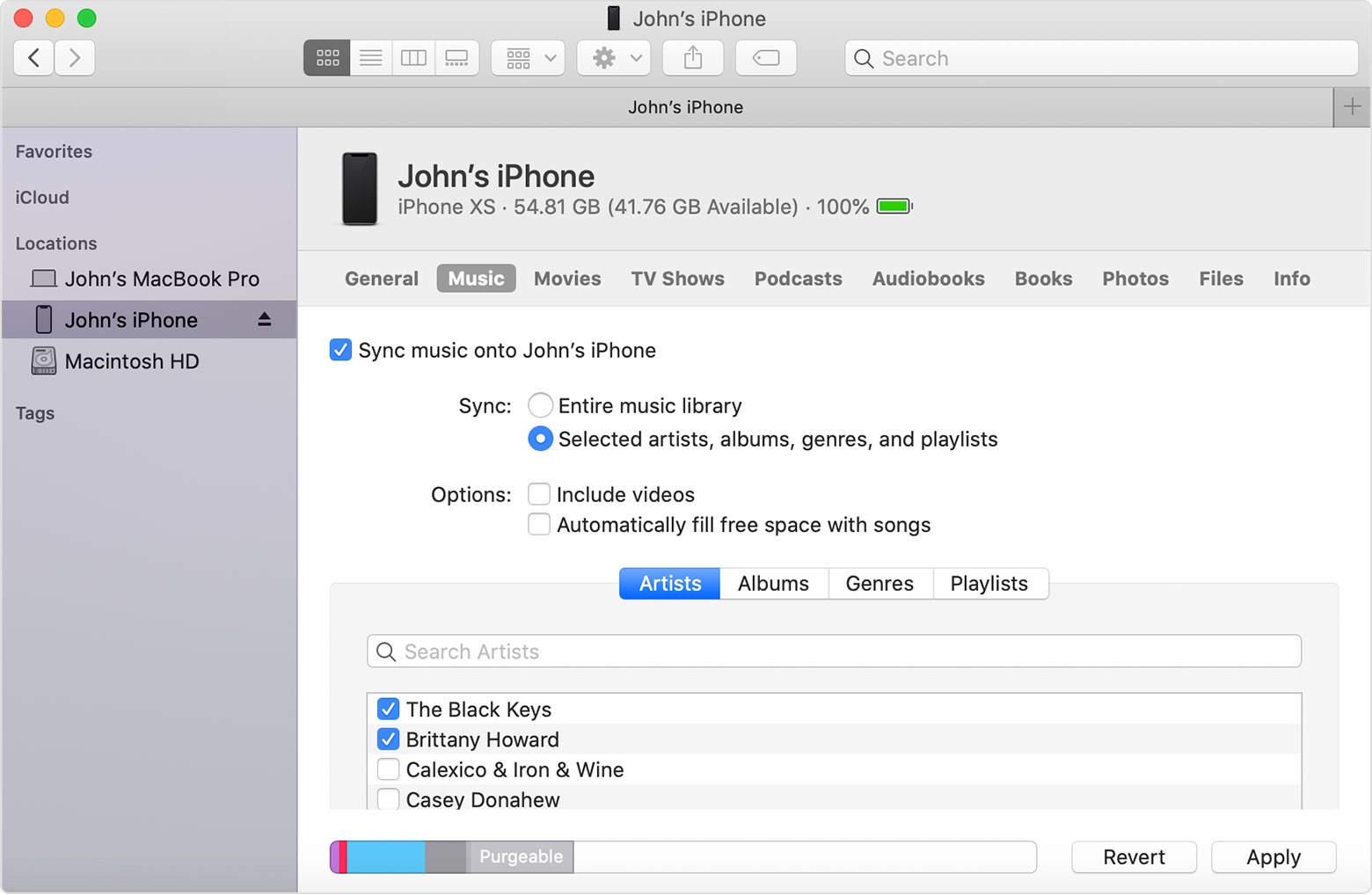
- Click the Apply button in the lower-right corner of the window. If syncing doesn't start automatically, click the Sync button. You may also be prompted to authorize your computer to complete the sync."
We hope this helps.
Cheers!


