I’m not receiving code to pair up I watch to my phone
I’m trying to pair up I touch 3 to my phone I’m not receiving the code
Apple Watch
I’m trying to pair up I touch 3 to my phone I’m not receiving the code
Apple Watch
Hello Marcia5,
To help us better assist you, can you let us know more about the situation? For example, are you being asked to enter a verification code when signing in with your Apple ID on a new device? That information will help us plan how to proceed.
If you're being asked for a verification code, please check out this link, which goes over the available options to get a code: Get a verification code and sign in with two-factor authentication
Whenever you sign in with your Apple ID on a new device or browser, you'll confirm your identity with your password plus a six-digit verification code. There are a few ways you can get a verification code. You can use the code displayed on your trusted device, get a text or phone call, or generate a code from your trusted device.
Please also review the information in the following link to ensure the correct process is being used to pair your Apple Watch with iPhone, so we can make sure there's no issue there: Set up and pair your Apple Watch with iPhone
Turn on, pair, and set up your Apple Watch
1. Put your Apple Watch on your wrist. Adjust the band or choose a band size so your Apple Watch fits closely but comfortably on your wrist.
For information about changing the band on your Apple Watch, see Remove, change, and fasten Apple Watch bands.
2. To turn on your Apple Watch, press and hold the side button until you see the Apple logo.
3. Bring your iPhone near your Apple Watch, wait for the Apple Watch pairing screen to appear on your iPhone, then tap Continue.
Or open the Apple Watch app on your iPhone, then tap Pair New Watch.
4. Tap Set Up for Myself.
5. When prompted, position your iPhone so that your Apple Watch appears in the viewfinder in the Apple Watch app. This pairs the two devices.
6. Tap Set Up Apple Watch, then follow the instructions on your iPhone and Apple Watch to finish setup.
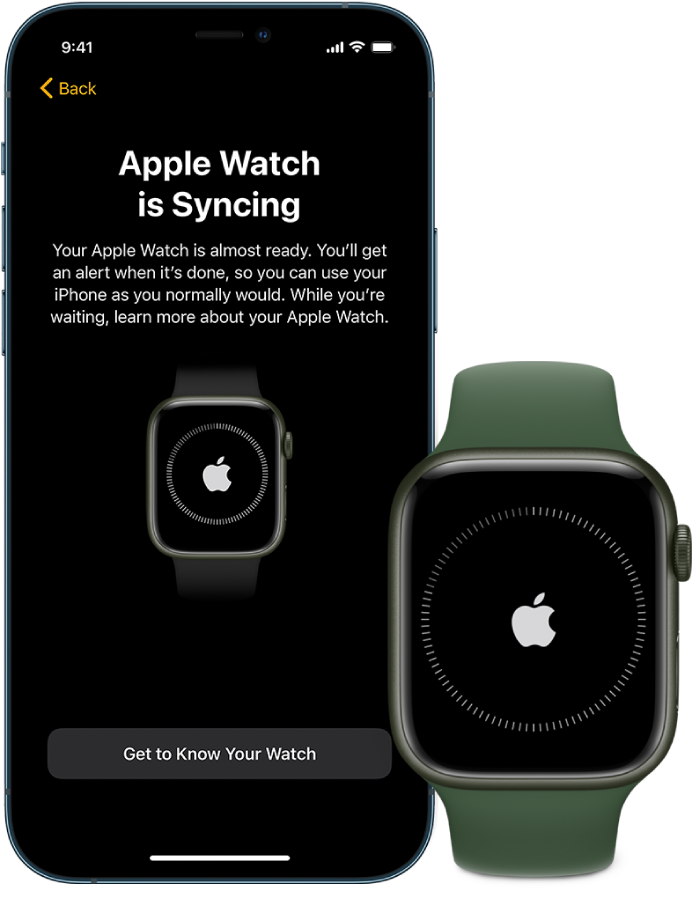
To learn more about your Apple Watch while it’s syncing, tap Get to Know Your Watch. You can learn what’s new, view Apple Watch tips, and read this user guide, right on your iPhone. After your Apple Watch is set up, you can find this information by opening the Apple Watch app on your iPhone, then tapping Discover.
If you continue to experience an issue, please be sure to review all of the information outlined in the link you came from, which may help with pairing issues: If you can't pair an Apple Watch with your iPhone
Thanks!
Hello Marcia5,
To help us better assist you, can you let us know more about the situation? For example, are you being asked to enter a verification code when signing in with your Apple ID on a new device? That information will help us plan how to proceed.
If you're being asked for a verification code, please check out this link, which goes over the available options to get a code: Get a verification code and sign in with two-factor authentication
Whenever you sign in with your Apple ID on a new device or browser, you'll confirm your identity with your password plus a six-digit verification code. There are a few ways you can get a verification code. You can use the code displayed on your trusted device, get a text or phone call, or generate a code from your trusted device.
Please also review the information in the following link to ensure the correct process is being used to pair your Apple Watch with iPhone, so we can make sure there's no issue there: Set up and pair your Apple Watch with iPhone
Turn on, pair, and set up your Apple Watch
1. Put your Apple Watch on your wrist. Adjust the band or choose a band size so your Apple Watch fits closely but comfortably on your wrist.
For information about changing the band on your Apple Watch, see Remove, change, and fasten Apple Watch bands.
2. To turn on your Apple Watch, press and hold the side button until you see the Apple logo.
3. Bring your iPhone near your Apple Watch, wait for the Apple Watch pairing screen to appear on your iPhone, then tap Continue.
Or open the Apple Watch app on your iPhone, then tap Pair New Watch.
4. Tap Set Up for Myself.
5. When prompted, position your iPhone so that your Apple Watch appears in the viewfinder in the Apple Watch app. This pairs the two devices.
6. Tap Set Up Apple Watch, then follow the instructions on your iPhone and Apple Watch to finish setup.
To learn more about your Apple Watch while it’s syncing, tap Get to Know Your Watch. You can learn what’s new, view Apple Watch tips, and read this user guide, right on your iPhone. After your Apple Watch is set up, you can find this information by opening the Apple Watch app on your iPhone, then tapping Discover.
If you continue to experience an issue, please be sure to review all of the information outlined in the link you came from, which may help with pairing issues: If you can't pair an Apple Watch with your iPhone
Thanks!
I’m not receiving code to pair up I watch to my phone