
Face ID configuration
My Face ID just stop working yesterday. I updated the phone, turn it off and on again, reset the Face ID and cannot configure it anymore… says that my face is not visible!!! What can I do?
My Face ID just stop working yesterday. I updated the phone, turn it off and on again, reset the Face ID and cannot configure it anymore… says that my face is not visible!!! What can I do?
Hi Stephanbri,
For help with Face ID on your iPhone, test the steps below found in the article here: If Face ID isn't working on your iPhone or iPad Pro
"If Face ID isn't working on your iPhone or iPad Pro
Update your iPhone or iPad to the latest version of iOS or iPadOS. And make sure that your iPhone or iPad model supports Face ID.
2.Check your Face ID settings
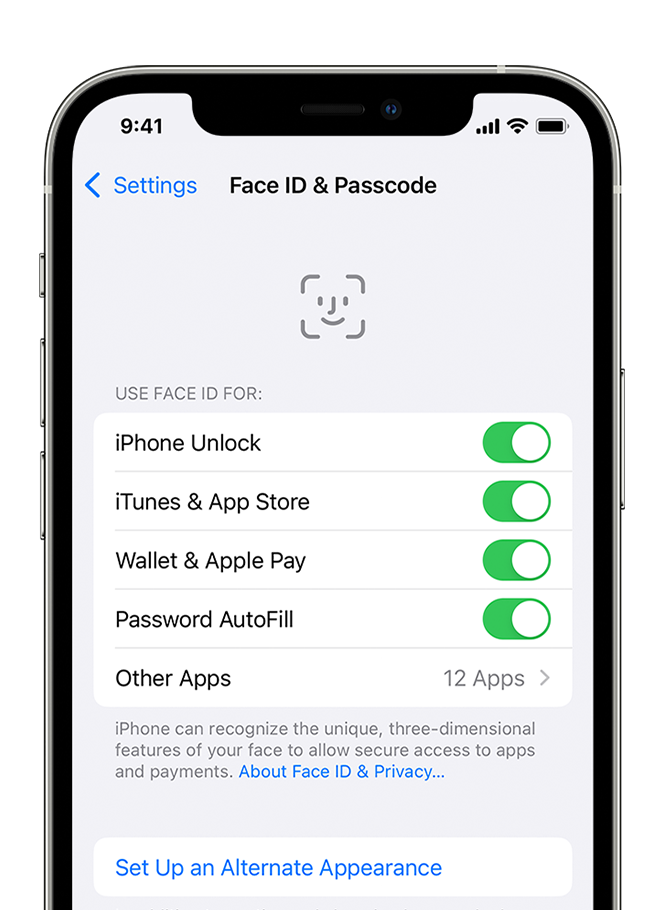
To check your Face ID settings, go to Settings, then tap Face ID & Passcode. Make sure that Face ID is set up and that the features you're trying to use Face ID with are turned on.
3.Check that nothing is covering the TrueDepth camera
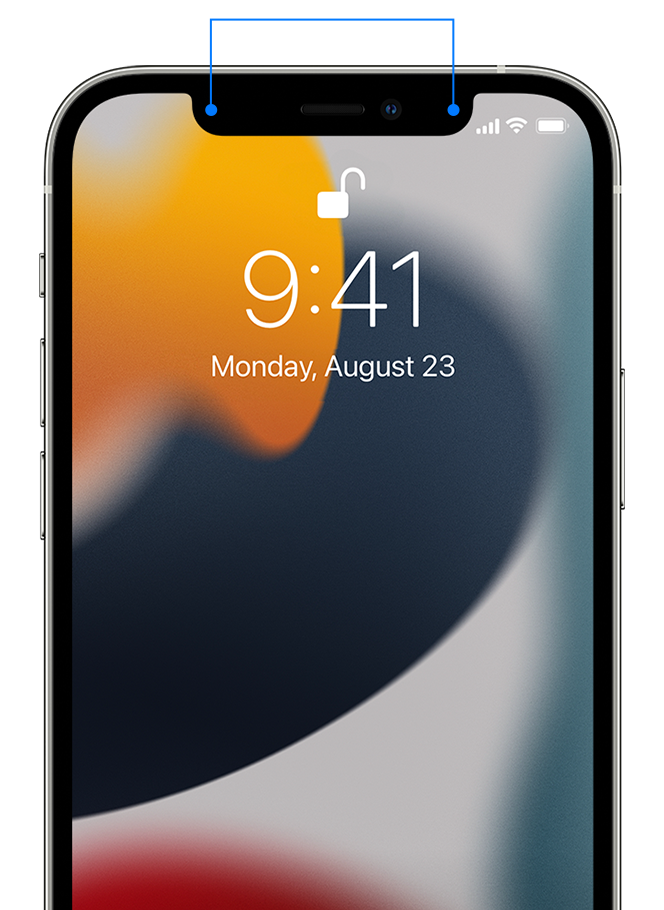
Remove anything that might be covering the TrueDepth camera like a smudge, case, or screen protector.
If you're using iPad in landscape orientation, make sure that your finger or palm isn't covering the TrueDepth camera. If it is, an alert might appear at the top of the screen that says "Camera covered" with an arrow pointing at the TrueDepth camera.
4.Make sure that your face isn't blocked
Make sure that your eyes, nose, and mouth are fully visible to the TrueDepth camera. By default, Face ID doesn't work if anything is covering your mouth and nose. If you're wearing a face mask and have already set up Face ID with a mask,* make sure that your eyes aren't blocked. You might need to hold your iPhone higher if you're wearing a face mask. If you wear a face mask too high or too close to your eyes, your iPhone might not unlock.
Face ID works with many sunglasses, though Face ID with a mask isn't designed to work with sunglasses. If you're wearing sunglasses designed to block certain types of light, then your sunglasses might be blocking the infrared light used by the TrueDepth camera. Try using Face ID without your sunglasses.
5.Make sure that you're facing the TrueDepth camera
Face ID works in portrait and landscape orientation on all iPhone 13 and 14 models using iOS 16. For earlier models, Face ID works on iPhone only when it's in portrait orientation and you're facing the TrueDepth camera. On iPad, you can use Face ID when your iPad is in any orientation.
The TrueDepth camera has a similar range of view as when you take a selfie or make a FaceTime call. Whether your iPhone or iPad is lying on a surface or you're holding it in a natural position, make sure that your iPhone or iPad is an arm's length or closer (10-20 inches) from your face.
6.Restart your device
Restart your iPhone or iPad and enter your passcode. Then try using Face ID again.
7.Add an alternate appearance
For most users, Face ID will continuously learn as they change. If you have an appearance that can look vastly different, you can set up an alternate appearance so Face ID still recognizes you.
8.Reset Face ID
If you still need help, reset Face ID, then set it up again. Go to Settings, tap Face ID & Passcode, then tap Reset Face ID. Next tap Set up Face ID to set it up again.
9.Get service
If you still can't enroll your face, contact Apple Support.
Only a trained technician should service your device. Improper repair, modification, or use of nongenuine Apple components in the laser systems might prevent the safety mechanisms from functioning properly, and could cause hazardous exposure and injury to eyes or skin."
if you're seeing the alert 'Face ID is not available', or the issue continues after the steps above reach out to Apple Support to further assist and check on your options.
Contact - Official Apple Support
Contact Apple for support and service - Apple Support
Best.
Hi Stephanbri,
For help with Face ID on your iPhone, test the steps below found in the article here: If Face ID isn't working on your iPhone or iPad Pro
"If Face ID isn't working on your iPhone or iPad Pro
Update your iPhone or iPad to the latest version of iOS or iPadOS. And make sure that your iPhone or iPad model supports Face ID.
2.Check your Face ID settings
To check your Face ID settings, go to Settings, then tap Face ID & Passcode. Make sure that Face ID is set up and that the features you're trying to use Face ID with are turned on.
3.Check that nothing is covering the TrueDepth camera
Remove anything that might be covering the TrueDepth camera like a smudge, case, or screen protector.
If you're using iPad in landscape orientation, make sure that your finger or palm isn't covering the TrueDepth camera. If it is, an alert might appear at the top of the screen that says "Camera covered" with an arrow pointing at the TrueDepth camera.
4.Make sure that your face isn't blocked
Make sure that your eyes, nose, and mouth are fully visible to the TrueDepth camera. By default, Face ID doesn't work if anything is covering your mouth and nose. If you're wearing a face mask and have already set up Face ID with a mask,* make sure that your eyes aren't blocked. You might need to hold your iPhone higher if you're wearing a face mask. If you wear a face mask too high or too close to your eyes, your iPhone might not unlock.
Face ID works with many sunglasses, though Face ID with a mask isn't designed to work with sunglasses. If you're wearing sunglasses designed to block certain types of light, then your sunglasses might be blocking the infrared light used by the TrueDepth camera. Try using Face ID without your sunglasses.
5.Make sure that you're facing the TrueDepth camera
Face ID works in portrait and landscape orientation on all iPhone 13 and 14 models using iOS 16. For earlier models, Face ID works on iPhone only when it's in portrait orientation and you're facing the TrueDepth camera. On iPad, you can use Face ID when your iPad is in any orientation.
The TrueDepth camera has a similar range of view as when you take a selfie or make a FaceTime call. Whether your iPhone or iPad is lying on a surface or you're holding it in a natural position, make sure that your iPhone or iPad is an arm's length or closer (10-20 inches) from your face.
6.Restart your device
Restart your iPhone or iPad and enter your passcode. Then try using Face ID again.
7.Add an alternate appearance
For most users, Face ID will continuously learn as they change. If you have an appearance that can look vastly different, you can set up an alternate appearance so Face ID still recognizes you.
8.Reset Face ID
If you still need help, reset Face ID, then set it up again. Go to Settings, tap Face ID & Passcode, then tap Reset Face ID. Next tap Set up Face ID to set it up again.
9.Get service
If you still can't enroll your face, contact Apple Support.
Only a trained technician should service your device. Improper repair, modification, or use of nongenuine Apple components in the laser systems might prevent the safety mechanisms from functioning properly, and could cause hazardous exposure and injury to eyes or skin."
if you're seeing the alert 'Face ID is not available', or the issue continues after the steps above reach out to Apple Support to further assist and check on your options.
Contact - Official Apple Support
Contact Apple for support and service - Apple Support
Best.
Face ID configuration

