Hello thymen112,
You have performed some great troubleshooting so far. Let's also use Apple Diagnostics to help isolate issues on your Mac:
Use Apple Diagnostics to test your Mac - Apple Support
"Prepare your Mac
- Shut down your Mac.
- Disconnect all external devices except keyboard, mouse, display, Ethernet connection (if applicable), and connection to AC power.
- Make sure that your Mac is on a hard, flat, stable surface with good ventilation.
Start Apple Diagnostics
Determine whether you're using a Mac with Apple silicon, then follow the appropriate steps:
Apple silicon
- Turn on your Mac and continue to press and hold the power button as your Mac starts up.
- Release when you see the startup options window, which includes a gear icon labeled Options.
- Press Command (⌘)-D on your keyboard.
-
Intel processor
- Turn on your Mac, then immediately press and hold the D key on your keyboard as your Mac starts up.
- Release when you see a progress bar or you're asked to choose a language.
-

View the test results
Apple Diagnostics shows a progress bar while it's checking your Mac:
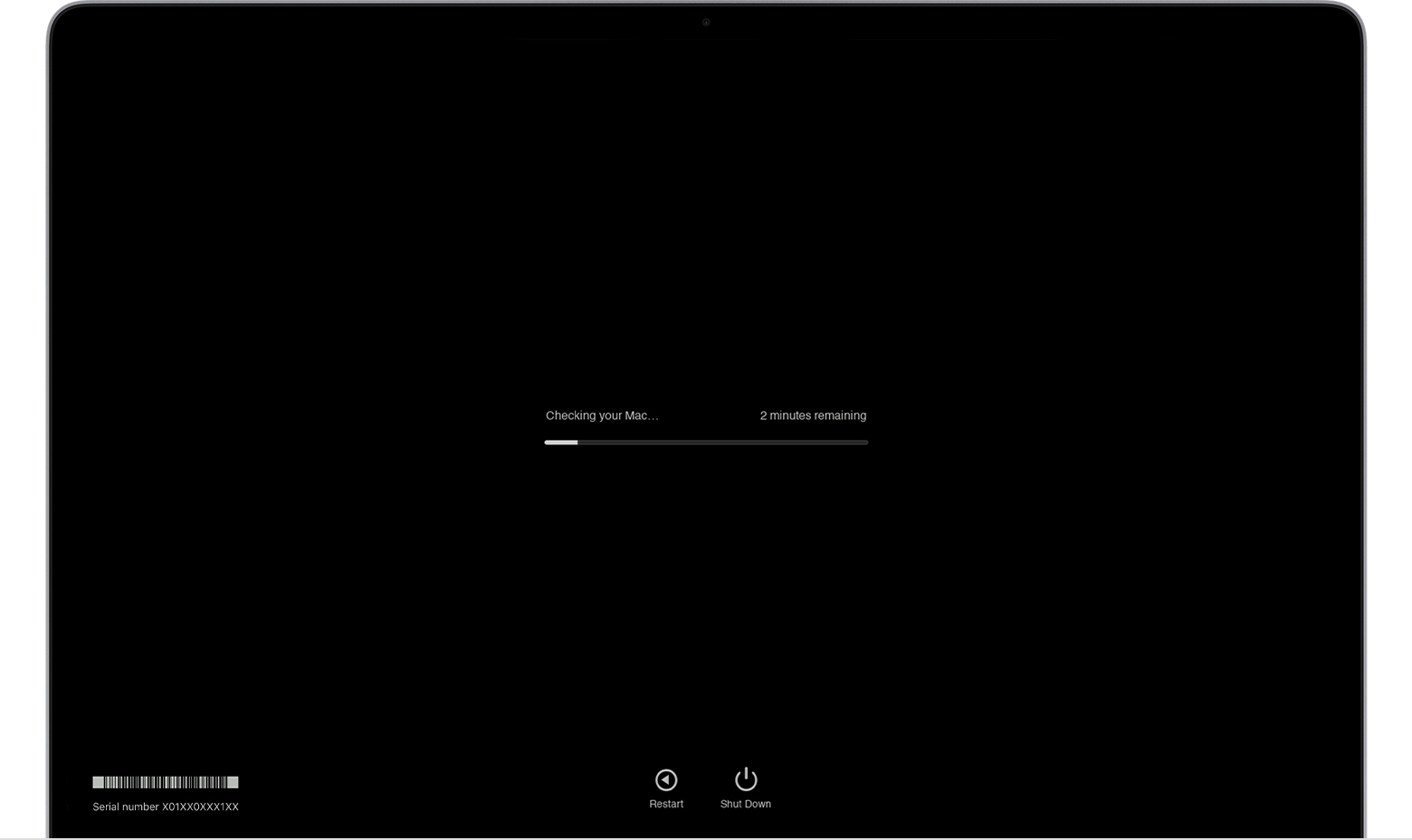
When testing is complete, Apple Diagnostics shows the results, including one or more reference codes. Learn about Apple Diagnostics reference codes.
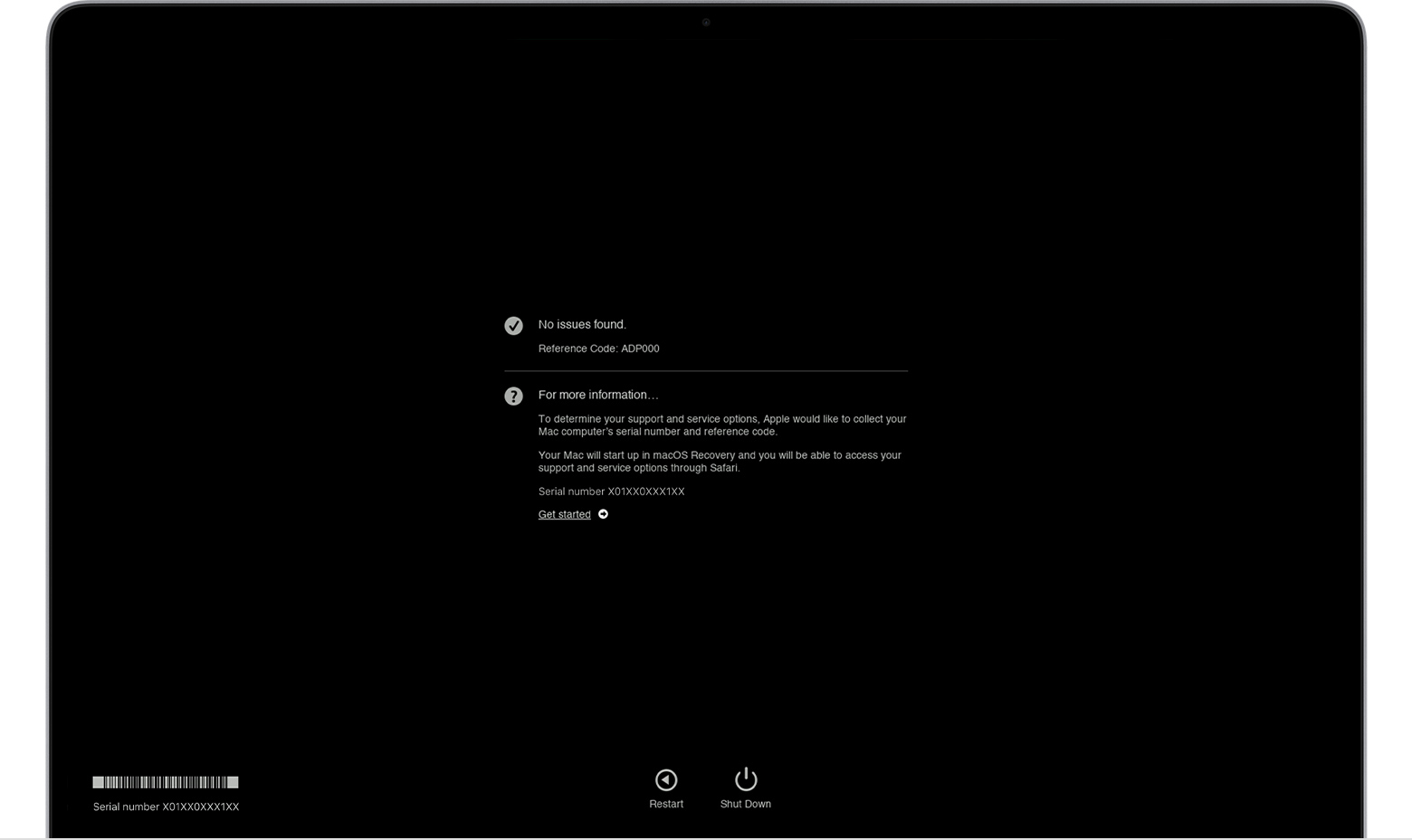
To repeat the test, click “Run the test again” or press Command-R.
To restart your Mac, click Restart or press R.
To shut down, click Shut Down or press S.
To get information about your service and support options, make sure that your Mac is connected to the internet, then click ”Get started” or press Command-G. Your Mac will restart to a webpage with more information. When you're done, choose Restart or Shut Down from the Apple menu."
Additionally, Wireless Diagnostics can help resolve Wi-Fi issues:
Use Wireless Diagnostics on your Mac - Apple Support
- "On your Mac, quit all open apps.
- Try to join the Wi-Fi network you’re having problems with (if you’re not already connected).
- Press and hold the Option key, click the Wi-Fi status icon
 in the menu bar, then choose Open Wireless Diagnostics.
 - Follow the onscreen instructions to analyze your network connection.
- After the analysis is complete, click the Info buttons
 in the Summary pane to learn more about each item in the list."
Cheers.


