
Wifi connection issue
My iPad won't stay connected to wifi after a recent trip to Bali. As I can't connect to my Apple account from my iPad I'm unable to reset it. How can I reset my iPad without a wifi connection?
iPad, iPadOS 16
My iPad won't stay connected to wifi after a recent trip to Bali. As I can't connect to my Apple account from my iPad I'm unable to reset it. How can I reset my iPad without a wifi connection?
iPad, iPadOS 16
Hi Eagletreg4444,
Thanks for contacting Apple Support Communities!
We understand that you're unable to connect your iPad to a Wi-Fi network.
Check out this resource which explains how to troubleshoot your Wi-Fi connection on your iPad: If your iPhone or iPad won't connect to a Wi-Fi network - Apple Support
"1. Make sure that your router is on and that you're within range
If you're too far from your Wi-Fi router, you can't get a signal, so make sure that you're within range.
2. Make sure that Wi-Fi is on and that you can see your network
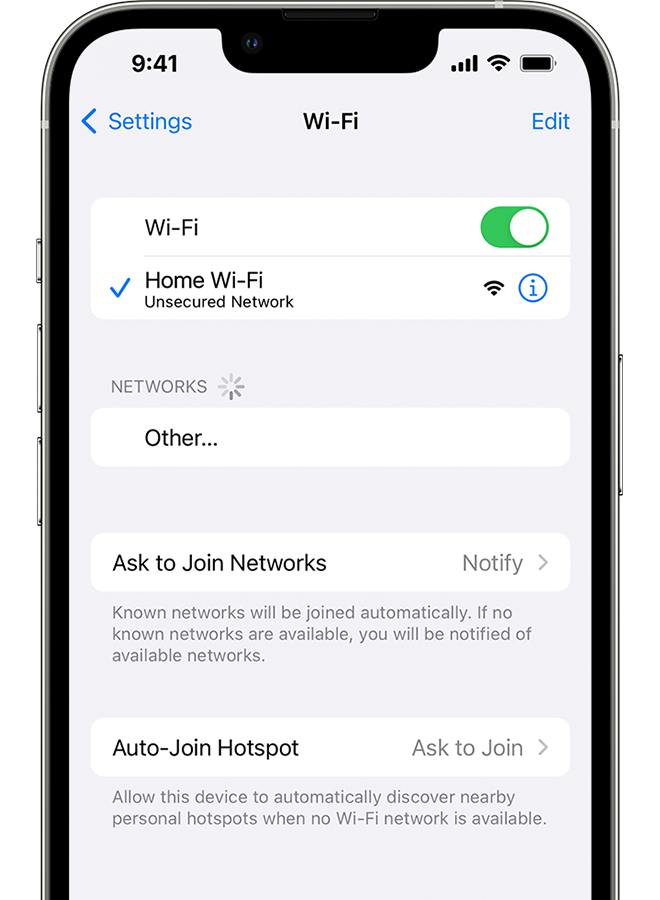
Go to Settings > Wi-Fi and make sure that Wi-Fi is on. Tap the name of your Wi-Fi network to join. A blue checkmark beside a network name means that you're connected.
If you see Auto Join disabled under Settings > Wi-Fi > [Your Network], tap the More Info button and then tap Auto-Join.
3. If asked, enter your Wi-Fi password
If asked, enter the password for your Wi-Fi network. Get help if you don't know your password.
Even if you enter the correct password, you might see an "unable to join the network" message or an "incorrect password" message. Restart all of your devices, then try to enter your password again.
4. Check for issues with your Wi-Fi network
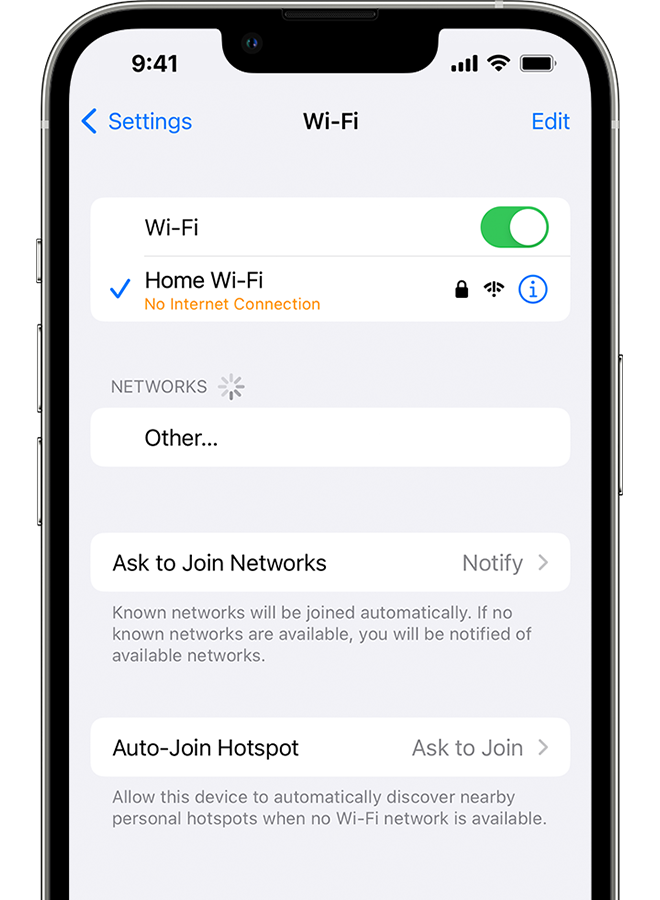
If iOS or iPadOS detects an issue with your Wi-Fi connection, you might see a Wi-Fi recommendation under the name of the Wi-Fi network that you're connected to. For example, you might see the alert "No Internet Connection." To get more information, tap the Wi-Fi network.
5. Check your cables and connections
If you still can't connect to your network or get online, make sure that your router is connected to the modem and turned on.
6. Restart
Restart your iOS or iPadOS device.
Restart your router and cable or DSL modem by unplugging the device and then plugging it back in.
After you restart each device, see if you fixed the issue.
7. Reset your network settings
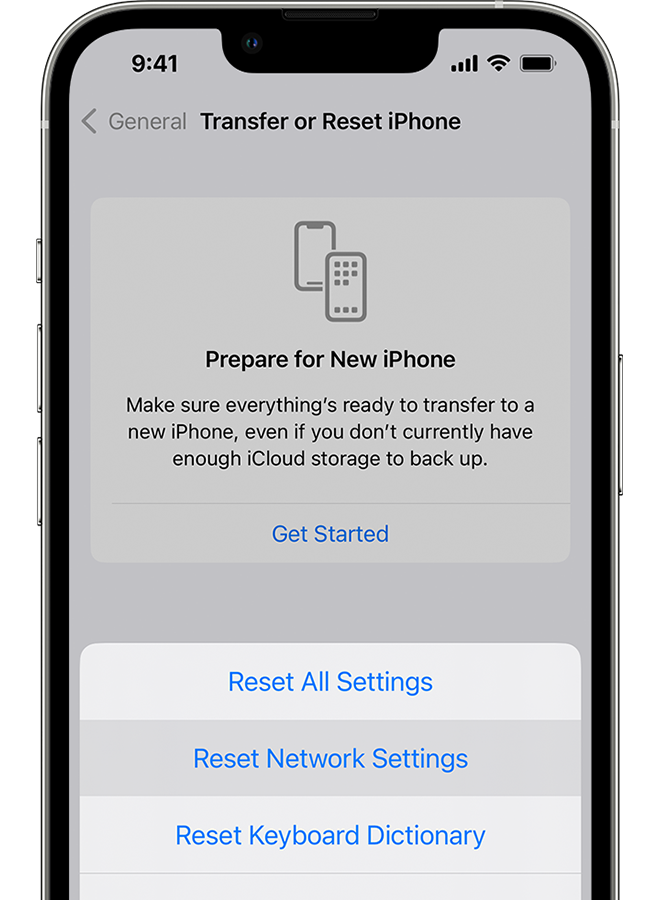
If you're using iOS or iPadOS 15 or later, tap Settings > General > Transfer or Reset [Device] > Reset > Reset Network Settings.
If you're using iOS or iPadOS 14 or earlier, tap Settings > General > Reset > Reset Network Settings.
This also resets Wi-Fi networks and passwords, cellular settings, and VPN and APN settings that you've used before.
Get more help
If you have any VPN or security software installed on your iPad, you may consider removing it as it can prevent network connectivity on your iPad: Check VPN (Virtual Private Network) and third-party software to help resolve network connectivity issues - Apple Support
You also mentioned that you'd like to reset your iPad. Do you mean that you want to erase it and reinstall iPadOS and your backup? We would suggest that you create a backup of your iPad if you haven't already. This will prevent you from losing any data when you restore your iPad: How to back up your iPhone, iPad, and iPod touch - Apple Support
You can use a computer to restore your iPad once you've ensured you have a backup: Restore your iPhone, iPad, or iPod touch from a backup - Apple Support
"Restore your device from a backup on your computer
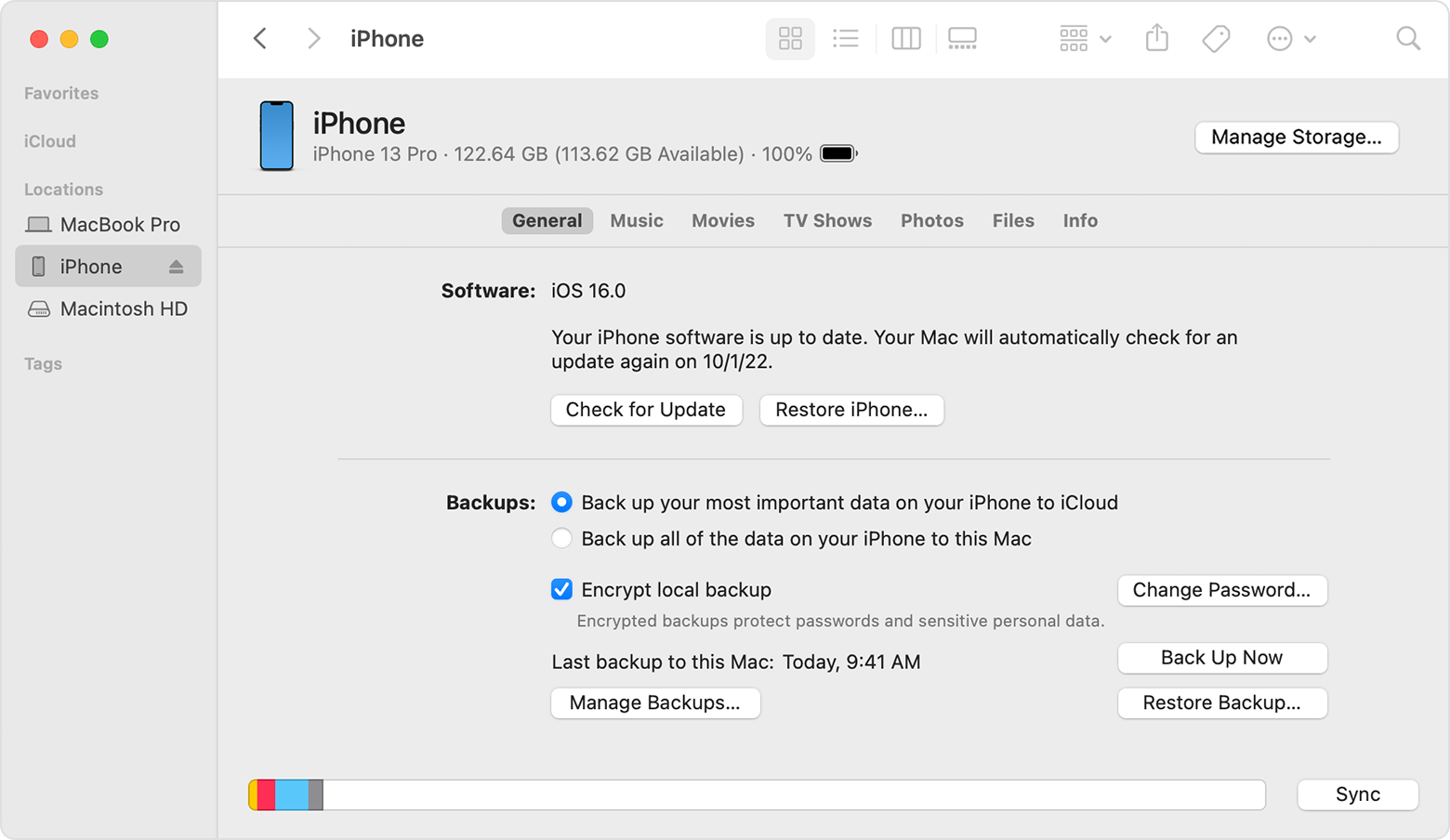
4. Select Restore Backup. Learn what to do if a message says that your device's software is too old.
5. Look at the date of each backup and pick the most relevant.
6. Click Restore and wait for the restore to finish. If asked, enter the password for your encrypted backup.
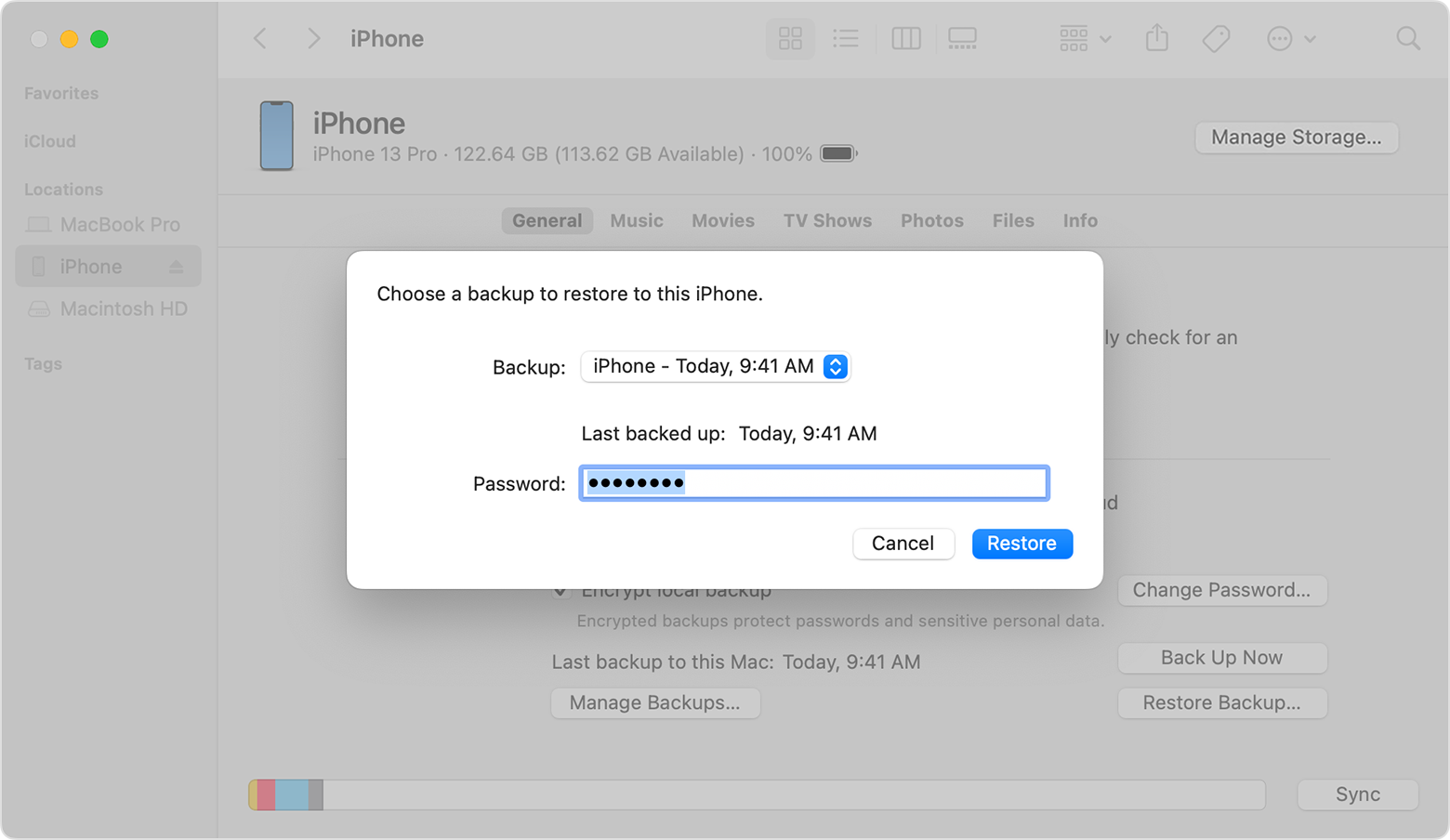
7. Keep your device connected after it restarts and wait for it to sync with your computer. You can disconnect after the sync finishes."
Can you tell us more about connecting to your Apple account? Are you referring to your Apple ID? If so, what's happening specifically?
We look forward to your reply.
Cheers!
Hi Eagletreg4444,
Thanks for contacting Apple Support Communities!
We understand that you're unable to connect your iPad to a Wi-Fi network.
Check out this resource which explains how to troubleshoot your Wi-Fi connection on your iPad: If your iPhone or iPad won't connect to a Wi-Fi network - Apple Support
"1. Make sure that your router is on and that you're within range
If you're too far from your Wi-Fi router, you can't get a signal, so make sure that you're within range.
2. Make sure that Wi-Fi is on and that you can see your network
Go to Settings > Wi-Fi and make sure that Wi-Fi is on. Tap the name of your Wi-Fi network to join. A blue checkmark beside a network name means that you're connected.
If you see Auto Join disabled under Settings > Wi-Fi > [Your Network], tap the More Info button and then tap Auto-Join.
3. If asked, enter your Wi-Fi password
If asked, enter the password for your Wi-Fi network. Get help if you don't know your password.
Even if you enter the correct password, you might see an "unable to join the network" message or an "incorrect password" message. Restart all of your devices, then try to enter your password again.
4. Check for issues with your Wi-Fi network
If iOS or iPadOS detects an issue with your Wi-Fi connection, you might see a Wi-Fi recommendation under the name of the Wi-Fi network that you're connected to. For example, you might see the alert "No Internet Connection." To get more information, tap the Wi-Fi network.
5. Check your cables and connections
If you still can't connect to your network or get online, make sure that your router is connected to the modem and turned on.
6. Restart
Restart your iOS or iPadOS device.
Restart your router and cable or DSL modem by unplugging the device and then plugging it back in.
After you restart each device, see if you fixed the issue.
7. Reset your network settings
If you're using iOS or iPadOS 15 or later, tap Settings > General > Transfer or Reset [Device] > Reset > Reset Network Settings.
If you're using iOS or iPadOS 14 or earlier, tap Settings > General > Reset > Reset Network Settings.
This also resets Wi-Fi networks and passwords, cellular settings, and VPN and APN settings that you've used before.
Get more help
If you have any VPN or security software installed on your iPad, you may consider removing it as it can prevent network connectivity on your iPad: Check VPN (Virtual Private Network) and third-party software to help resolve network connectivity issues - Apple Support
You also mentioned that you'd like to reset your iPad. Do you mean that you want to erase it and reinstall iPadOS and your backup? We would suggest that you create a backup of your iPad if you haven't already. This will prevent you from losing any data when you restore your iPad: How to back up your iPhone, iPad, and iPod touch - Apple Support
You can use a computer to restore your iPad once you've ensured you have a backup: Restore your iPhone, iPad, or iPod touch from a backup - Apple Support
"Restore your device from a backup on your computer
4. Select Restore Backup. Learn what to do if a message says that your device's software is too old.
5. Look at the date of each backup and pick the most relevant.
6. Click Restore and wait for the restore to finish. If asked, enter the password for your encrypted backup.
7. Keep your device connected after it restarts and wait for it to sync with your computer. You can disconnect after the sync finishes."
Can you tell us more about connecting to your Apple account? Are you referring to your Apple ID? If so, what's happening specifically?
We look forward to your reply.
Cheers!
Wifi connection issue

