Hi Farzad_K,
Welcome to Apple Support Communities. We understand that you're having an issue with using the Camera Remote on your Apple Watch to continue taking videos. We'd like to help.
When your iPhone goes to sleep, do you still see the alert on your Apple Watch that the Camera app was closed on your iPhone? ? We ask because if it was within that time frame, you should be able to reopen that app from the Apple Watch and start another video. However, if both the Apple Watch and iPhone both go to sleep, you may have to choose Video again in your Camera app on you iPhone to use the Camera Remote again successfully.
In the meantime, restarting both your iPhone and Apple Watch can help:
How to restart your iPhone X, 11, 12, 13, or later
1. Press and hold either volume button and the side button until the power-off slider appears.
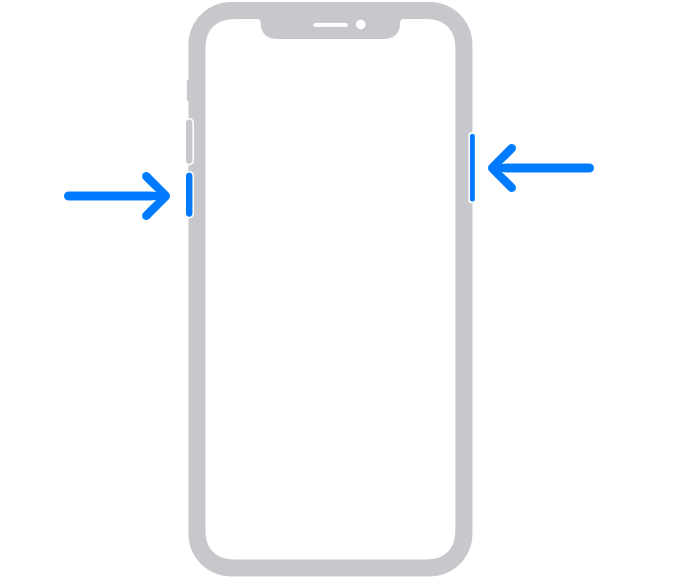
2. Drag the slider, then wait 30 seconds for your device to turn off. If your device is frozen or unresponsive, force restart your device.
3. To turn your device back on, press and hold the side button (on the right side of your iPhone) until you see the Apple logo.
If you have a different device, you can find support for other models here: Restart your iPhone - Apple Support
Restart Apple Watch
* Turn off your Apple Watch: Press and hold the side button until the sliders appear, tap  , then drag the Power Off slider to the right.
* Turn on your Apple Watch: Hold down the side button until the Apple logo appears.
Note: You can’t restart your Apple Watch while it’s charging.
Additional resource can be found here: Restart Apple Watch - Apple Support
Finally some information about the Camera Remote can be found here: Use Camera Remote and timer on Apple Watch - Apple Support
Keep us updated.
Take care!


