The process of symbolic link (As suggested by many in the Google Search) never worked for me. However, I have also given the process for creating backup in other drives or external HDD directly, though not approved by Apple Inc.

I would recommend you to make space, take the backup and then copy to another location and delete it from the default place.
Delete or copy backups on your Mac or PC
Don't edit, relocate, rename, or extract content from your backup files, because these actions might ruin the files. Use the following sections to make copies of your backups or delete backups that you no longer need.
Copy backups to another location
If you need copies of your backups, you can find the Backup folder and copy the entire folder (not just part of it) to another place, like an external drive or network-storage location.
When you use Time Machine, it automatically copies your Backup folder when you back up the Home folder on your Mac.
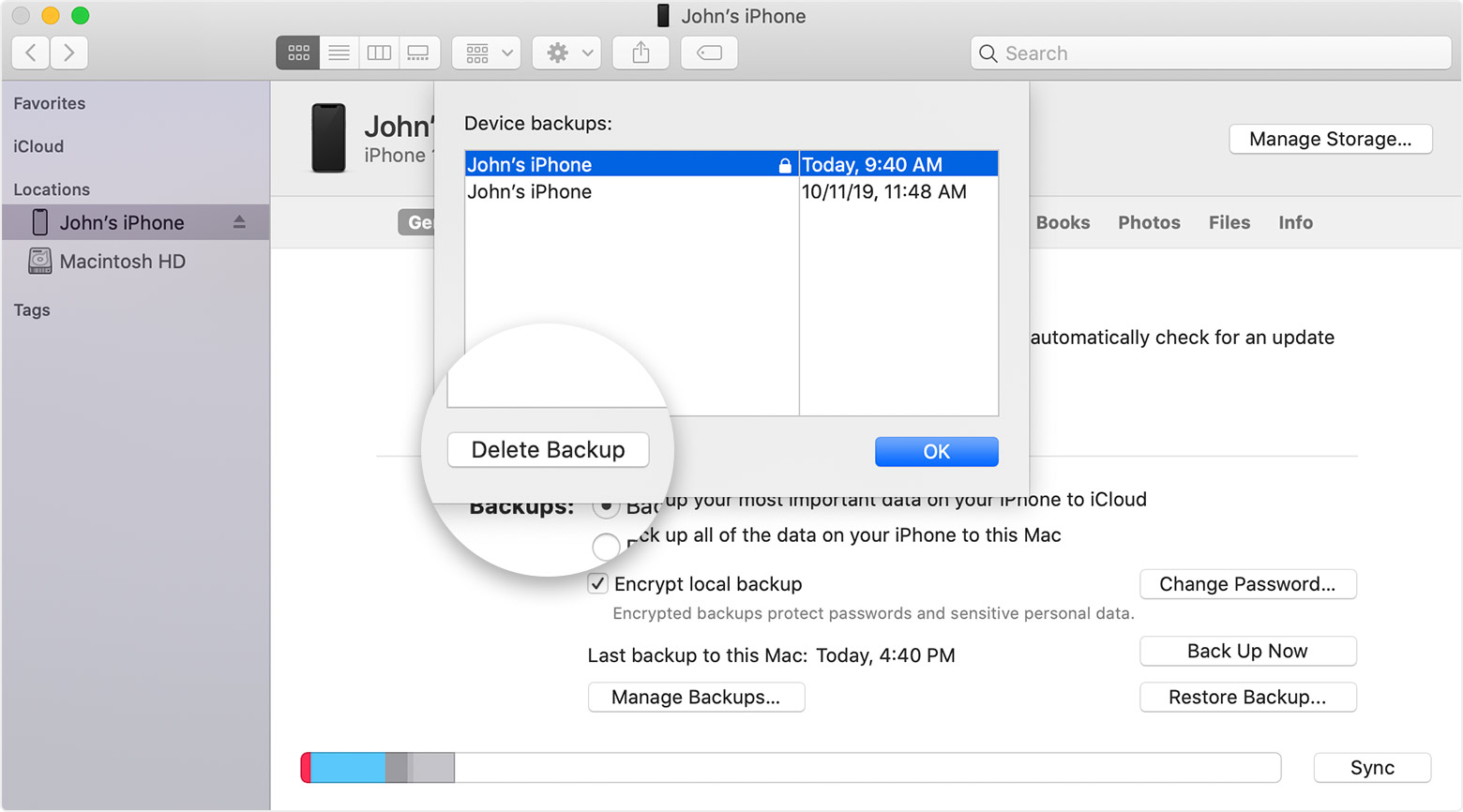
Delete backups
- On a Mac with macOS Catalina 10.15 or later, open the Finder. On a Mac with macOS Mojave 10.14 or earlier, or on a PC, open iTunes. Click your device.
- In the Finder, under the General tab, click Manage Backups to see a list of your backups. From here, you can right-click on the backup that you want, then select Delete or Archive. In iTunes, choose Preferences, then click Devices. From here, you can right-click on the backup that you want, then choose Delete or Archive. Click OK when you're finished.
- Click Delete Backup, then confirm.
However, if you still wish to try the process out then the risk is solely yours.
You need to be well versed with the Terminal app. If you mess up you can never back up again even on your MacPC even on C Drive.
The Process...
You will have to create a symbolic link of the backup. See the Step 3 process on --> https://www.imore.com/how-move-your-iphone-or-ipad-backups-external-hard-drive

