Hey there Dechris_mode,
We can certainly understand your concern and are here to help.
We recommend checking out these steps for more information and how to adjust AirDrop settings and to see if it matches up with your procedure.
"
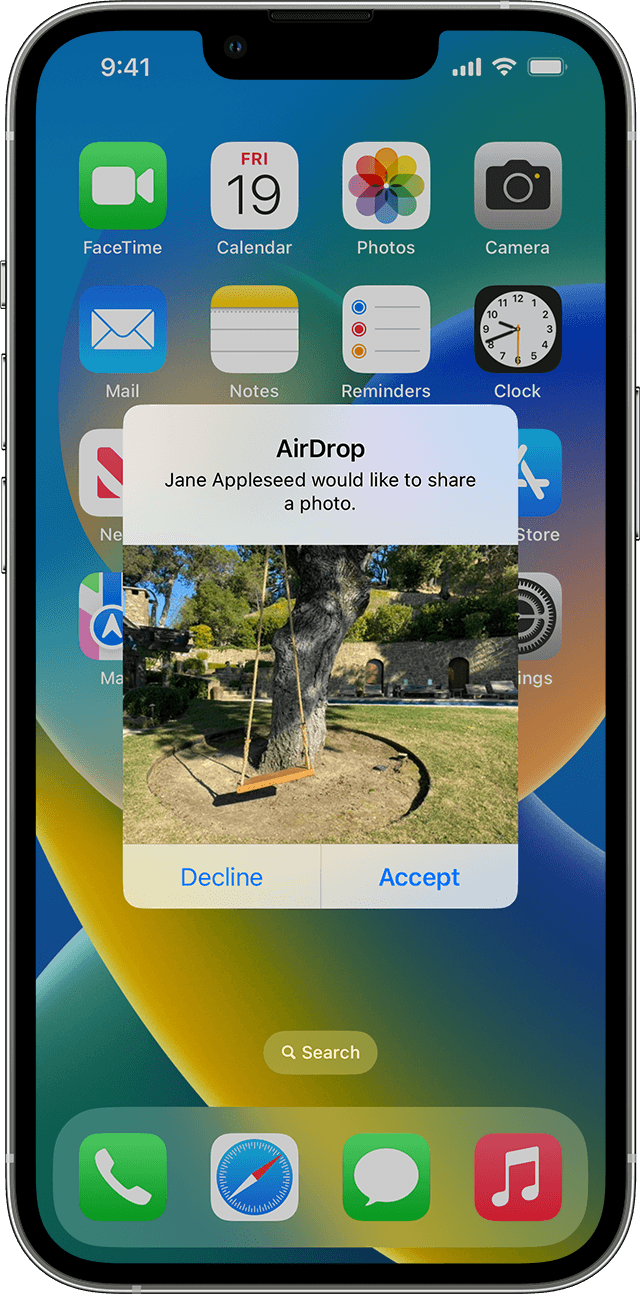
How to accept AirDrop
When someone shares something with you using AirDrop, you see an alert with a preview. You can tap Accept or Decline.
If you tap Accept, the AirDrop will come through within the same app it was sent from. For example, photos appear in the Photos app and websites open in Safari. App links open in the App Store so you can download or purchase the app.
If you AirDrop something to yourself, like a photo from your iPhone to your Mac, you won't see an option to Accept or Decline—it'll automatically get sent to your device. Just make sure that both devices are signed in with the same Apple ID.
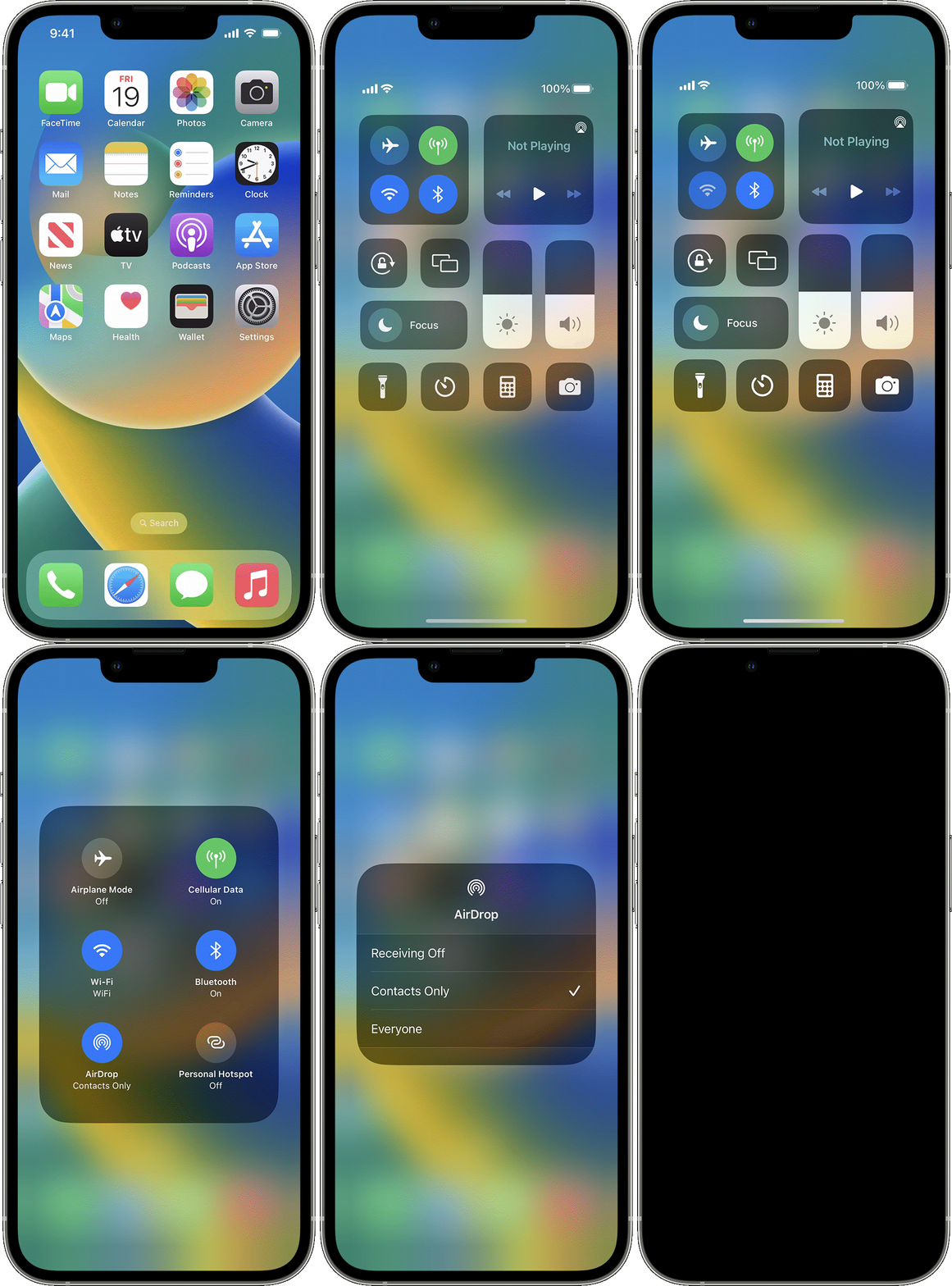
How to adjust AirDrop settings
To choose who can see your device and send you content in AirDrop:
- Go to Settings, then tap General.
- Tap AirDrop, then choose an option.
You can also set your AirDrop options in Control Center:
- On iPhone X or later, swipe down from the upper-right corner of the screen to open Control Center. Or follow the same motion to open Control Center on your iPad with iOS 12 or later or iPadOS. On your iPhone 8 or earlier, swipe up from the bottom of the screen.
- Press firmly or touch and hold the network settings card in the upper-left corner.
- Touch and hold the AirDrop button , then choose one of these options:
- Receiving Off: You won't receive AirDrop requests.
- Contacts Only: Only your contacts can see your device.
- Everyone: All nearby Apple devices using AirDrop can see your device. When you set your AirDrop option to Everyone in iOS 16.2 or later, your option reverts to Contacts Only after 10 minutes.
If you see Receiving Off and can't tap to change it:
- Go to Settings > Screen Time.
- Tap Content & Privacy Restrictions.
- Tap Allowed Apps and make sure that AirDrop is turned on. "
For additional information, check out this link: How to use AirDrop on your iPhone or iPad - Apple Support
These steps will help ensure your device is working with ease and can fix common issues like the ones you’re experiencing.
Kindest regards!