iMac won’t stay connected to wifi

My iPads and iPhone are working fine with my starlink wifi. My desktop iMac will connect to wifi, but then the connection is dropped after 1-2 minutes, and I have to reconnect. It then drops the connection again. It won’t stay connected. I’ve unplugged and restarted the computer, and done the same to starlink with no changes. Any other ideas?

iMac 24″, macOS 12.5

Posted on Feb 22, 2023 3:14 AM

Reply
Question marked as Top-ranking reply

Posted on Feb 23, 2023 7:50 AM

Hello amandkm,


To help us get a better understanding of the issue, we’d like to ask a few questions.


1. Does this happen with any other networks, or only that specific network?

2. Do you receive any specific errors when the Wi-Fi disconnects? If so, what does the error say?


The above details will help us plan how to proceed.


Please also check out this link, which has some information and suggestions that can help if your Mac isn't connecting to Wi-Fi as expected: If your Mac isn't connecting to the internet over Wi-Fi


If your Mac is connected to a Wi-Fi network but can't connect to websites, email, and all other internet services, try these solutions.

To connect to the internet over Wi-Fi, your Mac must first be connected to a Wi-Fi network, and that network must provide a connection to the internet. To connect to a Wi-Fi network, click Wi-Fi  in Control Center or the menu bar, then choose a network from the menu. If websites, email, and all other internet services remain unavailable after connecting to Wi-Fi, try the following solutions.

Restart your Mac
Restarting might help because your Mac then automatically renews the internet address it was assigned when joining the Wi-Fi network. Or you can renew the IP address manually. This is known as renewing the DHCP lease. If the lease expired and the address is already in use by another device, your Mac is assigned a new address.

Update your Mac
Update the software on your Mac, and make sure that the date and time are set correctly.

Check VPN or other security software
If you installed VPN or other software that monitors or interacts with your network connections, that software could be affecting access to the internet. Learn about network issues related to VPN and other software

Use the built-in diagnostic tools
Wi-Fi Recommendations. Click Wi-Fi  in Control Center or the menu bar and check for a menu item named Wi-Fi Recommendations. If you see it, your Mac has detected an issue and has recommendations. Choose Wi-Fi Recommendations to learn more.*
Wireless Diagnostics. Press and hold the Option key on your keyboard while clicking Wi-Fi  in Control Center or the menu bar, then choose Open Wireless Diagnostics from the menu. Learn more about using Wireless Diagnostics to analyze your wireless environment.
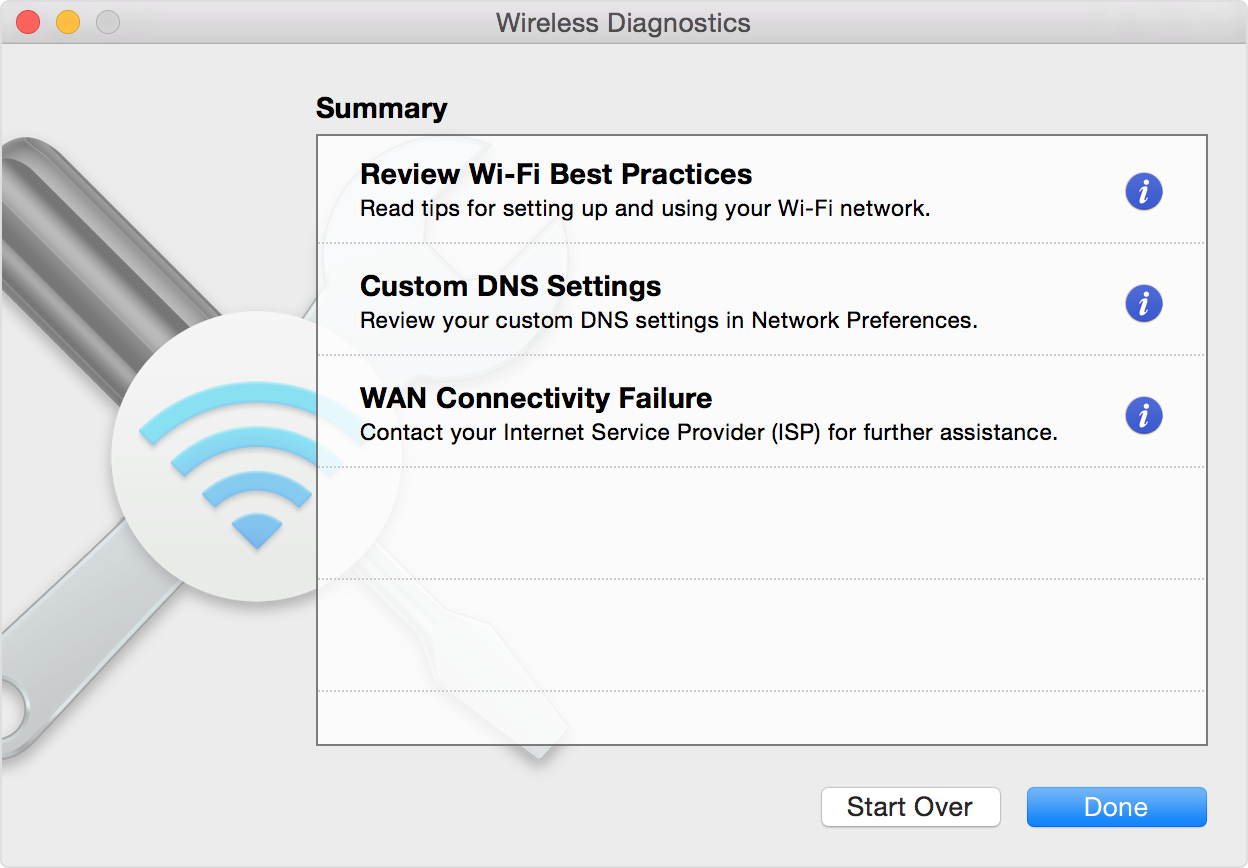
Wireless Diagnostics window, showing diaganostic results
Update the Wi-Fi router
If you manage the network's Wi-Fi router, install the latest firmware updates for the router, as recommended by its manufacturer. It might also help to simply restart the router and use Apple's recommended settings for Wi-Fi routers and access points.

Try a different network or contact your ISP
If you can access the internet when connected to a different network, or you're not sure, check with your network administrator or Internet Service Provider (ISP) to make sure that your network is working properly.


Thanks!

3 replies
Question marked as Top-ranking reply

Feb 23, 2023 7:50 AM in response to amandkm

Hello amandkm,


To help us get a better understanding of the issue, we’d like to ask a few questions.


1. Does this happen with any other networks, or only that specific network?

2. Do you receive any specific errors when the Wi-Fi disconnects? If so, what does the error say?


The above details will help us plan how to proceed.


Please also check out this link, which has some information and suggestions that can help if your Mac isn't connecting to Wi-Fi as expected: If your Mac isn't connecting to the internet over Wi-Fi


If your Mac is connected to a Wi-Fi network but can't connect to websites, email, and all other internet services, try these solutions.

To connect to the internet over Wi-Fi, your Mac must first be connected to a Wi-Fi network, and that network must provide a connection to the internet. To connect to a Wi-Fi network, click Wi-Fi  in Control Center or the menu bar, then choose a network from the menu. If websites, email, and all other internet services remain unavailable after connecting to Wi-Fi, try the following solutions.

Restart your Mac
Restarting might help because your Mac then automatically renews the internet address it was assigned when joining the Wi-Fi network. Or you can renew the IP address manually. This is known as renewing the DHCP lease. If the lease expired and the address is already in use by another device, your Mac is assigned a new address.

Update your Mac
Update the software on your Mac, and make sure that the date and time are set correctly.

Check VPN or other security software
If you installed VPN or other software that monitors or interacts with your network connections, that software could be affecting access to the internet. Learn about network issues related to VPN and other software

Use the built-in diagnostic tools
Wi-Fi Recommendations. Click Wi-Fi  in Control Center or the menu bar and check for a menu item named Wi-Fi Recommendations. If you see it, your Mac has detected an issue and has recommendations. Choose Wi-Fi Recommendations to learn more.*
Wireless Diagnostics. Press and hold the Option key on your keyboard while clicking Wi-Fi  in Control Center or the menu bar, then choose Open Wireless Diagnostics from the menu. Learn more about using Wireless Diagnostics to analyze your wireless environment.
Wireless Diagnostics window, showing diaganostic results
Update the Wi-Fi router
If you manage the network's Wi-Fi router, install the latest firmware updates for the router, as recommended by its manufacturer. It might also help to simply restart the router and use Apple's recommended settings for Wi-Fi routers and access points.

Try a different network or contact your ISP
If you can access the internet when connected to a different network, or you're not sure, check with your network administrator or Internet Service Provider (ISP) to make sure that your network is working properly.


Thanks!

Feb 23, 2023 9:41 AM in response to amandkm

Hey amandkm,


Thanks for letting us know what situation you're currently facing. It's possible that there may be an issue with your network card or other hardware related issues.


Another method we can try is connecting your iMac through ethernet cable. To do this, follow the steps from this user guide here: Connect your Mac to the internet using Ethernet


If that doesn't work either, then we recommend that you get in touch with Apple Support team next: Contact Apple for support and service


Let us know how it goes!


Best regards.


Feb 23, 2023 9:06 AM in response to Brittany1416

Hi there, we only have one network at home. It is through Starlink. We don’t get an error message when the Wi-Fi disconnects it’s simply no longer responds. We can’t update the operating system because we can’t stay connected long enough. We can’t run Wi-Fi diagnostics either because again it will not stay connected. About a month ago we had a problem after a power outage where we couldn’t connect to the Internet at all with the desktop even though all other devices were fine. I’m wondering if there’s a specific problem with our desktop but I don’t know how to diagnose it. Do you think we should do a phone call diagnostics? Many thanks I’d be happy to try to set up a date and time to talk with someone.

This thread has been closed by the system or the community team. You may vote for any posts you find helpful, or search the Community for additional answers.

iMac won’t stay connected to wifi

Welcome to Apple Support Community
A forum where Apple customers help each other with their products. Get started with your Apple Account.
