Where is the “Get File” action in shortcuts?

I am trying to locate the “Get File” action is Shortcuts, based on some tutorials I read. It is not there. I noticed that both the “File” and “Select File” actions share the same icon as “Get File”, based on my observations in the tutorials. Are they the same thing?

iPhone 11, iOS 16

Posted on Feb 22, 2023 2:50 PM

Reply
8 replies

Feb 23, 2023 3:07 PM in response to DrnkThAplKulAde

Hello DrnkThAplKulAde,


Thank you for reaching out in Apple Support Communities. In the Shortcuts User Guide, get actions is what's available in Shortcuts. We're not seeing an option about "Get File" in the user guide. Here's more information:


About get actions in Shortcuts on iPhone or iPad

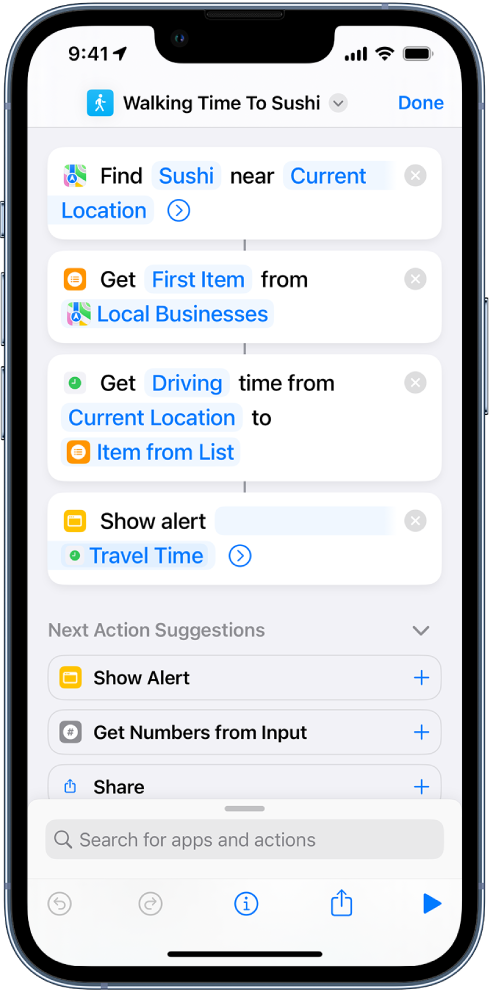
Get actions collect content and add it to a shortcut. As you build your shortcut, you can search for get actions in the action list by entering keywords like getsearchfind, and select. Actions like Get Latest Photos, Search Local Businesses, and Find Music look into their respective apps, get content, and then send it to the next action.

Shortcut editor showing a Get action.

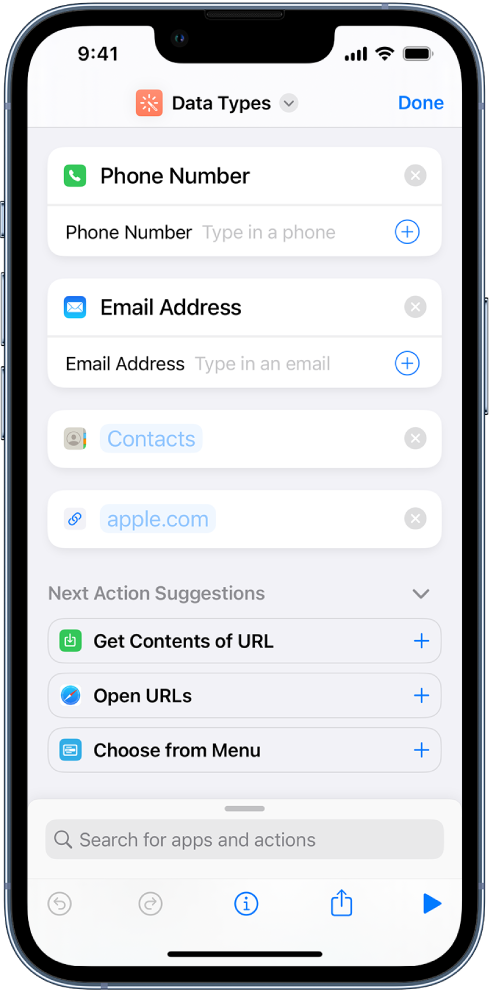
Additionally, there are actions that let you enter data directly into the shortcut, either manually or using variables. These actions include Date, Street Address, Phone Number, Text, Contact, Email Address, Dictionary, List, URL, and so on. Using these actions lets you pass a specific type of content into another action in your shortcut.

Shortcut editor showing actions that store content in the shortcut.

When gathering actions at the beginning of your shortcut, ask yourself, “What information does my shortcut need to retrieve each time it’s run?” The answer to this question will help you determine which get actions you might need. Perhaps your shortcut needs to grab photos, music, videos, or health data stored on your device, fetch content from the internet, or ask you to enter text (using the Ask for Input action).

This information is outlined here: About get actions in Shortcuts on iPhone or iPad - Apple Support


Kind regards.


Feb 23, 2023 4:23 PM in response to Alancito

Thank you so much for your reply! I apologize; I should’ve been more specific from the very start! I am trying to extract audio from a video I took with my phone and save the audio in its own file. I went online looking for tutorials and several suggested creating a shortcut as opposed to downloading a separate app. I am new to shortcuts and have never used the app to create one, so it’s been very confusing for me. The tutorials instruct to choose the “Get File” action to begin creating the shortcut, and this step is where my confusion begins! Any additional help or tutorials would be greatly appreciated. I’ve included an image from one tutorial that corresponds with the instruction in question. Thank you in advance!

Feb 23, 2023 4:28 PM in response to bryanr14

Thank you so much for your reply! I apologize; I should’ve been more specific from the very start! I am trying to extract audio from a video I took with my phone and save the audio in its own file. I went online looking for tutorials and several suggested creating a shortcut as opposed to downloading a separate app. I am new to shortcuts and have never used the app to create one, so it’s been very confusing for me. The tutorials instruct to choose the “Get File” action to begin creating the shortcut, and this step is where my confusion begins! Any additional help or tutorials would be greatly appreciated. I’ve included an image from one tutorial that corresponds with the instruction in question. Thank you in advance!

Feb 24, 2023 10:00 AM in response to DrnkThAplKulAde

DrnkThAplKulAde ~ I created a custom shortcut to extract audio from a video. Tap its iCloud link below to add it to your Shortcuts library:


Photos App Video to Audio


Here's the first way to use it:

  • In Shortcuts app, tap the Photos App Video to Audio shortcut.
  • It opens the Photos app to choose the video to convert.
  • Wait for it to convert (Siri will say: "Audio ready.")
  • Then tap the Share icon to share or save the resulting audio file.


Here's the second way to use it:

  • In Photos app, choose the video to convert.
  • Tap the Share icon and then tap Photos App Video to Audio.
  • Wait for it to convert (Siri will say: "Audio ready.")
  • Then tap the Share icon to share or save the resulting audio file.


Shortcuts User Guide for iPhone and iPad


Shortcuts User Guide for Mac


õ¿õ¬

This thread has been closed by the system or the community team. You may vote for any posts you find helpful, or search the Community for additional answers.

Where is the “Get File” action in shortcuts?

Welcome to Apple Support Community
A forum where Apple customers help each other with their products. Get started with your Apple Account.