
2 or 3 iPhone 📱 connected
Why does it show under my devices 1 iPhone 11 and then IPhone, IPhone 11.
I only own 1 IPhone 📲
iPhone 11, 16
Why does it show under my devices 1 iPhone 11 and then IPhone, IPhone 11.
I only own 1 IPhone 📲
iPhone 11, 16
Hi Cmone1,
If you don't recognize a device signed into your Apple ID, use the following steps to locate and remove it:
"Find where you're signed in
Follow these steps to find the devices that you're currently signed in to with your Apple ID.
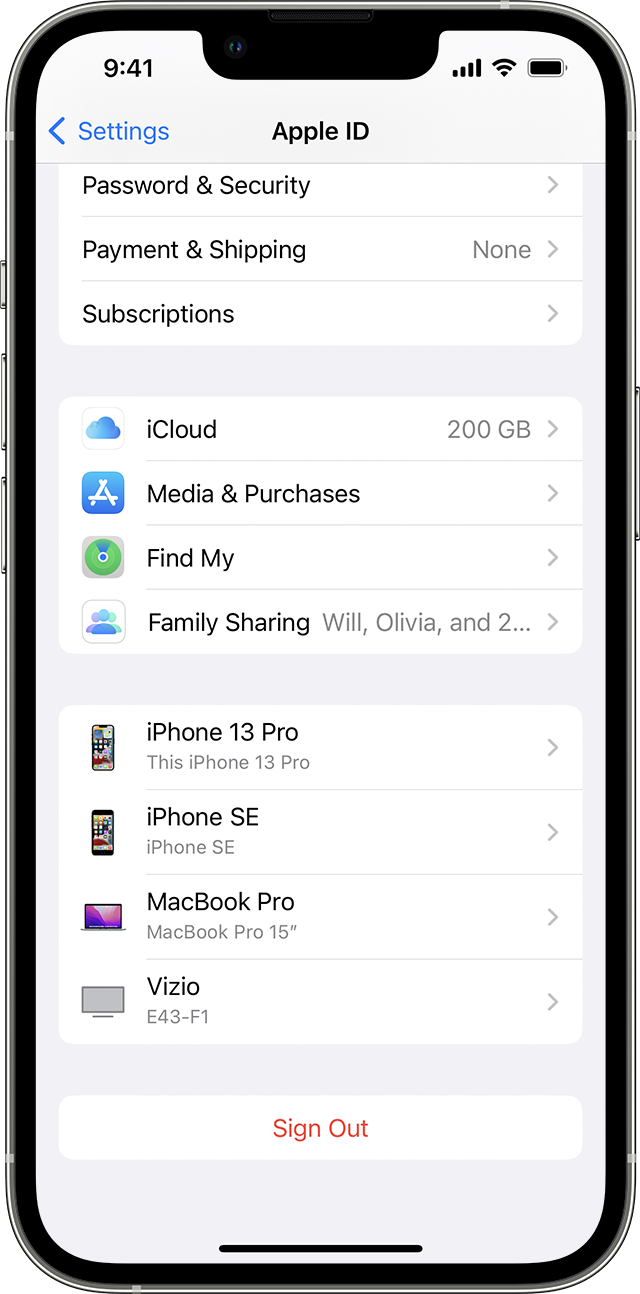
Use your iPhone, iPad, iPod touch, or Apple Watch to find where you're signed in
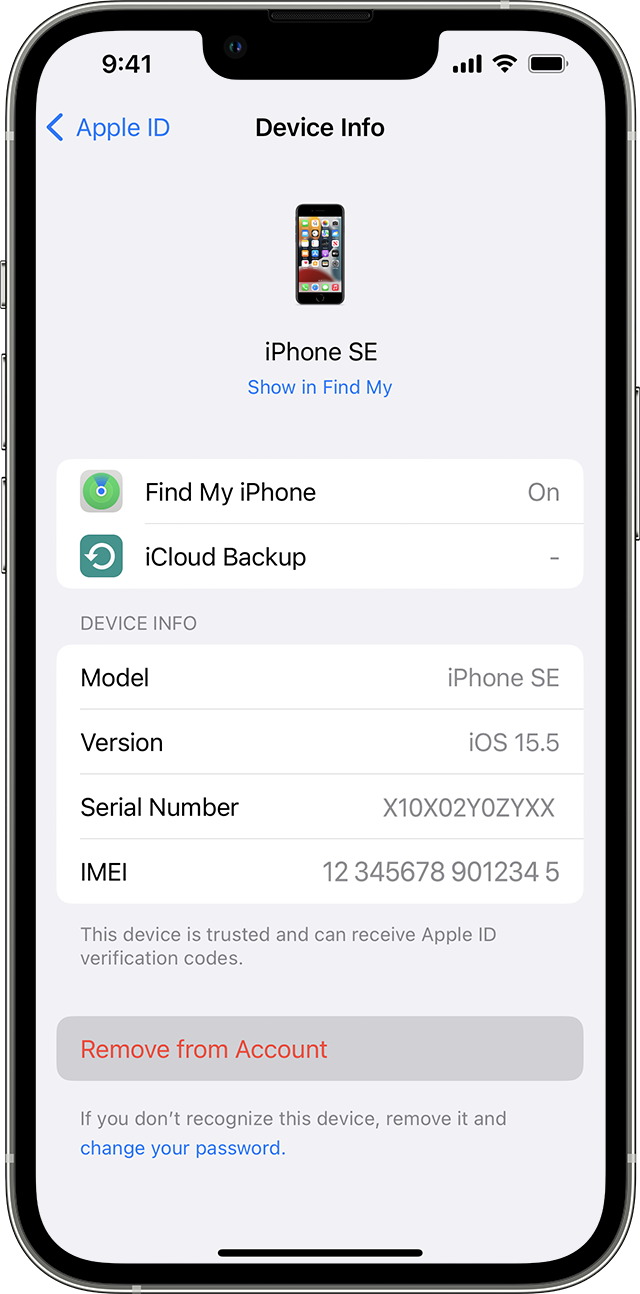
Remove a device from the list
If your device is missing, you can use Find My to find your device and take additional actions that can help you recover it and keep your data safe.
If you aren't using your device anymore, or if you don't recognize a listed device, you should remove it from the list.
If you set up two-factor authentication for your Apple ID, removing a device will ensure that it can no longer display verification codes. It also won't have access to iCloud and other Apple services, including Find My, until you sign in again with two-factor authentication. The device won't reappear in the list unless you sign in again.
You can also permanently remove a device from your account page
"
Check your Apple ID device list to find where you're signed in - Apple Support
Cheers.
Hi Cmone1,
If you don't recognize a device signed into your Apple ID, use the following steps to locate and remove it:
"Find where you're signed in
Follow these steps to find the devices that you're currently signed in to with your Apple ID.
Use your iPhone, iPad, iPod touch, or Apple Watch to find where you're signed in
Remove a device from the list
If your device is missing, you can use Find My to find your device and take additional actions that can help you recover it and keep your data safe.
If you aren't using your device anymore, or if you don't recognize a listed device, you should remove it from the list.
If you set up two-factor authentication for your Apple ID, removing a device will ensure that it can no longer display verification codes. It also won't have access to iCloud and other Apple services, including Find My, until you sign in again with two-factor authentication. The device won't reappear in the list unless you sign in again.
You can also permanently remove a device from your account page
"
Check your Apple ID device list to find where you're signed in - Apple Support
Cheers.
2 or 3 iPhone 📱 connected

