I didn’t get a Apple ID verification code

Hello, I’m home now, just cooking dinner, I just set up the timer for 25 min, I’m trying to wait and get ready for dinner!!


every time I sign in to iCloud, it’s asking for a verification code, I even checked my gmail for a verification code from Apple ID and every time when you check your Google account, it’s nothing there! It’s Apple problem and not and I tried to resend a code! The message states: A message with a verification code has been sent to (•••) •••-••25. Enter the code to continue. The options is resend a code but I’ve been trying it for a hour now


background: I am contacting Apple support to help this verification code problem and they are waiting now and I’m stuck to this screen, I have to wait


a minute later, we are chatting Apple support and I typed your message and they are waiting for a response back from Apple support


so I was trying to help this problem and they are requiring me to get a verification code and then they disconnected me


what Should I do to get a verification code to this number???


thank you


iPhone 12 Pro

Posted on Mar 10, 2023 8:09 PM

Reply
Question marked as Top-ranking reply

Posted on Mar 12, 2023 12:41 PM

Hello AnthonyHello_Evening,


You should be receiving this code as a message to your phone number, not an email.


Here's how you could receive the verification code: Get a verification code and sign in with two-factor authentication - Apple Support


Get a verification code and sign in with two-factor authentication

With two-factor authentication, you’ll need a verification code to sign in with your Apple ID on a new device or browser.

Whenever you sign in with your Apple ID on a new device or browser, you'll confirm your identity with your password plus a six-digit verification code. There are a few ways you can get a verification code. You can use the code displayed on your trusted device, get a text or phone call, or generate a code from your trusted device.

If you use iOS 11.3 or later on your iPhone, you might not need to enter a verification code. In some cases, your trusted phone number can be automatically verified in the background on your iPhone. It’s one less thing to do, and your account is still protected with two-factor authentication.

Use the code displayed on your trusted device

If you have a trusted device running iOS 9 and later, OS X El Capitan and later, iPadOS 13 and later, or watchOS 6 and later, the verification code is displayed automatically on your trusted devices.

1. Sign in with your Apple ID and password on a new device or browser.

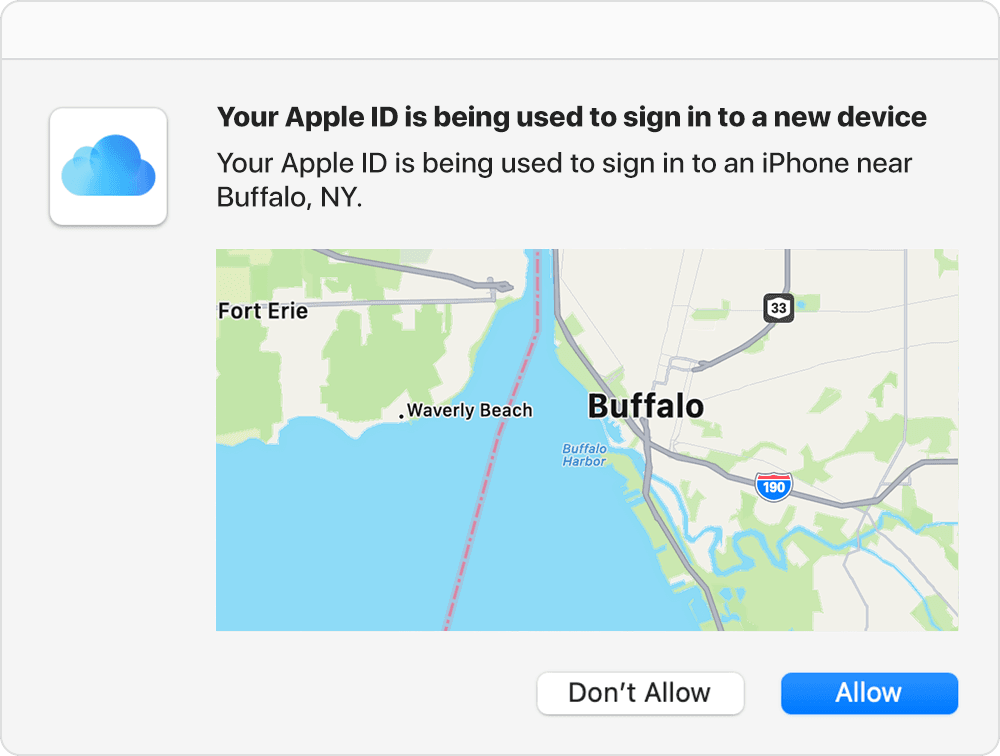
2. Look for a sign in notification on any of your trusted devices.

Map with Buffalo, NY prominently marked on it. The caption indicates that an Apple ID is being used to sign in to an iPhone near Buffalo.

3. Tap Allow to receive your verification code.

4. Enter the verification code on your other device to complete sign in.

Get a text or phone call

If you don’t have a trusted device handy, you can have a verification code sent to your trusted phone number as a text message or phone call.

1. Click Didn't get a verification code on the sign in screen.

2. Choose to have the code sent to your trusted phone number.

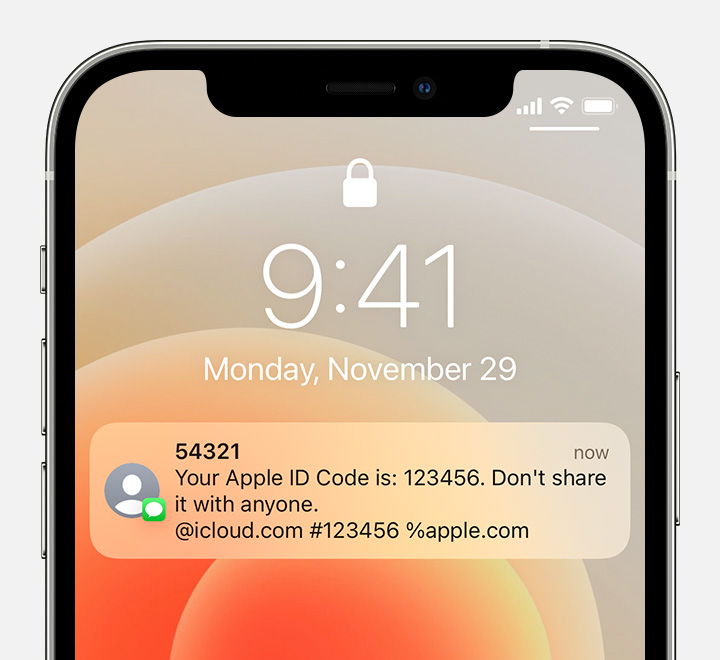
3. You'll get a text message or phone call from Apple with your verification code. This text message might include an additional domain validation line. This line includes the @ symbol, the website name, and your code (for example: @icloud.com #123456 %apple.com).Receive a text message with your verification code and a domain validation line

4. Enter the code on your other device to complete sign in.

Get a code from Settings on your trusted device

If you can’t receive a verification code on your trusted devices automatically, you can get one from Settings, even if your device is offline.

From your iPhone, iPad, or iPod touch

If your device is online:

1. Go to Settings > [your name].

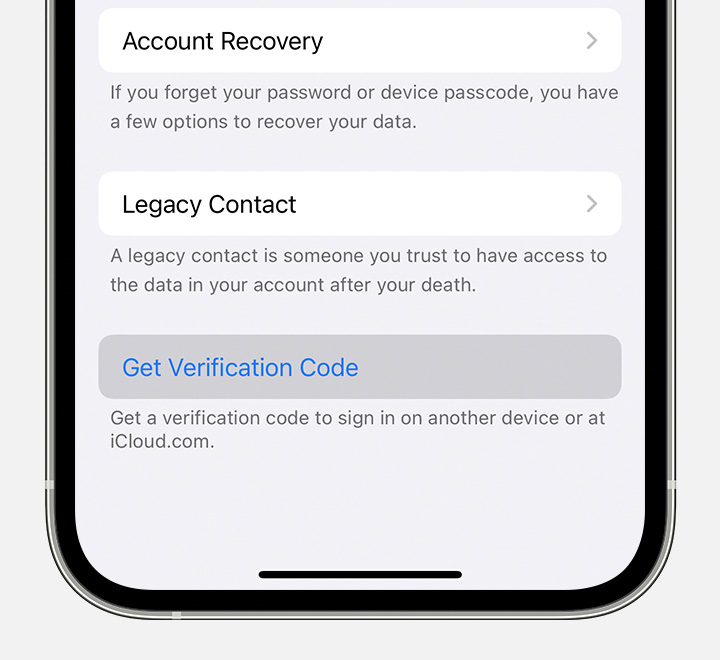
2. Tap Password & Security > Get Verification Code.

iPhone screen showing how to get a verification code from Settings.

If your device is offline:

1. Go to Settings > [your name].

2. Tap Password & Security. 

3. A message says "Account Details Unavailable." Tap Get Verification Code.

From your Mac

1. Go to Apple menu  > System Preferences, then click Apple ID.

2. Click Password & Security > Get Verification Code.

If you still can't sign in

If you can’t sign in, reset your password, or receive verification codes, you can request account recovery to regain access to your account. Account recovery might take a few days or longer, depending on the specific account information you can provide to verify your identity.


If these steps don't solve the issue, then you'd need to start account recovery. Use the link in the last section to start this process. Keep in mind, Apple Support is unable to assist with account recovery.


Hoping this helps out.


Take care.

1 reply
Question marked as Top-ranking reply

Mar 12, 2023 12:41 PM in response to AnthonyHello_Evening

Hello AnthonyHello_Evening,


You should be receiving this code as a message to your phone number, not an email.


Here's how you could receive the verification code: Get a verification code and sign in with two-factor authentication - Apple Support


Get a verification code and sign in with two-factor authentication

With two-factor authentication, you’ll need a verification code to sign in with your Apple ID on a new device or browser.

Whenever you sign in with your Apple ID on a new device or browser, you'll confirm your identity with your password plus a six-digit verification code. There are a few ways you can get a verification code. You can use the code displayed on your trusted device, get a text or phone call, or generate a code from your trusted device.

If you use iOS 11.3 or later on your iPhone, you might not need to enter a verification code. In some cases, your trusted phone number can be automatically verified in the background on your iPhone. It’s one less thing to do, and your account is still protected with two-factor authentication.

Use the code displayed on your trusted device

If you have a trusted device running iOS 9 and later, OS X El Capitan and later, iPadOS 13 and later, or watchOS 6 and later, the verification code is displayed automatically on your trusted devices.

1. Sign in with your Apple ID and password on a new device or browser.

2. Look for a sign in notification on any of your trusted devices.

Map with Buffalo, NY prominently marked on it. The caption indicates that an Apple ID is being used to sign in to an iPhone near Buffalo.

3. Tap Allow to receive your verification code.

4. Enter the verification code on your other device to complete sign in.

Get a text or phone call

If you don’t have a trusted device handy, you can have a verification code sent to your trusted phone number as a text message or phone call.

1. Click Didn't get a verification code on the sign in screen.

2. Choose to have the code sent to your trusted phone number.

3. You'll get a text message or phone call from Apple with your verification code. This text message might include an additional domain validation line. This line includes the @ symbol, the website name, and your code (for example: @icloud.com #123456 %apple.com).Receive a text message with your verification code and a domain validation line

4. Enter the code on your other device to complete sign in.

Get a code from Settings on your trusted device

If you can’t receive a verification code on your trusted devices automatically, you can get one from Settings, even if your device is offline.

From your iPhone, iPad, or iPod touch

If your device is online:

1. Go to Settings > [your name].

2. Tap Password & Security > Get Verification Code.

iPhone screen showing how to get a verification code from Settings.

If your device is offline:

1. Go to Settings > [your name].

2. Tap Password & Security. 

3. A message says "Account Details Unavailable." Tap Get Verification Code.

From your Mac

1. Go to Apple menu  > System Preferences, then click Apple ID.

2. Click Password & Security > Get Verification Code.

If you still can't sign in

If you can’t sign in, reset your password, or receive verification codes, you can request account recovery to regain access to your account. Account recovery might take a few days or longer, depending on the specific account information you can provide to verify your identity.


If these steps don't solve the issue, then you'd need to start account recovery. Use the link in the last section to start this process. Keep in mind, Apple Support is unable to assist with account recovery.


Hoping this helps out.


Take care.

This thread has been closed by the system or the community team. You may vote for any posts you find helpful, or search the Community for additional answers.

I didn’t get a Apple ID verification code

Welcome to Apple Support Community
A forum where Apple customers help each other with their products. Get started with your Apple Account.