All devices connect to Wi-Fi except my iPhone SE

All devices connect to Wi-Fi except my iPhone SE. iPad and desktop connect. Password entered. Error message says network operating on Wi-Fi channels in use by several other nearby networks and restarting wireless router might solve the problem. Is this the best idea?


iPhone SE (2nd generation)

Posted on Mar 16, 2023 4:46 PM

Reply
Question marked as Top-ranking reply

Posted on Mar 18, 2023 5:00 PM

Thanks for posting in the Apple Support Communities Illapp789,


We see you linked here from If your iPhone or iPad won't connect to a Wi-Fi network.


Moving forward, we recommend that you continue with the following steps, which do include restarting your iPhone and the router:


1: Make sure that your router is on and that you're within range

If you're too far from your Wi-Fi router, you can't get a signal, so make sure that you're within range.

2: Make sure that Wi-Fi is on and that you can see your network

Go to Settings > Wi-Fi and make sure that Wi-Fi is on. Tap the name of your Wi-Fi network to join. A blue checkmark beside a network name means that you're connected.
If you see Auto Join disabled under Settings > Wi-Fi > [Your Network], tap the More Info button and then tap Auto-Join.
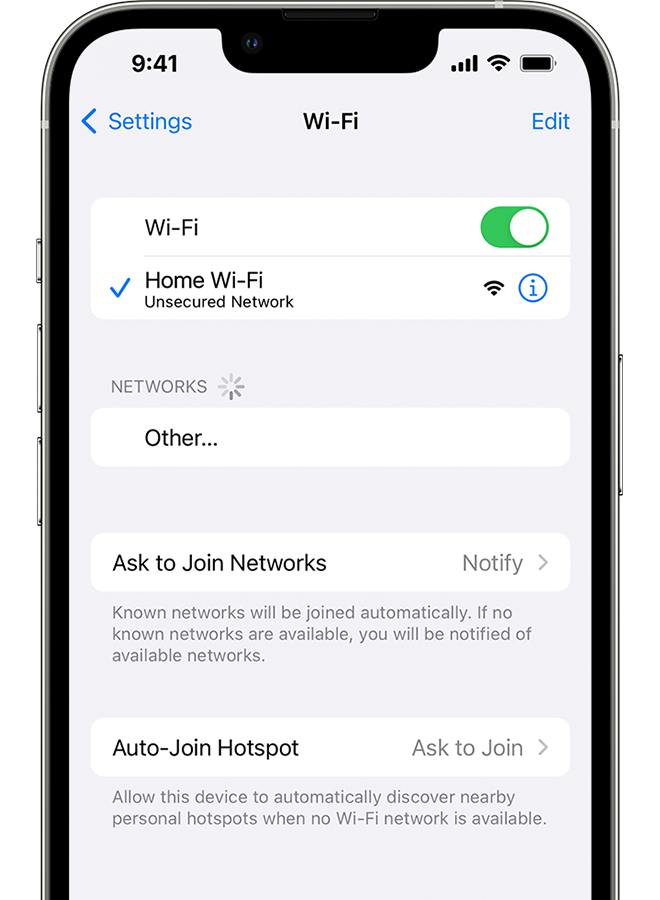
An iPhone showing the Wi-Fi screen. There's a blue a checkmark next to the Wi-Fi network's name.

3: If asked, enter your Wi-Fi password

If asked, enter the password for your Wi-Fi network. Get help if you don't know your password.
Even if you enter the correct password, you might see an "unable to join the network" message or an "incorrect password" message. Restart all of your devices, then try to enter your password again.

4: Check for issues with your Wi-Fi network

If iOS or iPadOS detects an issue with your Wi-Fi connection, you might see a Wi-Fi recommendation under the name of the Wi-Fi network that you're connected to. For example, you might see the alert "No Internet Connection." To get more information, tap the Wi-Fi network.
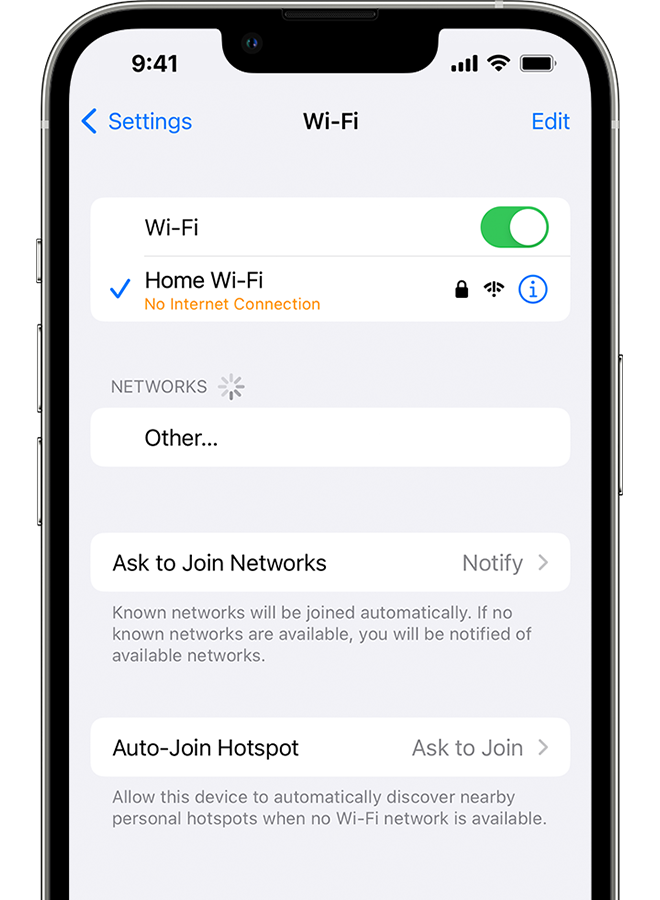
 
An iPhone showing the Wi-Fi screen. There's an alert message under the Wi-Fi network's name.


5: Check your cables and connections

If you still can't connect to your network or get online, make sure that your router is connected to the modem and turned on.

6: Restart

Restart your iOS or iPadOS device.
Restart your router and cable or DSL modem by unplugging the device and then plugging it back in.
After you restart each device, see if you fixed the issue.

7: Reset your network settings

If you're using iOS or iPadOS 15 or later, tap Settings > General > Transfer or Reset [Device] > Reset > Reset Network Settings.
If you're using iOS or iPadOS 14 or earlier, tap Settings > General > Reset > Reset Network Settings.
This also resets Wi-Fi networks and passwords, cellular settings, and VPN and APN settings that you've used before.
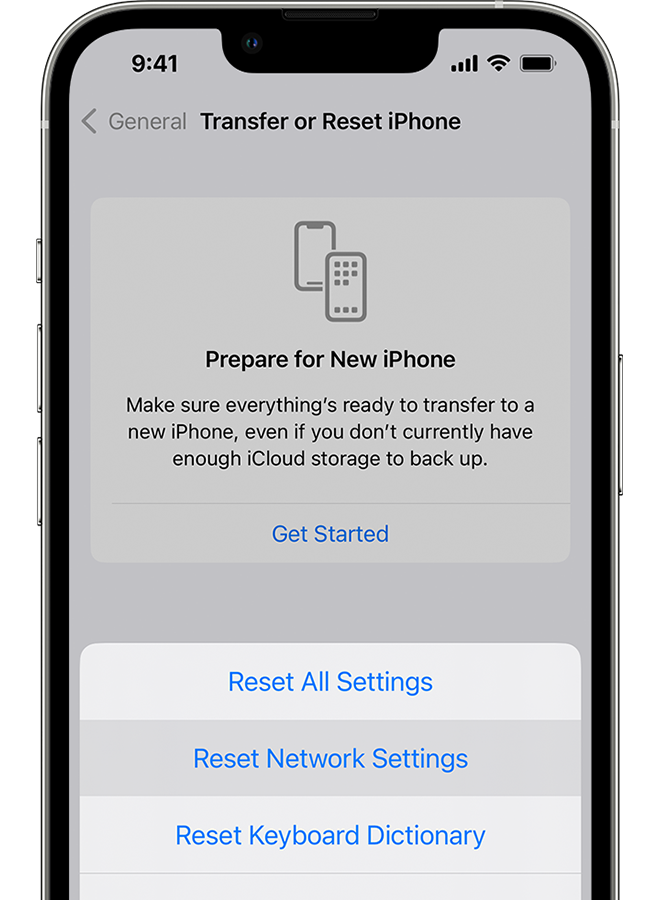
An iPhone showing the Transfer or Reset iPhone screen.

If your iPhone or iPad won't connect to a Wi-Fi network


We hope this helps!

1 reply
Question marked as Top-ranking reply

Mar 18, 2023 5:00 PM in response to Illapp789

Thanks for posting in the Apple Support Communities Illapp789,


We see you linked here from If your iPhone or iPad won't connect to a Wi-Fi network.


Moving forward, we recommend that you continue with the following steps, which do include restarting your iPhone and the router:


1: Make sure that your router is on and that you're within range

If you're too far from your Wi-Fi router, you can't get a signal, so make sure that you're within range.

2: Make sure that Wi-Fi is on and that you can see your network

Go to Settings > Wi-Fi and make sure that Wi-Fi is on. Tap the name of your Wi-Fi network to join. A blue checkmark beside a network name means that you're connected.
If you see Auto Join disabled under Settings > Wi-Fi > [Your Network], tap the More Info button and then tap Auto-Join.

An iPhone showing the Wi-Fi screen. There's a blue a checkmark next to the Wi-Fi network's name.

3: If asked, enter your Wi-Fi password

If asked, enter the password for your Wi-Fi network. Get help if you don't know your password.
Even if you enter the correct password, you might see an "unable to join the network" message or an "incorrect password" message. Restart all of your devices, then try to enter your password again.

4: Check for issues with your Wi-Fi network

If iOS or iPadOS detects an issue with your Wi-Fi connection, you might see a Wi-Fi recommendation under the name of the Wi-Fi network that you're connected to. For example, you might see the alert "No Internet Connection." To get more information, tap the Wi-Fi network.
 
An iPhone showing the Wi-Fi screen. There's an alert message under the Wi-Fi network's name.


5: Check your cables and connections

If you still can't connect to your network or get online, make sure that your router is connected to the modem and turned on.

6: Restart

Restart your iOS or iPadOS device.
Restart your router and cable or DSL modem by unplugging the device and then plugging it back in.
After you restart each device, see if you fixed the issue.

7: Reset your network settings

If you're using iOS or iPadOS 15 or later, tap Settings > General > Transfer or Reset [Device] > Reset > Reset Network Settings.
If you're using iOS or iPadOS 14 or earlier, tap Settings > General > Reset > Reset Network Settings.
This also resets Wi-Fi networks and passwords, cellular settings, and VPN and APN settings that you've used before.

An iPhone showing the Transfer or Reset iPhone screen.

If your iPhone or iPad won't connect to a Wi-Fi network


We hope this helps!

This thread has been closed by the system or the community team. You may vote for any posts you find helpful, or search the Community for additional answers.

All devices connect to Wi-Fi except my iPhone SE

Welcome to Apple Support Community
A forum where Apple customers help each other with their products. Get started with your Apple Account.