Hello empoliti,
Thank you for reaching out in Apple Support Communities. In the Camera app of your iPhone, there's different features to help enhance your photos that can help. There's Photographic Styles that you can customize for Rich Contrast, Vibrant, Warm or Cool. You can also adjust the tone and warmth of the photos. Here's a helpful article with additional details, as we encourage for you to make these adjustments and see if it helps capture the best quality photos:
About the Camera features on your iPhone
Learn about Photographic Styles, QuickTake, Action mode, the Ultra Wide camera, and other camera features on your iPhone.
Lock in your look with Photographic Styles
With Photographic Styles on iPhone 13, iPhone SE (3rd generation), and later, you can personalize the look of your images in the Camera app. Choose a preset — Rich Contrast, Vibrant, Warm, or Cool — and if you want, fine-tune it even further by adjusting the Tone and Warmth settings. Set your style once to use your preferred style setting every time you take a photo in Photo mode.
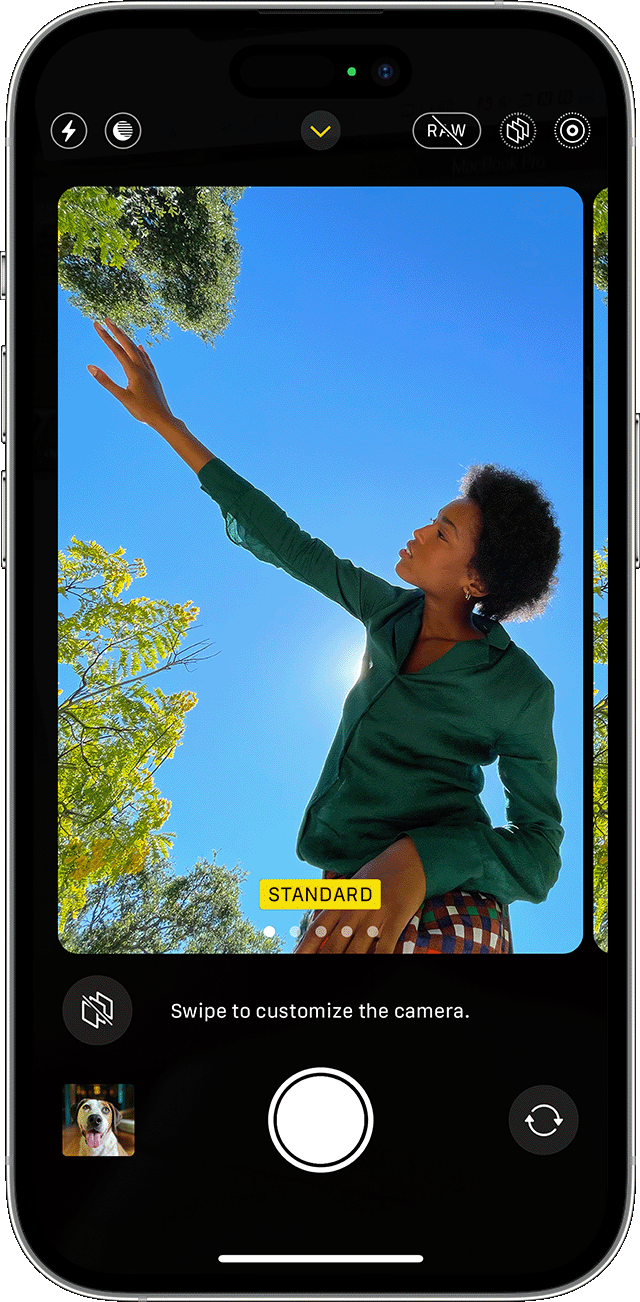
Set up a Photographic Style
When you open the Camera app for the first time, tap Set Up to choose your Photographic Style. Swipe through the different styles and tap Use [Style Name] on the preset that you like.
Make sure to set your style before you start taking photos — you can't add your Photographic Style to a photo after you've already taken it.
Change your Photographic Style
Want to change the Photographic Style that you set? Just open the Camera app, tap the arrow  , and tap Photographic Styles
  . Standard is the default, balanced style that's true to life and can't be customized, but you can swipe left to view other preset styles that are customizable. Tap Customize
  to adjust the Tone and Warmth of the style that you've chosen.

Capture close-ups with macro photos and video
iPhone 13 Pro and later iPhone Pro models include macro photography, using the new Ultra Wide camera with advanced lens and auto-focus system for stunning close-ups with sharp focus as close as 2 centimeters. iPhone 13 Pro and later iPhone Pro models can also shoot macro videos, including slow-motion and time-lapse.
Shooting macro in Photo and Video modes is automatic — just move your iPhone close to the subject and the camera will automatically switch to the Ultra Wide camera if it's not selected, while maintaining your framing. To shoot macro slow-motion or time-lapse videos, select the Ultra Wide camera (.5x) and move close to the subject.
You might see the Camera app transition to the Ultra Wide camera as you move your iPhone close to or away from a subject. You can control automatic macro switching by going to Settings > Camera, then turning on Macro Control. With Macro Control on, your Camera app displays a macro button  when your iPhone is within macro distance of a subject. Tap the macro button to turn off automatic macro switching, and tap it again to turn automatic macro switching back on.
If you turn on Macro Control, automatic macro switching is enabled the next time you use the camera within macro distance. If you want to maintain your Macro Control setting between camera sessions, go to Settings > Camera > Preserve Settings and turn on Macro Control.
Adjust your focus and exposure
Before you take a photo, the camera automatically sets the focus and exposure, and face detection balances the exposure across many faces. You can use Exposure Compensation Control to precisely set and lock the exposure for upcoming shots.
Just tap the arrow , then tap  and adjust your exposure level. The exposure locks until the next time you open the Camera app.
Exposure Compensation Control is available on iPhone 11, iPhone 11 Pro, and later with iOS 14 or later.
Enhance your selfies and Ultra Wide photos
With Lens Correction, when you take a selfie with the front-facing camera or a photo with the Ultra Wide (0.5x) lens, it automatically enhances the photos to make them appear more natural. To turn this off, go to Settings > Camera, and turn off Lens Correction.
Lens Correction is available on iPhone 12 models and later.
Do more with the camera on your iPhone
* Need to capture photos in low-lighting conditions? Learn how to use Night Mode on supported iPhone models.
* Use Live Photos to capture moments with movement and sound.
* Take photos in Apple ProRAW for greater creative control when you edit photos.
* Toggle the Shared Libraries icon  on and off to take pictures that you automatically share with select contacts.
Following these steps can help and is outlined in this article: About the Camera features on your iPhone - Apple Support
Kind regards.


