Hi bobklingon,
Thanks for contacting Apple Support Communities!
We understand that you need to erase your MacBook to sell, and you don't remember the login password, correct?
You can reset the login password as outlined here: If you forgot your Mac login password
"Choose a password-reset option
After you enter a password up to three times, your Mac should show one of these password-reset options.
Option 1: Restart and show password options
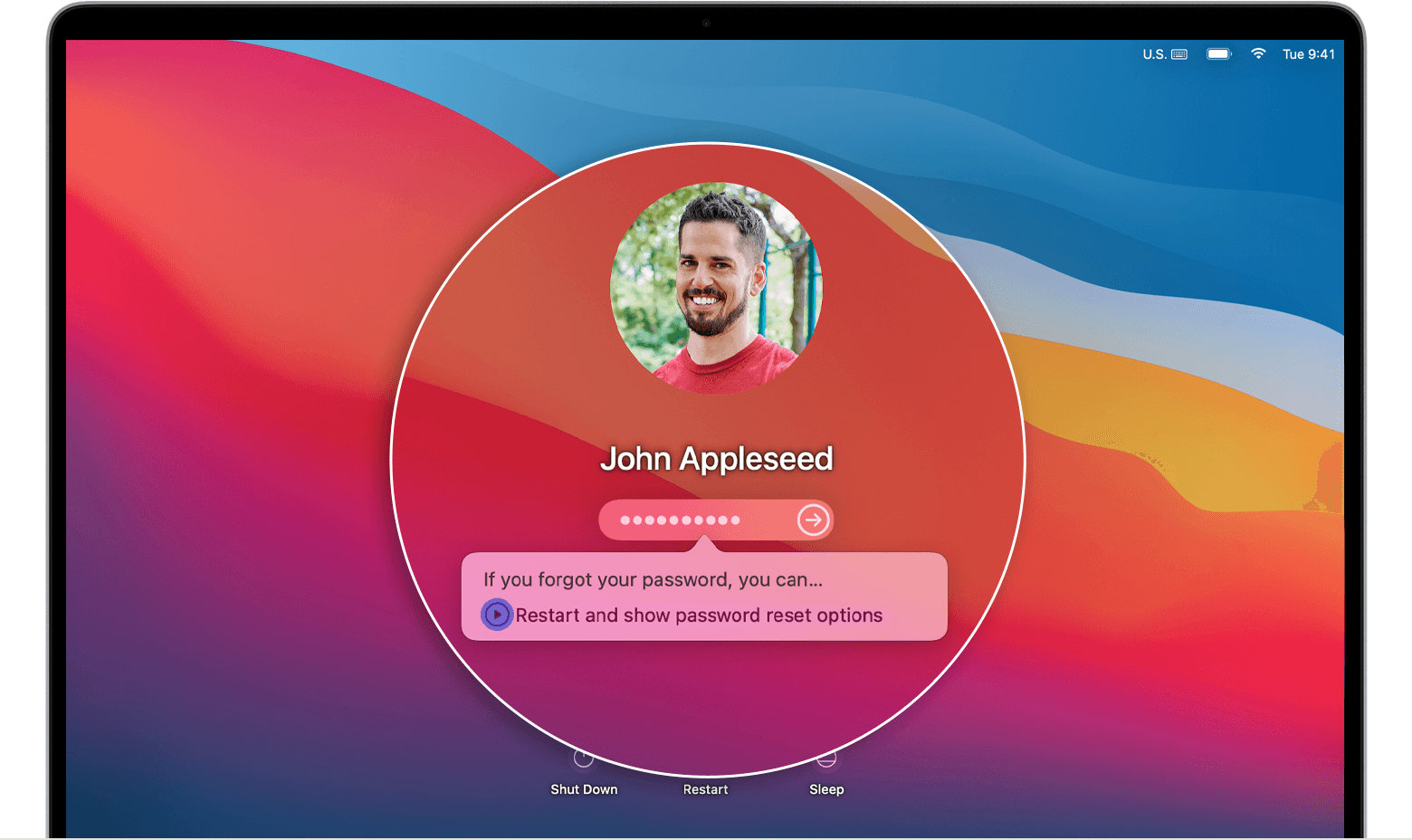
- If you see the option to restart and show password reset options, click it to restart your Mac. Then take one of these steps:
- Sign in with your Apple ID, if asked. You might also be asked to enter the verification code sent to your other devices.
- Enter your FileVault recovery key, if asked. It's the long string of letters and numbers you received when you turned on FileVault and chose to create a recovery key instead of allowing your iCloud account (Apple ID) to unlock your disk.
2. Select a user that you want to reset the password for, then click Next.
3. Enter your new password information, then click Next.
4. When the password reset is completed, click Restart."
If you're unable to reset the password using the steps above, you can start your Mac in macOS Recovery to reset the login password: If you can't reset your Mac login password
"Use the Reset Password assistant
You should now see the utilities window, which shows options such as restoring from Time Machine, reinstalling macOS, and using Disk Utility.
- From the Utilities menu in the menu bar, choose Terminal.
- In the Terminal window, type resetpassword, then press Return to open the Reset Password assistant.
- If you're asked to select an admin user you know the password for, click “Forgot all passwords?”.
- At the Reset Password window, click Deactivate Mac, then click Deactivate to confirm.
- If you see an Activation Lock window, enter your Apple ID email and password, then click Next.
- At the Reset Password window, enter your new password information, then click Next.
- If this window shows multiple user accounts, click the Set Password button next to each account name, then enter the new password information for each account.
- When the password reset is completed, click Exit.
- Choose Apple menu > Restart, then log in with your new password."
Here's another handy resource to help you get your MacBook ready to sell if you need it: What to do before you sell, give away, or trade in your iPhone or iPad - Apple Support
We hope this helps you.
Cheers!


