Music error message
I have been using Apple Music for 3-4 years now and I have have about 30 +\~ songs that are grayed out and won’t play.
I get this - these are songs I’ve played many many times
iPhone 14 Pro Max
I have been using Apple Music for 3-4 years now and I have have about 30 +\~ songs that are grayed out and won’t play.
I get this - these are songs I’ve played many many times
iPhone 14 Pro Max
Hi Jdriensky,
We’d love to help with your Apple Music.
Sometimes removing the song from your Apple Music library and re-adding it will refresh the content. Have you tried this yet?
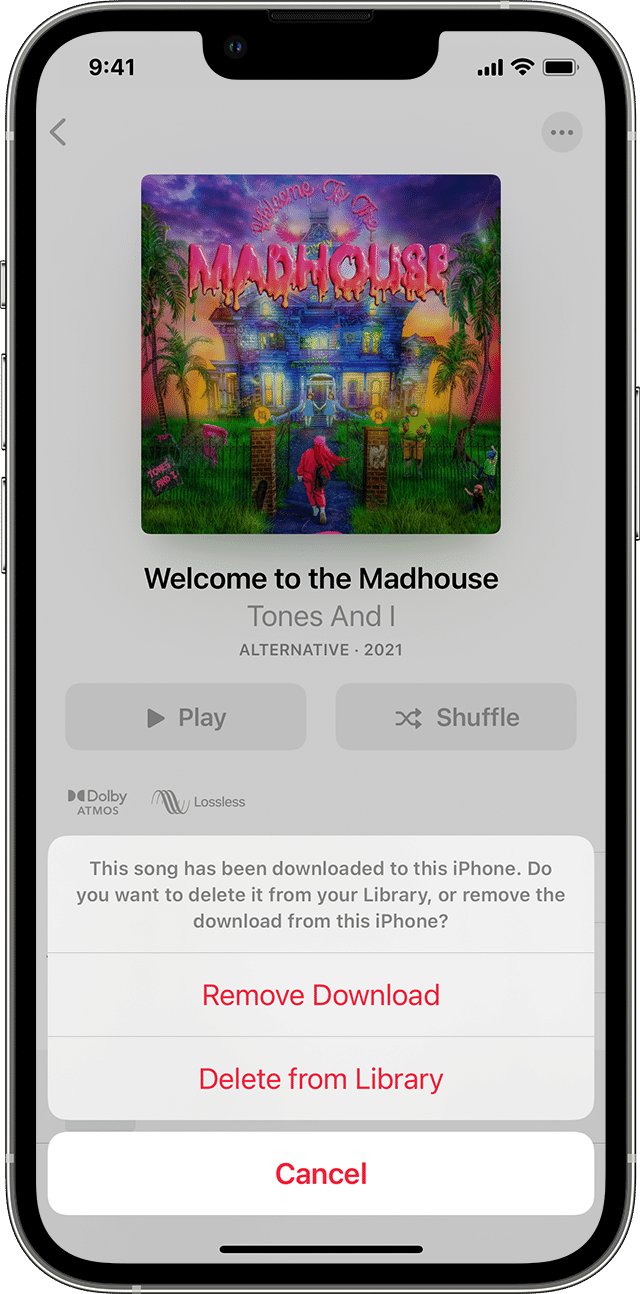
If not, try the steps outlined in Delete music in the Apple Music app with just one song and see if it helps. You'll want to choose "Delete from Library" with these instructions:
Delete music on your iPhone, iPad, iPod touch, or Android device
1. Open the Apple Music app.
2. Go to Library and tap Downloaded to see your downloads. On your iPad, tap Downloaded in the sidebar.
3. Find the song, album, or music video that you want to remove.
4. Touch and hold the item, then tap Remove.
5. Tap Remove Download to remove the item from only this device. Or tap Delete from Library to delete the item across all of your devices.
Once you've deleted the song, you can try to add it again from Apple Music. Add and download music from Apple Music will guide you though those steps.
We hope this helps, and thank you for being part of the Apple Support Communities.
Cheers!
Hi Jdriensky,
We’d love to help with your Apple Music.
Sometimes removing the song from your Apple Music library and re-adding it will refresh the content. Have you tried this yet?
If not, try the steps outlined in Delete music in the Apple Music app with just one song and see if it helps. You'll want to choose "Delete from Library" with these instructions:
Delete music on your iPhone, iPad, iPod touch, or Android device
1. Open the Apple Music app.
2. Go to Library and tap Downloaded to see your downloads. On your iPad, tap Downloaded in the sidebar.
3. Find the song, album, or music video that you want to remove.
4. Touch and hold the item, then tap Remove.
5. Tap Remove Download to remove the item from only this device. Or tap Delete from Library to delete the item across all of your devices.
Once you've deleted the song, you can try to add it again from Apple Music. Add and download music from Apple Music will guide you though those steps.
We hope this helps, and thank you for being part of the Apple Support Communities.
Cheers!
Music error message